Optimizing Your Digital Space

  • Thinking About a Home Battery? My Experience Planning an Anker SOLIX X1 System

    Solar and home battery systems turned out to be far more difficult to approach than I expected when I first started looking into them.

    Most information online jumps straight into specifications, capacities, and acronyms, often without stopping to explain what any of it actually means in day to day use. Without a background in electrical engineering or energy systems, it is easy to feel overwhelmed before you even understand whether a system makes sense for your home.

    That problem is compounded by the fact that many articles assume a perfect scenario. A permanent home, predictable usage, ideal solar conditions, and a buyer who is confident they will never move. For a lot of people, that simply is not reality.

    Once I got past the surface level marketing, I realised how little practical, experience led information there actually was from the point of view of a homeowner trying to make a sensible decision.

    What follows is me working through the decision in public: how I expect to use a home battery system, what the planning and quotation process actually involves, and how the Anker SOLIX X1 compares to both other fixed home battery systems and large portable power stations from brands like EcoFlow and Bluetti.

    The goal is not to tell anyone what to buy. It is to help people understand the benefits, the drawbacks, and the trade offs involved in what is often a very large financial decision.


    Why I Am Considering a Home Battery System

    This was not something I arrived at quickly. I went back and forth on it more than I expected, largely because of the cost and the long term commitment involved.

    The primary goal is to rely less on the grid.

    Electricity grids are highly reliable until they are not. Extreme weather, infrastructure damage, or unexpected events can all lead to outages that disrupt daily life far more than most people anticipate.

    A home battery system changes that relationship. Instead of being entirely dependent on the grid, you gain stored energy that can power essentials such as lighting, refrigeration, networking equipment, and heating or cooling depending on the season.

    In regions where natural disasters or severe weather are a real risk, outages are not hypothetical. They are something households need to plan around rather than dismiss.


    Day to Day Use Versus Emergency Use

    One thing that took me a while to get comfortable with was separating how the system would be used most of the time from how it would be used in a worst case scenario.

    This is not an emergency only setup.

    On a day to day basis, a battery system can be used to smooth household energy usage by storing energy when demand is low and using it when demand is high. It can reduce exposure to peak pricing and provide stability during brief outages or brownouts that would otherwise reset appliances or knock out connectivity.

    In an extended outage scenario, priorities shift to essentials rather than full household usage. That distinction is important when sizing a system realistically.

    The appeal is not just backup power. It is knowing that when the grid goes down, life does not immediately stop.


    What Is the Anker SOLIX X1

    I came across the SOLIX X1 fairly early on in my research, but it took a while for it to click why it was being positioned differently to a lot of other systems.

    The Anker SOLIX X1 is a modular home energy storage system designed to scale over time rather than forcing homeowners into a fixed capacity from day one. On paper that sounds like a small distinction, but in practice it changes how you think about the entire purchase. This was the first aspect of the system that genuinely caught my attention.

    At a high level, this means:

    • Modular battery units that can be added over time
    • Integrated inverter and energy management
    • Support for backup power operation
    • Long term warranty coverage depending on region
    • Designed to integrate with rooftop solar systems

    Rather than oversizing the system upfront, the X1 allows capacity to grow as real world usage becomes clearer.


    Warranty Coverage and Expected Lifespan

    This section took me longer to get my head around than I expected, mostly because warranty language can be surprisingly opaque if you are not used to reading it.

    Warranty terms vary by region, but the design intent is clearly long term residential use rather than short lifecycle consumer hardware.

    In some markets, the system is offered with:

    • Up to 25 year warranties on solar panels
    • Up to 20 year warranties on battery and power management units

    These figures are at the higher end of what is currently offered in the residential energy storage market.

    Long warranty periods are not just a marketing feature. They reflect expected cycle life, thermal management design, and long term degradation modelling. Modern lithium iron phosphate based systems are typically chosen for residential installs because of their stability, safety characteristics, and slower degradation over time.

    The expectation with a system like this is a usable lifespan measured in decades rather than years.


    Modularity and Expansion Over Time

    This is the part of the system I kept coming back to while comparing options, because it has a much bigger impact on long term flexibility than I initially realised.

    What actually matters with the SOLIX X1 is how modularity is implemented, not just the fact that it exists.

    Each battery module is treated by the system as an individual storage unit that is managed collectively through the inverter and energy management system. Capacity is pooled at the system level, but the batteries themselves remain discrete modules rather than a single monolithic pack.

    This matters because it allows additional battery modules to be added later without replacing or reworking the existing installation. Expansion is additive rather than duplicative.

    In practical terms, this allows homeowners to:

    • Install only the capacity they actually need at the start
    • Add more storage later as usage patterns become clear
    • Expand without having to replace the inverter or core system
    • Avoid paying for excess capacity upfront

    This is where the difference starts to matter in real world planning.

    With systems such as the Tesla Powerwall, each unit is a sealed battery with a fixed capacity. If you underestimate your needs, expansion means installing an entire additional Powerwall. While multiple units can be stacked, they are typically sized, planned, and installed together to ensure correct system design and load balancing.

    As a result, Powerwall installations tend to push homeowners toward buying all required capacity upfront. Adding more storage later is possible, but often less straightforward and more expensive than modular expansion.

    By contrast, the X1 approach allows capacity to grow incrementally. You are not doubling capacity in large steps, you are extending it in smaller, controlled increments.

    For most households, accurately predicting ideal battery capacity before living with a system is difficult. Modularity reduces that risk and makes long term planning far more flexible.

    Anker SOLIX X1 modular home battery units shown in a scalable configuration
    An example of the modular design of the Anker SOLIX X1, where battery capacity can be added incrementally rather than all at once

    Comparison With Other Fixed Home Battery Systems

    Many fixed home battery systems target the same core use case but approach it differently.

    Some prioritise high single unit capacity and tight software integration, while others focus on conservative designs backed by long established installer networks. These systems can work very well, but they often require larger upfront commitments and offer limited flexibility after installation.

    The X1 sits in the middle ground. It combines a modular approach with long warranty coverage and a design philosophy that treats the battery as part of the home infrastructure rather than a one off appliance.


    Home Battery Systems Versus Large Portable Power Stations

    This is a comparison I kept coming back to while researching, because on the surface the price difference feels hard to justify.

    A common point of comparison is between fixed home battery systems like the SOLIX X1 and large portable power stations from brands such as EcoFlow or Bluetti.

    At first glance, portable power stations appear far cheaper and more flexible. They can be moved, do not require installation, and often support solar charging.

    However, they serve a very different role.

    Portable power stations are well suited for:

    • Camping and outdoor use
    • Temporary backup during short outages
    • Powering individual appliances
    • Situations where installation is not possible

    Fixed home battery systems are designed for:

    • Automatic whole home or partial home backup
    • Seamless switchover during outages
    • Integration with household wiring
    • Long term daily use over many years

    While portable power stations can act as a stopgap or supplementary solution, they do not replace a permanently installed system. Capacity, output, longevity, and automation are all fundamentally different.

    The higher cost of a fixed system reflects its role as permanent home infrastructure rather than portable equipment.


    Selling Power Back to the Grid

    This was another area that initially sounded more attractive than it turned out to be once I looked into it properly.

    Selling electricity back to the grid can be a benefit where available, but it should not be treated as the primary justification for installing a battery system.

    In many markets, buy back rates are significantly lower than retail electricity prices. As a result, using stored energy yourself is usually more valuable than exporting it.

    Export capability is best seen as an optimisation rather than a guarantee of financial return.


    What Will Decide Whether This Is Worth It

    By this point in the process, I found it useful to step back and write down what actually mattered to me, rather than what looked good on a spec sheet.

    Before committing to a system like this, there are a few criteria that matter more than headline specifications.

    Non negotiables

    These are the points I found myself coming back to repeatedly, regardless of which product or installer I was looking at.

    For my situation, the most important requirements are:

    • Outage resilience, with automatic switchover during power cuts
    • Long warranty coverage that reflects long term use rather than short product cycles
    • Automation and intelligent energy management rather than manual intervention

    In regions where earthquakes or severe weather are a real risk, backup power is not a luxury feature. It is a practical consideration.

    Potential deal breakers

    There are also clear factors that could stop this from making sense entirely:

    • Overall cost, especially if financing or a loan is required
    • Poor installer support or unclear responsibility for long term maintenance
    • A lack of clear expansion options if needs change

    Subsidies and incentives can help offset costs in some regions, but they are often complex. Clear guidance from installers on what is available and how it applies would be a significant factor in the decision.

    Payback expectations

    This is where I had to be honest with myself rather than optimistic.

    Financial payback is a nice to have rather than the primary driver.

    If the system can meaningfully reduce electricity costs over time or help offset financing costs, that is a strong bonus. However, resilience, reliability, and peace of mind matter more than chasing a fast break even point.

    Cost versus peace of mind

    Lower upfront cost is appealing, but not at the expense of reliability or longevity. A system that fails early or cannot be supported long term would undermine the entire point of the investment.


    What Comes Next

    The next step for me is gathering detailed installation quotes and proposals and comparing them properly. This is the part of the process I am in right now.

    That means looking at more than just the final price. System design, warranty handling, automation features, installer support, and long term flexibility all matter. These details often make a bigger difference than small variations in capacity or headline specifications.

    Once those proposals are in hand, the plan is to sit down and evaluate them against real world needs. That includes how the system would be used day to day, how it would behave during outages, and whether it still makes sense given the possibility of a move in around five years.

    Resale value is part of that consideration. A home battery system is unlikely to return its full cost at sale, but if it improves the appeal or value of the property, that changes the equation.

    In future posts, I plan to break down the quotes received, explain the differences between proposals, and walk through the decision making process step by step. The aim is to make this as transparent as possible, because these are exactly the questions most people have when they start looking into home battery systems.

    The real test will be whether the numbers, flexibility, and long term value still make sense once everything is on the table.

  • How I Actually Use a NAS Day to Day After the Setup Phase

    When people talk about NAS devices online, it usually falls into two extremes. Either everything is a shiny demo during the first week, or it turns into an over engineered home lab that barely resembles normal use.

    Both miss what actually matters long term.

    This post is about what ownership looks like after the excitement fades. When the NAS stops being a project and starts being part of daily life. What still runs, what quietly disappeared, and which decisions ended up saving time rather than creating more work.

    If you are trying to decide whether a NAS makes sense beyond the initial setup phase, this is the part that usually gets skipped.


    What runs 24 hours a day

    These are the services that stay on permanently because they deliver value without demanding attention.

    Automated backups (local first, cloud as insurance)

    Local backups are the foundation of my setup. Both my MacBook and my wife’s MacBook back up automatically to the NAS, and our iPhone photo libraries are included as well. Once configured, this becomes invisible. Devices back up when they are on the network, and there is nothing to remember or trigger manually.

    On top of that, I use Azure Blob Storage as an off site insurance layer, not as a requirement and not as something I would tell everyone to do.

    If you are running a four bay NAS with RAID and your data lives entirely at home, an off site backup is a nice to have rather than a must have. Local redundancy already covers most everyday failures. The cloud layer exists to protect against unlikely but high impact events such as theft, fire, or total hardware loss.

    In my case, I am storing roughly 3TB in the Cool tier with RA GRS enabled, meaning the data is replicated across regions. This currently costs around $65 to $70 per month, and the cost is dominated by geo replication, cool tier storage, and write operations.

    I have not had to restore from this backup yet, which is exactly how I want it to be. It exists purely for peace of mind rather than day to day recovery.

    The backups are handled using rclone, which gives me full control over scheduling, encryption, bandwidth usage, and retention policies. It also avoids vendor lock in. If I ever decide to move away from Azure, the tooling stays the same. I have a full breakdown of how this is set up in my rclone backup guide.


    Core Docker services

    A small number of Docker containers run continuously because they support everything else I rely on.

    Home Assistant is always running. It handles automations, device integrations, and state tracking quietly in the background. I rarely interact with it directly day to day, which is exactly the point. When automations are reliable, they disappear from your attention entirely.

    This pattern repeats across the setup. Anything that needs constant monitoring or manual intervention does not survive long term.


    What runs occasionally

    These are tasks that exist to maintain confidence in the system rather than provide convenience.

    Maintenance and administration

    I do not actively manage the NAS day to day, but I do check in periodically.

    This usually means:

    • Updating Docker containers when meaningful updates are released
    • Applying NAS firmware updates
    • Reviewing SMART data and disk health
    • Confirming backups are still completing as expected

    This happens infrequently, often weeks apart. The goal is not optimisation or performance tuning. It is reassurance. I want to know the system is still healthy and behaving as expected.

    Manual actions

    Some things are intentionally kept manual.

    I occasionally restore files from backups to confirm that restores actually work. This is not something I do often, but it matters. A backup that has never been tested is only theoretical protection.

    Container updates are another example. While critical updates are automated, some applications require manual updates or restarts. I prefer this balance. Automation handles the boring and predictable parts, while I stay in control of anything that could cause disruption.

    These interactions are rare, but deliberate. Over time, they build trust in the system rather than add ongoing work.


    What I am actively planning to add

    This is where the role of the NAS will expand beyond storage and background services.

    PoE security cameras

    I am preparing to move away from battery powered cameras and into a PoE based setup once UGREEN’s native cameras are available.

    At the moment, I use SwitchBot outdoor cameras. They are genuinely good cameras, but battery management is a constant friction point. I have already run USB power to some of them, and in one location that cable is far from ideal. It works, but it is not how I want fixed infrastructure to be installed.

    The plan is to introduce a dedicated PoE switch and run Ethernet to each camera location. CAT5e, CAT6, and even CAT7 will all work for PoE cameras. In practice, CAT6 offers a good balance of reliability, shielding, and future flexibility without chasing specifications that add little real world benefit. The priority here is consistency rather than speed.

    The appeal of the upcoming UGREEN cameras is not just PoE. Features like local AI processing, tight NAS integration, and removing subscription dependencies are exactly what I want. I have already covered those features in detail in my UGREEN SynCare AI Home Security NAS post.

    Once deployed, the NAS shifts from being storage and services into proper local surveillance infrastructure, with recordings kept on site and fully under my control.


    What I use it for beyond storage

    A family recipe web app

    One use case I did not originally plan for is hosting small, purpose built applications.

    I am currently building a simple web app to store and manage family recipes. Rather than paying for another subscription or relying on third party apps, it runs locally in Docker and does exactly what we need. No ads, no accounts, and no recurring costs.

    This is a good example of where a NAS quietly replaces paid services. The value is not complexity, but ownership and flexibility over time.

    Media streaming

    I originally used Plex for media streaming, but over time I moved to Jellyfin.

    Plex increasingly depends on user accounts, cloud services, and paid tiers. Pricing changes, features moving behind subscriptions, and past security incidents eventually made me uncomfortable with the direction of the platform.

    Jellyfin is fully self hosted. There is no account requirement, no cloud authentication, and no external dependency. Everything stays local. The trade off is less polish, but the benefit is full control.

    For my usage, that trade off is worth it. Media playback should not depend on an external service being online, a subscription remaining valid, or an account existing at all. Once everything is local, media becomes another background service rather than something that needs to be managed.


    Built in apps I still use

    While Docker handles most workloads, I do not avoid built in NAS features entirely.

    I actively use:

    • The UGREEN photo app for managing local photo libraries
    • The UGREEN UPS integration in the control panel for monitoring power events and safe shutdowns (US3000 UPS review)

    The difference is intent. I use built in apps where they add value and integrate tightly with the system, and Docker where flexibility matters more.


    What surprised me over time

    Stability changes how you think about performance

    I still care about performance, but I no longer obsess over it. The system has proven itself stable under real workloads, which means I spend less time watching metrics and more time trusting the platform.

    A NAS becomes background infrastructure

    Once configured properly, a NAS fades into the background. That is a good thing. It should feel closer to household infrastructure than a gadget you constantly interact with.

    Simplicity scales better than features

    The setups that lasted were the simple ones. Anything that added complexity without a clear benefit was eventually removed.


    Who this kind of setup is actually for

    This approach works well for people who want reliability first.

    If you enjoy constant tweaking, experimentation, and rebuilding, there is nothing wrong with that. Some people genuinely enjoy running a home lab as a hobby.

    For me, the NAS is not a hobby. It is infrastructure. I want it to work, recover gracefully when something goes wrong, and stay out of the way the rest of the time.


    When something goes wrong

    This is where the setup really earns its keep.

    Things do go wrong occasionally. Files get deleted by mistake. Power drops unexpectedly. A service stops behaving the way it should. The difference now is that these situations are no longer disruptive.

    If a file is deleted, it is a restore job, not a panic. If there is a power cut, the UPS handles shutdown cleanly and everything comes back up without intervention. If something looks off, I already know where to check and what a healthy system looks like.

    Even the worst case scenarios are planned for. Local backups cover day to day mistakes. Off site backups exist for events I hope never happen. Nothing relies on a single point of failure that would force me to scramble.

    That is the real outcome of this setup. Not that failures never happen, but that they stop being stressful when they do.


    Why this setup works long term

    Owning a NAS is not exciting long term, and that is exactly why it is worth having.

    Once the setup phase is over, it becomes dependable infrastructure. Files are protected locally, off site backups exist for worst case scenarios, automations run quietly, and services behave predictably.

    The goal was never to build the most complex setup possible. It was to build something that reduces friction over time.

    A setup like this saves more than money. It saves attention. Fewer batteries to charge, fewer subscriptions to track, fewer dashboards to check, and fewer decisions to revisit.

    That is the real value of a NAS once you stop treating it like a project and start treating it like infrastructure.

    If you’re thinking through a similar setup and want a second opinion, I’m always happy to talk it through!

  • UGREEN SynCare Brings AI Driven Home Security Into the NAS Ecosystem

    UGREEN made a notable move at CES 2026 with the announcement of SynCare, a new home security system built around local AI, local storage, and optional ecosystem expansion.

    I have already been looking into home security systems, but SynCare immediately stood out because it comes from UGREEN and appears designed to work alongside the NASync platform rather than existing as a separate, cloud dependent product line.

    This does not feel like UGREEN testing the waters. It looks like a deliberate step toward connecting surveillance, storage, and local AI into a single ecosystem.


    How UGREEN Is Positioning SynCare

    UGREEN is presenting SynCare as a local first security platform, not just a collection of cameras.

    The core pillars highlighted at CES were:

    • On device AI processing

    • No mandatory subscriptions

    • Local storage by default

    • Optional expansion through ecosystem components

    Instead of relying on cloud servers to analyse footage, SynCare cameras process video locally and only notify the user when something meaningful is detected. Storage remains local as well, either directly on the camera or through optional NAS integration.

    UGREEN has described SynCare as an attentive, integrated guardian that can interpret events and respond intelligently rather than simply recording footage passively.

    What makes this particularly exciting for me is that it adds genuine choice without forcing a jump into a completely new ecosystem. I am already invested in NASync, and SynCare feels like a natural extension rather than a replacement. The fact that the system is subscriptionless is a major factor here. I had been seriously considering alternatives like the upcoming SwitchBot cameras paired with their AI Hub, but the requirement for a subscription to unlock key features makes that far less appealing long term. SynCare offering local AI, local storage, and advanced behaviour without recurring fees changes the equation entirely. I am aware that brands like Reolink already offer local recording and strong hardware, but SynCare feels more ambitious in how it ties cameras, AI, and NAS together. That broader vision is what makes this stand out rather than just blending into the existing market.


    SynCare Security Ecosystem Capabilities

    SynCare is designed as a coordinated ecosystem rather than isolated devices.

    Local AI and On Device Processing

    Each camera uses on device multimodal AI to recognise people, pets, vehicles, packages, and general events in real time. By analysing footage locally, SynCare can generate descriptive alerts in plain language rather than generic motion notifications.

    Examples shown by UGREEN include alerts such as a stranger in black approaching the front door, package delivered, or vehicle entering the driveway. This approach reduces false alarms and makes notifications more immediately useful.

    Cross Device Coordination

    SynCare devices are designed to work together. Cross camera awareness allows one camera to trigger actions on another.

    An example demonstrated by UGREEN includes an indoor camera detecting a baby crying, which can then trigger an audio alert or announcement from another camera or device elsewhere in the home. This coordinated behaviour is intended to provide a more cohesive monitoring experience rather than siloed camera feeds.

    Risk Based Alerts and Zones

    For outdoor security, SynCare supports a multi zone detection model. Users can define outer, warning, and alert zones.

    Intrusion into the outer zone triggers recording. Entering the warning zone can activate lights and send notifications. Breaching the alert zone can trigger audible alarms and flashing lights. This graduated escalation is designed to deter intruders early while avoiding constant trivial alerts.

    No Mandatory Cloud and Privacy Focus

    UGREEN is positioning SynCare as a privacy focused, locally controlled system. AI analysis and storage are handled on the device or local network rather than in the cloud.

    There are no required subscription fees for core functionality. Footage can be stored locally and, when integrated with NASync, stored as encrypted local data under the user’s control. Alerts and recordings remain within the home network, reducing exposure to external services.


    The SynCare Device Lineup

    UGREEN announced a full range of devices covering indoor, outdoor, and entry point monitoring. All devices share the same approach to local AI and high resolution imaging.

    Indoor Cameras ID500 Pro and ID500 Plus

    The indoor cameras are available in two variants.

    The ID500 Pro is the higher end model, offering 4K resolution, motorised pan and tilt, and a bright f1.0 aperture lens designed for strong low light performance. UGREEN is promoting full colour night vision through its UltraColor Night Vision mode rather than infrared only imaging.

    The ID500 Plus offers 2K plus resolution while retaining the same pan tilt functionality and AI feature set at a lower expected price point.

    Both models use on device AI to detect people, pets, and events such as unusual sound or movement. Audio analysis enables features such as baby crying detection. Alerts are contextual rather than purely motion based.

    These cameras are intended to cover larger indoor areas with fewer devices, allowing a single camera to track movement across a room and differentiate between pets, people, and other activity.

    UGREEN SynCare ID500 Pro indoor security camera with pan tilt and colour night vision
    SynCare ID500 Pro indoor camera with 4K resolution, pan tilt movement, and local AI detection.

    Outdoor Camera OD600 Pro

    The OD600 Pro is a weather resistant outdoor camera designed for perimeter security.

    It features a hybrid bullet and PTZ design with pan tilt zoom functionality and an 18 megapixel sensor with optical zoom. This allows the camera to zoom in on details such as faces or licence plates without losing clarity.

    The camera supports 24 hour continuous recording and can connect via dual band Wi Fi or Power over Ethernet. PoE support provides improved reliability for users with existing network cabling.

    Local AI detection is tuned to distinguish between humans, vehicles, and pets to reduce false alerts. Combined with the multi zone escalation model, the OD600 Pro is designed not just to record incidents but to actively deter intruders using lights and audible alarms.

    The OD600 Pro supports Power over Ethernet, which is ideal for users who prioritise reliability or already have network cabling in place. If you are weighing up whether PoE cameras make sense for your own NAS setup, I covered the pros and cons in my guide on choosing PoE security cameras for NAS.

    UGREEN SynCare OD600 Pro outdoor security camera with pan tilt zoom and multi sensor design
    UGREEN SynCare OD600 Pro outdoor camera featuring pan tilt zoom, dual sensors, and local AI processing.

    Video Doorbell DB600 Pro

    The DB600 Pro is a dual camera video doorbell designed to provide full head to toe coverage.

    The primary camera captures visitors in 4K resolution, while a secondary 2K downward facing camera monitors packages placed at the door. This ensures packages remain visible rather than being cropped out of frame.

    On device AI enables detection of people, pets, packages, and package pickup events. Package pickup can be flagged as a potential theft event, generating a more urgent alert.

    The doorbell connects via dual band Wi Fi and is positioned as a high end option for users who want advanced AI features without relying on cloud subscriptions.

    UGREEN SynCare DB600 Pro dual camera video doorbell with head to toe and package view
    SynCare DB600 Pro video doorbell with dual camera design for visitors and package detection.

    Local AI Smarts and Edge Processing

    One of the standout aspects of SynCare is its reliance on local edge processing.

    Multimodal AI analyses video, audio, and motion data directly on the device. This allows SynCare to assess context rather than simply reacting to movement.

    Human language alerts replace technical notifications. Instead of motion detected, users receive alerts describing what happened and where.

    UltraColor Night Vision enables colour footage in very low light, improving identification and clarity at night.

    All AI processing occurs locally rather than on remote servers. This reduces latency, improves privacy, and eliminates the need for cloud based AI subscriptions.


    Smart Display D500 Explained

    UGREEN also announced the Smart Display D500, a small touchscreen control hub for the SynCare system.

    The display allows users to view live camera feeds, receive alerts, and manage settings from a dedicated screen. It can also function as a Wi Fi hub, allowing cameras to communicate on a local network segment.

    UGREEN has confirmed that the Smart Display D500 is optional. All SynCare devices can be configured and managed using the mobile app alone. The display does not unlock additional features and is not required for system functionality.

    UGREEN SynCare Smart Display D500 touchscreen hub for managing home security cameras
    Smart Display D500 touchscreen hub for viewing and managing SynCare camera feeds.

    NAS Integration and Local Storage Options

    SynCare has been designed with NAS integration in mind from the outset.

    On Camera Storage

    Each camera supports local recording, typically via a microSD card. This allows footage to be stored without cloud services, though capacity is limited and management can become fragmented across multiple cameras.

    NASync Compatibility

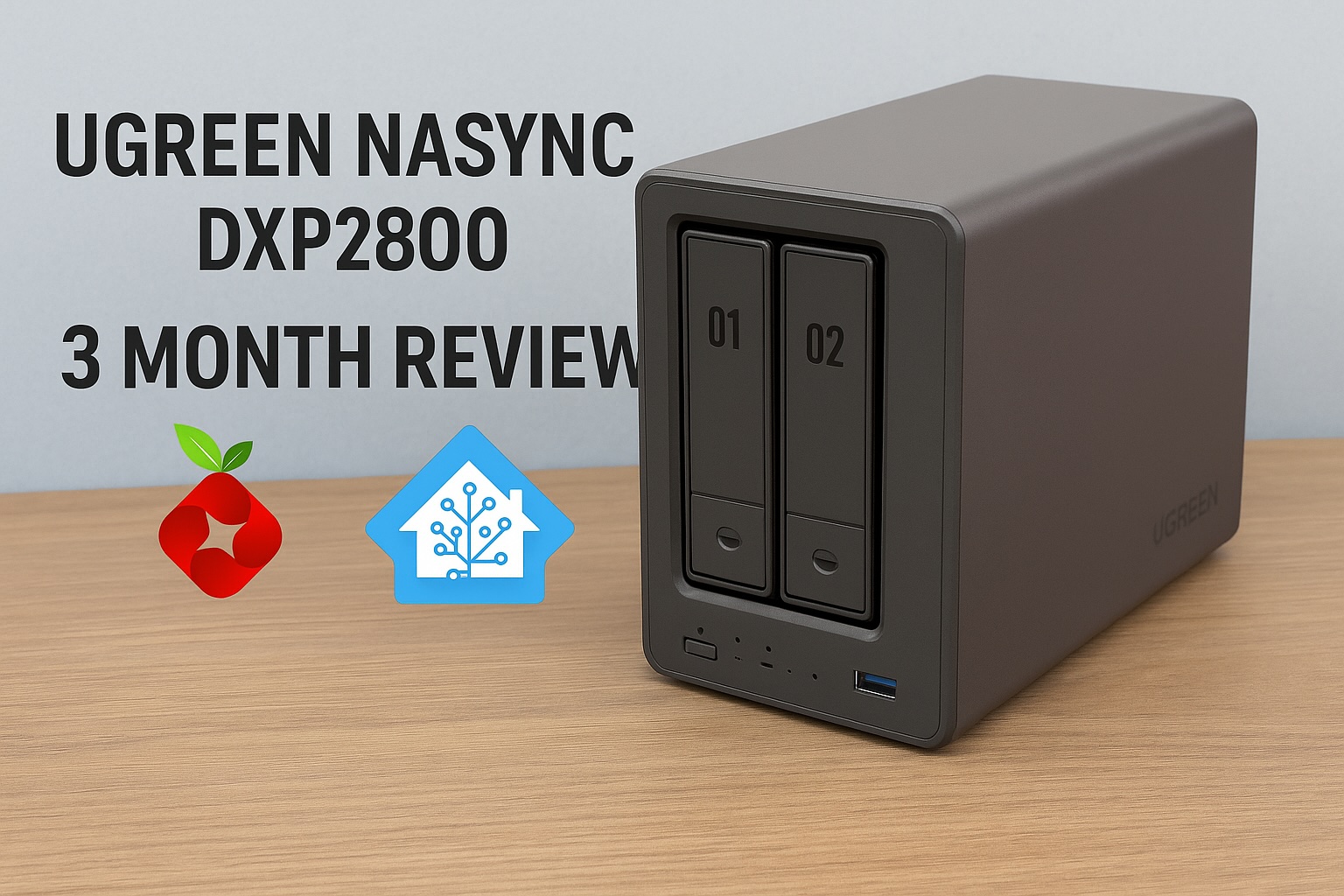
    UGREEN has confirmed that SynCare devices will integrate with NASync systems. Cameras can send recordings directly to a NAS for centralised, encrypted local storage. If you want a better idea of how UGREEN’s NAS hardware performs in real world use, I covered this in detail in my UGREEN NASync DXP2800 review.

    This enables significantly longer retention, unified management, and full control over where footage resides. A NASync system effectively becomes a private NVR without requiring separate recording hardware.

    Optional, Not Required

    A NAS is not required to use SynCare. Cameras function independently with local storage and the mobile app.

    NAS integration is positioned as an upgrade path for power users who want centralised management, larger storage capacity, and NVR style functionality.

    AI NASync iDX Series

    Alongside SynCare, UGREEN announced the NASync iDX series of AI powered NAS devices. These systems feature Intel Core Ultra processors, up to 64GB of memory, dual 10GbE networking, Thunderbolt 4, and support for up to 196TB of storage.

    These devices are designed to handle heavier workloads such as indexing large volumes of footage, long term archival, and advanced analytics. While cameras handle real time detection locally, the NAS can take on deeper processing and coordination tasks.

    UGREEN NASync iDX6011 Pro multi bay NAS with front display and AI processing capabilities
    UGREEN NASync iDX series NAS designed for AI workloads, local storage, and SynCare camera integration.

    Cross Compatibility Questions

    UGREEN has not confirmed support for third party standards such as ONVIF or RTSP, or integration with platforms like Synology, QNAP, or Home Assistant. Initial focus appears to be on the UGREEN ecosystem, though this remains an open question for users with existing NVR setups.
    For context on how Home Assistant can already be run on UGREEN hardware, I previously covered installing Home Assistant on a UGREEN NAS.


    Early Use Cases and Who Might Benefit

    SynCare is designed to serve a wide range of users.

    Typical smart home users benefit from a unified, subscription free ecosystem with intelligent alerts.

    NAS enthusiasts gain the ability to centralise footage, retain high resolution recordings, and potentially leverage NAS based AI features.

    Privacy conscious families can keep footage local, encrypted, and under their control.

    Small businesses and home offices can deploy SynCare as a lightweight security system without contracting external monitoring services.


    What This Could Enable Long Term

    If executed well, SynCare positions UGREEN to build a broader local smart home platform.

    By combining cameras with on device AI, NAS devices capable of heavier processing, centralised encrypted local storage, and reduced cloud dependency, UGREEN could enable natural language search across security footage, NAS level correlation of events across multiple cameras, and a true home security server model built around the NAS rather than the cloud.

    The foundation shown at CES suggests this is not a short term experiment.


    Release Timeline and What to Watch Next

    UGREEN has stated that SynCare will launch in the second half of 2026, with pricing expected to be announced closer to release, likely around IFA.

    Unconfirmed areas include third party ecosystem support, smart home platform integrations such as Matter or voice assistants, long term software update commitments, and detailed storage management options.

    In the coming months, more details around pricing, integrations, and real world performance will determine how widely SynCare is adopted. But as it stands, this is not just another camera system announcement. It represents a rare combination of local AI, subscription free operation, and optional NAS integration from a brand already established in local storage. For anyone already researching home security and wanting more control without being locked into recurring fees or cloud dependency, SynCare is one of the most interesting systems to watch heading into 2026.

    I’m personally looking forward to the release of SynCare, particularly because it offers a path to expand my home security without rebuilding everything from scratch. If it performs as advertised, it’s something I’d be genuinely interested in adding to my own setup.

  • How to Store Security Camera Footage at Home using NAS or NVR

    Security camera systems have become more capable, flexible, and open over the last decade. One of the most significant developments is the shift from closed cloud storage ecosystems to open, standards based recording.

    A Network Attached Storage (NAS) system can serve as a robust central recording point, provided the cameras support open protocols and the NAS is configured to accept, index, and store those recordings properly. When designed correctly, a NAS based workflow offers long term retention, predictable performance, and complete ownership of your data.

    Note: For practical insight into how a modern NAS behaves under these workloads, read my post on UGREEN NASync DXP2800 Review 2 Months Later. For background on why network storage is valuable in the first place, my guide on NAS Network Storage and Why You Need It provides a useful introduction.


    Understanding the NAS Recording Workflow

    A NAS does not record video by itself. It has no built in awareness of surveillance workflows unless specific software is installed. The NAS becomes a recording engine only when three conditions are met.

    1. The camera must send data using an open standard.
    2. The network must provide stable addressing and sufficient sustained throughput.
    3. The NAS must run a service that can receive, process, and index the incoming streams.

    Regardless of the vendor, the workflow operates in stages. The camera encodes the video. The data is transmitted via RTSP or file transfer. The NAS writes it to storage. Retention rules then determine when that data is deleted. While simple on paper, the technical details behind each stage determine reliability.


    Camera Protocols: The Language of Recording

    Marketing descriptions often promise local recording, but this can sometimes refer to SD cards rather than network storage. The technical specification sheet is your authoritative source. A NAS can only record from cameras that support the following open protocols.

    • RTSP (Real Time Streaming Protocol): This is the industry standard for continuous recording. The camera provides a persistent video URL that the NAS connects to. RTSP connections are long lived and highly sensitive to network interruptions.
    • ONVIF Profile S: This protocol allows cameras and recorders to communicate in a standard way. Cameras supporting ONVIF usually expose an RTSP stream and allow the NAS to discover and configure the device automatically. It guarantees a baseline of interoperability.
    • FTP (File Transfer Protocol): Event driven cameras often use this. When motion occurs, the camera creates a specific file and uploads it to a folder on the NAS. This is not suitable for continuous recording, as it would generate thousands of fragmented files per hour.
    • SMB or NFS: Similar to FTP, the camera writes directly to a shared folder. The NAS is unaware that recording is happening. It simply sees files being written.

    The bottom line: If a camera relies on a proprietary cloud app and does not support RTSP, ONVIF, or FTP, it cannot be integrated into a NAS workflow.

    A modern digital illustration showing how a security camera sends video through a home network to different storage systems, with glowing network lines, a router, and cloud backup icons.
    How a security camera sends footage through the home network to different storage options.

    How the NAS Processes Video

    Once the camera is connected, the NAS performs several key tasks that determine recording quality.

    • Stream negotiation: For RTSP workflows, the NAS initiates the session. Data is sent over UDP (efficient but sensitive to interference) or TCP (more resilient to packet loss but higher latency).
    • Indexing versus raw storage: Advanced surveillance software, such as Synology Surveillance Station or Frigate, creates a database index which allows timeline scrubbing and smart playback. Simpler setups just dump raw files, which are easier to back up but harder to review manually.
    • Retention enforcement: Surveillance datasets grow rapidly. The NAS must frequently scan and delete old footage to prevent volume exhaustion. This logic must run efficiently to avoid bogging down the system.

    Encoding Formats: H.264 versus H.265

    The codec you choose determines storage requirements and CPU load.

    • H.264: The most compatible standard. It uses more storage space than newer codecs but requires relatively little processing power to decode and view.
    • H.265 (HEVC): Highly efficient. It can reduce storage needs significantly for the same visual quality, but it requires more processing power to view and is less compatible with older browser based players.

    Bitrate behaviour: You must also choose between Variable Bitrate (VBR) and Constant Bitrate (CBR).

    • VBR saves space by lowering quality during static scenes, but storage usage will fluctuate depending on activity.
    • CBR ensures predictable storage consumption but may sacrifice image quality during high motion scenes.

    Storage Hardware: Why Desktop Drives Fail

    Security camera workloads are unique. Continuous recording generates a constant write workload. Event based recording creates sudden, uneven bursts.

    • HDD: Drives specifically tuned for surveillance or NAS use are strongly recommended. Consumer desktop drives are not designed for twenty four seven write cycles and may suffer rapid mechanical failure or performance degradation.
    • SSD: Solid state drives offer excellent speed, but continuous video recording consumes their write endurance quickly. Only enterprise grade or high endurance NAS SSDs should be used for surveillance.

    Deep dive: For a detailed analysis of suitable storage, read my post on Choosing the Best Drives for Your NAS Setup.

    A side-by-side comparison of PC, NAS, and surveillance hard drives, showing which storage type is suitable for continuous recording and always-on workloads.

    Networking: The Silent Killer of Reliability

    Network quality is the most overlooked factor in surveillance. A fast speed test does not guarantee a stable surveillance network. These are the technical realities that matter.

    1. Stable addressing: RTSP streams rely on fixed IP addresses. If the router assigns a new IP to the camera, recording breaks. Static IPs or DHCP reservations are essential for cameras and the NAS.
    2. Session persistence: Mesh Wi Fi systems often steer devices between nodes. This handover causes a micro outage, which can create corrupted frames or dropped connections in recordings. Cameras should ideally be associated with a single access point.
    3. Airtime congestion: Wi Fi cameras share airtime with every other device on the channel. Even with a strong signal, a congested channel will cause upload failures and inconsistent performance.
    4. Upload saturation: Many home internet connections have limited upload bandwidth. If multiple cameras trigger at once or if you back up footage to the cloud, you can saturate the uplink and cause dropped frames or failed transfers.

    NAS versus NVR: Which Architecture is Right?

    • NVR (Network Video Recorder): A purpose built appliance dedicated to recording. It is straightforward and reliable but focused almost entirely on video.
    • NAS (Network Attached Storage): A general purpose server. It offers flexible retention, open file formats, and the ability to run other applications such as media servers, home automation and backup tools alongside surveillance workloads.

    If you want a dedicated appliance that requires very little ongoing thought, an NVR is usually the better choice. If you want a central hub for data, applications, and cameras, a NAS workflow provides more flexibility and control.


    Conclusion

    A NAS becomes a powerful surveillance tool when the workflow is respected end to end. Cameras must use open standards such as RTSP or ONVIF. The network must provide stable addressing and consistent performance rather than just impressive speed test results. Storage must be chosen for endurance as well as capacity. Surveillance software must be configured to handle streams, indexing and retention without overwhelming the hardware.

    This workflow centric view removes guesswork. By focusing on these technical realities, it becomes possible to build a system that delivers consistent results for years rather than months.

    Next steps:

  • UGREEN US3000 UPS Review – The Perfect NASync Companion

    Disclosure: As an Amazon Associate, I earn from qualifying purchases. Some links in this article may be affiliate links, which help support the site at no extra cost to you.


    Introduction

    After a week of daily use, the UGREEN US3000 UPS has already proven why it exists. Power protection isn’t glamorous, but even a short outage can corrupt drives or interrupt critical writes on a NAS.

    UGREEN designed the US3000 to prevent that exact risk — not by adding complexity, but by integrating power management directly into UGOS Pro, the same operating system used in the NASync series. (If you want to see how it performs in practice, read my UGREEN NASync DXP2800 two-month review for a deeper look at daily reliability and real-world performance.)

    Unlike most universal UPS units that rely on dated software and manual setup, this compact model is purpose-built for NASync devices. It feels more like a built-in safeguard than an accessory — quietly doing its job in the background.


    Design and Build Quality

    The US3000 is constructed from solid aluminium alloy, finished in the same matte silver-grey as the DXP-series NAS units. It’s small (120 × 80 × 30 mm, 440 g) yet dense, with precise machining and no flex.

    Inside, it houses a 12 000 mAh (43.2 Wh) battery pack made from four SunPower INR18650-3000 cells wired in series. Dedicated circuitry manages charging, discharge rate, and temperature control, while the metal enclosure doubles as a passive heatsink.

    The internal layout is clean and practical: foam-cushioned cells, Mylar-insulated wiring, and reinforced connectors. The supplied DC5525 and USB-C cables are short and tidy — ideal for rack or shelf setups. It’s clear UGREEN designed this as a true companion for its NAS line rather than a generic UPS.


    Setup and Integration with NASync

    Setup takes under five minutes. Connect the US3000 between your NAS and its power supply using the DC5525 lead, then attach the USB-C cable.

    Once powered, UGOS Pro detects the UPS automatically under Control Panel → Hardware & Power → UPS. From there you can view charge status, voltage, and shutdown options — all without installing drivers or third-party software.

    That seamless integration is what separates it from typical UPS units. The US3000 appears in UGOS Pro as a managed device, enabling automatic shutdown and recovery when power returns.

    If you’re just starting out with your NASync, my beginner setup guide for the UGREEN DXP2800 covers this interface step by step.


    Performance and Everyday Use

    The US3000 focuses on one thing: controlled shutdowns. It’s not a long-duration backup — it’s protection done right.

    UGOS Pro offers two response modes:

    1. Standby Mode

    • NAS continues running on battery during an outage.

    • If mains returns quickly, it resumes seamlessly.

    • If power doesn’t return, the NAS shuts down gracefully before the battery is depleted.

    2. Auto Shutdown

    • NAS immediately begins its shutdown sequence.

    • Services stop cleanly and drives park safely.

    • Once power is restored, it restarts automatically.

    I keep mine set to Auto Shutdown — it’s the safest option for unattended use. In testing, both modes worked perfectly. The DXP2800 switched instantly to UPS power and completed its shutdown sequence cleanly, with zero voltage fluctuation.

    Recharge takes about two hours, and because it uses DC-to-DC conversion instead of AC inversion, it runs completely silent and highly efficient.

    If you’d like to see how the DXP2800 performs under typical workloads, the two-month NASync review includes real-world tests on transfer speeds, app stability, and power use.


    Compatibility and Runtime Estimates

    Runtime figures from NASCompares, ChargerLab, and UGREEN show the UPS is tuned for short, controlled operation.

    NAS ModelCPUMax DrawEst. Runtime
    DXP2800Intel N100≈ 35 W≈ 10 min
    DXP4800Intel N95≈ 45 W≈ 8–9 min
    DXP4800 PlusIntel Core i3-N305≈ 55 W≈ 7 min
    DXP8800 PlusIntel Core i5-1235U≈ 70 W≈ 6 min
    DH2600 / DX4600Various< 50 W≈ 8–9 min

    Rated for 120 W DC output (12 V / 10 A, 19 V / 7.9 A, 20 V / 7 A), it easily handles every NASync model. No configuration is needed — UGOS Pro manages detection and shutdown automatically.

    For context on how drive selection affects power usage, see Choosing the Best Drives for Your NAS – HDD vs SSD Recommendations.


    Inside the US3000 (Teardown Insights)

    ChargerLab’s full teardown of the UGREEN 120 W DC UPS shows just how well built this unit is.

    It uses a Chipsea CBM8580KV6NT for battery management and SMBus communication, a Texas Instruments TPS55289 for buck-boost power regulation, and a GigaDevice GD32F303RCT6 microcontroller (Cortex-M4 @ 120 MHz) for logic and protection.

    Each of the four battery cells is individually insulated and cushioned, while the PCB is shielded with Mylar and protected by dual fuses and thermistors. Wiring is reinforced, neatly routed, and the aluminium chassis itself acts as a heatsink.

    It’s a compact, efficient design that would look right at home in professional-grade hardware.


    Highlights

    • Native integration – Full hardware-software link through UGOS Pro; zero configuration.

    • Smart behaviour – Automatic standby and shutdown for controlled response.

    • Premium build – Machined aluminium shell, insulated internals, efficient cooling.

    • Power efficiency – DC-to-DC conversion for silent, stable operation.

    • Effortless ownership – Quick recharge, no maintenance, seamless protection.

    If you’re exploring ways to make your NAS more versatile, try Top 10 Docker Containers to Supercharge Your NAS — it’s packed with apps that complement a NASync setup perfectly.


    Limitations

    • Runtime – ≈ 43 Wh battery provides 6–10 minutes of backup; enough for graceful shutdowns, not long-term use.

    • Device scope – Exclusive to UGREEN NASync systems.

    • Availability – Still limited in retail channels but expected to expand soon.

    For users wanting both on-site and off-site protection, pair this with Automated NAS Backup to Azure via Rclone Guide to create a full-stack backup strategy.


    Final Verdict

    After a week of use, the UGREEN US3000 UPS has become one of those accessories you forget about — until it saves your data. It’s compact, silent, efficient, and integrated so tightly with UGOS Pro that it feels like part of the NAS itself.

    It won’t keep your system running forever, but it ensures it never shuts down the wrong way — and for NAS owners, that’s what really matters.

    If you’re building or upgrading a NASync setup, the two-month UGREEN DXP2800 review offers detailed insights into everyday use and performance, while Best Home Security Cameras for Your NAS (Cloud vs PoE) covers surveillance options that pair perfectly with this UPS.

  • UGREEN U3000 UPS First Look — Small but Mighty

    The wait is finally over — my UGREEN U3000 UPS has arrived!

    Right out of the box, I was caught off guard by its size. It’s unbelievably compact — almost the same footprint as my UGREEN Magnetic Power Bank, which makes it feel more like a portable charger than a full UPS system.

    This little unit is designed specifically for UGREEN’s NASync lineup, offering 120W of DC backup power with zero-second transfer time. That means if the power cuts out, your NAS keeps running instantly with no delay.

    It’s a clean, modern take on backup power — no bulky fans, no heavy lead-acid batteries, and no cluttered cabling. Just a sleek matte black box that slots quietly beside your NAS.

    I’ve just got it set up with my UGREEN NASync DXP2800, and here’s a quick look at the hardware, the software integration, and why this might be one of the smartest little UPS units around.


    Unboxing & First Impressions

    UGREEN U3000 UPS packaging showing 120W DC backup design.
    Simple, clean packaging that sets the tone for UGREEN’s minimalist design approach

    The box presentation is classic UGREEN — understated and premium. Even before opening it, you get the sense that this is designed to fit neatly into a modern setup rather than dominate it.


    Compact Design

    UGREEN U3000 UPS on desk showing its compact matte finish.
    The matte finish and solid build make it feel far more premium than its size suggests.

    Once unboxed, the size difference really stands out. When placed next to my UGREEN Magnetic Power Bank, they’re nearly identical in dimensions. Seeing them side by side drives home just how compact this UPS truly is — it’s impressive that something this small can output 120W of continuous power.

    UGREEN U3000 UPS compared with UGREEN Magnetic Power Bank.
    Almost pocket-sized — the U3000 looks more like a power bank than a UPS.

    Ports & Connectivity

    Close-up of UGREEN U3000 UPS rear ports including DC IN, DC OUT, and USB-C
    Straightforward port layout — DC IN, DC OUT, and USB-C for monitoring.

    The rear layout is clean and functional, featuring DC input/output and a USB-C port for communication. It runs silently and uses passive cooling, which is a welcome change from traditional UPS fans humming in the background.


    Smart Integration

    PC control panel view of UGREEN US3000 UPS showing connection status, firmware version, and NUT options.
    The U3000 is recognised instantly through the NAS interface with full NUT support.

    Connecting the U3000 to the NAS was completely plug-and-play. It appeared right away under the UPS settings as UGREEN US3000, showing battery capacity, firmware version, and auto-shutdown options.

    The UPS also supports NUT (Network UPS Tools) — an open-source protocol that allows the NAS to detect power changes and automatically shut down safely if the battery runs low. It’s a small but important addition that makes the system much more reliable in real-world conditions.


    Next Steps

    Over the next few days, I’ll see how the U3000 performs under normal NAS workloads — how quickly it switches to battery, how stable it runs during short outages, and how the NUT integration behaves over extended use.

    If you are building out your NAS, check my guide Choosing the Best Drives for Your NAS Setup and my roundup NAS Compatible Security Cameras to see how it all fits together.

    Stay tuned — this compact little unit might be one of the best NAS accessories UGREEN has released so far.

  • Future-Proofing My PC in 2025: White Build with Ryzen 7 7800X3D & Corsair Gear

    Disclosure: As an Amazon Associate I earn from qualifying purchases. Links to products in this article may be affiliate links, which help support the site at no extra cost to you.

    My Intel i7-8700K and RTX 3080 have served me incredibly well. For years this setup has handled everything I’ve thrown at it, but seven years on the cracks are starting to show. Newer titles are pushing CPU performance harder, memory standards have moved on, and even cooling has evolved to free up space and improve aesthetics.

    I’m not scrapping everything — my Fractal Design Meshify 2 case is staying. It has excellent airflow, radiator support, and plenty of room for upgrades. My Corsair RM1000x SHIFT PSU now powers the build, replacing my older RM850x. I also decided to keep my ROG STRIX RTX 3080 10G, my SSDs, and add in new fans. The heart of the system — CPU, motherboard, memory, cooler — is where the biggest changes happened.


    CPU – Ryzen 7 7800X3D (Best Value Choice)

    When it came to the CPU, my shortlist was between AMD’s 7800X3D and the 9800X3D. On paper, the 9800X3D does have an edge — around a 10% uplift in gaming benchmarks thanks to slightly higher clocks and efficiency. The catch? It costs around 50% more. That kind of price-to-performance ratio just didn’t make sense for me.

    Specs at a glance: 8 cores / 16 threads · 4.2 GHz base · up to 5.0 GHz boost · 96 MB L3 3D V-Cache · 120 W TDP

    Performance in context:

    • The 7800X3D regularly tops gaming benchmarks, often beating Intel’s Core i7-14700K while running cooler and more efficiently.
    • It competes closely with the i9-14900K in cache-sensitive games.
    • Compared to the 9800X3D, you lose around 10% in FPS but save a massive chunk of budget.

    Regional pricing: In my region, the 7800X3D is consistently the cheaper option, making it a far better value pick. Amazon.com doesn’t currently stock it, but if the 9800X3D were available at a similar price, it would become a no-brainer upgrade thanks to its small but measurable performance lead.

    For a build focused purely on gaming, the 7800X3D offered exactly what I needed: high frame rates, low power draw, and long-term relevance on the AM5 platform — without overspending.

    AMD Ryzen 7 7800X3D processor with 3D V-Cache technology for gaming performance

    The Ryzen 7 7800X3D remains the best value gaming CPU thanks to its 3D V-Cache advantage.

    Motherboard – Gigabyte X870E AORUS ELITE X ICE

    Motherboards are the backbone of any build, and I wanted something both technically future-proof and visually aligned with my white theme. That led me to the Gigabyte X870E AORUS ELITE X ICE.

    Key Features & Connectivity:

    • Chipset & Socket: AMD X870E with AM5 socket (supporting Ryzen 7000, 8000, and future CPUs).
    • VRM & Power: Twin-Digital 16+2+2 phase VRM design for stable power delivery.
    • Memory Support: 4 × DIMM DDR5 slots with EXPO/XMP support (beyond DDR5-6000).
    • Storage: 4 × M.2 slots (2 × PCIe 5.0, 2 × PCIe 4.0) + 4 × SATA III ports.
    • Expansion: 1 × PCIe 5.0 x16 slot for GPU + extra PCIe 4.0 slots.
    • USB: Dual USB4 Type-C ports (rear), multiple USB 3.2 Gen2/Gen1 Type-A, USB-C front header, plus USB2.0 headers.
    • Networking: Built-in Wi-Fi 7 and Bluetooth + 2.5 GbE LAN.
    • Audio: Realtek ALC codec, 7.1-channel support, S/PDIF out.
    • Extras: BIOS Flashback, debug LEDs, EZ-Latch for GPU/M.2 installation.

    Why it mattered for my build:

    • Future-proofing: PCIe 5.0 across GPU and storage, with ample M.2 slots.
    • Network synergy: Wi-Fi 7 integrates perfectly with my TP-Link BE85 Wi-Fi 7 system. 👉 My BE85 review.
    • Design: ICE edition’s white heatsinks and accents match the build theme.
    • Stability: Strong VRM ensures reliable performance now and headroom for future CPUs.
    Gigabyte X870E AORUS ELITE X ICE white AM5 motherboard with Wi-Fi 7 and PCIe 5.0 support.

    Gigabyte’s X870E AORUS ELITE X ICE motherboard combines PCIe 5.0, Wi-Fi 7, and a clean white design.

    Memory – Corsair Dominator Titanium RGB DDR5-6000 (32GB, White)

    I chose the Corsair Dominator Titanium DDR5-6000 CL30 kit (2×16 GB). It wasn’t just an aesthetic choice — though the white finish and RGB fit the build theme perfectly — it’s also technically one of the best fits for AMD’s AM5 platform.

    Specs at a glance: 32 GB (2×16 GB) · DDR5-6000 MT/s · CL30 (30-36-36-76) · 1.40 V

    Why DDR5-6000 CL30 matters:

    • AMD’s AM5 platform performs best at DDR5-6000 (1:1 sync with Infinity Fabric).
    • CL30 keeps latency low, making it faster than looser kits at the same speed.
    • DDR5-6400+ kits exist, but gaming gains are negligible while prices climb.

    32 GB is the new gaming standard — plenty for today and safe for the future, without wasting money on 64 GB.

    Corsair Dominator Titanium DDR5-6000 CL30 RAM kit in white with RGB lighting.

    Corsair Dominator Titanium DDR5-6000 CL30 RAM – fast, low-latency memory tuned for AMD AM5 systems.

    Storage – Current Drives + Upgrade Plan

    Kept drives:

    • Samsung 970 Evo (NVMe Gen3)
    • Samsung 980 (NVMe Gen3)
    • Samsung 860 Evo (SATA SSD)

    These remain fast and reliable. Windows boots instantly, games load quickly, and daily use is smooth.

    Planned additions:

    • PCIe 4.0 NVMe: Affordable, mature, and ideal for gaming.
    • PCIe 5.0 NVMe: Higher sequential speeds, but costly and runs hotter. Worth it only if prices drop or use cases expand.

    Comparison: PCIe 3.0 vs 4.0 shows little difference in gaming load times, but 4.0 is much faster for transfers. PCIe 5.0 is mostly bragging rights right now.


    Cooling – Corsair iCUE Link TITAN 360 RX (White)

    Leaving behind the Noctua NH-D15 wasn’t easy. It’s still one of the best air coolers ever made. But for this build, aesthetics and clearance mattered too.

    Specs at a glance: 360 mm radiator · RX120 RGB fans · Pump block w/ LCD · iCUE Link Hub included

    Why I switched:

    • Performance: Plenty of thermal headroom for the 7800X3D.
    • Design: Frees space around CPU/RAM, showcasing components.
    • Integration: Syncs seamlessly with Corsair iCUE and my new fans.

    Trade-offs:

    • AIO fans spin up more often, so noise is more noticeable vs air.
    • Lifespan is shorter than legendary air coolers like the NH-D15.

    Still, I’m happy: temps are lower, aesthetics are cleaner, and it matches the white build.

    Corsair iCUE Link TITAN 360 RX all-in-one liquid cooler in white with RGB fans.

    Corsair LX140 RGB fans simplify cable management thanks to iCUE Link daisy-chain connectivity.

    PSU – Corsair RM1000x SHIFT

    My old RM850x was solid, but it lacked PCIe connectors for future GPUs. The RM1000x SHIFT solved this.

    Specs at a glance: 1000 W · ATX 3.0 · 80 Plus Gold · Fully modular · Side-mounted connectors · Native 12VHPWR

    Why it works:

    • Side-Mounted Connectors: Huge cable-management upgrade.
    • ATX 3.0 & 12VHPWR: Ready for next-gen GPUs.
    • Headroom: 1000 W ensures future GPU compatibility.
    • Efficiency: Gold-rated — cool and reliable.

    I originally wanted the Seasonic Vertex in white, but since it’s not available here, the SHIFT was the smarter choice.

    Corsair RM1000x SHIFT White 1000W ATX 3.0 power supply with side-mounted connectors.

    Corsair RM1000x SHIFT White PSU – a fully modular, ATX 3.0-ready power supply designed for next-gen GPUs and clean cable management.

    Fans – Corsair iCUE Link LX140

    This turned out to be one of the most satisfying upgrades.

    Why:

    • Old setup: Corsair QL series required 2 cables per fan. With 4 fans, that meant 8 cables — cable management hell.
    • New setup: LX140 daisy-chains, reducing clutter to a single cable run.
    • Looks: White with subtle RGB fits the theme.
    • Integration: Full iCUE support for easy lighting and curve control.

    It made building far simpler and cleaner.

    Corsair iCUE Link LX140 RGB fan in white with daisy-chain connection design.

    Corsair LX140 RGB fans simplify cable management thanks to iCUE Link daisy-chain connectivity.

    GPU – Waiting for the Right Time

    For now, I’m sticking with my ROG Strix RTX 3080, which still handles 1440p and even 4K with tweaks. But I’m keeping an eye on Black Friday and New Year sales for a potential upgrade.

    ASUS ROG Strix RTX 3080 graphics card with triple-fan design and RGB accents

    ASUS ROG Strix RTX 3080 – still a powerhouse for 1440p and 4K gaming in 2025.

    Specs at a glance (RTX 3080): 8704 CUDA cores · 10 GB GDDR6X · Boost ~1.7 GHz · 320 W TDP

    Comparison: The RTX 3080 still trades blows with the RTX 4070 Ti in many games at 1440p, though it falls behind in ray tracing and efficiency. The next-gen Zotac RTX 5080 Solid (White) would deliver a huge uplift in ray tracing, DLSS, and raw power — but for now, the 3080 is more than capable for my needs.

    Zotac RTX 5080 Solid White graphics card with triple-fan cooler and sleek white shroud

    Zotac RTX 5080 Solid White – a next-gen GPU designed for high performance and striking aesthetics.

    Real-World 1440p Benchmarks (RTX 3080)

    GameSettings (1440p)RTX 3080 Performance
    Marvel’s Spider-Man 2 (2025)Max / RT Off~65 FPS avg (DLSS Quality recommended for smooth frametimes)
    Horizon Forbidden West (2024)MaxMid-50s FPS (DLSS Quality lifts above 60)
    Alan Wake II (2023–24)Max / RT OffSmooth with DLSS Quality, dips below 60 without it
    Starfield (2023–24)High~70–90 FPS, similar to RTX 4070
    Flight Simulator 2024Ultra~50–60 FPS in real-world flights
    Battlefield 6 (2025)Ultra + DLSS 4 Quality~90–120 FPS on newer maps
    Borderlands 4 (2025)MaxLow-60s FPS native, 70+ with DLSS

    Wrap-Up

    What started as a CPU upgrade turned into a full platform refresh. Between the motherboard, cooling, PSU, fans, and memory, this build has evolved into a proper all-white showcase that’s both powerful and clean.

    The 7800X3D gives me gaming performance that rivals the very best, the X870E ICE motherboard sets me up for years of upgrades, and the Corsair ecosystem ties it all together visually and functionally.

    The GPU will be the final piece of the puzzle, but until then, this build is exactly what I wanted: powerful, efficient, and tailored to my style.


    Up Next

    To round things out, I’ve also ordered the UGREEN US3000 NAS UPS for my DXP2800. Power stability is just as important as raw performance, so I’m curious to see how it performs in everyday use. Once it arrives and I’ve had time to test it, I’ll share a detailed review — covering setup, integration, and whether it’s a worthwhile addition to a home NAS environment.

  • Upgrading My PC: Planning for the Future

    My Intel i7-8700K and RTX 3080 have served me incredibly well. For years this setup has handled everything I’ve thrown at it, but seven years on the cracks are starting to show. Newer titles are pushing CPU performance harder, memory standards have moved on, and even cooling has evolved to free up space and improve aesthetics.

    I’m not scrapping everything — my Fractal Design Meshify 2 case is staying. It has excellent airflow, radiator support, and plenty of room for upgrades. My Corsair RM850x PSU is also sticking around, since it still delivers reliable, efficient power for my build. My ROG STRIX RTX 3080 10GDDR4 16 GB, and a mix of SSDs (Samsung 970 Evo980860 Evo870 QVO) are all still in play. The Noctua NH-D15 has been superb, but I want a change in this build (aesthetics and clearance). The heart of the system — CPU, motherboard, memory, cooler — is ready for a refresh.

    I’ll be including links to the components I’m considering. As an Amazon Associate I earn from qualifying purchases. Using these links helps support the blog at no extra cost to you.


    Choosing the Right CPU

    At the heart of this upgrade is the CPU. My 8700K has served me well, but with modern games demanding more cores, faster clocks, and stronger cache, it’s time to move on. This is the single biggest decision in the build, because it shapes not only performance today but also the upgrade path for years to come.

    I narrowed my choices down to a shortlist from both Intel and AMD. Each comes with its own strengths, weaknesses, and future-proofing trade-offs.

    Intel Options

    Core i7-14700K

    The 14700K is one of Intel’s most balanced gaming chips. It delivers excellent single-core performance and plenty of multi-core power without straying into i9 territory. It’s a safe, proven option that fits well with a GPU like my RTX 3080. The downside is heat — under turbo it can pull a lot of power and needs strong cooling.

    Core i9-14900K

    Intel’s top mainstream chip is still a monster, offering the highest clocks and multi-core grunt. It’s brilliant if you need raw power, but it’s overkill for gaming alone. It also runs hot and power-hungry, which makes it less appealing unless you want headroom for workloads beyond games.

    Core Ultra 7 265K

    This is part of Intel’s newer Core Ultra line. It brings efficiency improvements, AI-focused features, and a more forward-looking architecture. It performs well, but it doesn’t match AMD’s cache-heavy CPUs in pure gaming. It’s an interesting pick if you want to try Intel’s latest direction without going all-in on an i9.

    Core Ultra 9 285K

    The flagship Core Ultra offers maximum cores, features, and efficiency claims compared to older Intel designs. It’s more than enough for gaming, but much like the 14900K, it feels excessive unless you’re also using the system for heavy workloads.

    AMD Options

    Ryzen 7 7800X3D

    This chip has been a gamer favourite thanks to its 3D V-Cache. It consistently delivers some of the best gaming performance per watt and remains one of the strongest options for anyone building purely for games.

    Ryzen 7 9800X3D

    AMD’s current gaming king. It builds on the success of the 7800X3D with higher clocks and efficiency, giving the best frame rates in many modern titles. It comes at a premium price, but if gaming is your top priority, it’s arguably the strongest pick right now.

    Ryzen 7 9700X

    A more standard Zen 5 chip, the 9700X delivers solid gaming performance without the added cost of 3D V-Cache. It won’t top the charts in cache-sensitive titles, but it’s efficient, affordable, and still very fast.

    Ryzen 5 9600X

    The budget-friendly option. With six cores and strong efficiency, it’s a great entry point into the AM5 platform. It handles modern gaming well but offers less headroom long-term compared to the eight-core options.

    My Take

    For a gaming-only build like mine, the AMD X3D chips stand out. The 7800X3D is exceptional value, while the 9800X3D leads the pack in performance. On the Intel side, the 14700K makes the most sense — powerful, proven, and mature — though the Core Ultra range is tempting if you want Intel’s newest platform features.

    This is where the decision becomes less about raw numbers and more about priorities: do you want the very best gaming performance today, a balanced all-rounder, or to back a new platform for the future?


    Motherboard: Choosing the Right Foundation

    The motherboard doesn’t directly boost frame rates, but it sets the stage for everything else. It determines how stable the system is, how much you can expand in the future, and how smooth the building process will be. For Intel I’m looking at Z790 and B760, while for AMD the options are X870 or X870E at the high end and B650 for a more balanced approach.

    Intel: Z790 vs B760

    Z790 is Intel’s flagship mainstream chipset. It gives you the most PCIe lanes, the richest USB options, and the strongest VRMs. That makes it the safest choice if you’re planning to pair it with a high-end CPU like a Core i9 or if you want to overclock. Z790 boards also tend to include more M.2 slots, better memory overclocking support, and nicer quality-of-life touches like debug LEDs and BIOS flashback.

    B760 is Intel’s mid-range chipset. The biggest difference is that B760 does not allow CPU overclocking. You can still use fast DDR5 memory, and many boards have solid VRMs, but you won’t be able to push CPU multipliers. You’ll also get fewer PCIe lanes and USB ports compared to Z790, and generally fewer premium extras. For a gaming system with a Core i7 or even a locked i9, this often doesn’t matter — you still get full performance out of the CPU at stock settings.

    The bottom line is simple: if you want to overclock or run a top-tier CPU at its maximum potential, Z790 is the way to go. If you’re focused on gaming and plan to run your chip at stock, B760 offers great value while still delivering the stability and performance you need.

    AMD: X870(E) vs B650

    On the AMD side, X870 and X870E are the new high-end chipsets. The “E” stands for Extreme, and that’s exactly what it means in practice.

    • X870E boards guarantee PCIe 5.0 support for both the GPU slot and at least one M.2 slot. They are built for enthusiasts who want the full AM5 experience, and they usually add other premium features like USB4 and Wi-Fi 7.
    • X870 boards without the “E” still offer strong performance and features, but they aren’t required to provide PCIe 5.0 on both GPU and storage. It depends more on the manufacturer’s design choices.

    B650 is the more affordable option, but it’s not stripped down. Many B650 boards include one PCIe 5.0 M.2 slot, plenty of PCIe 4.0 lanes, and VRMs good enough for Ryzen 7 chips. For gaming, that’s usually all you’ll ever need.

    So the key takeaway: E means guaranteed PCIe 5.0 across both GPU and storage. If you want maximum future-proofing, X870E is the safe bet. If you’re happy with one Gen5 SSD slot and don’t need every high-end extra, B650 or standard X870 boards give you better value.


    Memory: Capacity, Speed, and Latency Explained

    RAM doesn’t boost your frame rates as much as a CPU or GPU, but it shapes how smooth your system feels. With DDR5 now firmly established, there are three things worth knowing: capacity, speed, and CAS latency (CL).

    Capacity

    For years, 16 GB was the standard for gaming, but in 2025 that’s the bare minimum. Modern games regularly push past 16 GB on their own, and if you’re running a browser, Discord, or other apps in the background, you’ll quickly run out.

    • 32 GB is the sweet spot for gaming. It gives you headroom today and keeps you safe for the next few years.
    • 64 GB is only worth it if you do heavy multitasking, content creation, or very specialised workloads. For gaming, it’s wasted money.

    Speed

    DDR5 speeds have risen quickly, but there’s a point where the value curve flattens out. You can always buy faster kits, but the cost climbs dramatically for very small gains.

    • AMD Ryzen 7000/9000: The best balance is DDR5-6000. That’s the highest speed that runs in sync with AMD’s Infinity Fabric, which keeps latency low and stability high. Anything above that forces the memory controller to switch to a less efficient mode, giving little to no real benefit.
    • Intel 13th/14th gen and Core Ultra: Intel’s memory controller is more flexible and can run faster kits like 6400, 6600, or even 7200 MT/s. But in terms of value, DDR5-6000 CL30 still hits the sweet spot. Performance gains above 6400 are marginal in gaming, while prices increase sharply the higher you go.

    CAS Latency (CL)

    CAS latency is the number of cycles the RAM takes to respond to a request. Lower is better, but you need to look at it alongside speed. For example, DDR5-6000 CL30 is noticeably faster than DDR5-6000 CL40. On Intel, slightly looser timings aren’t as punishing, but on AMD the combination of speed and latency matters a lot more.

    The Sweet Spot in 2025

    For both AMD and Intel, DDR5-6000 CL30 is the best balance of speed, stability, and cost. It delivers excellent gaming performance without overspending. Yes, you can push into higher speeds on Intel, but the extra cost quickly outweighs the tiny real-world benefits. For most builds, that money is better spent elsewhere.

    My Take

    For this build, 32 GB of DDR5-6000 CL30 is the clear choice. It hits the sweet spot for both platforms, delivers smooth performance in modern games, and avoids the trap of chasing extreme high-end kits that look great on paper but make little difference once you’re actually playing.


    Storage: Fast Enough vs Future-Proof

    Storage is one of those areas where the numbers keep climbing, but the real-world benefits don’t always keep pace. For this build, I’m carrying over all of my existing drives:

    This mix has served me really well. Boot times are already quick, games load fast, and I haven’t hit any bottlenecks that would justify replacing everything.

    PCIe 4.0: The Current Sweet Spot

    Right now, PCIe 4.0 NVMe drives are the clear value leaders. They’re widely available, very mature, and offer speeds that are already far beyond what games actually demand. For gaming and day-to-day use, they feel just as fast as anything newer. The best part is that Gen4 drives are regularly discounted during events like Prime Day or Black Friday, making them one of the best price-to-performance buys in a modern build.

    PCIe 5.0: Nice to Have, Not Need to Have

    PCIe 5.0 NVMe drives are impressive on paper, with sequential speeds that double what Gen4 offers. But for gaming, the difference just isn’t there. Windows boots in seconds, games load instantly, and asset streaming is already smooth on Gen4. Paying the premium for Gen5 just to use it as a boot drive makes no sense right now.

    That doesn’t mean Gen5 is pointless. Having a motherboard that supports it is great — it means the option is there if prices fall or if future workloads actually take advantage of it. But today, Gen5 is more about bragging rights than practical benefit, and it often comes with higher heat output and bulkier cooling requirements on the drives themselves.

    My Plan

    For now, I’m keeping my current mix of NVMe and 2.5” SSDs, with the 970 Evo and 980 handling the heavy lifting. When I do add more storage, it’ll almost certainly be a PCIe 4.0 NVMe picked up during a big sale. I’ll only look at PCIe 5.0 once prices come down and it offers real-world benefits for gaming — until then, PCIe 4 is the true sweet spot for performance per yen.


    Cooling: Moving On from Air to AIO

    My Noctua NH-D15 has been a legend — it completely changed my view of air cooling and has kept my 8700K cool and quiet for years. For this build, I did take a serious look at the latest generation of high-end air coolers, but I’ve decided to move to a 360 mm AIO instead.

    Air Coolers I Considered

    • Thermalright Peerless Assassin 120 — A brilliant value option, slimmer than the NH-D15 but still punching far above its price class.
    • Noctua NH-D15 G2 — The successor to my current cooler. It improves on the original with better fans, more fin density, and improved RAM clearance in single-fan mode. Still the king of air cooling, but also still a giant dual-tower that dominates the case.
    • be quiet! Dark Rock 5 — A quieter, more understated alternative with solid thermal performance and a stealthy design.

    If I were sticking with air, one of these three would be my pick. But my priorities have shifted.

    Why I’m Going with an AIO

    This time I want a cleaner-looking build with more space around the CPU socket, better RAM clearance, and the ability to actually see the rest of my hardware. A 360 mm AIO moves the bulk away from the CPU area and gives me extra thermal headroom for future CPUs, especially the hotter Intel options.

    The three I looked at are:

    • Corsair iCUE Link TITAN 360 — Strong performance, polished software integration, and plenty of RGB if you want it.
    • Arctic Liquid Freezer III 360 — One of the most efficient AIOs on the market, with an excellent pump design and cooling power. The only drawback is its thickness — it’s much bulkier than most other 360 mm units, which can be a limiting factor depending on your case layout.
    • NZXT Kraken Elite 360 — A stylish option with a beautiful LCD pump block and competitive cooling, though the high price is as much about aesthetics as raw performance.

    The Trade-Off with AIOs

    While AIOs give better aesthetics and sustained cooling, they also come with different risks compared to air cooling. An air cooler has no moving parts beyond fans, which can be replaced easily and cheaply. AIOs add a pump, sealed liquid, and tubing — which means more points of potential failure. Modern AIOs are very reliable, but they generally won’t last as long as a top-tier air cooler like the NH-D15. When the pump eventually fails, the entire unit usually has to be replaced.

    That’s the trade-off I’m accepting: slightly higher risk and a shorter lifespan in exchange for a cleaner build and more cooling headroom.


    Understanding PSU Types and Features

    For readers who might not be familiar with all the PSU jargon, here’s what really matters when choosing one:

    1. WattageThe most obvious spec. It’s the maximum power the PSU can deliver. Too low and your system won’t be stable. Too high and you’re paying for unused capacity. For gaming rigs with a single high-end GPU, 750–850 W is the sweet spot in 2025.
    2. Modularity
    • Non-modular: All cables are fixed. Cheap but messy, since you can’t remove unused cables.
    • Semi-modular: Some cables (like the motherboard and CPU) are fixed, while extras (PCIe, SATA) can be added or removed.
    • Fully modular: Every cable is detachable, which makes cable management and custom sleeved cable sets much easier.The RM850x is fully modular, and that’s one of the reasons it has aged so well.
    1. Connector OrientationSome newer PSUs (like Corsair’s Shift models) have the connectors on the side rather than the back. This makes cable routing cleaner in modern cases where the PSU shroud and cable channels are designed around side-access. It’s not essential, but it’s a nice quality-of-life feature.
    2. Efficiency RatingMeasured by the 80 Plus certification (Bronze, Gold, Platinum, Titanium). Higher efficiency means less wasted power and heat. For a gaming PC, 80 Plus Gold is the sweet spot — it’s efficient, reliable, and affordable. The RM850x is Gold-rated and remains a rock-solid unit.
    3. ATX Standards (2.0, 3.0, 3.1)The latest PSUs support ATX 3.0 and 3.1, which include the new 12VHPWR connector for modern GPUs. Since I’m on an RTX 3080, this isn’t essential yet, but it’s something to keep in mind if upgrading to an RTX 4080/4090 or future generations. Adapters exist, but native support is cleaner.

    My Take

    For this build, I’m sticking with the RM850x. It’s efficient, fully modular, and has plenty of power for my system. Jumping to 1000 W would only add cost without real benefit right now. When I eventually upgrade to a higher-end GPU that really demands it, then I’ll look at a new ATX 3.0 or 3.1 unit — preferably with side connectors for cleaner cable management.


    GPU: Planning the Next Upgrade

    I’m not chasing the flagship this time — the RTX 4090 is amazing, but the price is insane and the power draw excessive. My RTX 3080 still performs well at 1440p and even 4K in many titles, so I’ll keep it for now. That said, I am looking ahead to what might replace it in the next year or two.

    Nvidia Options

    • RTX 5070 Ti: Expected to be one of the best value picks in the new lineup, offering high-end performance without breaking the bank.
    • RTX 5080: Positioned as the step-down from the flagship, offering much of the power at a lower (but still premium) price.

    AMD Options

    • RX 9070 XT: AMD’s next-gen high-end card, expected to compete with Nvidia’s 5080 in performance but typically at a better price-to-performance ratio.
    • RX 7800 XT: A current-gen option that still offers fantastic 1440p and solid 4K performance at a reasonable price.

    Performance, Power, and Price

    Nvidia continues to dominate ray tracing and has DLSS 3 frame generation, while AMD offers more VRAM for the money and tends to use less power. Both have strengths, but value is shifting — AMD is winning more gamers over with competitive pricing, while Nvidia leans heavily on its software ecosystem.

    My Take

    For now, my 3080 is fine. When it comes time to upgrade, I’ll weigh the RTX 5070 Ti or 5080 against AMD’s RX 9070 XT. Unless Nvidia’s pricing improves, AMD might have the better value play this generation.


    Conclusion: Laying the Groundwork

    This upgrade isn’t about chasing the absolute bleeding edge — it’s about balance. By moving to DDR5, choosing a modern CPU and board, and switching to an AIO cooler, I’ll set myself up for years of smooth gaming without overspending on parts that don’t deliver real-world benefits.

    I’m keeping what still works: the PSU, case, GPU, and storage. I’m upgrading what matters most: CPU, motherboard, memory, and cooling. And I’m leaving the GPU upgrade open for the next year or two when it makes sense.

    In the next post, I’ll share the exact parts list I’ve chosen and walk through how it all comes together inside the Meshify 2.

  • What Tech Deals to Expect from Amazon’s October Sale (Based on Past Years)

    Amazon’s next major tech sale is just around the corner — and while the exact deals are under wraps, we can get a pretty good idea of what to expect based on previous Prime Day, Spring Deal, and Big Deal Day events. Historically, October sales have been some of the best opportunities for pre-holiday tech savings, often rivaling or even surpassing July Prime Day discounts.

    If you’re eyeing PC upgrades, NAS gear, or smart home essentials, now’s the time to start planning. I’ll also be sharing my own upcoming PC upgrade plan next week, so you can see exactly how I’m approaching this year’s sale. I’ll be covering live deals when the sale kicks off, but for now, here’s what history tells us might return.


    Tech Categories to Watch

    These are categories that consistently appeared in past Prime Day and Spring sale coverage by outlets like WIRED, PCMag, TechRadar, and CNET.

    PC Hardware and Upgrades

    This is where October sales can be especially valuable. If you’re building or refreshing your setup, here’s what tends to drop:

    • CPUs: AMD’s Ryzen 7000 and 5000 series have both seen price cuts of 10–25% during Prime events. The October sales are often the time when slightly older but still very capable models fall to their lowest prices. Great if you want strong gaming performance without overspending.
    • Motherboards: ASUS, MSI, and Gigabyte boards across B550, X570, and B650 chipsets frequently get bundled with CPUs or discounted on their own. Expect mid-range boards to offer the best value, while high-end models usually see smaller but still meaningful discounts.
    • SSDs: NVMe drives like the WD SN850X, Samsung 980 Pro, and Crucial P5 Plus have been heavily featured. Last year, 2 TB Gen4 models often dipped below $100, making them excellent options for both PC builds and NAS cache drives.
    • Power Supplies: Prime sales regularly feature Corsair, ASUS, and be quiet! modular PSUs. These aren’t the most exciting parts to buy, but grabbing a Gold or Platinum-rated unit on discount is one of the smartest ways to future-proof your system.
    • Cooling and Cases: AIO liquid coolers and cases from brands like NZXT, Lian Li, and Cooler Master tend to show up. Sales are a good chance to pick up premium cooling or aesthetic cases without paying full launch prices.

    💡 Examples from 2024:

    • AMD Ryzen 7 5800X3D — $329 → $279 (October 2024)
    • WD Black SN850X 2TB NVMe SSD — $179 → $129 (July and October 2024)
    • Corsair RM850x PSU — $144 → $109 (October 2024)

    (As WIRED reported in their Prime Day 2025 tech coverage, SSDs and CPUs were among the most consistently featured deals, making them a safe bet to watch again.)

    Storage & NAS Gear

    TechRadar, Forbes, and WIRED consistently highlight storage as a hot category:

    • External SSDs & HDDs — Samsung T7, SanDisk Extreme, and Seagate Expansion drives were all featured
    • NAS Enclosures — Synology and UGREEN devices sometimes bundle with disks or get standalone price cuts
    • NVMe Cache Drives — Crucial, WD, and Kingston TLC SSDs often see discounts (ideal for NAS caching)

    🔐 Trend: Bundled storage (e.g. 2 TB SSD + enclosure) was common during past sales.

    💡 Examples from 2024:

    • Synology DS923+ NAS — $599 → $499 (October 2024)
    • SanDisk Extreme 2TB Portable SSD — $239 → $139 (July 2024)
    • Seagate 5TB Expansion Portable HDD — $129 → $89 (October 2024)

    (PCMag’s roundup of early October deals also pointed to portable SSDs and NAS storage as recurring highlights.)

    Smart Home & Networking

    Smart gear is one of Amazon’s core sale drivers. In the last few events:

    • Wi-Fi 6 and 6E Mesh Systems — TP-Link Deco and ASUS ZenWiFi were regulars
    • Smart Plugs, Lights & Sensors — Especially Matter-compatible or Alexa-integrated
    • Security Cameras — Reolink, Blink, and Tapo indoor/outdoor cams saw 20–40% off

    📡 Heads up: Prime-exclusive Alexa device bundles may return based on past Big Deal Days.

    💡 Examples from 2024:

    • TP-Link Deco XE75 Wi-Fi 6E Mesh (3-pack) — $399 → $279 (October 2024)
    • Echo Dot (5th Gen) — $49 → $22 (July and October 2024)
    • Blink Outdoor 4 Camera Kit — $339 → $199 (October 2024)

    Accessories & Under-$100 Picks

    The sub-$100 category is where Amazon pushes volume:

    • Bluetooth earphones and chargers — Sony, Anker, and Beats were all on sale
    • Keyboard & Mouse Combos — Logitech and Corsair kits drop often
    • USB-C hubs & card readers — Anker, UGREEN, and Satechi are staples

    💡 Expect to see many of these in the “limited time” lightning deals section.

    💡 Examples from 2024:

    • Sony WH-1000XM4 headphones — $348 → $278 (October 2024)
    • Anker 737 GaNPrime 120W Charger — $94 → $59 (July 2024)
    • Logitech MX Keys Keyboard — $119 → $89 (October 2024)

    What Tech Media Say to Watch

    Outlets like WIRED, PCMag, and CNET regularly compile preview lists. A few key takeaways from their recent posts:

    • Past popular deals = likely repeat candidates (SSD models, Fire TV gear, smart cameras)
    • Laptop & MacBook deals often appear late but are worth tracking
    • Top sellers tend to reappear — Fire TV Stick, Echo Dot, SanDisk SSDs, etc.
    • PC parts saw deeper discounts during October vs July Prime Day in 2024

    (CNET also highlighted that last October’s sale was particularly strong for Apple products and storage — so if you’ve been waiting for a MacBook or iPad, history suggests it’s a good time to watch.)


    Prime Day vs Black Friday: Which Is Better for Tech?

    It’s fair to ask whether you’re better off waiting until Black Friday. The short answer: it depends on what you want.

    For PC parts, NAS, and accessories, October Prime events are often just as strong or better. Last year, 2TB NVMe SSDs and Ryzen CPUs hit their lowest prices in October, and many of those discounts simply repeated in November. The advantage of Prime Day is timing — you get the deals earlier and avoid stock selling out.

    For TVs, Apple gear, and gaming consoles, Black Friday tends to pull ahead because multiple retailers compete heavily. If those are your targets, waiting may pay off.

    For most readers here, though, October is the smarter bet for upgrades. You get holiday-season pricing without the chaos, and you can move into Black Friday with most of your core upgrades already secured.


    How to Prepare (Even If the Sale Hasn’t Started)

    1. Make your wishlist now — and include essentials and nice-to-haves
    2. Track current prices using Keepa or Amazon Price Tracker extensions
    3. Bookmark this blog — I’ll post a full roundup of tech deals when the event is live
    4. Plan your PC upgrades now — I’ll be sharing my own build journey in a separate post next week

    For more prep tips, check out my earlier post on Choosing the Best Drives for Your NAS for guidance on storage upgrades worth watching.


    Coming Soon…

    Next week I’ll share my own PC upgrade plan — covering what I’m replacing, what I’m keeping, and the parts I’m targeting in the October sale. If you’re considering a build or refresh, it’ll be a practical guide you can follow alongside the deals roundup once the sale goes live.


    Final Word

    Amazon’s October sale is one of the best times of the year to grab high-quality tech without waiting until Black Friday.

    Stay tuned — the sale is expected to go live October 7th, and I’ll be here with the best tech picks as they drop.

  • NAS Security Best Practices: How to Protect Your Smart Home Storage in 2025

    Smart homes are only as strong as their weakest link — and for many people, that link is their NAS. Whether you’re backing up family photos, streaming media, or running Docker apps like Home Assistant, your NAS is central to daily use. But with that convenience comes risk: if left unsecured, it can be a prime target.

    In this post, we’ll look at practical security measures anyone can take, along with real-world examples of how they’re applied.


    Why NAS Security Matters

    Your NAS is more than just storage. It can hold personal documents, sensitive media, or even act as a server for automation. If compromised, you risk data loss, identity theft, or someone using your device as part of a botnet. NAS attacks often involve ransomware, where hackers encrypt your files and demand payment for the key. Others exploit weak passwords or outdated firmware.

    Securing your NAS doesn’t just protect your files. It safeguards your privacy, prevents downtime for your smart home, and ensures your backups are truly reliable.


    Step 1: Enable Two-Factor Authentication (2FA)

    Passwords alone are no longer enough. Attackers often use brute-force attacks or leaked credentials to get into devices. Two-factor authentication (2FA) adds a crucial extra step, requiring both your password and a second code (usually sent to your phone or generated by an authenticator app).

    Why it matters:

    • Protects you if your password is leaked in a data breach.
    • Makes brute-force attacks nearly impossible.
    • Adds security for admin accounts that have full system access.

    On modern NAS platforms like Synology, QNAP, UGREEN, Asustor, and TerraMaster, enabling 2FA takes only a few minutes. It’s one of the simplest but most effective steps you can take.


    Step 2: Secure Remote Access

    One of the biggest mistakes NAS owners make is exposing their system directly to the internet with port forwarding. Hackers constantly scan for open NAS ports, making this extremely risky.

    Safer alternatives:

    • Vendor Remote Access Services: Systems like Synology QuickConnect, QNAP myQNAPcloud, and UGREEN Link let you connect remotely without opening ports. These encrypt your traffic and relay it through secure servers.
    • VPN Access: A VPN connection to your home network gives you direct access to your NAS while keeping it hidden from the wider internet.

    Why it matters:

    • Prevents unauthorised scanning and login attempts.
    • Keeps your NAS invisible to opportunistic attacks.
    • Ensures encrypted communication when you’re away from home.

    If you value convenience, stick with the vendor’s remote access app. If you want maximum control, set up a VPN on your router.


    Step 3: Keep Firmware and Apps Updated

    Outdated firmware and apps are one of the most common ways attackers break into devices. Security patches fix vulnerabilities, but only if you install them.

    Why it matters:

    • New exploits are constantly discovered and shared online.
    • Running old firmware is like leaving your front door unlocked.
    • Updates also improve stability and sometimes add new features.

    Best practice:

    • Enable auto-updates where possible.
    • Manually check for firmware or Docker container updates once a month.
    • Subscribe to vendor newsletters or RSS feeds to stay aware of security advisories.

    Step 4: Backups Beyond RAID

    A common misconception is that RAID = backup. It doesn’t. RAID only protects against drive failure, not against ransomware, accidental deletions, or theft. To keep data truly safe, you need a separate copy stored elsewhere.

    Backing up NAS data to Azure Blob storage ensures off-site redundancy and protection against disasters.

    There are several approaches:

    • External HDDs: Rotate them regularly and keep one off-site.
    • Cloud storage: Services like Backblaze B2, Google Drive, or Dropbox can work well with NAS sync tools.
    • Hybrid setups: Use both local and cloud storage for maximum redundancy.

    In my case, I use Azure Blob Storage as my off-site backup. It integrates with my NAS through rclone, a powerful command-line tool for syncing files to cloud storage providers. Once configured, it allows my NAS to automatically copy critical folders to Azure, giving me a secure, off-site backup that isn’t affected by local issues like drive failure, ransomware, or even physical damage.

    🔗 For a full walkthrough, check out my dedicated post on Automating NAS Backups to Azure with rclone.

    Why this matters:

    • Protects against ransomware wiping out your NAS data.
    • Provides recovery if your house suffers fire, flood, or theft.
    • Gives peace of mind knowing you have a copy far away from your home setup.

    Step 5: Strengthen Your Network

    Your NAS security depends heavily on your network. Weak Wi-Fi or outdated routers leave doors open for attackers, and insecure IoT devices can be an easy way in.

    What to do:

    • Use WPA3 or WPA2 encryption with a long, unique passphrase to secure your Wi-Fi.
    • Segment IoT devices (cameras, bulbs, sensors) onto a separate VLAN or guest Wi-Fi so they can’t directly reach your NAS. This prevents a compromised smart bulb or camera from giving access to your storage.
    • Update router firmware and disable unused services like UPnP, which can automatically open ports without your knowledge.
    • Enable firewall rules on your router if available, restricting which devices can talk to your NAS.

    In my own home, I’ve segmented IoT devices onto a separate network, keeping them isolated from my NAS and main devices. This way, even if a low-cost smart plug is compromised, it can’t talk directly to my storage or other critical systems.

    Why it matters:

    • Prevents weaker IoT devices from being exploited as entry points.
    • Stops attackers from using compromised devices to pivot to your NAS.
    • Improves overall network hygiene and peace of mind.

    For more detail and a step-by-step breakdown, check out my guide on How to Set Up a Secure Home Network the Right Way.


    Step 6: Control User Access

    Not every account needs admin rights. Many breaches cause maximum damage because compromised accounts had unnecessary privileges.

    Best practice:

    • Create a separate admin account you rarely use.
    • Use standard accounts for day-to-day access.
    • Restrict shared folder permissions so each user only sees what they need.

    Why it matters:

    • Limits the scope of damage if one account is compromised.
    • Prevents malware from spreading across all shares.
    • Keeps sensitive data private even within households or teams.

    Step 7: Monitor Logs and Alerts

    Most NAS systems include logs and alert systems — but many users ignore them. Checking them regularly gives early warning of issues, but you can go further by enabling real-time notifications.

    What to watch:

    • Repeated failed login attempts
    • Unknown IP addresses trying to connect
    • Unexpected spikes in CPU or network activity

    How to stay on top of it:

    • Enable email or mobile app notifications for login failures, drive health problems, or service errors.
    • Configure thresholds for CPU, memory, and storage so you’re warned before problems escalate.
    • Use push notifications from your NAS app for immediate alerts.

    Why it matters:

    • Lets you respond before an attack succeeds.
    • Helps identify misconfigured devices or apps.
    • Reduces the need for constant manual log checks.

    Challenges and Trade-Offs

    Securing your NAS brings major benefits, but it isn’t without compromises. Understanding these trade-offs helps set realistic expectations:

    Convenience vs Security
    Extra steps like VPN logins or 2FA make systems safer but can feel less convenient. Vendor apps are easier but require trusting their infrastructure.

    Performance Costs
    Features such as drive encryption or real-time virus scanning can reduce speeds, especially on lower-powered NAS units.

    Compatibility Issues
    Older devices may not support WPA3 Wi-Fi, 2FA, or stricter firewall rules, which could limit some security options.

    Financial Costs
    VPN subscriptions, higher-end routers, and cloud backups like Azure or Backblaze all add to running expenses. External drives or UPS units also add to the budget.

    Learning Curve
    Configuring VLANs, VPNs, or tools like rclone takes technical know-how. Beginners may want to start with basics such as updates, strong passwords, and vendor apps before moving to advanced setups.


    Final Thoughts

    Securing your NAS isn’t about making it complicated. It’s about layering simple, practical defences that drastically reduce risk. With 2FA, safe remote access, regular updates, strong backups, and basic network hygiene, you can protect your files and your smart home from the most common threats.

    I’ve applied these measures to my own NAS setup, and the peace of mind is well worth the effort. Whether you’re using a Synology, QNAP, UGREEN, or another brand such as Asustor or TerraMaster, the principles remain the same — a little preparation now avoids much bigger problems later.


    💡 If you’re just getting started with NAS, check out my post on Setting Up the UGREEN NASync DXP2800: A Beginner-Friendly Guide. For a longer-term perspective, I also reviewed it after 2 months of daily use here.