Category: Mesh Wifi

  • How I Actually Fixed My Home Network (Without Buying Anything New)

    How I Actually Fixed My Home Network (Without Buying Anything New)

    What my setup actually looks like

    Here’s the real setup in simple terms. I have an ONU (Optical Network Unit, the device that converts fibre from your ISP into usable internet) feeding into a TP Link BE85 router, with a mesh node in my office for coverage. One thing to be aware of is that mesh nodes can connect back to the main router either wirelessly or via a cable. A wired connection, known as wired backhaul, is more stable, while a wireless one can still introduce the same inconsistency you’re trying to reduce. I’m using fairly high-end gear here, but the same principles apply even if you’re using your ISP’s router.

    My NAS (Network Attached Storage, essentially a local server or private cloud running in your home) connects directly to the router and handles most of the heavy lifting. It runs Docker, Home Assistant, and a few custom apps like a recipe app I can access locally. Everything I run is only accessible inside my home network. I’m deliberately not exposing any of this to the internet. Full breakdown of the NAS here: UGREEN NASync DXP2800 Review After 2 Months.

    Everything else in the house connects over WiFi, including phones, smart devices, and currently my SwitchBot outdoor cameras. I don’t currently use a switch, but I’m planning to add a PoE (Power over Ethernet, where both power and data are delivered through a single network cable) switch when I upgrade to wired cameras. I also run a separate IoT VLAN so smart devices aren’t on the same network as everything else. That’s the full picture as it stands today.

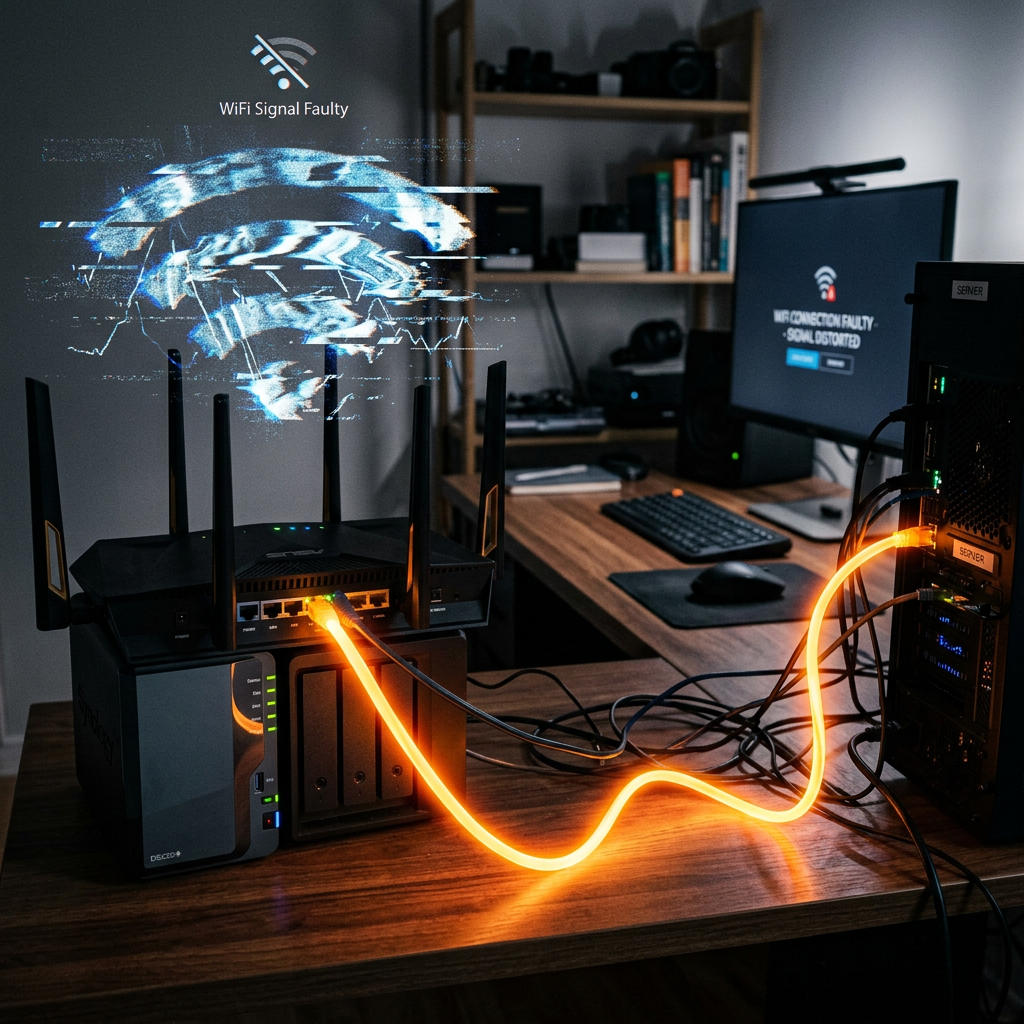
    Home office setup with TP-Link Deco BE85 mesh router and NAS device on a desk.

    Where things actually felt off

    Nothing in my setup ever completely broke, which made this harder to figure out. Things just felt inconsistent. Home Assistant automations didn’t behave the same way every time. Sometimes a motion sensor would trigger a light instantly, other times there’d be a noticeable delay.

    My cameras were similar. Opening the live feed might be instant one time, then take a couple of seconds the next. Even accessing apps on my NAS sometimes felt slower than expected when I was on WiFi. This is where Docker really stood out, because everything I was running locally should have felt instant. If you’re curious what I run, I’ve listed them here: Best Docker Containers for Your NAS.

    Individually, none of this is a big issue, but together it makes the whole setup feel unreliable.

    What I thought the problem was

    At first, I assumed it was performance. Maybe the NAS wasn’t powerful enough, maybe Home Assistant needed tweaking, or maybe the cameras just weren’t great. So I started looking at upgrades. Better hardware, faster gear, new devices. None of that was actually the problem.

    What the problem actually was

    The issue wasn’t speed, it was consistency. Anything running directly on the NAS was solid. Docker apps loaded properly and Home Assistant itself wasn’t struggling. The inconsistency only showed up when WiFi was involved.

    WiFi isn’t bad, but it introduces small variations. Signal strength changes, interference comes and goes, and devices don’t always respond at the same speed. You don’t notice this until something needs to behave the same way every time.

    The test that made it obvious

    The Unstable Path: Sensor → (weak WiFi) → Router → (WiFi) → NAS
    The Stable Path: Sensor → (strong WiFi) → Router → (wired) → NAS

    The simplest thing I did was plug my laptop directly into the router using an Ethernet cable. If your laptop doesn’t have an Ethernet port, you’ll need a simple USB to Ethernet adapter for this. I then repeated the same tasks I was doing over WiFi, like opening NAS apps, transferring files, and accessing Docker services.

    The difference wasn’t just speed, it was predictability. A file transfer that used to fluctuate suddenly behaved the same way every time, and apps loaded without that occasional hesitation. If plugging in one cable removes the inconsistency, WiFi is the weak point.

    What I actually changed (this is the important part)

    I didn’t redesign the network, but I did make a few specific changes that improved the “network path”. I made sure the devices that matter always connect to a strong signal by moving the mesh node so the areas I actually use had consistent coverage instead of borderline signal.

    I also made sure my NAS was always accessed over the most stable path possible. It was already wired, but I stopped relying on weak WiFi connections to reach it. If I’m doing anything heavy or testing behaviour, I plug in directly.

    I reduced how many things were competing on weak connections by spreading devices more evenly across the mesh. Finally, I paid attention to physical placement, since devices behind walls or far from a node will always be less reliable.

    None of these changes are dramatic on their own, but together they reduce how many weak links exist between the sensor, router, Home Assistant, and end device. That’s what “improving the network path” actually means.

    A real example: Home Assistant

    When a motion sensor triggers a light, it isn’t a single action. The sensor detects motion, sends a signal over WiFi to the router, the router passes that to Home Assistant running on the NAS, Home Assistant processes the automation, and then sends a command back over WiFi to the light.

    Each wireless step can introduce a small delay. Before, I saw behaviour like this:

    • Trigger 1 → ~0.4 seconds
    • Trigger 2 → ~1.8 seconds
    • Trigger 3 → ~0.6 seconds
    • Trigger 4 → ~2 seconds

    Nothing was broken, but it felt random. After improving the network conditions, the behaviour became consistent rather than faster:

    • Trigger 1 → ~0.7 seconds
    • Trigger 2 → ~0.8 seconds
    • Trigger 3 → ~0.7 seconds
    • Trigger 4 → ~0.9 seconds

    The difference is that there are fewer random delays in the chain. The NAS is always instantly reachable because it’s wired, and the WiFi connections are more stable. The system behaves the same way every time, which is what makes it feel reliable.

    A real example: cameras

    My current setup uses SwitchBot outdoor WiFi cameras. They’re fine for basic use, but you can feel the limitation. Sometimes the feed loads instantly, other times there’s a delay. That delay is the problem, not because it’s slow, but because it’s unpredictable.

    That’s why I’m planning to move to a PoE setup. I’m currently looking at this direction: UGREEN SynCare AI Home Security. A wired camera should load instantly and behave the same way every time, without depending on signal strength.

    What a switch actually is (and when you need one)

    If you’ve never used a switch before, it’s simply a small box that gives you more Ethernet ports. Your router might only have a few, and a switch expands that so you can connect more wired devices. I don’t currently need one, but I will when I move to PoE cameras.

    What you should actually do

    If your setup feels inconsistent, try this first. Take a device you use regularly, like a laptop, and plug it directly into your router with an Ethernet cable. Then repeat something you normally do, such as opening your NAS, transferring a file, or triggering a Home Assistant automation.

    Ask yourself one question: does this feel more consistent? If the answer is yes, you’ve found your issue.

    What to change after that

    Don’t try to fix everything at once. Identify what feels unreliable, test it on a wired connection, and if it improves, that device or workflow shouldn’t rely on WiFi. Most people jump straight to upgrading hardware, but changing how things are connected usually has a bigger impact.

    If you want to copy this setup

    You don’t need everything I have. At a minimum, you need your existing router and one wired connection to whatever runs your core system, whether that’s a NAS or a PC. If you run out of ports, a small switch is enough to expand this. From there, focus on what actually feels inconsistent and improve that first.

    What the IoT VLAN is actually doing

    A VLAN (Virtual Local Area Network) is a way of splitting your home network into separate groups, even though everything uses the same router. Without one, every device sits on the same network. With one, you can separate things.

    In my case, I keep smart devices on a separate network from my main devices like my laptop and NAS. This gives me better control, keeps things organised, and slightly improves predictability by reducing unnecessary traffic between devices.

    You don’t need a VLAN to fix basic issues, and if your setup is small, you can ignore it for now. Not all routers support it directly, and on many systems it appears as an “IoT Network” or “Guest Network” option instead.

    Final thought

    Most people try to fix their network by upgrading hardware. In my case, the biggest improvement came from changing how things were connected. If your setup feels inconsistent, start there.
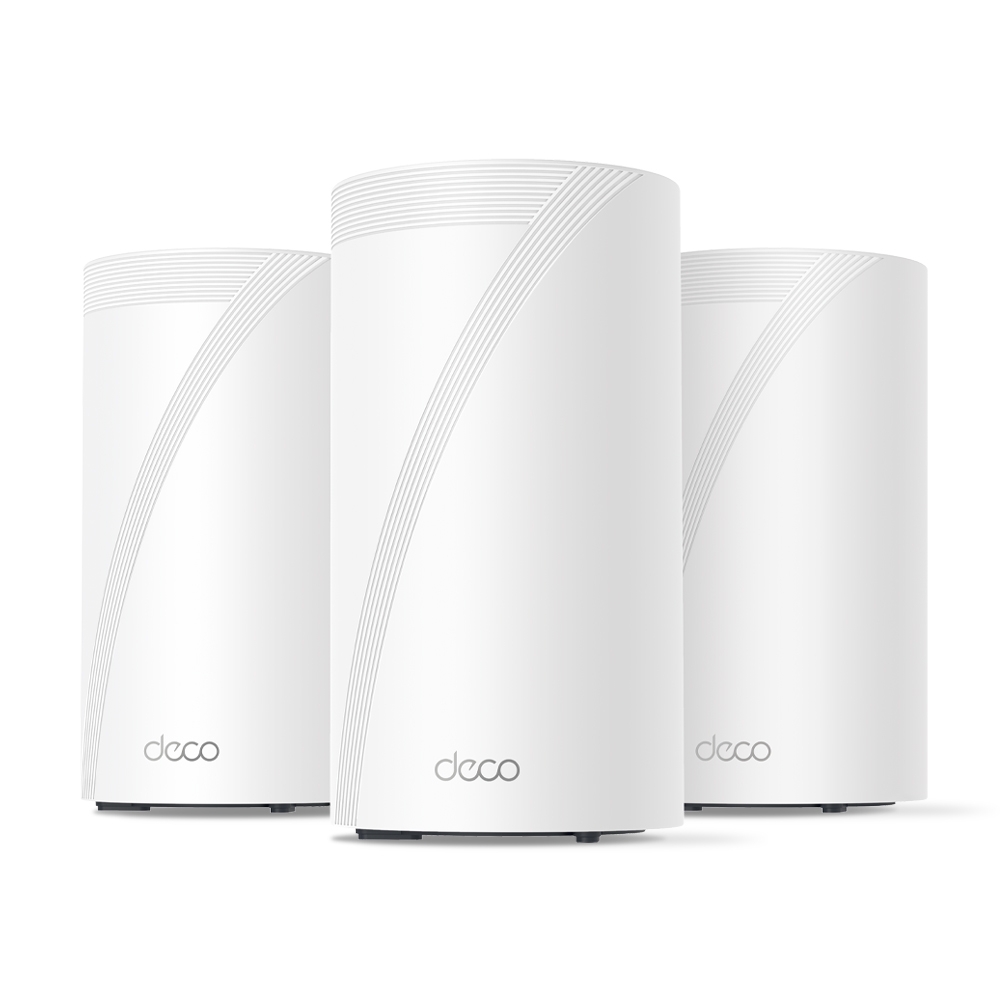
  • TP-Link BE85 Review: Why I Chose It Over Other Wi-Fi 7 Mesh Systems

    TP-Link BE85 Review: Why I Chose It Over Other Wi-Fi 7 Mesh Systems

    When I upgraded to a detached home with 10G fibre, I wanted a mesh system that could actually keep up — without costing a fortune. After researching TP-Link’s full Wi-Fi 7 lineup, I settled on the BE85. This post breaks down what I learned comparing the BE63, BE75, BE85, and BE95 — and why the BE85 came out on top for my setup.

    Note: Some links in this post are affiliate links. If you buy something through them, I may earn a small commission — it doesn’t cost you anything extra, and it helps support the site. As an Amazon Associate, I earn from qualifying purchases.


    🚨 Limited-Time Deal: TP-Link Deco BE63 (3-Pack)

    Buy the TP-Link Deco BE63 (3-Pack) on Amazon →
    🟢 Deal Price: $398.99 (was $599) — Offer valid through July 11
    💳 Bonus: 25% back in Amazon Prime Card rewards (if applicable)

    🛜 BE10000 Tri-Band Wi-Fi 7 Speeds:

    • 5188 Mbps on 6 GHz
    • 4324 Mbps on 5 GHz
    • 574 Mbps on 2.4 GHz

    📦 What You Get: Covers up to 7,600 sq ft, supports 200+ devices, and includes 4× 2.5G LAN/WAN ports + 1× USB 3.0 port per unit.

    🧠 Features:

    • Simultaneous wired + wireless backhaul
    • AI-driven seamless roaming
    • Full backwards compatibility with any ISP or Wi-Fi generation

    Why I Went Mesh

    When I moved into a detached townhouse, one of my priorities was ensuring stable Wi-Fi coverage across all floors and rooms. Thick internal walls and a slightly larger footprint than a typical apartment made single-router setups unreliable — especially toward the edges of the house.

    Rather than run cables through walls or deal with signal dropouts, I opted for a mesh Wi-Fi solution. A multi-node system gave me full coverage with seamless handoffs between access points, eliminating dead zones and ensuring solid speeds everywhere from the bedroom to the garden.


    TP-Link BE Series Compared: BE63 vs BE75 vs BE85 vs BE95

    TP-Link’s Wi-Fi 7 mesh lineup (BE series) includes four main models: BE63, BE75, BE85, and BE95. While all support Wi-Fi 7, their specs and use cases differ significantly.

    🔹 TP-Link Deco BE63

    • Bands: Tri-band (2.4GHz + 5GHz + 6GHz)
    • Speeds: Up to 11Gbps combined
    • Ethernet:
    • 1× 2.5G WAN/LAN port
    • 3× 1G LAN ports
    • Coverage (2-pack): ~5,500 sq ft
    • Backhaul: Wireless only (no 10G or dedicated backhaul port)
    • Use Case: Budget Wi-Fi 7 for small to medium homes
    • Pros: Most affordable Wi-Fi 7 mesh option, good performance for the price
    • Cons: Lacks 10G ports, weaker wired backhaul support

    🔹 TP-Link Deco BE75

    • Bands: Tri-band (2.4GHz + 5GHz + 6GHz)
    • Speeds: Up to 17Gbps combined (11,530 Mbps on 6GHz, 4,324 Mbps on 5GHz, 688 Mbps on 2.4GHz)
    • Ethernet:
    • 1× 10G RJ45/SFP+ WAN/LAN combo port
    • 3× 2.5G WAN/LAN ports
    • Coverage (2-pack): ~6,000–6,300 sq ft
    • Backhaul: Supports simultaneous wired + wireless Multi-Link Operation (MLO)
    • Use Case: Mid-tier Wi‑Fi 7 mesh with flexible wired and wireless backhaul—great for users with multi-gig (up to 10G) internet but not requiring full BE85/BE95 performance.
    • Pros: Future-proof 10G port, strong throughput and coverage, 8‑stream Wi‑Fi 7
    • Cons: Only one 10Gbps port (others are 2.5G), no dedicated backhaul band

    🔹 TP-Link Deco BE85

    • Bands: Tri-band (2.4GHz + 5GHz + 6GHz)
    • Speeds: Up to 22Gbps combined
    • Ethernet:
    • 2× 10G ports (1× SFP+ combo, 1× RJ45)
    • 2× 2.5G LAN ports
    • Coverage (2-pack): ~9,600 sq ft
    • Backhaul: Supports 10G wired backhaul
    • Use Case: Large homes, power users, multi-device households
    • Pros: Great performance, future-proof ports, excellent coverage
    • Cons: Pricier than BE63/BE75 but offers much more

    🔹 TP-Link Deco BE95

    • Bands: Quad-band (2.4GHz + 5GHz-1 + 5GHz-2 + 6GHz)
    • Speeds: Up to 33Gbps combined
    • Ethernet:
    • 2× 10G ports
    • 2× 2.5G LAN ports
    • Coverage (2-pack): ~9,600–10,000 sq ft
    • Backhaul: Dedicated band for wireless backhaul + full 10G support
    • Use Case: Power users, wired smart homes, 2G/10G+ multi-gig setups
    • Pros: Absolute top-end performance, dedicated backhaul band, fastest speeds
    • Cons: Very expensive — overkill for most homes

    Why I Chose the TP-Link BE85

    After reviewing all the options, the BE85 hit the sweet spot for my needs. My ISP provides 10G fibre to the home, and I wanted to actually make use of it — not bottleneck it with a 1G router. The BE85 offered:

    • ✔ Full 10G WAN + LAN support
    • ✔ Fast, reliable tri-band Wi-Fi 7
    • ✔ Wired backhaul with 10G performance
    • ✔ Substantially lower cost than the BE95, without sacrificing much

    Another key reason I went with TP-Link over brands like Netgear, Asus, or Eero was price-to-performance. The BE85 delivers comparable (and in many cases better) real-world throughput and coverage than competing systems, while undercutting them significantly on cost. According to performance tests like those from Dong Knows Tech, the BE85 actually outperformed more expensive options — even the Netgear Orbi RBKE963 — in both speed and range.

    Combined with the ease of use, clean app, and rapid firmware support from TP-Link, it made the BE85 one of the best-value Wi-Fi 7 mesh systems available — and still one of the top performers months after release.


    Hands-On Impressions with the BE85

    From the moment I unboxed it, setup was quick and painless using the TP-Link Deco app. The two units synced easily, and firmware updates were done within minutes. Here’s how it’s performed over several months:

    🔹 Coverage & Range

    I get full signal across the house — no buffering, no dropouts. Even in the furthest room on the second floor, I still get over 1.5 Gbps download — most recently clocking in at 1567 Mbps down / 742 Mbps up via Speedtest.

    🔹 Speed Testing

    Using a wired backhaul and 6GHz-capable devices, I regularly see speeds over 1.5 Gbps. More impressively, I’ve tested the connection multiple times with my 10G fibre line and reached as high as 7.58 Gbps down / 7.39 Gbps up during off-peak hours.

    Even during peak usage times, I’ve seen 3.87 Gbps down / 1.64 Gbps up, which is still miles ahead of most home connections.

    🔹 Stability

    The system has been rock-solid. No node drops, no weird disconnects. I’ve only rebooted it once since installation — and that was due to a firmware update.

    🔹 App Control

    The Deco app is simple, but has most of what you need: device prioritisation, QoS, basic firewalling, guest network, and remote access.

    🔹 Downsides?

    Very few. It’s large compared to budget routers, and some advanced users might find the lack of granular settings (like VLAN tagging or deeper DHCP options) limiting — but for 99% of homes, it’s a premium experience.


    Should You Buy the BE63, BE75, BE85, or BE95?

    Choosing the right mesh system depends on your home size, internet speed, and how future-proof you want your setup to be. Here’s a quick guide based on everything covered:

    ✅ Go with the BE63 if:

    • You’re upgrading from an older Wi-Fi 5 or early Wi-Fi 6 setup
    • You want basic Wi-Fi 7 support at the lowest possible cost
    • Your home is small to medium-sized and you’re not using multi-gig internet

    Get the BE63 on Amazon →

    ✅ Consider the BE75 if:

    • You want more bandwidth and coverage than the BE63
    • You still don’t need 10G ports or wired backhaul
    • You’re in a medium to large home with many devices

    Get the BE75 on Amazon →

    ✅ Choose the BE85 if:

    • You have a multi-gig or 10G internet connection
    • You want wired backhaul support with 10G LAN/WAN
    • You plan to run NAS, streaming, cloud backups or a smart home with heavy traffic
    • You want premium performance without BE95 pricing

    Get the BE85 on Amazon →

    ✅ Go for the BE95 only if:

    • You absolutely need the best possible performance
    • You’re in a very large home or smart home ecosystem with dozens of demanding devices
    • You need quad-band Wi-Fi 7 and a dedicated wireless backhaul

    Get the BE95 on Amazon →


    Final Thoughts

    The TP-Link BE series offers something for everyone, but the BE85 stands out as the true sweet spot. It’s powerful enough to make full use of 10G internet, provides rock-solid mesh coverage, and still comes in far cheaper than flagship systems from other brands.

    For detached homes, users with demanding network setups, or anyone wanting to build around Wi-Fi 7 — this is one of the best options available.

    If you’re considering the BE63 as a budget-friendly alternative, it’s a solid pick too — just be aware of its backhaul and port limitations.

    Still deciding if Wi-Fi 7 is worth the leap? This breakdown of Wi-Fi 6, 6E, and 7 can help you figure out what’s best for your setup.