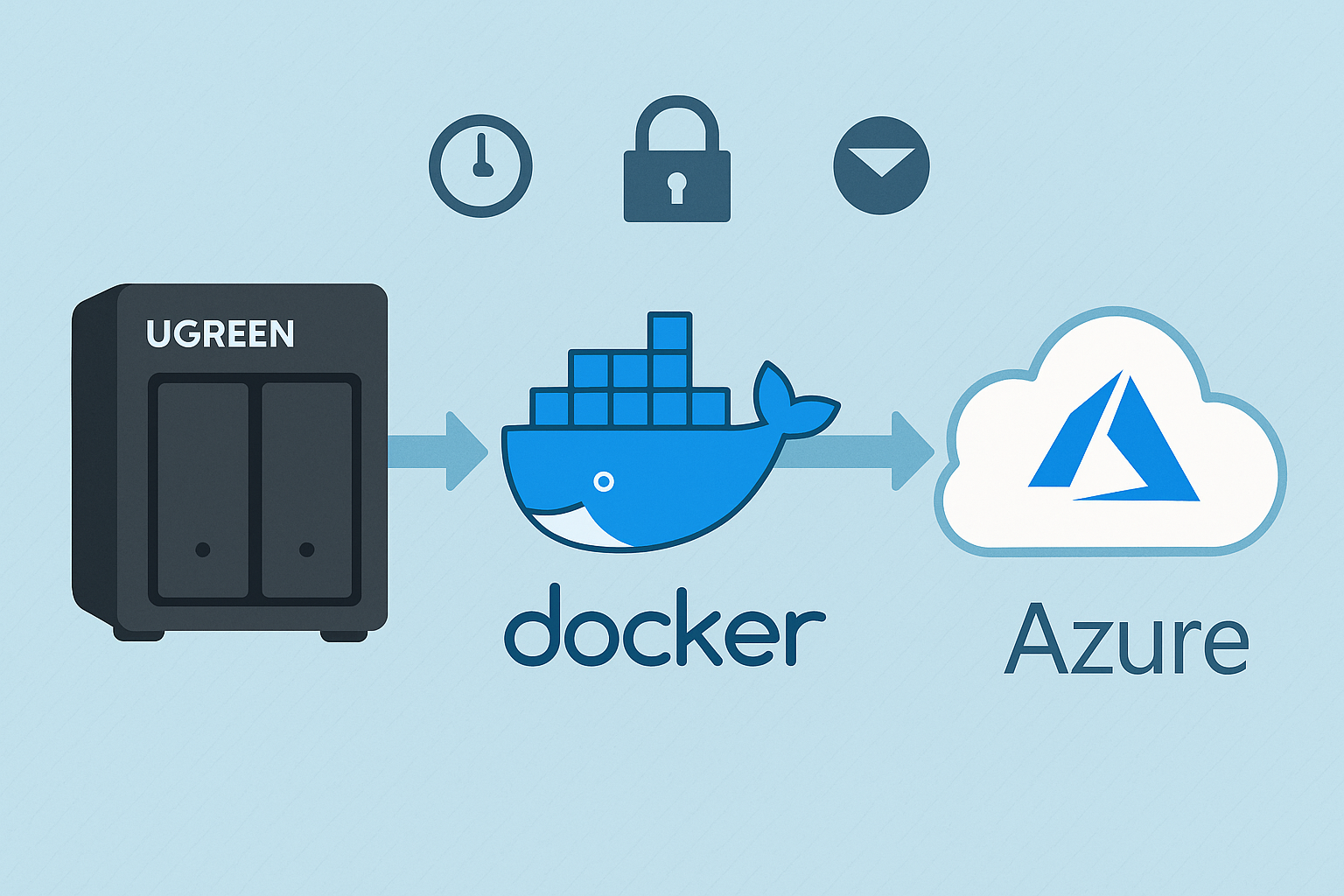
Backing up your NAS is essential to protect against data loss from hardware failure, theft, or natural disasters. In this guide, I’ll walk you through how I set up a backup from my UGREEN NASync DXP2800 to Azure using rclone, based on the exact process I followed. Each step includes context so you understand not just how to do it, but why.
Why Azure?
Azure is a robust cloud storage option offering high reliability, excellent redundancy, and flexible access tiers specifically designed for backup and archiving. While Azure doesn’t provide a permanent free tier (unlike services such as Google Drive), it does offer generous trial credits to new users. To minimise ongoing storage costs without these credits, I recommend using the Cool or Archive storage tiers—both ideal for backups that don’t require frequent access.
Other options: rclone supports a wide range of cloud providers. Here are a few great alternatives:
- Backblaze B2 – Very affordable, especially for large backups. Well-supported by rclone.
- Google Drive – Great for personal backups. Offers 15GB free and integrates easily.
- Wasabi – Flat-rate pricing and no egress fees. A strong S3-compatible choice.
- Dropbox – Easy to use with good syncing capabilities, though pricing can be high for large storage needs.
- Amazon S3 – Enterprise-grade option, scalable but more complex to configure and can get expensive.
You can easily substitute Azure in this guide with one of the above by changing the remote configuration step.
Step 1: Generate rclone Configuration File
To make rclone work from Docker, I first created a persistent config file using a temporary container:
docker run -it --rm \
  -v /mnt/data/rclone-config:/config \
  --env XDG_CONFIG_HOME=/config \
  rclone/rclone config
Walk through the prompts:
- Select
nto create a new remote. - Name it something like
myremote(avoid using your NAS or personal name). - Select storage type
34for Azure Blob Storage. - Enter your Azure Storage Account Name for
account. - Enter your Access Key for
key. - Leave
endpointblank. - Skip advanced config and auto config by selecting
n.
Once complete, the config will be saved as /mnt/data/rclone-config/rclone.conf on your NAS, ready for Docker containers to use.
🛠️ Tip: To test that it works:
docker run --rm \
  -v /mnt/data/rclone-config:/config \
  --env XDG_CONFIG_HOME=/config \
  rclone/rclone:latest lsd myremote:mycontainer \
  --config="/config/rclone.conf"
Step 2: Create the Backup Script
This script is broken into three parts: syncing data, deleting older backups, and emailing on failure. Each part is explained below.
I wanted versioned backups and automatic cleanup of older ones. Here’s the exact script I used:
#!/bin/sh

LOG_FILE="/mnt/data/rclone-config/monthly_backup.log"
CONFIG="/mnt/data/rclone-config/rclone.conf"
REMOTE="myremote:mycontainer"
BACKUP_NAME="nas-backup-$(date +%Y-%m)"
DELETE_DATE=$(date -d "4 months ago" +%Y-%m)
OLD_BACKUP_NAME="nas-backup-$DELETE_DATE"

# 🔁 Sync Step – Copy /volume1 to a dated backup folder
docker run --rm \
  -v /volume1:/data \
  -v /mnt/data/rclone-config:/config \
  --env XDG_CONFIG_HOME=/config \
  rclone/rclone:latest sync /data "$REMOTE/$BACKUP_NAME" \
  --config="/config/rclone.conf" \
  --log-file="/config/monthly_backup.log" \
  --log-level INFO \
  --exclude "@tmp/**"

# 🧹 Retention Step – Delete backups older than 4 months
docker run --rm \
  -v /mnt/data/rclone-config:/config \
  --env XDG_CONFIG_HOME=/config \
  rclone/rclone:latest purge "$REMOTE/$OLD_BACKUP_NAME" \
  --config="/config/rclone.conf"

# 📧 Notification Step – Email if backup fails
if [ $? -ne 0 ]; then
  echo "NAS Backup failed. See log below:" | mail -s "NAS Backup FAILED" you@example.com < "$LOG_FILE"
fi
📌 Note: Replace
myremoteandmycontainerwith your rclone remote and Azure Blob container name. Avoid using identifiable names like your NAS hostname.
Step 3: Enable Email Reporting on Your NAS
To enable email alerts for failed backups, I used the built-in mail command entirely through SSH — no GUI or additional packages were needed.
What I did:
- SSH into your NAS:
ssh your-nas-username@your-nas-ip
- Test email functionality:
echo "Test message" | mail -s "Test Email" you@example.com
If you receive the test email, your NAS is already configured to send system emails.
- Check your mail config (if test mail fails):
The system usesmsmtpunder the hood on many embedded NAS environments. Create or edit the config:
vi /opt/etc/msmtprc
Example configuration (for Gmail):
   defaults
   auth           on
   tls            on
   tls_trust_file /etc/ssl/certs/ca-certificates.crt

   account default
   host smtp.gmail.com
   port 587
   from your.email@gmail.com
   user your.email@gmail.com
   password your_app_password
   logfile /opt/var/log/msmtp.log
- Make sure permissions are correct:
chmod 600 /opt/etc/msmtprc
- Export the config path if needed (some systems require this):
export MSMTP_CONFIG=/opt/etc/msmtprc
- Retry your test email:
echo "Test message" | mail -s "Test Email" you@example.com
- Add to your script:
Make sure your backup script includes:
   if [ $? -ne 0 ]; then
     echo "NAS Backup failed. See log below:" | mail -s "NAS Backup FAILED" you@example.com < "$LOG_FILE"
   fi
✅ If your provider uses two-factor authentication, use an app-specific password. Most mail issues come down to wrong SMTP server, port, or missing trusted certs.
Step 4: Schedule the Script with Cron
To automate your backups, schedule the script using cron:
Edit your crontab by running:
crontab -e
Then, add the following line:
30 2 1 * * /volume1/scripts/backup_to_azure.sh
Here’s what these numbers mean:
30: Minute (0-59)2: Hour (0-23, where 2 is 2:00 AM)1: Day of the month (1-31)*: Month (1-12,*means every month)*: Day of the week (0-6, Sunday=0,*means every day)
In this example, the backup script runs automatically at 2:30 AM on the 1st day of every month. Adjust these numbers according to your preferred backup schedule.
✅ Why this schedule? Monthly snapshots avoid daily clutter and keep backups manageable.
Step 5: Verify Your Backups
Confirm everything’s working with:
cat /mnt/data/rclone-config/monthly_backup.log
And list current backup folders:
docker run --rm \
  -v /mnt/data/rclone-config:/config \
  --env XDG_CONFIG_HOME=/config \
  rclone/rclone:latest lsd myremote:mycontainer \
  --config="/config/rclone.conf"
🔄 Optional Enhancements
🔐 Encrypt Your Backups
Want extra protection? Add a second rclone remote (type crypt) that wraps your Azure remote:
rclone config
- Create new remote
myremote-crypt - Type:
crypt - Remote:
myremote:mycontainer - Set a strong password and salt
Then replace the backup target in your script with:
myremote-crypt:$BACKUP_NAME
🔍 Restore Test
Try restoring a test file from Azure to confirm you can actually recover data if needed:
docker run --rm \
  -v /volume1/test-restore:/restore \
  -v /mnt/data/rclone-config:/config \
  --env XDG_CONFIG_HOME=/config \
  rclone/rclone:latest copy myremote:mycontainer/nas-backup-2025-05/testfile.txt /restore \
  --config="/config/rclone.conf"
🧩 Troubleshooting & FAQ
Q: My backup failed with a permissions error—how do I fix it?
A: Make sure your Docker container has read permissions for /volume1 and that the rclone configuration (rclone.conf) is properly mounted. Also, confirm file permissions with chmod 600.
Q: I received a network error during my backup—what can I do?
A: Add retry options to your rclone sync command to enhance resilience against temporary network issues:
--retries 5 --low-level-retries 10
Q: My email notifications aren’t being sent—how do I troubleshoot this?
A: Ensure the built-in mail command on your NAS works by testing from SSH:
echo "Test Email" | mail -s "Test" you@example.com
If it doesn’t, verify SMTP configuration (see Step 3 above).
Q: How can I avoid hitting Azure bandwidth or cost limits?
A: Use bandwidth limiting during uploads with:
--bwlimit=8M
Additionally, choose the “Cool” or “Archive” Azure tiers for cost efficiency.
Q: Can I use another cloud provider instead of Azure?
A: Absolutely! rclone supports many services like Backblaze B2, Google Drive, Dropbox, Wasabi, and Amazon S3. You simply adjust the remote setup step accordingly.
Final Thoughts
You now have automated, secure, and reliable backups ready to protect your valuable data. Have you tried setting this up yourself yet? I’d love to hear your experiences, challenges, or ideas for enhancements in the comments below. Happy backing up!
If you’re interested in other NAS setups and configurations, you might find these previous posts helpful:
- Setting Up the UGREEN NASync DXP2800: A Beginner-Friendly Guide
- Installing Home Assistant on Your NAS
- NAS Storage: Choosing the Right Drives for Your Needs
Let me know if there are other topics you’d like to see covered!