Tag: Data Protection

  • UGREEN US3000 UPS Review – The Perfect NASync Companion

    UGREEN US3000 UPS Review – The Perfect NASync Companion

    Disclosure: As an Amazon Associate, I earn from qualifying purchases. Some links in this article may be affiliate links, which help support the site at no extra cost to you.


    Introduction

    After a week of daily use, the UGREEN US3000 UPS has already proven why it exists. Power protection isn’t glamorous, but even a short outage can corrupt drives or interrupt critical writes on a NAS.

    UGREEN designed the US3000 to prevent that exact risk — not by adding complexity, but by integrating power management directly into UGOS Pro, the same operating system used in the NASync series. (If you want to see how it performs in practice, read my UGREEN NASync DXP2800 two-month review for a deeper look at daily reliability and real-world performance.)

    Unlike most universal UPS units that rely on dated software and manual setup, this compact model is purpose-built for NASync devices. It feels more like a built-in safeguard than an accessory — quietly doing its job in the background.


    Design and Build Quality

    The US3000 is constructed from solid aluminium alloy, finished in the same matte silver-grey as the DXP-series NAS units. It’s small (120 × 80 × 30 mm, 440 g) yet dense, with precise machining and no flex.

    Inside, it houses a 12 000 mAh (43.2 Wh) battery pack made from four SunPower INR18650-3000 cells wired in series. Dedicated circuitry manages charging, discharge rate, and temperature control, while the metal enclosure doubles as a passive heatsink.

    The internal layout is clean and practical: foam-cushioned cells, Mylar-insulated wiring, and reinforced connectors. The supplied DC5525 and USB-C cables are short and tidy — ideal for rack or shelf setups. It’s clear UGREEN designed this as a true companion for its NAS line rather than a generic UPS.


    Setup and Integration with NASync

    Setup takes under five minutes. Connect the US3000 between your NAS and its power supply using the DC5525 lead, then attach the USB-C cable.

    Once powered, UGOS Pro detects the UPS automatically under Control Panel → Hardware & Power → UPS. From there you can view charge status, voltage, and shutdown options — all without installing drivers or third-party software.

    That seamless integration is what separates it from typical UPS units. The US3000 appears in UGOS Pro as a managed device, enabling automatic shutdown and recovery when power returns.

    If you’re just starting out with your NASync, my beginner setup guide for the UGREEN DXP2800 covers this interface step by step.


    Performance and Everyday Use

    The US3000 focuses on one thing: controlled shutdowns. It’s not a long-duration backup — it’s protection done right.

    UGOS Pro offers two response modes:

    1. Standby Mode

    • NAS continues running on battery during an outage.

    • If mains returns quickly, it resumes seamlessly.

    • If power doesn’t return, the NAS shuts down gracefully before the battery is depleted.

    2. Auto Shutdown

    • NAS immediately begins its shutdown sequence.

    • Services stop cleanly and drives park safely.

    • Once power is restored, it restarts automatically.

    I keep mine set to Auto Shutdown — it’s the safest option for unattended use. In testing, both modes worked perfectly. The DXP2800 switched instantly to UPS power and completed its shutdown sequence cleanly, with zero voltage fluctuation.

    Recharge takes about two hours, and because it uses DC-to-DC conversion instead of AC inversion, it runs completely silent and highly efficient.

    If you’d like to see how the DXP2800 performs under typical workloads, the two-month NASync review includes real-world tests on transfer speeds, app stability, and power use.


    Compatibility and Runtime Estimates

    Runtime figures from NASCompares, ChargerLab, and UGREEN show the UPS is tuned for short, controlled operation.

    NAS ModelCPUMax DrawEst. Runtime
    DXP2800Intel N100≈ 35 W≈ 10 min
    DXP4800Intel N95≈ 45 W≈ 8–9 min
    DXP4800 PlusIntel Core i3-N305≈ 55 W≈ 7 min
    DXP8800 PlusIntel Core i5-1235U≈ 70 W≈ 6 min
    DH2600 / DX4600Various< 50 W≈ 8–9 min

    Rated for 120 W DC output (12 V / 10 A, 19 V / 7.9 A, 20 V / 7 A), it easily handles every NASync model. No configuration is needed — UGOS Pro manages detection and shutdown automatically.

    For context on how drive selection affects power usage, see Choosing the Best Drives for Your NAS – HDD vs SSD Recommendations.


    Inside the US3000 (Teardown Insights)

    ChargerLab’s full teardown of the UGREEN 120 W DC UPS shows just how well built this unit is.

    It uses a Chipsea CBM8580KV6NT for battery management and SMBus communication, a Texas Instruments TPS55289 for buck-boost power regulation, and a GigaDevice GD32F303RCT6 microcontroller (Cortex-M4 @ 120 MHz) for logic and protection.

    Each of the four battery cells is individually insulated and cushioned, while the PCB is shielded with Mylar and protected by dual fuses and thermistors. Wiring is reinforced, neatly routed, and the aluminium chassis itself acts as a heatsink.

    It’s a compact, efficient design that would look right at home in professional-grade hardware.


    Highlights

    • Native integration – Full hardware-software link through UGOS Pro; zero configuration.

    • Smart behaviour – Automatic standby and shutdown for controlled response.

    • Premium build – Machined aluminium shell, insulated internals, efficient cooling.

    • Power efficiency – DC-to-DC conversion for silent, stable operation.

    • Effortless ownership – Quick recharge, no maintenance, seamless protection.

    If you’re exploring ways to make your NAS more versatile, try Top 10 Docker Containers to Supercharge Your NAS — it’s packed with apps that complement a NASync setup perfectly.


    Limitations

    • Runtime – ≈ 43 Wh battery provides 6–10 minutes of backup; enough for graceful shutdowns, not long-term use.

    • Device scope – Exclusive to UGREEN NASync systems.

    • Availability – Still limited in retail channels but expected to expand soon.

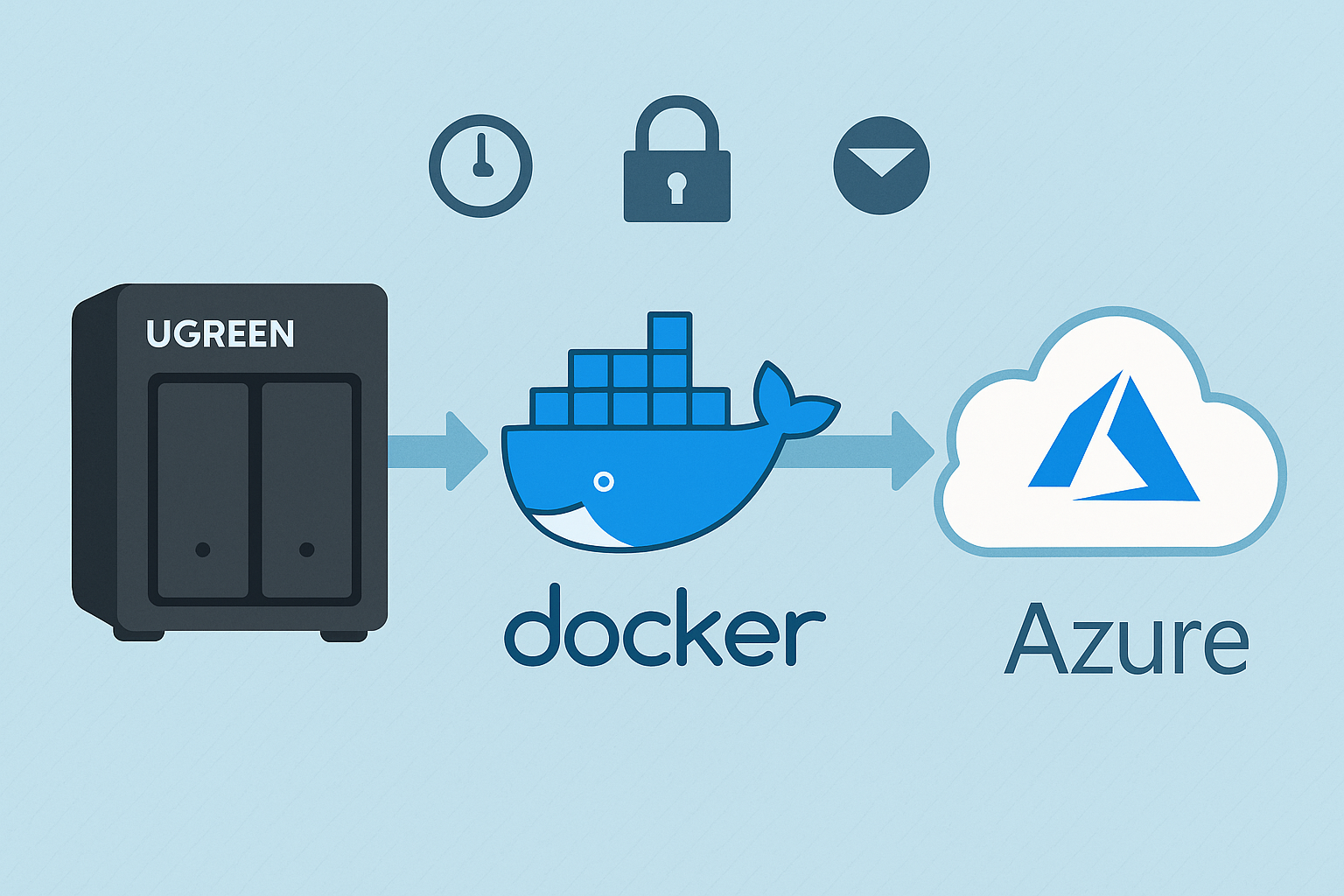
    For users wanting both on-site and off-site protection, pair this with Automated NAS Backup to Azure via Rclone Guide to create a full-stack backup strategy.


    Final Verdict

    After a week of use, the UGREEN US3000 UPS has become one of those accessories you forget about — until it saves your data. It’s compact, silent, efficient, and integrated so tightly with UGOS Pro that it feels like part of the NAS itself.

    It won’t keep your system running forever, but it ensures it never shuts down the wrong way — and for NAS owners, that’s what really matters.

    If you’re building or upgrading a NASync setup, the two-month UGREEN DXP2800 review offers detailed insights into everyday use and performance, while Best Home Security Cameras for Your NAS (Cloud vs PoE) covers surveillance options that pair perfectly with this UPS.
  • UGREEN U3000 UPS First Look — Small but Mighty

    UGREEN U3000 UPS First Look — Small but Mighty

    The wait is finally over — my UGREEN U3000 UPS has arrived!

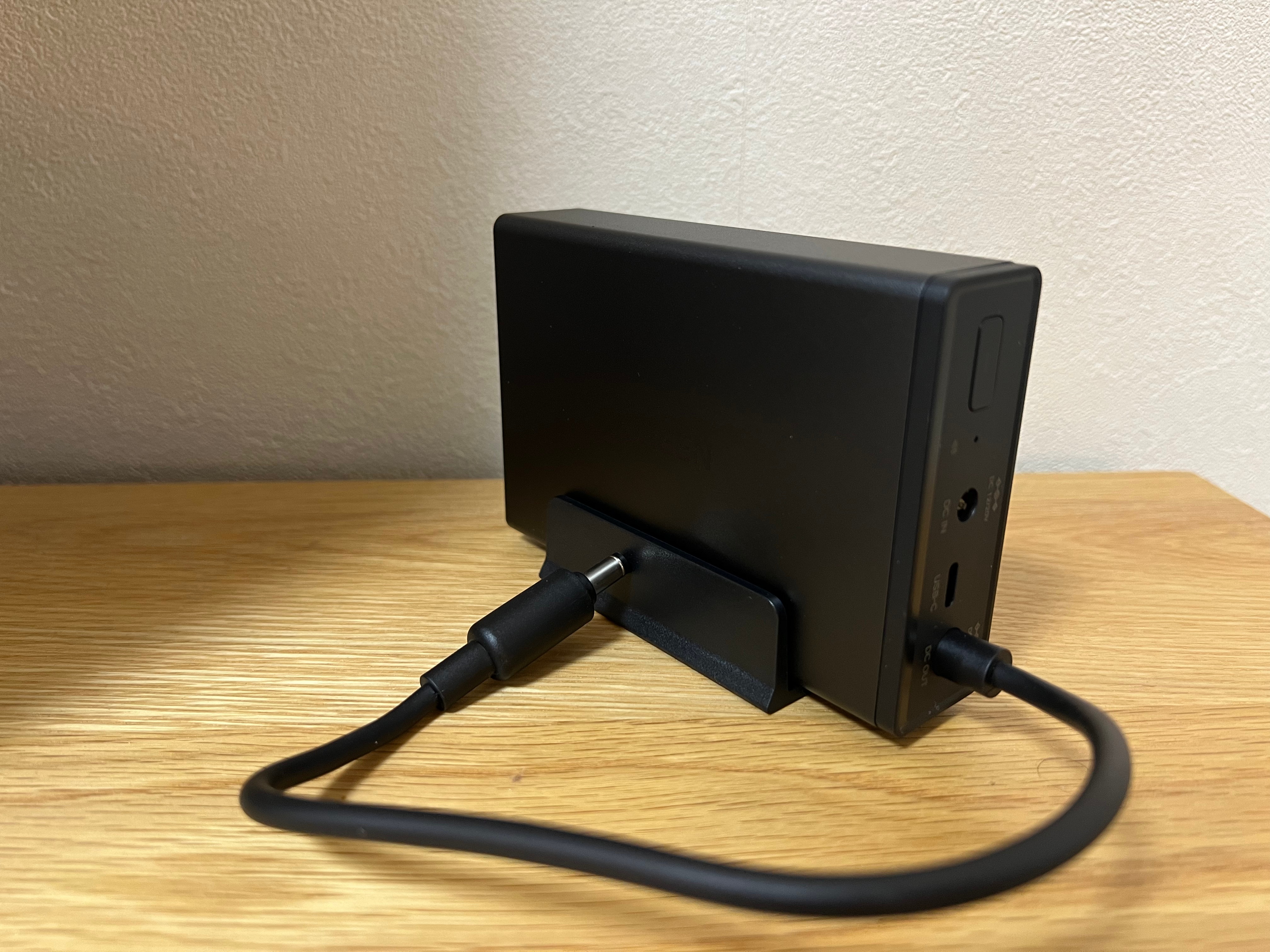
    Right out of the box, I was caught off guard by its size. It’s unbelievably compact — almost the same footprint as my UGREEN Magnetic Power Bank, which makes it feel more like a portable charger than a full UPS system.

    This little unit is designed specifically for UGREEN’s NASync lineup, offering 120W of DC backup power with zero-second transfer time. That means if the power cuts out, your NAS keeps running instantly with no delay.

    It’s a clean, modern take on backup power — no bulky fans, no heavy lead-acid batteries, and no cluttered cabling. Just a sleek matte black box that slots quietly beside your NAS.

    I’ve just got it set up with my UGREEN NASync DXP2800, and here’s a quick look at the hardware, the software integration, and why this might be one of the smartest little UPS units around.


    Unboxing & First Impressions

    UGREEN U3000 UPS packaging showing 120W DC backup design.
    Simple, clean packaging that sets the tone for UGREEN’s minimalist design approach

    The box presentation is classic UGREEN — understated and premium. Even before opening it, you get the sense that this is designed to fit neatly into a modern setup rather than dominate it.


    Compact Design

    UGREEN U3000 UPS on desk showing its compact matte finish.
    The matte finish and solid build make it feel far more premium than its size suggests.

    Once unboxed, the size difference really stands out. When placed next to my UGREEN Magnetic Power Bank, they’re nearly identical in dimensions. Seeing them side by side drives home just how compact this UPS truly is — it’s impressive that something this small can output 120W of continuous power.

    UGREEN U3000 UPS compared with UGREEN Magnetic Power Bank.
    Almost pocket-sized — the U3000 looks more like a power bank than a UPS.

    Ports & Connectivity

    Close-up of UGREEN U3000 UPS rear ports including DC IN, DC OUT, and USB-C
    Straightforward port layout — DC IN, DC OUT, and USB-C for monitoring.

    The rear layout is clean and functional, featuring DC input/output and a USB-C port for communication. It runs silently and uses passive cooling, which is a welcome change from traditional UPS fans humming in the background.


    Smart Integration

    PC control panel view of UGREEN US3000 UPS showing connection status, firmware version, and NUT options.
    The U3000 is recognised instantly through the NAS interface with full NUT support.

    Connecting the U3000 to the NAS was completely plug-and-play. It appeared right away under the UPS settings as UGREEN US3000, showing battery capacity, firmware version, and auto-shutdown options.

    The UPS also supports NUT (Network UPS Tools) — an open-source protocol that allows the NAS to detect power changes and automatically shut down safely if the battery runs low. It’s a small but important addition that makes the system much more reliable in real-world conditions.


    Next Steps

    Over the next few days, I’ll see how the U3000 performs under normal NAS workloads — how quickly it switches to battery, how stable it runs during short outages, and how the NUT integration behaves over extended use.

    If you are building out your NAS, check my guide Choosing the Best Drives for Your NAS Setup and my roundup NAS Compatible Security Cameras to see how it all fits together.

    Stay tuned — this compact little unit might be one of the best NAS accessories UGREEN has released so far.

  • NAS Security Best Practices: How to Protect Your Smart Home Storage in 2025

    NAS Security Best Practices: How to Protect Your Smart Home Storage in 2025

    Smart homes are only as strong as their weakest link — and for many people, that link is their NAS. Whether you’re backing up family photos, streaming media, or running Docker apps like Home Assistant, your NAS is central to daily use. But with that convenience comes risk: if left unsecured, it can be a prime target.

    In this post, we’ll look at practical security measures anyone can take, along with real-world examples of how they’re applied.


    Why NAS Security Matters

    Your NAS is more than just storage. It can hold personal documents, sensitive media, or even act as a server for automation. If compromised, you risk data loss, identity theft, or someone using your device as part of a botnet. NAS attacks often involve ransomware, where hackers encrypt your files and demand payment for the key. Others exploit weak passwords or outdated firmware.

    Securing your NAS doesn’t just protect your files. It safeguards your privacy, prevents downtime for your smart home, and ensures your backups are truly reliable.


    Step 1: Enable Two-Factor Authentication (2FA)

    Passwords alone are no longer enough. Attackers often use brute-force attacks or leaked credentials to get into devices. Two-factor authentication (2FA) adds a crucial extra step, requiring both your password and a second code (usually sent to your phone or generated by an authenticator app).

    Why it matters:

    • Protects you if your password is leaked in a data breach.
    • Makes brute-force attacks nearly impossible.
    • Adds security for admin accounts that have full system access.

    On modern NAS platforms like Synology, QNAP, UGREEN, Asustor, and TerraMaster, enabling 2FA takes only a few minutes. It’s one of the simplest but most effective steps you can take.


    Step 2: Secure Remote Access

    One of the biggest mistakes NAS owners make is exposing their system directly to the internet with port forwarding. Hackers constantly scan for open NAS ports, making this extremely risky.

    Safer alternatives:

    • Vendor Remote Access Services: Systems like Synology QuickConnect, QNAP myQNAPcloud, and UGREEN Link let you connect remotely without opening ports. These encrypt your traffic and relay it through secure servers.
    • VPN Access: A VPN connection to your home network gives you direct access to your NAS while keeping it hidden from the wider internet.

    Why it matters:

    • Prevents unauthorised scanning and login attempts.
    • Keeps your NAS invisible to opportunistic attacks.
    • Ensures encrypted communication when you’re away from home.

    If you value convenience, stick with the vendor’s remote access app. If you want maximum control, set up a VPN on your router.


    Step 3: Keep Firmware and Apps Updated

    Outdated firmware and apps are one of the most common ways attackers break into devices. Security patches fix vulnerabilities, but only if you install them.

    Why it matters:

    • New exploits are constantly discovered and shared online.
    • Running old firmware is like leaving your front door unlocked.
    • Updates also improve stability and sometimes add new features.

    Best practice:

    • Enable auto-updates where possible.
    • Manually check for firmware or Docker container updates once a month.
    • Subscribe to vendor newsletters or RSS feeds to stay aware of security advisories.

    Step 4: Backups Beyond RAID

    A common misconception is that RAID = backup. It doesn’t. RAID only protects against drive failure, not against ransomware, accidental deletions, or theft. To keep data truly safe, you need a separate copy stored elsewhere.

    Backing up NAS data to Azure Blob storage ensures off-site redundancy and protection against disasters.

    There are several approaches:

    • External HDDs: Rotate them regularly and keep one off-site.
    • Cloud storage: Services like Backblaze B2, Google Drive, or Dropbox can work well with NAS sync tools.
    • Hybrid setups: Use both local and cloud storage for maximum redundancy.

    In my case, I use Azure Blob Storage as my off-site backup. It integrates with my NAS through rclone, a powerful command-line tool for syncing files to cloud storage providers. Once configured, it allows my NAS to automatically copy critical folders to Azure, giving me a secure, off-site backup that isn’t affected by local issues like drive failure, ransomware, or even physical damage.

    🔗 For a full walkthrough, check out my dedicated post on Automating NAS Backups to Azure with rclone.

    Why this matters:

    • Protects against ransomware wiping out your NAS data.
    • Provides recovery if your house suffers fire, flood, or theft.
    • Gives peace of mind knowing you have a copy far away from your home setup.

    Step 5: Strengthen Your Network

    Your NAS security depends heavily on your network. Weak Wi-Fi or outdated routers leave doors open for attackers, and insecure IoT devices can be an easy way in.

    What to do:

    • Use WPA3 or WPA2 encryption with a long, unique passphrase to secure your Wi-Fi.
    • Segment IoT devices (cameras, bulbs, sensors) onto a separate VLAN or guest Wi-Fi so they can’t directly reach your NAS. This prevents a compromised smart bulb or camera from giving access to your storage.
    • Update router firmware and disable unused services like UPnP, which can automatically open ports without your knowledge.
    • Enable firewall rules on your router if available, restricting which devices can talk to your NAS.

    In my own home, I’ve segmented IoT devices onto a separate network, keeping them isolated from my NAS and main devices. This way, even if a low-cost smart plug is compromised, it can’t talk directly to my storage or other critical systems.

    Why it matters:

    • Prevents weaker IoT devices from being exploited as entry points.
    • Stops attackers from using compromised devices to pivot to your NAS.
    • Improves overall network hygiene and peace of mind.

    For more detail and a step-by-step breakdown, check out my guide on How to Set Up a Secure Home Network the Right Way.


    Step 6: Control User Access

    Not every account needs admin rights. Many breaches cause maximum damage because compromised accounts had unnecessary privileges.

    Best practice:

    • Create a separate admin account you rarely use.
    • Use standard accounts for day-to-day access.
    • Restrict shared folder permissions so each user only sees what they need.

    Why it matters:

    • Limits the scope of damage if one account is compromised.
    • Prevents malware from spreading across all shares.
    • Keeps sensitive data private even within households or teams.

    Step 7: Monitor Logs and Alerts

    Most NAS systems include logs and alert systems — but many users ignore them. Checking them regularly gives early warning of issues, but you can go further by enabling real-time notifications.

    What to watch:

    • Repeated failed login attempts
    • Unknown IP addresses trying to connect
    • Unexpected spikes in CPU or network activity

    How to stay on top of it:

    • Enable email or mobile app notifications for login failures, drive health problems, or service errors.
    • Configure thresholds for CPU, memory, and storage so you’re warned before problems escalate.
    • Use push notifications from your NAS app for immediate alerts.

    Why it matters:

    • Lets you respond before an attack succeeds.
    • Helps identify misconfigured devices or apps.
    • Reduces the need for constant manual log checks.

    Challenges and Trade-Offs

    Securing your NAS brings major benefits, but it isn’t without compromises. Understanding these trade-offs helps set realistic expectations:

    Convenience vs Security
    Extra steps like VPN logins or 2FA make systems safer but can feel less convenient. Vendor apps are easier but require trusting their infrastructure.

    Performance Costs
    Features such as drive encryption or real-time virus scanning can reduce speeds, especially on lower-powered NAS units.

    Compatibility Issues
    Older devices may not support WPA3 Wi-Fi, 2FA, or stricter firewall rules, which could limit some security options.

    Financial Costs
    VPN subscriptions, higher-end routers, and cloud backups like Azure or Backblaze all add to running expenses. External drives or UPS units also add to the budget.

    Learning Curve
    Configuring VLANs, VPNs, or tools like rclone takes technical know-how. Beginners may want to start with basics such as updates, strong passwords, and vendor apps before moving to advanced setups.


    Final Thoughts

    Securing your NAS isn’t about making it complicated. It’s about layering simple, practical defences that drastically reduce risk. With 2FA, safe remote access, regular updates, strong backups, and basic network hygiene, you can protect your files and your smart home from the most common threats.

    I’ve applied these measures to my own NAS setup, and the peace of mind is well worth the effort. Whether you’re using a Synology, QNAP, UGREEN, or another brand such as Asustor or TerraMaster, the principles remain the same — a little preparation now avoids much bigger problems later.


    💡 If you’re just getting started with NAS, check out my post on Setting Up the UGREEN NASync DXP2800: A Beginner-Friendly Guide. For a longer-term perspective, I also reviewed it after 2 months of daily use here.

  • Automated NAS Backup to Azure with rclone: UGREEN NAS Guide

    Automated NAS Backup to Azure with rclone: UGREEN NAS Guide

    Backing up your NAS is essential to protect against data loss from hardware failure, theft, or natural disasters. In this guide, I’ll walk you through how I set up a backup from my UGREEN NASync DXP2800 to Azure using rclone, based on the exact process I followed. Each step includes context so you understand not just how to do it, but why.

    Why Azure?

    Azure is a robust cloud storage option offering high reliability, excellent redundancy, and flexible access tiers specifically designed for backup and archiving. While Azure doesn’t provide a permanent free tier (unlike services such as Google Drive), it does offer generous trial credits to new users. To minimise ongoing storage costs without these credits, I recommend using the Cool or Archive storage tiers—both ideal for backups that don’t require frequent access.

    Other options: rclone supports a wide range of cloud providers. Here are a few great alternatives:

    • Backblaze B2 – Very affordable, especially for large backups. Well-supported by rclone.
    • Google Drive – Great for personal backups. Offers 15GB free and integrates easily.
    • Wasabi – Flat-rate pricing and no egress fees. A strong S3-compatible choice.
    • Dropbox – Easy to use with good syncing capabilities, though pricing can be high for large storage needs.
    • Amazon S3 – Enterprise-grade option, scalable but more complex to configure and can get expensive.

    You can easily substitute Azure in this guide with one of the above by changing the remote configuration step.

    Step 1: Generate rclone Configuration File

    To make rclone work from Docker, I first created a persistent config file using a temporary container:

    docker run -it --rm \
      -v /mnt/data/rclone-config:/config \
      --env XDG_CONFIG_HOME=/config \
      rclone/rclone config

    Walk through the prompts:

    • Select n to create a new remote.
    • Name it something like myremote (avoid using your NAS or personal name).
    • Select storage type 34 for Azure Blob Storage.
    • Enter your Azure Storage Account Name for account.
    • Enter your Access Key for key.
    • Leave endpoint blank.
    • Skip advanced config and auto config by selecting n.

    Once complete, the config will be saved as /mnt/data/rclone-config/rclone.conf on your NAS, ready for Docker containers to use.

    🛠️ Tip: To test that it works:

    docker run --rm \
      -v /mnt/data/rclone-config:/config \
      --env XDG_CONFIG_HOME=/config \
      rclone/rclone:latest lsd myremote:mycontainer \
      --config="/config/rclone.conf"

    Step 2: Create the Backup Script

    This script is broken into three parts: syncing data, deleting older backups, and emailing on failure. Each part is explained below.

    I wanted versioned backups and automatic cleanup of older ones. Here’s the exact script I used:

    #!/bin/sh
    
    LOG_FILE="/mnt/data/rclone-config/monthly_backup.log"
    CONFIG="/mnt/data/rclone-config/rclone.conf"
    REMOTE="myremote:mycontainer"
    BACKUP_NAME="nas-backup-$(date +%Y-%m)"
    DELETE_DATE=$(date -d "4 months ago" +%Y-%m)
    OLD_BACKUP_NAME="nas-backup-$DELETE_DATE"
    
    # 🔁 Sync Step – Copy /volume1 to a dated backup folder
    docker run --rm \
      -v /volume1:/data \
      -v /mnt/data/rclone-config:/config \
      --env XDG_CONFIG_HOME=/config \
      rclone/rclone:latest sync /data "$REMOTE/$BACKUP_NAME" \
      --config="/config/rclone.conf" \
      --log-file="/config/monthly_backup.log" \
      --log-level INFO \
      --exclude "@tmp/**"
    
    # 🧹 Retention Step – Delete backups older than 4 months
    docker run --rm \
      -v /mnt/data/rclone-config:/config \
      --env XDG_CONFIG_HOME=/config \
      rclone/rclone:latest purge "$REMOTE/$OLD_BACKUP_NAME" \
      --config="/config/rclone.conf"
    
    # 📧 Notification Step – Email if backup fails
    if [ $? -ne 0 ]; then
      echo "NAS Backup failed. See log below:" | mail -s "NAS Backup FAILED" you@example.com < "$LOG_FILE"
    fi

    📌 Note: Replace myremote and mycontainer with your rclone remote and Azure Blob container name. Avoid using identifiable names like your NAS hostname.

    Step 3: Enable Email Reporting on Your NAS

    To enable email alerts for failed backups, I used the built-in mail command entirely through SSH — no GUI or additional packages were needed.

    What I did:

    1. SSH into your NAS:
       ssh your-nas-username@your-nas-ip
    1. Test email functionality:
       echo "Test message" | mail -s "Test Email" you@example.com

    If you receive the test email, your NAS is already configured to send system emails.

    1. Check your mail config (if test mail fails):
      The system uses msmtp under the hood on many embedded NAS environments. Create or edit the config:
       vi /opt/etc/msmtprc

    Example configuration (for Gmail):

       defaults
       auth           on
       tls            on
       tls_trust_file /etc/ssl/certs/ca-certificates.crt
    
       account default
       host smtp.gmail.com
       port 587
       from your.email@gmail.com
       user your.email@gmail.com
       password your_app_password
       logfile /opt/var/log/msmtp.log
    1. Make sure permissions are correct:
       chmod 600 /opt/etc/msmtprc
    1. Export the config path if needed (some systems require this):
       export MSMTP_CONFIG=/opt/etc/msmtprc
    1. Retry your test email:
       echo "Test message" | mail -s "Test Email" you@example.com
    1. Add to your script:
      Make sure your backup script includes:
       if [ $? -ne 0 ]; then
         echo "NAS Backup failed. See log below:" | mail -s "NAS Backup FAILED" you@example.com < "$LOG_FILE"
       fi

    ✅ If your provider uses two-factor authentication, use an app-specific password. Most mail issues come down to wrong SMTP server, port, or missing trusted certs.

    Step 4: Schedule the Script with Cron

    To automate your backups, schedule the script using cron:

    Edit your crontab by running:

    crontab -e

    Then, add the following line:

    30 2 1 * * /volume1/scripts/backup_to_azure.sh

    Here’s what these numbers mean:

    • 30: Minute (0-59)
    • 2: Hour (0-23, where 2 is 2:00 AM)
    • 1: Day of the month (1-31)
    • *: Month (1-12, * means every month)
    • *: Day of the week (0-6, Sunday=0, * means every day)

    In this example, the backup script runs automatically at 2:30 AM on the 1st day of every month. Adjust these numbers according to your preferred backup schedule.

    ✅ Why this schedule? Monthly snapshots avoid daily clutter and keep backups manageable.

    Step 5: Verify Your Backups

    Confirm everything’s working with:

    cat /mnt/data/rclone-config/monthly_backup.log

    And list current backup folders:

    docker run --rm \
      -v /mnt/data/rclone-config:/config \
      --env XDG_CONFIG_HOME=/config \
      rclone/rclone:latest lsd myremote:mycontainer \
      --config="/config/rclone.conf"

    🔄 Optional Enhancements

    🔐 Encrypt Your Backups

    Want extra protection? Add a second rclone remote (type crypt) that wraps your Azure remote:

    rclone config
    • Create new remote myremote-crypt
    • Type: crypt
    • Remote: myremote:mycontainer
    • Set a strong password and salt

    Then replace the backup target in your script with:

    myremote-crypt:$BACKUP_NAME

    🔍 Restore Test

    Try restoring a test file from Azure to confirm you can actually recover data if needed:

    docker run --rm \
      -v /volume1/test-restore:/restore \
      -v /mnt/data/rclone-config:/config \
      --env XDG_CONFIG_HOME=/config \
      rclone/rclone:latest copy myremote:mycontainer/nas-backup-2025-05/testfile.txt /restore \
      --config="/config/rclone.conf"

    🧩 Troubleshooting & FAQ

    Q: My backup failed with a permissions error—how do I fix it?

    A: Make sure your Docker container has read permissions for /volume1 and that the rclone configuration (rclone.conf) is properly mounted. Also, confirm file permissions with chmod 600.

    Q: I received a network error during my backup—what can I do?

    A: Add retry options to your rclone sync command to enhance resilience against temporary network issues:

    --retries 5 --low-level-retries 10

    Q: My email notifications aren’t being sent—how do I troubleshoot this?

    A: Ensure the built-in mail command on your NAS works by testing from SSH:

    echo "Test Email" | mail -s "Test" you@example.com

    If it doesn’t, verify SMTP configuration (see Step 3 above).

    Q: How can I avoid hitting Azure bandwidth or cost limits?

    A: Use bandwidth limiting during uploads with:

    --bwlimit=8M

    Additionally, choose the “Cool” or “Archive” Azure tiers for cost efficiency.

    Q: Can I use another cloud provider instead of Azure?

    A: Absolutely! rclone supports many services like Backblaze B2, Google Drive, Dropbox, Wasabi, and Amazon S3. You simply adjust the remote setup step accordingly.

    Final Thoughts

    You now have automated, secure, and reliable backups ready to protect your valuable data. Have you tried setting this up yourself yet? I’d love to hear your experiences, challenges, or ideas for enhancements in the comments below. Happy backing up!

    If you’re interested in other NAS setups and configurations, you might find these previous posts helpful:

    Let me know if there are other topics you’d like to see covered!

  • NAS & Network Storage Explained: Why You Should Consider One for Your Home

    NAS & Network Storage Explained: Why You Should Consider One for Your Home

    Introduction: Why NAS?

    Running out of storage on your devices? Tired of juggling multiple external drives?

    Whether you’re dealing with photos, videos, smart home backups, or business documents, traditional storage options like external hard drives or cloud services have limitations. What if you could have a private, secure, and expandable cloud—accessible from all your devices?

    This is where Network Attached Storage (NAS) comes in. NAS is more than just an external hard drive; it’s a smart storage solution that allows you to back up, share, and access data across multiple devices—anytime, anywhere. But is a NAS right for you? Let’s break it down.

    Synology NAS setup page displaying device discovery and network details.

    1. What Is NAS?

    NAS (Network Attached Storage) is a device that connects to your home network, allowing multiple devices to store, access, and manage files from anywhere on your local network (and remotely, if configured).

    Unlike a regular external hard drive, NAS is always on, accessible from multiple devices, and can have RAID (Redundant Array of Independent Disks) for data protection.

    How NAS Works in a Home Network

    • Connects to your router via Ethernet.
    • Acts as a central storage hub for computers, phones, smart TVs, game consoles, and even security cameras.
    • Allows for automated backups, media streaming, and private cloud hosting.

    2. NAS vs. DAS vs. External Drives vs. Cloud Storage

    Choosing the right storage option depends on how you use your data. Here’s how NAS compares to Direct-Attached Storage (DAS), external drives, and cloud storage.

    FeatureNAS (Network Storage)DAS (Direct-Attached Storage)External DriveCloud Storage
    Accessibility✔ Remote & Local❌ Local Only❌ Local Only✔ Remote Access
    Multiple Device Access✔ Yes❌ No❌ No✔ Yes
    Expandable Storage✔ Yes✔ Some models❌ No✔ Paid Tiers
    Reliability & Backup✔ RAID Options❌ No RAID (unless RAID enclosure)❌ Single Drive Failure✔ Managed Backups
    Security & Privacy✔ Private, self-hosted✔ Private✔ Private❌ Relies on 3rd Party
    Best ForHome network, automation, backupsFast external storage for one deviceSimple personal storageRemote, multi-device sync

    When Should You Use Each?

    NAS: You need a centralized, multi-device storage solution with remote access and automated backups.
    DAS: You want faster, direct storage for a single computer (e.g., video editing, gaming, or workstation backups).
    External Drive: You need simple, portable storage and don’t require multi-device access.
    Cloud Storage: You want convenience and don’t mind subscription costs & third-party control.


    3. Key Benefits of Using a NAS

    ✅ Private Cloud Storage

    A NAS allows you to host your own cloud, meaning you can store, access, and sync files without relying on Google Drive, Dropbox, or OneDrive.

    ✅ Automated Backups

    • Set up scheduled backups for all your devices.
    • Redundancy with RAID prevents data loss in case of drive failure.

    ✅ Media Streaming (Plex, Kodi, etc.)

    • Store and stream movies, music, and photos directly from your NAS.
    • Works with smart TVs, tablets, and game consoles.

    ✅ Security & Control

    • Your data stays with you—no third-party access.
    • Encrypted storage and user permissions provide extra security.

    ✅ Smart Home & Surveillance Support

    • Store security camera footage instead of paying for cloud subscriptions.
    • Keep smart home automation logs for later review.

    4. Do You Need a NAS?

    You work with large files and need reliable backups.
    You want your own private cloud instead of paying for cloud storage.
    You have multiple devices and need centralized storage.
    You want to stream movies, music, and photos locally.
    You have a smart home setup or security cameras.

    🚫 You might not need a NAS if:

    • You only need basic file storage (a USB drive may be enough).
    • You don’t mind using Google Drive, Dropbox, or OneDrive.
    • You prefer a cheaper, simpler storage option.
    A professional NAS setup in a modern home office, connected to a router for seamless data access.

    5. Next Steps: What’s Coming Next?

    Now that you understand why a NAS is useful, the next step is learning how to set one up.

    📌 Coming Soon: “Beginner’s Guide to Setting Up a NAS – Choosing the Right Storage Configuration.” 🚀


    Do you use a NAS, or are you considering one? Let me know in the comments!