Tag: gadgets

  • What Tech Deals to Expect from Amazon’s October Sale (Based on Past Years)

    What Tech Deals to Expect from Amazon’s October Sale (Based on Past Years)

    Amazon’s next major tech sale is just around the corner — and while the exact deals are under wraps, we can get a pretty good idea of what to expect based on previous Prime Day, Spring Deal, and Big Deal Day events. Historically, October sales have been some of the best opportunities for pre-holiday tech savings, often rivaling or even surpassing July Prime Day discounts.

    If you’re eyeing PC upgrades, NAS gear, or smart home essentials, now’s the time to start planning. I’ll also be sharing my own upcoming PC upgrade plan next week, so you can see exactly how I’m approaching this year’s sale. I’ll be covering live deals when the sale kicks off, but for now, here’s what history tells us might return.


    Tech Categories to Watch

    These are categories that consistently appeared in past Prime Day and Spring sale coverage by outlets like WIRED, PCMag, TechRadar, and CNET.

    PC Hardware and Upgrades

    This is where October sales can be especially valuable. If you’re building or refreshing your setup, here’s what tends to drop:

    • CPUs: AMD’s Ryzen 7000 and 5000 series have both seen price cuts of 10–25% during Prime events. The October sales are often the time when slightly older but still very capable models fall to their lowest prices. Great if you want strong gaming performance without overspending.
    • Motherboards: ASUS, MSI, and Gigabyte boards across B550, X570, and B650 chipsets frequently get bundled with CPUs or discounted on their own. Expect mid-range boards to offer the best value, while high-end models usually see smaller but still meaningful discounts.
    • SSDs: NVMe drives like the WD SN850X, Samsung 980 Pro, and Crucial P5 Plus have been heavily featured. Last year, 2 TB Gen4 models often dipped below $100, making them excellent options for both PC builds and NAS cache drives.
    • Power Supplies: Prime sales regularly feature Corsair, ASUS, and be quiet! modular PSUs. These aren’t the most exciting parts to buy, but grabbing a Gold or Platinum-rated unit on discount is one of the smartest ways to future-proof your system.
    • Cooling and Cases: AIO liquid coolers and cases from brands like NZXT, Lian Li, and Cooler Master tend to show up. Sales are a good chance to pick up premium cooling or aesthetic cases without paying full launch prices.

    💡 Examples from 2024:

    • AMD Ryzen 7 5800X3D — $329 → $279 (October 2024)
    • WD Black SN850X 2TB NVMe SSD — $179 → $129 (July and October 2024)
    • Corsair RM850x PSU — $144 → $109 (October 2024)

    (As WIRED reported in their Prime Day 2025 tech coverage, SSDs and CPUs were among the most consistently featured deals, making them a safe bet to watch again.)

    Storage & NAS Gear

    TechRadar, Forbes, and WIRED consistently highlight storage as a hot category:

    • External SSDs & HDDs — Samsung T7, SanDisk Extreme, and Seagate Expansion drives were all featured
    • NAS Enclosures — Synology and UGREEN devices sometimes bundle with disks or get standalone price cuts
    • NVMe Cache Drives — Crucial, WD, and Kingston TLC SSDs often see discounts (ideal for NAS caching)

    🔐 Trend: Bundled storage (e.g. 2 TB SSD + enclosure) was common during past sales.

    💡 Examples from 2024:

    • Synology DS923+ NAS — $599 → $499 (October 2024)
    • SanDisk Extreme 2TB Portable SSD — $239 → $139 (July 2024)
    • Seagate 5TB Expansion Portable HDD — $129 → $89 (October 2024)

    (PCMag’s roundup of early October deals also pointed to portable SSDs and NAS storage as recurring highlights.)

    Smart Home & Networking

    Smart gear is one of Amazon’s core sale drivers. In the last few events:

    • Wi-Fi 6 and 6E Mesh Systems — TP-Link Deco and ASUS ZenWiFi were regulars
    • Smart Plugs, Lights & Sensors — Especially Matter-compatible or Alexa-integrated
    • Security Cameras — Reolink, Blink, and Tapo indoor/outdoor cams saw 20–40% off

    📡 Heads up: Prime-exclusive Alexa device bundles may return based on past Big Deal Days.

    💡 Examples from 2024:

    • TP-Link Deco XE75 Wi-Fi 6E Mesh (3-pack) — $399 → $279 (October 2024)
    • Echo Dot (5th Gen) — $49 → $22 (July and October 2024)
    • Blink Outdoor 4 Camera Kit — $339 → $199 (October 2024)

    Accessories & Under-$100 Picks

    The sub-$100 category is where Amazon pushes volume:

    • Bluetooth earphones and chargers — Sony, Anker, and Beats were all on sale
    • Keyboard & Mouse Combos — Logitech and Corsair kits drop often
    • USB-C hubs & card readers — Anker, UGREEN, and Satechi are staples

    💡 Expect to see many of these in the “limited time” lightning deals section.

    💡 Examples from 2024:

    • Sony WH-1000XM4 headphones — $348 → $278 (October 2024)
    • Anker 737 GaNPrime 120W Charger — $94 → $59 (July 2024)
    • Logitech MX Keys Keyboard — $119 → $89 (October 2024)

    What Tech Media Say to Watch

    Outlets like WIRED, PCMag, and CNET regularly compile preview lists. A few key takeaways from their recent posts:

    • Past popular deals = likely repeat candidates (SSD models, Fire TV gear, smart cameras)
    • Laptop & MacBook deals often appear late but are worth tracking
    • Top sellers tend to reappear — Fire TV Stick, Echo Dot, SanDisk SSDs, etc.
    • PC parts saw deeper discounts during October vs July Prime Day in 2024

    (CNET also highlighted that last October’s sale was particularly strong for Apple products and storage — so if you’ve been waiting for a MacBook or iPad, history suggests it’s a good time to watch.)


    Prime Day vs Black Friday: Which Is Better for Tech?

    It’s fair to ask whether you’re better off waiting until Black Friday. The short answer: it depends on what you want.

    For PC parts, NAS, and accessories, October Prime events are often just as strong or better. Last year, 2TB NVMe SSDs and Ryzen CPUs hit their lowest prices in October, and many of those discounts simply repeated in November. The advantage of Prime Day is timing — you get the deals earlier and avoid stock selling out.

    For TVs, Apple gear, and gaming consoles, Black Friday tends to pull ahead because multiple retailers compete heavily. If those are your targets, waiting may pay off.

    For most readers here, though, October is the smarter bet for upgrades. You get holiday-season pricing without the chaos, and you can move into Black Friday with most of your core upgrades already secured.


    How to Prepare (Even If the Sale Hasn’t Started)

    1. Make your wishlist now — and include essentials and nice-to-haves
    2. Track current prices using Keepa or Amazon Price Tracker extensions
    3. Bookmark this blog — I’ll post a full roundup of tech deals when the event is live
    4. Plan your PC upgrades now — I’ll be sharing my own build journey in a separate post next week

    For more prep tips, check out my earlier post on Choosing the Best Drives for Your NAS for guidance on storage upgrades worth watching.


    Coming Soon…

    Next week I’ll share my own PC upgrade plan — covering what I’m replacing, what I’m keeping, and the parts I’m targeting in the October sale. If you’re considering a build or refresh, it’ll be a practical guide you can follow alongside the deals roundup once the sale goes live.


    Final Word

    Amazon’s October sale is one of the best times of the year to grab high-quality tech without waiting until Black Friday.

    Stay tuned — the sale is expected to go live October 7th, and I’ll be here with the best tech picks as they drop.
  • Which Type of Security Camera Is Right for You?

    Which Type of Security Camera Is Right for You?

    I’m currently in the process of upgrading my home security system. Until now, I’ve been using a mix of battery and solar-powered SwitchBot cameras. They seemed ideal at first, but real-world use has been frustrating. I live in an area that doesn’t get consistent sunlight, so the solar panels often fail to keep the cameras charged. Worse, I’ve had to take them down regularly just to recharge them manually. That’s fine once or twice, but it gets annoying fast.

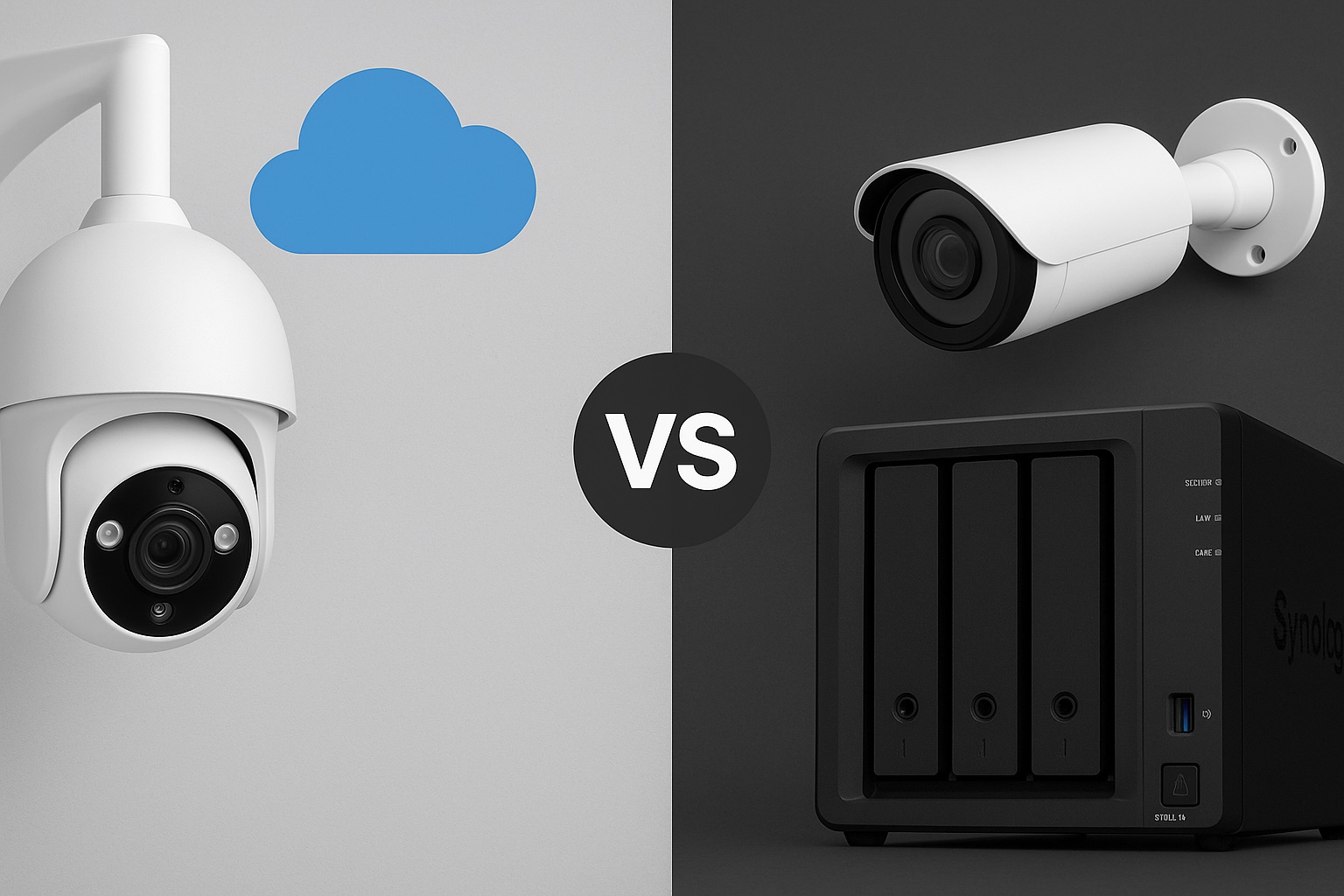
    So I started looking into the most common types of cameras out there. Each has its pros and cons, different storage methods, and a range of features depending on how you want to use them. Here’s a breakdown of what I’ve learned so far, including whether they support local SD cards, cloud backups, or integration with a NAS if that’s something you’re interested in.


    Cloud-Focused Cameras (e.g. Nest, Arlo)

    Best for: Users who want app-based access and minimal setup

    These cameras are designed to work as part of a broader smart home ecosystem. They often come loaded with features like face detection, voice alerts, and smart notifications. If you want a plug-and-play solution that lives inside a polished mobile app, they’re hard to beat. But they also come with limitations.

    Pros:

    • Very easy to set up
    • Smart features are built-in
    • Great mobile app support

    Cons:

    • Most features require a subscription
    • Local storage is limited or unavailable
    • You are locked into a vendor’s ecosystem
    • No support for NAS or open protocols like RTSP or ONVIF

    Storage:

    • Cloud storage is standard, but often limited without a paid plan
    • A few models support local SD or USB via a hub
    • Not compatible with NAS or custom storage solutions
    Hand mounting a Nest cloud-based security camera onto a magnetic wall mount in a modern indoor setting
    A Nest-style cloud camera — polished, app-friendly, but dependent on subscriptions for storage.

    Battery-Powered Cameras

    Best for: Outdoor areas without a nearby power source

    Battery-powered cameras are incredibly flexible. You can mount them anywhere without worrying about outlets or wiring. Most come with SD card support and mobile alerts when motion is detected. But there’s a tradeoff. Because they rely on batteries, they only record on motion and will need recharging — sometimes more often than expected.

    Pros:

    • Completely wireless, easy to install anywhere
    • Most offer SD card recording
    • No cables required

    Cons:

    • Needs to be taken down for recharging
    • Can’t record continuously
    • Limited smart features unless paired with a subscription service
    • No direct NAS support

    Storage:

    • Local SD card recording is common
    • Access through vendor app
    • Not suitable for NAS storage
    Cutaway view of a battery-powered outdoor security camera showing internal battery and circuit components
    Inside a typical battery-powered camera. Easy to install, but recharging gets old fast.

    Solar-Powered Cameras

    Best for: Remote areas where recharging manually isn’t an option

    These are essentially battery-powered cameras paired with solar panels. In the right environment, they can keep running for months without manual charging. In the wrong environment — like my home with limited sunlight — they become unreliable and frustrating.

    Pros:

    • Self-recharging in sunny areas
    • Great for off-grid setups
    • Flexible placement

    Cons:

    • Performance depends heavily on sunlight exposure
    • Still motion-only recording
    • Same SD and cloud storage limitations as battery models
    • Not compatible with NAS

    Storage:

    • SD card storage is usually included
    • Some brands offer optional cloud storage
    • NAS integration is not supported
    Outdoor solar-powered security camera mounted under an eave, connected to a solar panel with a visible cable
    A wall-mounted outdoor camera connected to a small solar panel for continuous charging.

    Wi-Fi Cameras (Plug-In)

    Best for: Indoor or sheltered outdoor locations with power access

    Wi-Fi cameras that plug into a wall are a nice middle ground. They remove the battery hassle and, depending on the model, may support RTSP or ONVIF, which opens the door to NAS use. They’re still dependent on your Wi-Fi network, though, so placement and signal strength matter.

    Pros:

    • Easy setup with permanent power
    • Many support smart features like motion zones
    • Some are compatible with NAS via RTSP or ONVIF

    Cons:

    • Needs to be placed near a power outlet
    • Wi-Fi interruptions can affect performance
    • Not all support local recording or open protocols

    Storage:

    • Often includes SD card support
    • Optional cloud storage
    • Limited NAS support depending on the model
    Indoor plug-in Wi-Fi security camera on a kitchen counter with visible power cable
    An indoor plug-in camera setup — simple to install but needs to stay near a socket.

    PoE (Power over Ethernet) Cameras

    Best for: Long-term, reliable setups with full storage control

    This is the route I’m planning to take. PoE cameras use a single Ethernet cable to provide both power and data, making them ideal for stable connections and continuous recording. They work extremely well with NAS systems like Frigate, MotionEye, or Synology Surveillance Station. While installation takes more effort, the reliability and flexibility are worth it.

    I’m currently exploring how to integrate a PoE camera system into my NAS setup to enable local recording and give me full control over my footage without relying on the cloud.

    Pros:

    • One cable for power and data
    • Stable connection with no Wi-Fi dropouts
    • Usually support RTSP and ONVIF
    • Perfect for NAS and continuous recording

    Cons:

    • Installation can be time-consuming
    • Requires PoE switch or injector
    • You’ll need to run Ethernet cables through your home

    Storage:

    • Full NAS integration supported
    • Local SD card or cloud may also be available
    • Excellent for 24-hour recording with alerts
    Diagram of Reolink PoE and Wi-Fi security camera system connected to a PoE switch, router, and NVR
    A look at a full PoE camera system setup — reliable, scalable, and ideal for NAS integration

    Storage Options at a Glance

    Storage TypeProsCons
    CloudAccessible from anywhere, simple to set upPrivacy concerns, recurring subscription fees
    SD CardLocal and private, no subscription requiredLimited capacity, footage only accessible via device
    NASCentralised, scalable, privateRequires setup and compatible hardware

    Quick Checklist: What’s Best for You?

    ✅ I want something easy to set up, no cables, and don’t care much about recording control

    → Cloud-Focused Camera

    ✅ I don’t have outdoor power and want flexibility

    → Battery Camera (but be ready to recharge it)

    ✅ I live in a sunny area and don’t want to climb a ladder to recharge

    → Solar Camera

    ✅ I have power outlets near the camera and want better reliability

    → Wi-Fi Camera

    ✅ I want full control, 24/7 recording, and local storage through NAS

    → PoE Camera


    Final Thoughts

    Every camera type has its place. If you just want to keep an eye on your front door and get notifications on your phone, a cloud-first model or SD card camera might be enough. But if you’re tired of recharging batteries or you want more control over your footage, it might be time to think bigger.

    For me, the tipping point was having to regularly take down cameras just to recharge them and not being able to rely on solar panels. I’m moving to PoE to get a more stable, scalable solution.

    Next time, I’ll be comparing different camera brands and what each one does well, so you can choose the right fit for your setup.

  • 10 Best Docker Containers to Supercharge Your NAS

    10 Best Docker Containers to Supercharge Your NAS

    For Beginners & Tinkerers Alike

    Why Docker on a NAS?

    If you’re running a NAS like the UGREEN NASync DXP2800, Synology, or any other x86-based box, Docker is where things start to get fun. Containers let you run lightweight, modular apps that give your NAS way more functionality — without needing a full-blown VM or extra hardware.

    Docker makes it easy to deploy apps in isolated environments, meaning you can try things out without worrying about breaking your whole system. They’re fast to spin up, easy to update, and work consistently across different systems. And the best part? You don’t need to be a hardcore Linux user to make the most of them.

    Below are ten of the best Docker containers you can run on your NAS — a handpicked mix of essential utilities, media servers, privacy tools, and smart home apps that turn your box into a true home server. that will make your NAS feel more like a full home server.


    1. Home Assistant

    Smart home control on your terms

    If you’ve dipped your toe into smart home automation, you’ve probably already heard of Home Assistant. It’s a powerful, open-source platform that lets you integrate and automate just about every smart device imaginable — lights, sensors, switches, thermostats, and even your TV.

    Running Home Assistant in Docker is a great way to keep it separate from your main system while still enjoying all its features. It supports local control, so you’re not reliant on cloud services (great for privacy), and it’s constantly being improved by a huge community. Whether you’re just starting with a few SwitchBot devices or building a full-blown smart home, Home Assistant is a game-changer.

    Pair it with MQTT and Zigbee2MQTT for even more flexibility — both of which you can also run in Docker.

    Start here with my Smart Home Network Setup Guide.


    2. Mosquitto (MQTT Broker)

    Behind-the-scenes magic for smart homes

    Mosquitto is a lightweight message broker that uses the MQTT protocol — a key part of many smart home setups. If you’re running Home Assistant, Zigbee2MQTT, or any device with Tasmota firmware, you’ll likely need an MQTT broker to allow devices to communicate reliably.

    Mosquitto doesn’t have a fancy interface, but that’s by design. It’s incredibly efficient, fast, and stable. Once set up, it just runs in the background passing messages between your devices and services. You won’t interact with it much, but it’s a critical cog in the machine for those looking to build a local-first automation system.


    3. Plex or Jellyfin

    Your own personal Netflix (and more)

    If you’ve got a library of media — movies, TV shows, home videos — Plex and Jellyfin turn your NAS into a full-fledged streaming platform. Plex offers a polished UI and optional remote streaming features, while Jellyfin is the go-to for open-source purists who want everything self-hosted.

    These containers are easy to get up and running, especially if your media is already well-organised. Plex can pull in metadata, posters, subtitles, and more, and supports nearly every device under the sun. Jellyfin is a bit more hands-on but avoids subscriptions or locked features.


    4. Navidrome

    Spotify vibes, minus the monthly fee

    Have a huge collection of MP3s or FLAC files from back in the day? Navidrome breathes new life into local music libraries by turning your NAS into a private music streaming service. Think of it as Spotify for your own collection.

    The interface is clean and responsive, and it integrates with apps like Substreamer or Symfonium. It supports smart playlists, scrobbling to Last.fm, album art, and more. Plus, it’s extremely lightweight and can run on almost any system — making it a great fit for your NAS.


    5. Pi-hole

    Block ads for your whole network

    If you’ve never used Pi-hole before, prepare to be amazed at how much cleaner the internet can be. It acts as a DNS server that blocks ads, trackers, and malicious domains before they ever reach your devices. Set it once, and every device on your network benefits — phones, tablets, smart TVs, even IoT devices.

    Running Pi-hole in Docker is simple, and the dashboard gives you a detailed look at what’s being blocked. You can also manually whitelist or blacklist domains and pair it with Unbound for encrypted DNS.

    Pi-hole gives you a real-time view of DNS queries and blocked domains.

    6. WireGuard

    Access your home network from anywhere

    WireGuard is a modern VPN protocol designed to be fast, simple, and secure. When run on your NAS, it allows you to create a secure tunnel into your home network — perfect for accessing files, media servers, or smart home dashboards while away.

    It’s incredibly lightweight, quick to set up, and performs well even on modest hardware. Once configured, you can connect from your phone, laptop, or tablet and use your home network as if you were physically there. Whether you’re self-hosting your VPN server or connecting to a cloud-hosted instance, WireGuard offers a great balance between ease of use and strong encryption.


    7. Frigate (Advanced)

    Smart surveillance, powered by AI

    Frigate is an AI-based NVR (Network Video Recorder) that detects people, cars, and more in real time using your cameras — all without relying on the cloud. Unlike most camera apps that flood you with motion alerts for every leaf or shadow, Frigate focuses on what matters.

    It’s designed to work best with Coral AI accelerators for fast detection, but it can also run on CPUs or GPUs. It integrates well with Home Assistant and supports real-time notifications, event clips, and camera dashboards.

    Frigate uses AI to detect people, cars, and more — without the cloud.

    I’m currently researching Reolink’s PoE cameras as part of my own upgrade, so expect a deeper dive soon.


    8. Portainer

    Manage Docker without the command line

    Not everyone enjoys messing with the terminal, and that’s where Portainer shines. It gives you a web-based GUI for managing your Docker containers, volumes, networks, and images. You can see logs, update images, stop/start containers, and even deploy new ones — all from your browser.

    Portainer makes managing Docker containers accessible even for beginners.

    It’s great for beginners and pros alike. Even if you’re comfortable with Docker CLI, Portainer makes managing a growing stack of services way more convenient.


    9. FileBrowser

    A better way to access your NAS files

    Most NAS units have some sort of file management tool, but they’re often basic or clunky. FileBrowser is a slick web app that lets you browse, upload, rename, and share files via your browser. It even works well on mobile.

    You can create user accounts with specific permissions, set up public file shares, and preview images or documents right in the UI. It’s fast, lightweight, and a big improvement over standard Samba or FTP setups for everyday file access.


    10. Uptime Kuma

    Know when things break (before someone else does)

    Whether you’re self-hosting multiple services or just want to make sure your NAS is always online, Uptime Kuma is a must. It’s a beautiful, self-hosted status monitor that pings your apps, websites, or IPs and lets you know if they go down.

    You can customise alerts, set up dashboards, and even monitor services hosted outside your home network. It’s surprisingly feature-rich, and the UI is clean and easy to navigate. Once it’s up and running, it becomes one of those “how did I live without this?” tools.


    Where Should You Start?

    If you’re new to Docker and NAS apps in general, start with Pi-hole, Portainer, and Plex or Jellyfin. They’re easy to install, give immediate results, and don’t require much maintenance.

    When you’re ready to level up, move on to Home Assistant and WireGuard. They’ll open the door to deeper control of your smart home and remote access setup.

    And if you’re serious about home security and privacy, keep an eye on Frigate — especially if you’re considering upgrading to PoE cameras like Reolink.


    💡 New to Docker?
    Start by installing Portainer — it gives you a simple dashboard to deploy and manage containers without the command line.

    Got a favourite container I didn’t mention?
    Whether you’re deep into automation or just starting out, I’d love to hear what you’re running on your NAS. Drop it in the comments — I’m always on the lookout for new setups to try.

    Want to Dive Deeper?

    Here are a few more posts that expand on ideas in this article:

    More tutorials, setup guides, and automation tips are on the way!