Tag: Home Security

  • How to Store Security Camera Footage at Home using NAS or NVR

    How to Store Security Camera Footage at Home using NAS or NVR

    Security camera systems have become more capable, flexible, and open over the last decade. One of the most significant developments is the shift from closed cloud storage ecosystems to open, standards based recording.

    A Network Attached Storage (NAS) system can serve as a robust central recording point, provided the cameras support open protocols and the NAS is configured to accept, index, and store those recordings properly. When designed correctly, a NAS based workflow offers long term retention, predictable performance, and complete ownership of your data.

    Note: For practical insight into how a modern NAS behaves under these workloads, read my post on UGREEN NASync DXP2800 Review 2 Months Later. For background on why network storage is valuable in the first place, my guide on NAS Network Storage and Why You Need It provides a useful introduction.


    Understanding the NAS Recording Workflow

    A NAS does not record video by itself. It has no built in awareness of surveillance workflows unless specific software is installed. The NAS becomes a recording engine only when three conditions are met.

    1. The camera must send data using an open standard.
    2. The network must provide stable addressing and sufficient sustained throughput.
    3. The NAS must run a service that can receive, process, and index the incoming streams.

    Regardless of the vendor, the workflow operates in stages. The camera encodes the video. The data is transmitted via RTSP or file transfer. The NAS writes it to storage. Retention rules then determine when that data is deleted. While simple on paper, the technical details behind each stage determine reliability.


    Camera Protocols: The Language of Recording

    Marketing descriptions often promise local recording, but this can sometimes refer to SD cards rather than network storage. The technical specification sheet is your authoritative source. A NAS can only record from cameras that support the following open protocols.

    • RTSP (Real Time Streaming Protocol): This is the industry standard for continuous recording. The camera provides a persistent video URL that the NAS connects to. RTSP connections are long lived and highly sensitive to network interruptions.
    • ONVIF Profile S: This protocol allows cameras and recorders to communicate in a standard way. Cameras supporting ONVIF usually expose an RTSP stream and allow the NAS to discover and configure the device automatically. It guarantees a baseline of interoperability.
    • FTP (File Transfer Protocol): Event driven cameras often use this. When motion occurs, the camera creates a specific file and uploads it to a folder on the NAS. This is not suitable for continuous recording, as it would generate thousands of fragmented files per hour.
    • SMB or NFS: Similar to FTP, the camera writes directly to a shared folder. The NAS is unaware that recording is happening. It simply sees files being written.

    The bottom line: If a camera relies on a proprietary cloud app and does not support RTSP, ONVIF, or FTP, it cannot be integrated into a NAS workflow.

    A modern digital illustration showing how a security camera sends video through a home network to different storage systems, with glowing network lines, a router, and cloud backup icons.
    How a security camera sends footage through the home network to different storage options.

    How the NAS Processes Video

    Once the camera is connected, the NAS performs several key tasks that determine recording quality.

    • Stream negotiation: For RTSP workflows, the NAS initiates the session. Data is sent over UDP (efficient but sensitive to interference) or TCP (more resilient to packet loss but higher latency).
    • Indexing versus raw storage: Advanced surveillance software, such as Synology Surveillance Station or Frigate, creates a database index which allows timeline scrubbing and smart playback. Simpler setups just dump raw files, which are easier to back up but harder to review manually.
    • Retention enforcement: Surveillance datasets grow rapidly. The NAS must frequently scan and delete old footage to prevent volume exhaustion. This logic must run efficiently to avoid bogging down the system.

    Encoding Formats: H.264 versus H.265

    The codec you choose determines storage requirements and CPU load.

    • H.264: The most compatible standard. It uses more storage space than newer codecs but requires relatively little processing power to decode and view.
    • H.265 (HEVC): Highly efficient. It can reduce storage needs significantly for the same visual quality, but it requires more processing power to view and is less compatible with older browser based players.

    Bitrate behaviour: You must also choose between Variable Bitrate (VBR) and Constant Bitrate (CBR).

    • VBR saves space by lowering quality during static scenes, but storage usage will fluctuate depending on activity.
    • CBR ensures predictable storage consumption but may sacrifice image quality during high motion scenes.

    Storage Hardware: Why Desktop Drives Fail

    Security camera workloads are unique. Continuous recording generates a constant write workload. Event based recording creates sudden, uneven bursts.

    • HDD: Drives specifically tuned for surveillance or NAS use are strongly recommended. Consumer desktop drives are not designed for twenty four seven write cycles and may suffer rapid mechanical failure or performance degradation.
    • SSD: Solid state drives offer excellent speed, but continuous video recording consumes their write endurance quickly. Only enterprise grade or high endurance NAS SSDs should be used for surveillance.

    Deep dive: For a detailed analysis of suitable storage, read my post on Choosing the Best Drives for Your NAS Setup.

    A side-by-side comparison of PC, NAS, and surveillance hard drives, showing which storage type is suitable for continuous recording and always-on workloads.

    Networking: The Silent Killer of Reliability

    Network quality is the most overlooked factor in surveillance. A fast speed test does not guarantee a stable surveillance network. These are the technical realities that matter.

    1. Stable addressing: RTSP streams rely on fixed IP addresses. If the router assigns a new IP to the camera, recording breaks. Static IPs or DHCP reservations are essential for cameras and the NAS.
    2. Session persistence: Mesh Wi Fi systems often steer devices between nodes. This handover causes a micro outage, which can create corrupted frames or dropped connections in recordings. Cameras should ideally be associated with a single access point.
    3. Airtime congestion: Wi Fi cameras share airtime with every other device on the channel. Even with a strong signal, a congested channel will cause upload failures and inconsistent performance.
    4. Upload saturation: Many home internet connections have limited upload bandwidth. If multiple cameras trigger at once or if you back up footage to the cloud, you can saturate the uplink and cause dropped frames or failed transfers.

    NAS versus NVR: Which Architecture is Right?

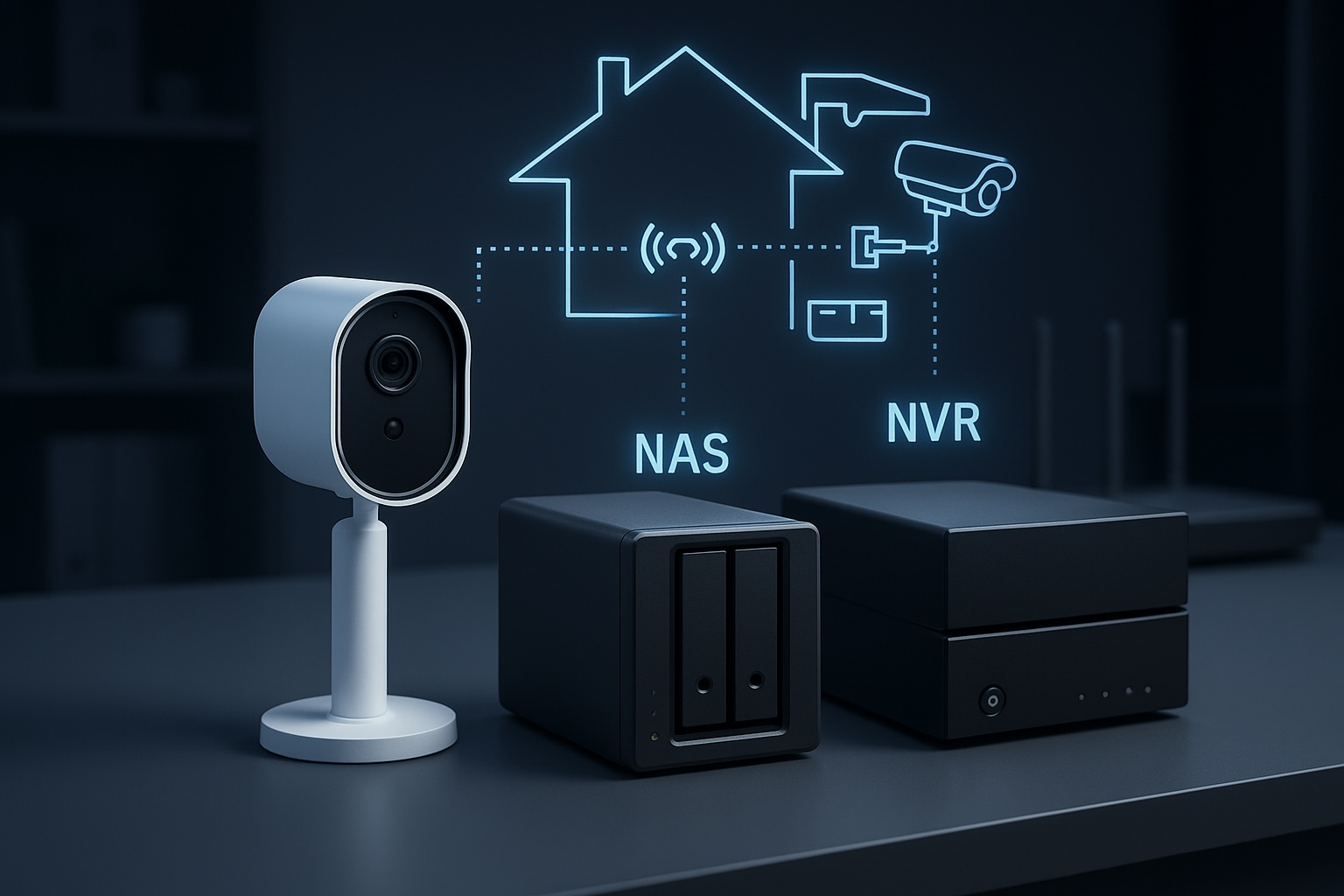
    • NVR (Network Video Recorder): A purpose built appliance dedicated to recording. It is straightforward and reliable but focused almost entirely on video.
    • NAS (Network Attached Storage): A general purpose server. It offers flexible retention, open file formats, and the ability to run other applications such as media servers, home automation and backup tools alongside surveillance workloads.

    If you want a dedicated appliance that requires very little ongoing thought, an NVR is usually the better choice. If you want a central hub for data, applications, and cameras, a NAS workflow provides more flexibility and control.


    Conclusion

    A NAS becomes a powerful surveillance tool when the workflow is respected end to end. Cameras must use open standards such as RTSP or ONVIF. The network must provide stable addressing and consistent performance rather than just impressive speed test results. Storage must be chosen for endurance as well as capacity. Surveillance software must be configured to handle streams, indexing and retention without overwhelming the hardware.

    This workflow centric view removes guesswork. By focusing on these technical realities, it becomes possible to build a system that delivers consistent results for years rather than months.

    Next steps:

  • How AI is Transforming Smart Homes in 2025

    How AI is Transforming Smart Homes in 2025

    Smart homes have come a long way. What began with app-controlled lights and smart speakers has grown into connected ecosystems that manage energy use, strengthen security, and adapt to individual lifestyles. Artificial Intelligence (AI) is now taking this a step further. By learning from our habits and anticipating needs, AI makes smart homes more intuitive, predictive, and personalised than ever before.


    Real-World Examples of AI in Action

    AI is no longer a futuristic concept – it is already shaping daily life. Voice assistants like Alexa and Google Home respond to more than simple commands: they learn your patterns, suggest routines, and seamlessly control lighting or music. Smart thermostats such as Nest cut energy costs by adjusting temperatures automatically when you are away. Even robot vacuums use AI to map your home, avoid obstacles, and optimise cleaning routes.

    These small but powerful examples highlight how AI is quietly transforming daily routines into smoother, more efficient experiences.


    Security Benefits of AI

    Home security is one of the biggest winners from AI integration. Modern smart cameras don’t just detect movement – they can identify whether it’s a person, a pet, or a passing car. This reduces false alarms and ensures faster, more accurate responses.

    For instance, Reolink and Eufy security systems use AI to recognise suspicious behaviour, such as someone lingering outside your home. AI-driven doorbells can even tell the difference between family members, deliveries, and strangers. By filtering out irrelevant alerts, these systems provide peace of mind without overwhelming you with constant notifications.

    The result is a smarter, calmer layer of security that protects what matters most.

    Futuristic smart home security camera with a glowing AI holographic face above it, symbolising AI-powered motion detection and smart alerts.
    AI-powered cameras can distinguish between people, pets, and vehicles, reducing false alerts.

    The Pace of AI Improvements

    It’s impossible to ignore how quickly AI tools are advancing. In only a few years, platforms like ChatGPT, Microsoft Copilot, and Grok have evolved from basic Q&A bots into assistants capable of handling planning, analysis, and even decision-making. The same acceleration is happening in smart home AI, meaning features that feel premium today will likely become standard tomorrow.

    Think of the leap from Wi-Fi 5 to Wi-Fi 7. The difference was enormous, and AI is developing at an even faster rate. This speed matters: your smart home won’t remain static – it will continue to grow smarter over time, making each device a better investment.


    What Could Be Next?

    Looking ahead, AI has the potential to unlock a new wave of possibilities:

    • Adaptive Routines: Instead of fixed schedules, your home could recognise if you’ve had a late night and delay the morning coffee routine. Imagine lights staying dimmed a little longer and your coffee maker waiting until you’re actually awake.
    • Energy Optimisation: AI could predict peak electricity prices and run appliances such as dishwashers or EV chargers at the cheapest times. Picture your EV charging automatically at 2 a.m. when energy is lowest.
    • Cross-Device Intelligence: Imagine your NAS, cameras, and smart speakers sharing data to create a unified, AI-powered view of your home.

    These aren’t distant ideas – the technology already exists. What’s left is integration and refinement.

    Modern NAS storage device on a desk with a holographic AI brain projection, representing cross-device intelligence and smart home integration.
    AI could unify devices like NAS, cameras, and smart assistants into a single intelligent ecosystem.

    Should You Upgrade? A Quick Checklist

    Not sure if you’re ready to lean into AI-powered smart home tech? Here are a few practical checks:

    • Wi-Fi: Do you already have reliable Wi-Fi and a solid base of smart devices? (If not, check out my guide on Wi-Fi 6/7 Explained.)
    • Compatibility: Are your devices ready for Matter or other new standards?
    • Automation: Do you want routines that adapt to your lifestyle rather than just follow set schedules?
    • Cloud vs Local: Are you comfortable with cloud-based AI, or do you prefer local processing?
    • Security: Have you put measures in place to protect your data?

    If you tick most of these boxes, you’re in a good position to start adding AI-driven features.

    Futuristic city skyline illuminated in neon blue and purple with AI icons floating above, symbolising the future of connected smart homes.
    The future of smart living lies in AI-powered homes that evolve alongside rapid AI innovation.

    Final Thoughts

    AI isn’t just hype – it’s already reshaping the way we live with technology at home. From smarter security to lower energy bills and personalised routines, the benefits are here and growing fast. The real challenge is deciding when to adopt and which tools to trust.

    For many households, the best path is to start small. Add an AI-enhanced camera, try an adaptive thermostat, or set up an AI-powered routine in Home Assistant. As the technology matures, you can build out a smarter, more responsive system that truly makes life easier.

    If you’re planning upgrades, visit my Recommended Gear page where I highlight reliable options across networking, NAS, and smart home setups. Pairing the right hardware with emerging AI features will help you create a home that’s not just smarter, but genuinely more helpful.

    The future of smart homes isn’t about gadgets — it’s about creating a home that works seamlessly in the background, so you can focus on living. With AI, that future is closer than ever.

  • Best Security Cameras That Work Seamlessly with Your NAS

    When it comes to home security, pairing your camera system with your NAS (Network Attached Storage) can offer unbeatable advantages like local recording, improved privacy, and easy video management. If you’ve already invested in a NAS system, it makes sense to choose security cameras that integrate seamlessly. Personally, I use the UGREEN NASync DXP2800, so I’ll be highlighting options that work well with it throughout this guide. This guide covers the best NAS-compatible camera brands and models, highlighting why NAS compatibility matters and how it simplifies your home security setup.

    Why NAS Compatibility Matters

    Having a NAS-compatible security camera means:

    • Enhanced privacy: Videos stored locally mean no subscription fees or worries about cloud privacy. For instance, your home’s front door footage won’t be stored on a remote server, reducing the risk of unauthorized access.
    • Reliable storage: Continuous recording ensures you don’t miss important events, scheduled backups prevent data loss, and easy management helps you quickly review footage in case of incidents.
    • Integration: Cameras that support protocols like RTSP or ONVIF easily integrate with NAS systems, allowing seamless management through third-party apps or direct NAS interfaces, simplifying your overall workflow.

    For example, imagine a scenario where your Wi-Fi temporarily drops. With cloud-dependent cameras, you might lose critical footage. However, NAS-compatible cameras continue recording locally, ensuring continuous surveillance without interruptions.

    Top Camera Brands That Support NAS

    BrandRecommended ModelsResolutionConnectionPrice RangeKey Features
    ReolinkRLC-833A, RLC-511WA4K/5MPPoE/Wi-Fi\$\$Affordable, reliable, excellent NAS support
    HikvisionDS-2CD2043G0-I, DS-2CD2385G1-I4MP/8MPPoE\$\$\$Professional-grade quality, robust build
    Eufy SecurityEufyCam 2C, EufyCam 31080p/2KWi-Fi\$\$User-friendly, wireless convenience

    1. Reolink

    • Strengths: Reliable, excellent NAS compatibility, budget-friendly.
    • Best For: Users looking for excellent video quality, reliability, and easy NAS integration at a good price.

    2. Hikvision

    • Strengths: Professional-grade quality, advanced configuration, robust build.
    • Best For: Advanced users or those with complex setups requiring high-quality professional cameras.

    3. Eufy Security

    • Strengths: User-friendly, high-quality wireless cameras, no subscription required.
    • Best For: Users who prefer wireless flexibility with easy NAS integration and simple mobile app control.

    Quick Setup Experience with UGREEN NASync

    If you’re just getting started with Docker apps on your NAS, check out my post on must-have Docker containers for NAS beginners.

    UGREEN NASync doesn’t offer a native surveillance app like Synology’s Surveillance Station, but it supports Docker, allowing you to easily install lightweight NVR solutions. Here’s a simplified step-by-step overview to help you get started:

    1. Access Docker on your NAS: Open your UGREEN NASync web interface and navigate to the Docker application.
    2. Choose and Deploy Your NVR Solution: Search for “Frigate,” “Shinobi,” or “MotionEye” within Docker Hub and pull the image to your NAS.
    3. Configure Container Settings: Set the container’s environment variables, assign storage volumes for recordings, and map required ports.
    4. Launch and Access the Application: Start the container and access your chosen NVR via your browser using the assigned port (e.g., http://NAS_IP:port).
    5. Integrate Your Camera: Add your camera’s RTSP or ONVIF stream using its IP and login credentials within the app.

    Consider including screenshots of each stage to visually guide readers through the process, especially if they’re new to Docker setups.

    Local Storage vs. Cloud Storage Recap

    Local storage offers several clear advantages over cloud storage, especially in scenarios such as:

    • Network outages: If your internet connection goes down, local storage continues to function normally, recording and storing your footage without interruptions. In contrast, cloud-based systems might lose critical footage during outages.
    • Privacy-sensitive situations: If you’re concerned about data privacy or security breaches, local storage eliminates the risks associated with third-party cloud providers potentially mishandling your footage.
    • Long-term cost savings: While cloud storage often involves recurring subscription fees, investing in local storage via NAS means a one-time expense. For example, a household that runs multiple cameras continuously can save significantly in subscription fees over several years.
    • Customized storage management: You have full control over storage allocation, data retention periods, and backups, allowing for greater flexibility tailored specifically to your personal or business requirements.

    Best Use Cases

    • Home Entrances & Garages: Cameras from Reolink or Hikvision offer exceptional reliability and high-quality footage ideal for entryways and garages. For instance, the Reolink RLC-833A captures clear facial details even in low-light scenarios, significantly aiding in identification if an incident occurs.
    Example top-down layout showing various camera placements, including corridor mode on the side path and wide-angle coverage across driveways and entrances.
    • Baby Monitors & Indoor Surveillance: Eufy’s wireless cameras provide unmatched ease of use with mobile integration, perfect for parents monitoring babies or pets remotely.
    • Outdoor Surveillance: Hikvision and Reolink cameras are known for robust, weather-resistant construction.
    Reolink Standard View vs Corridor Mode: A side-by-side comparison showing how traditional 16:9 viewing (left) wastes vertical space in narrow areas, while corridor mode (right, 9:16) maximises coverage down long hallways or side paths.

    PoE vs. Wi-Fi Cameras: Which Should You Choose?

    • PoE (Power-over-Ethernet): Reliable wired connection, ideal for permanent installations, simpler cable management, highly recommended for outdoor setups.
    • Wi-Fi Cameras: Easier installation, ideal for renters or temporary setups, flexible camera placement but dependent on strong Wi-Fi.

    Choose PoE for reliability and Wi-Fi for flexibility based on your specific setup needs.

    What’s Next for My Setup

    I may also look at integrating object detection with Home Assistant on my NAS in the future. Beyond that, I plan to explore smart alerts, secure remote access, and making the most of corridor mode for tighter, vertical spaces — like a narrow side alley — where traditional wide-angle views aren’t efficient. These refinements aim to build a smart security system that’s both effective and privacy-conscious, without revealing sensitive home layout details.

    Common Mistakes to Avoid

    • Ignoring storage capacity needs.
    • Overlooking camera resolution compatibility with your NAS.
    • Improper network setup leading to bandwidth issues.

    Personal Insight: My Camera Journey

    If you’re not familiar with the UGREEN NASync, I reviewed it in detail here to help you understand what it’s capable of.

    I’m currently using Switchbot Wi-Fi cameras, which have served well for basic home monitoring, but I’ve experienced occasional connectivity drops and limitations in managing footage efficiently. Given my setup, which prioritises reliability, high-quality video, and seamless integration with my UGREEN NASync NAS, I’m strongly considering transitioning to Reolink PoE cameras.

    Specifically, I’m looking at the Reolink RLC-833A for front-facing or driveway monitoring due to its impressive 4K resolution, person and vehicle detection, and spotlight features. For areas like the backyard, where running Ethernet cables might be more difficult, the RLC-511WA seems like a perfect fit. I’ll be documenting this upgrade in future posts, including setup tips, integration steps, and performance insights. I’m also planning to use a camera with corridor mode for the narrow side path of my house — this setting optimises vertical viewing angles, making it ideal for covering long, narrow spaces without wasting frame area on walls or empty ground.


    By choosing NAS-compatible security cameras, you’re taking control of your home’s safety and enjoying seamless integration with your existing NAS setup. I’d love to hear your thoughts and experiences—feel free to comment below!

  • Which Type of Security Camera Is Right for You?

    Which Type of Security Camera Is Right for You?

    I’m currently in the process of upgrading my home security system. Until now, I’ve been using a mix of battery and solar-powered SwitchBot cameras. They seemed ideal at first, but real-world use has been frustrating. I live in an area that doesn’t get consistent sunlight, so the solar panels often fail to keep the cameras charged. Worse, I’ve had to take them down regularly just to recharge them manually. That’s fine once or twice, but it gets annoying fast.

    So I started looking into the most common types of cameras out there. Each has its pros and cons, different storage methods, and a range of features depending on how you want to use them. Here’s a breakdown of what I’ve learned so far, including whether they support local SD cards, cloud backups, or integration with a NAS if that’s something you’re interested in.


    Cloud-Focused Cameras (e.g. Nest, Arlo)

    Best for: Users who want app-based access and minimal setup

    These cameras are designed to work as part of a broader smart home ecosystem. They often come loaded with features like face detection, voice alerts, and smart notifications. If you want a plug-and-play solution that lives inside a polished mobile app, they’re hard to beat. But they also come with limitations.

    Pros:

    • Very easy to set up
    • Smart features are built-in
    • Great mobile app support

    Cons:

    • Most features require a subscription
    • Local storage is limited or unavailable
    • You are locked into a vendor’s ecosystem
    • No support for NAS or open protocols like RTSP or ONVIF

    Storage:

    • Cloud storage is standard, but often limited without a paid plan
    • A few models support local SD or USB via a hub
    • Not compatible with NAS or custom storage solutions
    Hand mounting a Nest cloud-based security camera onto a magnetic wall mount in a modern indoor setting
    A Nest-style cloud camera — polished, app-friendly, but dependent on subscriptions for storage.

    Battery-Powered Cameras

    Best for: Outdoor areas without a nearby power source

    Battery-powered cameras are incredibly flexible. You can mount them anywhere without worrying about outlets or wiring. Most come with SD card support and mobile alerts when motion is detected. But there’s a tradeoff. Because they rely on batteries, they only record on motion and will need recharging — sometimes more often than expected.

    Pros:

    • Completely wireless, easy to install anywhere
    • Most offer SD card recording
    • No cables required

    Cons:

    • Needs to be taken down for recharging
    • Can’t record continuously
    • Limited smart features unless paired with a subscription service
    • No direct NAS support

    Storage:

    • Local SD card recording is common
    • Access through vendor app
    • Not suitable for NAS storage
    Cutaway view of a battery-powered outdoor security camera showing internal battery and circuit components
    Inside a typical battery-powered camera. Easy to install, but recharging gets old fast.

    Solar-Powered Cameras

    Best for: Remote areas where recharging manually isn’t an option

    These are essentially battery-powered cameras paired with solar panels. In the right environment, they can keep running for months without manual charging. In the wrong environment — like my home with limited sunlight — they become unreliable and frustrating.

    Pros:

    • Self-recharging in sunny areas
    • Great for off-grid setups
    • Flexible placement

    Cons:

    • Performance depends heavily on sunlight exposure
    • Still motion-only recording
    • Same SD and cloud storage limitations as battery models
    • Not compatible with NAS

    Storage:

    • SD card storage is usually included
    • Some brands offer optional cloud storage
    • NAS integration is not supported
    Outdoor solar-powered security camera mounted under an eave, connected to a solar panel with a visible cable
    A wall-mounted outdoor camera connected to a small solar panel for continuous charging.

    Wi-Fi Cameras (Plug-In)

    Best for: Indoor or sheltered outdoor locations with power access

    Wi-Fi cameras that plug into a wall are a nice middle ground. They remove the battery hassle and, depending on the model, may support RTSP or ONVIF, which opens the door to NAS use. They’re still dependent on your Wi-Fi network, though, so placement and signal strength matter.

    Pros:

    • Easy setup with permanent power
    • Many support smart features like motion zones
    • Some are compatible with NAS via RTSP or ONVIF

    Cons:

    • Needs to be placed near a power outlet
    • Wi-Fi interruptions can affect performance
    • Not all support local recording or open protocols

    Storage:

    • Often includes SD card support
    • Optional cloud storage
    • Limited NAS support depending on the model
    Indoor plug-in Wi-Fi security camera on a kitchen counter with visible power cable
    An indoor plug-in camera setup — simple to install but needs to stay near a socket.

    PoE (Power over Ethernet) Cameras

    Best for: Long-term, reliable setups with full storage control

    This is the route I’m planning to take. PoE cameras use a single Ethernet cable to provide both power and data, making them ideal for stable connections and continuous recording. They work extremely well with NAS systems like Frigate, MotionEye, or Synology Surveillance Station. While installation takes more effort, the reliability and flexibility are worth it.

    I’m currently exploring how to integrate a PoE camera system into my NAS setup to enable local recording and give me full control over my footage without relying on the cloud.

    Pros:

    • One cable for power and data
    • Stable connection with no Wi-Fi dropouts
    • Usually support RTSP and ONVIF
    • Perfect for NAS and continuous recording

    Cons:

    • Installation can be time-consuming
    • Requires PoE switch or injector
    • You’ll need to run Ethernet cables through your home

    Storage:

    • Full NAS integration supported
    • Local SD card or cloud may also be available
    • Excellent for 24-hour recording with alerts
    Diagram of Reolink PoE and Wi-Fi security camera system connected to a PoE switch, router, and NVR
    A look at a full PoE camera system setup — reliable, scalable, and ideal for NAS integration

    Storage Options at a Glance

    Storage TypeProsCons
    CloudAccessible from anywhere, simple to set upPrivacy concerns, recurring subscription fees
    SD CardLocal and private, no subscription requiredLimited capacity, footage only accessible via device
    NASCentralised, scalable, privateRequires setup and compatible hardware

    Quick Checklist: What’s Best for You?

    ✅ I want something easy to set up, no cables, and don’t care much about recording control

    → Cloud-Focused Camera

    ✅ I don’t have outdoor power and want flexibility

    → Battery Camera (but be ready to recharge it)

    ✅ I live in a sunny area and don’t want to climb a ladder to recharge

    → Solar Camera

    ✅ I have power outlets near the camera and want better reliability

    → Wi-Fi Camera

    ✅ I want full control, 24/7 recording, and local storage through NAS

    → PoE Camera


    Final Thoughts

    Every camera type has its place. If you just want to keep an eye on your front door and get notifications on your phone, a cloud-first model or SD card camera might be enough. But if you’re tired of recharging batteries or you want more control over your footage, it might be time to think bigger.

    For me, the tipping point was having to regularly take down cameras just to recharge them and not being able to rely on solar panels. I’m moving to PoE to get a more stable, scalable solution.

    Next time, I’ll be comparing different camera brands and what each one does well, so you can choose the right fit for your setup.