Tag: Home Security

  • Why I Chose TP-Link Tapo Over UGREEN, Reolink and Eufy for My Home Security Upgrade

    Why I Chose TP-Link Tapo Over UGREEN, Reolink and Eufy for My Home Security Upgrade

    Disclosure: As an Amazon Associate, I earn from qualifying purchases. Some links in this article are affiliate links, which help support Rack2Reality at no additional cost to you.

    I’ve been planning to replace my existing home security cameras for some time, and until recently, I thought I had a fairly good idea of what that upgrade would look like. Having already invested in UGREEN’s NASync ecosystem, its upcoming SynCare security cameras seemed like a natural choice. The hardware looked promising, the emphasis on local AI processing was appealing, and the prospect of storing recordings directly on my existing NAS meant I wouldn’t need to introduce another storage appliance into the house. It was exactly the sort of integration I’d hoped to see as UGREEN expanded beyond network-attached storage.

    Unfortunately, things haven’t quite worked out that way. UGREEN’s subsequent HomeAgent announcement revealed that SynCare cameras would require an entirely separate hardware platform, with direct NASync integration no longer part of the launch plans. That was disappointing enough to make me reconsider the entire system, particularly when the entry-level HomeAgent HA100 carries a proposed $1,599 retail price, or $799 for early crowdfunding backers. I wasn’t interested in buying another NAS, especially one that would duplicate functionality I already have, simply to operate a handful of security cameras.

    As frustrating as that announcement was, it forced me to go back to the drawing board and take a much closer look at what other manufacturers were offering. That research eventually led me to Reolink, Eufy and TP-Link Tapo, all of which have developed increasingly capable security camera ecosystems with local recording, AI detection and PoE connectivity. After spending considerable time comparing their products, I ultimately decided to purchase two Tapo C575D cameras. Not because they’re necessarily the most technically advanced cameras available, but because they offer almost everything I was looking for without requiring an excessive investment in hardware I don’t need.

    UGREEN Had Everything Going for It, Until HomeAgent

    UGREEN SynCare security cameras displayed alongside the HomeAgent AI hub and solar-powered camera.
    UGREEN’s SynCare cameras and HomeAgent promised an integrated AI security ecosystem, but the lack of direct NASync support ultimately changed my plans.

    When UGREEN first announced SynCare at CES 2026, I was genuinely excited about the direction the company appeared to be taking. I’ve been using its NASync DXP2800 for well over a year, and while the platform certainly has its limitations, I’ve generally been impressed by the hardware and how much I’ve been able to accomplish with it. As I discussed in my NASync DXP2800 review, the NAS quickly became more than somewhere to store files. I use Docker to run various services, including Home Assistant, which already manages much of my smart home. I’d also been considering using it for security camera recording, so the prospect of adding SynCare cameras to that existing infrastructure was particularly attractive.

    The SynCare OD600 Pro was the camera that initially caught my attention. Its triple-lens arrangement combines an 8MP overview camera with two additional 5MP cameras, providing 18MP of combined resolution alongside motorised tracking, PoE connectivity and AI-powered detection. At an announced crowdfunding price of $159, or $269 at retail, the OD600 Pro looked extremely competitive against established alternatives. I covered the original announcement in my first look at UGREEN SynCare, and at the time, I genuinely thought I’d found the foundation for my next home security system.

    What followed was considerably less encouraging. As I explained in my previous article, UGREEN HomeAgent Looks Impressive, But Do NASync Owners Actually Need It?, UGREEN subsequently confirmed that SynCare cameras would not connect directly to existing NASync systems at launch, with no near-term plans to introduce that functionality. Instead, the cameras are designed around HomeAgent, a separate platform combining NAS storage, security recording, smart home management and considerably more powerful local AI processing. The technology itself is interesting, and I can understand the appeal of having those capabilities integrated into a single device. Unfortunately, it also means purchasing another expensive appliance alongside hardware I already own, which rather undermines one of the main reasons I was interested in SynCare to begin with.

    What makes that decision particularly disappointing is that the cameras themselves still look excellent. I would have been perfectly willing to pay extra for advanced AI processing if UGREEN had offered an optional upgrade path for existing NASync customers, but requiring HomeAgent simply to use the cameras is considerably harder to justify. Even at its reduced $799 crowdfunding price, the HA100 represents a substantial additional investment. Two OD600 Pro cameras and the cheapest advertised HomeAgent package would cost $1,117 before accounting for additional storage or installation, which is a significant amount of money for what was originally supposed to be a relatively straightforward camera upgrade.

    I haven’t lost interest in UGREEN because its cameras are inadequate or because HomeAgent lacks potential. Quite the opposite. I was interested precisely because SynCare looked so promising, and it’s frustrating to see that potential locked behind another expensive piece of hardware. Perhaps UGREEN will eventually reconsider its approach and introduce direct NASync integration, but with no confirmed roadmap, I’m not prepared to delay my security upgrade indefinitely. The OD600 Pro remains an interesting product, but the ecosystem surrounding it no longer makes sense for me.

    Back to the Drawing Board: What Did I Actually Need?

    Once I’d ruled out UGREEN, I had to reconsider what I actually wanted from a security camera system rather than simply looking for the closest alternative to the OD600 Pro. My existing setup consists of two relatively basic SwitchBot cameras positioned around the front of the house, one covering the entrance and another looking across the front of the property. They’ve served their purpose reasonably well for checking deliveries and keeping an eye on activity outside, but they’re not particularly sophisticated, and their positioning leaves some areas inadequately covered. I wanted something more reliable, with better image quality, improved detection and the ability to maintain recordings locally without depending on cloud storage or additional subscriptions.

    The layout of my house also introduces some complications that aren’t immediately obvious when comparing camera specifications. I live in a residential neighbourhood where houses are positioned relatively close together and space around the property is limited. The front faces a residential road, while the sides and rear are separated from neighbouring properties by narrow passages. There’s no long driveway leading towards the entrance, either. People approaching the house generally arrive from one direction or the other along the road before entering the parking area, which makes camera positioning and tracking rather more important than simply pointing a wide-angle lens towards the street.

    These relatively short distances also made me question some of the specifications manufacturers emphasise in their marketing. A camera capable of monitoring a large garden or driveway isn’t necessarily ideal for a compact property, particularly if its enormous field of view includes more of the neighbours’ houses than my own. Similarly, while 4K recording is attractive, I don’t automatically need the highest possible resolution at every location. Sensor performance, lens selection, usable detail at night and the ability to capture somebody approaching from either side can all be more important than the headline megapixel count. Camera dimensions matter too, especially when installing equipment near a residential entrance where a large surveillance unit would look rather out of place.

    One requirement I wasn’t willing to compromise on was Power over Ethernet. As I discussed in my earlier article on improving the consistency of my home network, intermittent delays and inconsistent device responsiveness have been recurring frustrations, particularly with smart home automations and camera live feeds. PoE allows a single Ethernet cable to provide both power and network connectivity, eliminating separate power supplies at each camera location. I also wanted local AI detection, infrared night vision that wouldn’t require illuminating neighbouring houses, and enough flexibility to expand the system gradually. With those requirements established, the number of genuinely suitable options became considerably smaller.

    Reolink and Eufy: Impressive Technology, More Than I Needed

    Reolink was initially one of the strongest candidates, largely because it already offers the sort of established PoE camera ecosystem I was looking for. Its extensive range of wired cameras, dedicated NVRs and local storage options made it an obvious alternative to UGREEN, particularly since the cameras don’t require an expensive new AI appliance just to provide basic recording functionality. The Reolink OMVI 3i PoE was especially interesting, combining a 10MP panoramic overview with a separate 8MP tracking camera. Its 180-degree horizontal coverage, automatic framing and synchronised tracking functionality were similar to the features that had originally attracted me to SynCare, while its maximum recording frame rate of 20fps was also higher than some competing models. At $229.99 during the recent Amazon Prime sale, it was a serious contender.

    However, the more I considered the practicalities of installing one, the more I realised that much of its capability would be wasted on my property. The OMVI 3i measures approximately 202 × 151 × 125mm and weighs 1.3kg, making it a substantial piece of equipment to mount near a relatively small entrance. Its panoramic coverage is impressive, but I don’t have an enormous area to monitor, and much of that field of view would extend beyond the parts of the property I’m actually interested in. I also considered the smaller Reolink OMVI 2i PoE, although I was increasingly questioning whether I needed such an elaborate camera arrangement in the first place.

    Two Reolink OMVI panoramic security cameras with integrated motorised tracking lenses.
    Reolink’s OMVI cameras combine panoramic coverage with dedicated tracking lenses, offering more extensive surveillance capabilities than I needed for my property.

    To get a better idea of what would actually be useful, I went outside and experimented with my phone’s camera, comparing different viewing angles from approximately where I intended to mount the new security cameras. It was hardly a scientific test, and a phone camera isn’t a substitute for checking the actual field of view of a surveillance camera, but it gave me a much better understanding of how much coverage I realistically needed. Using a viewing angle similar to the Tapo C575D’s advertised wide-angle lens, I could already see almost everything I wanted to monitor. Anything beyond that was largely unnecessary, which made the argument for installing something as substantial as the OMVI 3i considerably less convincing. Reolink hadn’t suddenly become a poor choice, but I was effectively considering paying more for capabilities that offered little practical benefit in my situation.

    Four Eufy S4 Bullet-PTZ security cameras alongside a dedicated network video recorder and 4TB hard drive.
    Eufy’s PoE S4 system combines advanced tracking cameras with a dedicated NVR, offering extensive capabilities at a substantially higher initial cost.

    Eufy was another manufacturer I investigated, particularly after discovering its PoE NVR Security System S4. The four-camera package includes two advanced Bullet-PTZ units alongside two conventional 4K cameras, all managed through a dedicated NVR. Each Bullet-PTZ unit combines a fixed 4K overview with a separate motorised tracking camera, while Eufy also advertises automatic framing, cross-camera tracking and local AI-powered video searches. The system includes an eight-port NVR with a pre-installed 2TB hard drive and can expand to 16 recording channels with additional networking equipment. It’s a considerably more comprehensive package than simply buying a couple of cameras, and I can understand its appeal for someone installing an entire surveillance system from scratch.

    Unfortunately, that was also the problem. Eufy’s S4 package carries a US list price of $1,099.99, and its more advanced recording and AI features are designed around Eufy’s own NVR platform. While the amount of included hardware helps explain the price, I wasn’t looking to install four cameras or purchase another substantial recording appliance immediately. More importantly, Eufy explicitly states that its PoE S4 cameras require its proprietary NVR and cannot operate independently or connect to third-party NVR systems. Its NVR also lacks NAS integration, meaning I wouldn’t be able to use my existing storage infrastructure in the way I’d originally intended. After UGREEN’s decision to restrict SynCare to HomeAgent, committing to another proprietary recording platform was exactly what I wanted to avoid. While Eufy’s hardware and AI capabilities remain impressive, the combination of cost and ecosystem restrictions made it an easy option to eliminate.

    Ultimately, both Reolink and Eufy offered more than enough technical capability, but that didn’t necessarily make either the right purchase. Reolink’s advanced panoramic cameras were larger and more sophisticated than I realistically needed, while Eufy’s integrated approach required a much greater initial investment. I was looking for something that provided reliable coverage, useful detection and sensible storage options without turning a relatively straightforward upgrade into an unnecessarily expensive project. That’s where TP-Link’s newer Tapo cameras started to become particularly interesting.

    Why I Ultimately Purchased the Tapo C575D

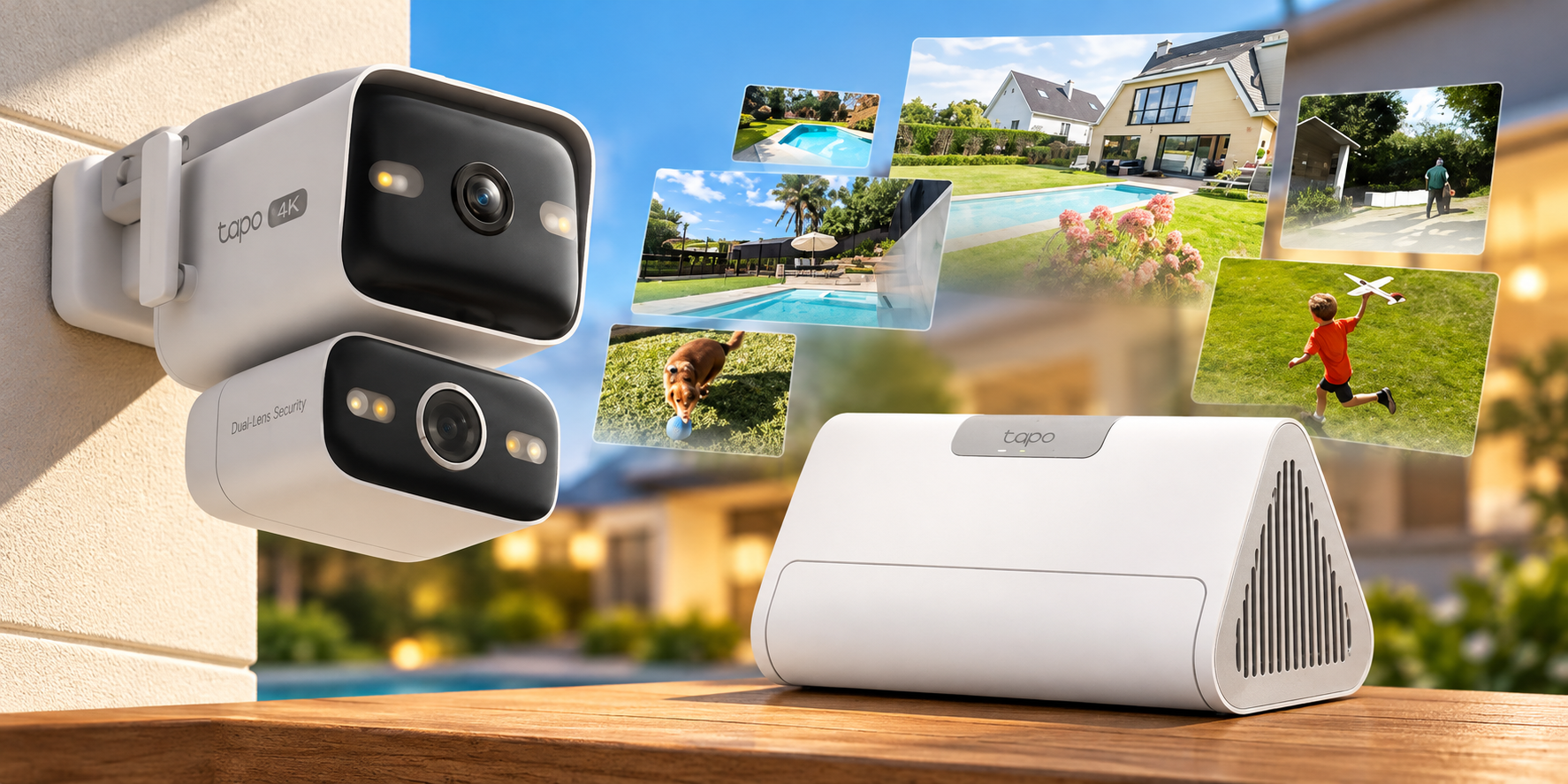
    TP-Link Tapo C575D PoE security camera with fixed 4K wide-angle lens, motorised tracking lens and dual-camera live view.
    The Tapo C575D combines a fixed 4K wide-angle camera with a separate 4K tracking lens, allowing both views to operate simultaneously.

    The Tapo C575D was probably the camera that most significantly changed my impression of TP-Link’s security ecosystem. I’d previously associated Tapo primarily with inexpensive consumer Wi-Fi cameras, but the C575D offers a considerably more sophisticated design. It combines two independent 4K cameras within a relatively compact housing, with a fixed wide-angle lens providing 170 degrees of diagonal coverage and a separate 8mm telephoto lens mounted on a pan-and-tilt mechanism. The two views operate simultaneously, allowing the fixed lens to maintain an overview while the motorised camera follows subjects moving through the scene. For my entrance, where people can approach from either direction, that arrangement appeared particularly well suited to the coverage I wanted.

    Both lenses record at 3840 × 2160, giving the C575D a combined 16MP configuration, with support for person, vehicle and pet detection, automatic tracking, infrared night vision and 802.3af/at PoE. TP-Link also includes RTSP and ONVIF Profile S support, allowing the cameras to work with compatible third-party recording software rather than depending entirely on Tapo’s own storage products. This was an important consideration given that I already own a NAS, and it means I can choose how to manage recordings without having to replace the cameras if my requirements change. Local microSD recording is also supported, and the basic detection features don’t require a Tapo Care subscription.

    There are compromises, of course. The C575D records at a maximum of 15fps, compared with 20fps on the Reolink OMVI 3i, which could become noticeable when reviewing faster movement. Its advertised 18× zoom is digital rather than optical, so it shouldn’t be confused with a camera offering genuine optical zoom. The dedicated telephoto lens does provide a narrower native field of view, which should help capture more detail at a distance, but digital enlargement cannot recover information the sensor never recorded. These are limitations worth acknowledging, although neither seemed particularly significant given the relatively short distances I’m monitoring and what I’d already established from experimenting with my phone’s camera.

    I also considered other Tapo models, including the C545D and C325WB. The C545D offers a similar dual-lens concept, but its requirement for a separate power supply made it unsuitable for the PoE installation I wanted. The C325WB was more interesting for fixed-position monitoring, particularly where low-light performance matters, although PoE support depends on the hardware version. Rather than purchasing identical cameras for every location, I liked the idea of using dual-lens tracking where it would actually be useful and more conventional fixed cameras elsewhere. That would allow me to expand the system gradually without paying for unnecessary features in areas that don’t need them.

    The deciding factor was that the C575D addressed almost every requirement I’d established without introducing another expensive dependency. The wide-angle lens appeared capable of covering nearly the entire area I wanted to monitor, the separate tracking camera offered additional flexibility, and PoE meant I could install everything using a single network cable per camera. RTSP and ONVIF support also preserved the option of recording directly to my existing NAS, something that had originally been one of UGREEN’s biggest selling points. During Amazon’s October Prime sale, the C575D was available for $139.99 in the US, making the decision considerably easier. I ultimately purchased two for $279.98, substantially less than I had originally expected to spend when I first started researching the alternatives.

    That doesn’t mean I’m expecting the C575D to outperform every more expensive camera available. Reolink’s panoramic models and Eufy’s advanced tracking systems offer capabilities that could be genuinely useful for larger or more complicated installations. However, after comparing their specifications against what I actually needed, I couldn’t find a compelling reason to spend significantly more. Tapo wasn’t simply the cheapest compromise I could find. It offered the coverage, connectivity and recording flexibility I wanted, while leaving me with enough room in the budget to invest in the infrastructure needed to install everything properly.

    The Tapo H500 Makes the Ecosystem Even More Compelling

    As interesting as the cameras are, the part of TP-Link’s ecosystem that has probably surprised me most is the Tapo H500. On the surface, considering another dedicated recording hub might seem rather contradictory after criticising UGREEN for requiring HomeAgent, but there’s an important difference. With compatible Tapo cameras, the H500 is optional. I could record directly to my NAS using RTSP or ONVIF, use microSD cards in the cameras themselves, or purchase the hub for its additional functionality. In UGREEN’s case, HomeAgent is currently required to use SynCare cameras within the company’s intended ecosystem. With Tapo, I’m interested in the H500 because of what it offers, not because purchasing it is necessary to make the cameras work.

    The H500 supports up to 16 compatible Tapo cameras, including the C575D V1, although only four cameras can use continuous recording simultaneously. It provides centralised local storage with support for a 2.5-inch SATA drive of up to 16TB, while its local AI processing introduces capabilities such as facial recognition, enhanced detection and more targeted notifications. TP-Link also advertises improved detection capabilities for compatible cameras that lack certain AI features themselves, potentially extending the usefulness of older hardware. The AI enhancement system has its own processing limits, with dual-lens cameras consuming additional capacity, so that’s something I’ll need to consider if I expand beyond my initial two C575Ds. The important point is that the H500’s advanced features are supported by local processing rather than requiring a cloud subscription for every camera.

    Facial recognition is one feature I’m particularly interested in testing. Ordinary person detection tells me that somebody has entered an area, but it doesn’t necessarily distinguish between a familiar visitor and someone I don’t recognise. The H500 advertises the ability to identify known faces and provide more targeted notifications, which could make the system considerably more useful than a collection of cameras generating alerts independently. Its centralised playback and event organisation also appeal to me, particularly as I eventually add cameras around other parts of the property. Whether these capabilities work reliably in practice remains to be seen, but the prospect of adding meaningful local AI functionality without relying on a cloud subscription is attractive.

    The biggest surprise, however, is the price. The H500 spent much of its early availability selling for approximately $149.99 on Amazon US, with occasional promotional discounts taking it lower. Although its listed price subsequently increased to $199.99, it remains considerably more affordable than UGREEN’s HomeAgent HA100. The two products aren’t directly equivalent, and HomeAgent’s greater processing power, additional storage capabilities and broader smart home ambitions account for some of the difference. Nevertheless, for someone primarily interested in security camera recording and local AI detection, it’s difficult to justify spending $799 on UGREEN’s promotional package when Tapo offers such an extensive feature set for considerably less.

    Using the prices available when I purchased my cameras, two C575Ds cost $279.98. Adding an H500 at its $199.99 listing price would bring the total to $479.97 before storage and installation expenses, compared with $1,117 for two UGREEN OD600 Pro cameras and the discounted HomeAgent HA100. That’s a substantial difference, particularly when I already own a capable NAS and don’t need another general-purpose computing platform. The H500 isn’t perfect, and its continuous recording limit could eventually become restrictive if I expand beyond four cameras, but those are compromises I can evaluate before committing to the hardware. More importantly, purchasing the hub would add functionality rather than simply duplicate an expensive prerequisite imposed by the camera manufacturer.

    The Practicalities of Installing a Wired System

    With the two C575D cameras purchased, my attention has shifted towards getting them installed. My house wasn’t designed with external security cameras in mind, and running Ethernet neatly to the locations I want to monitor is proving considerably more complicated than choosing the cameras themselves. I’ve spent time investigating possible cable routes through the existing structure, with the intention of using a dedicated PoE switch and a multi-port wall connection that would allow room for future expansion. I’m currently considering this PoE switch, although I still need to finalise the installation requirements, including the number of powered ports and available PoE budget.

    I’d also considered using the opportunity to install a wired backhaul between my mesh nodes, but testing the existing wireless connection showed that it could already deliver approximately 1Gbps using the adapter I had available. Since that’s sufficient for my current requirements, I’ve decided to concentrate on the camera installation rather than complicating the project with additional network upgrades. I’m also investigating appropriate surge protection and earthing arrangements for the outdoor Ethernet runs, along with weatherproofing and cable routing. Those are things I’d rather resolve properly before installing equipment intended to remain outside for years.

    For now, the priority is covering the areas currently monitored by my SwitchBot cameras, particularly around the front entrance. The narrow passages around the sides and rear may eventually receive fixed cameras, but I’d rather assess the initial coverage before purchasing additional equipment. The installation itself will probably warrant a separate article once everything is in place, particularly because retrofitting PoE cameras to an existing home involves considerably more planning than simply attaching a camera to the wall.

    Choosing the Right Ecosystem Rather Than the Most Impressive Camera

    When I first started looking at security cameras, I expected UGREEN to be the obvious choice. I already owned its NAS hardware, the SynCare cameras looked promising, and the prospect of keeping everything within the same ecosystem was appealing. Instead, UGREEN’s decision to separate SynCare from NASync pushed me towards manufacturers I hadn’t originally considered particularly seriously. Reolink and Eufy both offered impressive alternatives, but spending more money on larger cameras, additional recording hardware and capabilities I was unlikely to use didn’t make much sense for my property.

    After comparing the alternatives, I ended up purchasing two Tapo C575D cameras because they offered the coverage, PoE connectivity and recording flexibility I actually needed at a price that was difficult to ignore. The H500 makes the wider ecosystem even more attractive, particularly given its local AI capabilities and comparatively modest cost, although I still want to see how well those features perform in practice. There are limitations to Tapo’s approach, especially around frame rates and continuous recording capacity, but none were significant enough to outweigh its advantages for my installation.

    I’m still disappointed that UGREEN’s original SynCare proposition didn’t materialise as expected, particularly because the OD600 Pro remains such an interesting piece of hardware. However, the experience has reinforced something I increasingly consider when purchasing smart home equipment. Integration is valuable, but only when it genuinely benefits the customer rather than creating another expensive dependency. Tapo appears to offer a more sensible balance between integrated features and the freedom to use existing infrastructure, and that’s ultimately what earned my money.

    Whether I’ve made the right decision will become clearer once the cameras are installed and I’ve spent some time evaluating their image quality, tracking, nighttime performance and detection accuracy. For now, the research is complete, the cameras are purchased, and I’m ready to see whether Tapo can deliver on its promises.
  • How to Store Security Camera Footage at Home using NAS or NVR

    How to Store Security Camera Footage at Home using NAS or NVR

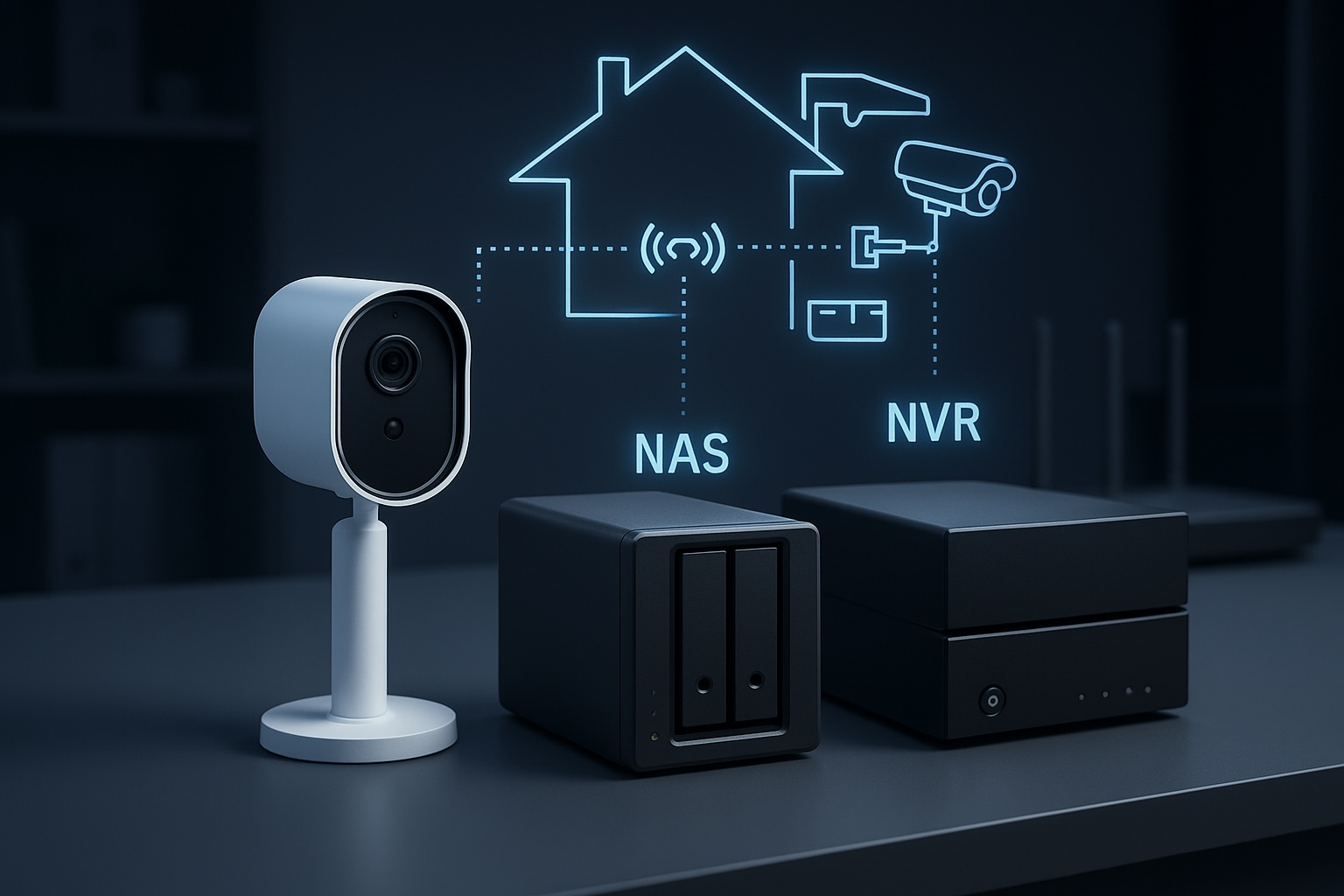
    Security camera systems have become more capable, flexible, and open over the last decade. One of the most significant developments is the shift from closed cloud storage ecosystems to open, standards based recording.

    A Network Attached Storage (NAS) system can serve as a robust central recording point, provided the cameras support open protocols and the NAS is configured to accept, index, and store those recordings properly. When designed correctly, a NAS based workflow offers long term retention, predictable performance, and complete ownership of your data.

    Note: For practical insight into how a modern NAS behaves under these workloads, read my post on UGREEN NASync DXP2800 Review 2 Months Later. For background on why network storage is valuable in the first place, my guide on NAS Network Storage and Why You Need It provides a useful introduction.


    Understanding the NAS Recording Workflow

    A NAS does not record video by itself. It has no built in awareness of surveillance workflows unless specific software is installed. The NAS becomes a recording engine only when three conditions are met.

    1. The camera must send data using an open standard.
    2. The network must provide stable addressing and sufficient sustained throughput.
    3. The NAS must run a service that can receive, process, and index the incoming streams.

    Regardless of the vendor, the workflow operates in stages. The camera encodes the video. The data is transmitted via RTSP or file transfer. The NAS writes it to storage. Retention rules then determine when that data is deleted. While simple on paper, the technical details behind each stage determine reliability.


    Camera Protocols: The Language of Recording

    Marketing descriptions often promise local recording, but this can sometimes refer to SD cards rather than network storage. The technical specification sheet is your authoritative source. A NAS can only record from cameras that support the following open protocols.

    • RTSP (Real Time Streaming Protocol): This is the industry standard for continuous recording. The camera provides a persistent video URL that the NAS connects to. RTSP connections are long lived and highly sensitive to network interruptions.
    • ONVIF Profile S: This protocol allows cameras and recorders to communicate in a standard way. Cameras supporting ONVIF usually expose an RTSP stream and allow the NAS to discover and configure the device automatically. It guarantees a baseline of interoperability.
    • FTP (File Transfer Protocol): Event driven cameras often use this. When motion occurs, the camera creates a specific file and uploads it to a folder on the NAS. This is not suitable for continuous recording, as it would generate thousands of fragmented files per hour.
    • SMB or NFS: Similar to FTP, the camera writes directly to a shared folder. The NAS is unaware that recording is happening. It simply sees files being written.

    The bottom line: If a camera relies on a proprietary cloud app and does not support RTSP, ONVIF, or FTP, it cannot be integrated into a NAS workflow.

    A modern digital illustration showing how a security camera sends video through a home network to different storage systems, with glowing network lines, a router, and cloud backup icons.
    How a security camera sends footage through the home network to different storage options.

    How the NAS Processes Video

    Once the camera is connected, the NAS performs several key tasks that determine recording quality.

    • Stream negotiation: For RTSP workflows, the NAS initiates the session. Data is sent over UDP (efficient but sensitive to interference) or TCP (more resilient to packet loss but higher latency).
    • Indexing versus raw storage: Advanced surveillance software, such as Synology Surveillance Station or Frigate, creates a database index which allows timeline scrubbing and smart playback. Simpler setups just dump raw files, which are easier to back up but harder to review manually.
    • Retention enforcement: Surveillance datasets grow rapidly. The NAS must frequently scan and delete old footage to prevent volume exhaustion. This logic must run efficiently to avoid bogging down the system.

    Encoding Formats: H.264 versus H.265

    The codec you choose determines storage requirements and CPU load.

    • H.264: The most compatible standard. It uses more storage space than newer codecs but requires relatively little processing power to decode and view.
    • H.265 (HEVC): Highly efficient. It can reduce storage needs significantly for the same visual quality, but it requires more processing power to view and is less compatible with older browser based players.

    Bitrate behaviour: You must also choose between Variable Bitrate (VBR) and Constant Bitrate (CBR).

    • VBR saves space by lowering quality during static scenes, but storage usage will fluctuate depending on activity.
    • CBR ensures predictable storage consumption but may sacrifice image quality during high motion scenes.

    Storage Hardware: Why Desktop Drives Fail

    Security camera workloads are unique. Continuous recording generates a constant write workload. Event based recording creates sudden, uneven bursts.

    • HDD: Drives specifically tuned for surveillance or NAS use are strongly recommended. Consumer desktop drives are not designed for twenty four seven write cycles and may suffer rapid mechanical failure or performance degradation.
    • SSD: Solid state drives offer excellent speed, but continuous video recording consumes their write endurance quickly. Only enterprise grade or high endurance NAS SSDs should be used for surveillance.

    Deep dive: For a detailed analysis of suitable storage, read my post on Choosing the Best Drives for Your NAS Setup.

    A side-by-side comparison of PC, NAS, and surveillance hard drives, showing which storage type is suitable for continuous recording and always-on workloads.

    Networking: The Silent Killer of Reliability

    Network quality is the most overlooked factor in surveillance. A fast speed test does not guarantee a stable surveillance network. These are the technical realities that matter.

    1. Stable addressing: RTSP streams rely on fixed IP addresses. If the router assigns a new IP to the camera, recording breaks. Static IPs or DHCP reservations are essential for cameras and the NAS.
    2. Session persistence: Mesh Wi Fi systems often steer devices between nodes. This handover causes a micro outage, which can create corrupted frames or dropped connections in recordings. Cameras should ideally be associated with a single access point.
    3. Airtime congestion: Wi Fi cameras share airtime with every other device on the channel. Even with a strong signal, a congested channel will cause upload failures and inconsistent performance.
    4. Upload saturation: Many home internet connections have limited upload bandwidth. If multiple cameras trigger at once or if you back up footage to the cloud, you can saturate the uplink and cause dropped frames or failed transfers.

    NAS versus NVR: Which Architecture is Right?

    • NVR (Network Video Recorder): A purpose built appliance dedicated to recording. It is straightforward and reliable but focused almost entirely on video.
    • NAS (Network Attached Storage): A general purpose server. It offers flexible retention, open file formats, and the ability to run other applications such as media servers, home automation and backup tools alongside surveillance workloads.

    If you want a dedicated appliance that requires very little ongoing thought, an NVR is usually the better choice. If you want a central hub for data, applications, and cameras, a NAS workflow provides more flexibility and control.


    Conclusion

    A NAS becomes a powerful surveillance tool when the workflow is respected end to end. Cameras must use open standards such as RTSP or ONVIF. The network must provide stable addressing and consistent performance rather than just impressive speed test results. Storage must be chosen for endurance as well as capacity. Surveillance software must be configured to handle streams, indexing and retention without overwhelming the hardware.

    This workflow centric view removes guesswork. By focusing on these technical realities, it becomes possible to build a system that delivers consistent results for years rather than months.

    Next steps:

  • How AI is Transforming Smart Homes in 2025

    How AI is Transforming Smart Homes in 2025

    Smart homes have come a long way. What began with app-controlled lights and smart speakers has grown into connected ecosystems that manage energy use, strengthen security, and adapt to individual lifestyles. Artificial Intelligence (AI) is now taking this a step further. By learning from our habits and anticipating needs, AI makes smart homes more intuitive, predictive, and personalised than ever before.


    Real-World Examples of AI in Action

    AI is no longer a futuristic concept – it is already shaping daily life. Voice assistants like Alexa and Google Home respond to more than simple commands: they learn your patterns, suggest routines, and seamlessly control lighting or music. Smart thermostats such as Nest cut energy costs by adjusting temperatures automatically when you are away. Even robot vacuums use AI to map your home, avoid obstacles, and optimise cleaning routes.

    These small but powerful examples highlight how AI is quietly transforming daily routines into smoother, more efficient experiences.


    Security Benefits of AI

    Home security is one of the biggest winners from AI integration. Modern smart cameras don’t just detect movement – they can identify whether it’s a person, a pet, or a passing car. This reduces false alarms and ensures faster, more accurate responses.

    For instance, Reolink and Eufy security systems use AI to recognise suspicious behaviour, such as someone lingering outside your home. AI-driven doorbells can even tell the difference between family members, deliveries, and strangers. By filtering out irrelevant alerts, these systems provide peace of mind without overwhelming you with constant notifications.

    The result is a smarter, calmer layer of security that protects what matters most.

    Futuristic smart home security camera with a glowing AI holographic face above it, symbolising AI-powered motion detection and smart alerts.
    AI-powered cameras can distinguish between people, pets, and vehicles, reducing false alerts.

    The Pace of AI Improvements

    It’s impossible to ignore how quickly AI tools are advancing. In only a few years, platforms like ChatGPT, Microsoft Copilot, and Grok have evolved from basic Q&A bots into assistants capable of handling planning, analysis, and even decision-making. The same acceleration is happening in smart home AI, meaning features that feel premium today will likely become standard tomorrow.

    Think of the leap from Wi-Fi 5 to Wi-Fi 7. The difference was enormous, and AI is developing at an even faster rate. This speed matters: your smart home won’t remain static – it will continue to grow smarter over time, making each device a better investment.


    What Could Be Next?

    Looking ahead, AI has the potential to unlock a new wave of possibilities:

    • Adaptive Routines: Instead of fixed schedules, your home could recognise if you’ve had a late night and delay the morning coffee routine. Imagine lights staying dimmed a little longer and your coffee maker waiting until you’re actually awake.
    • Energy Optimisation: AI could predict peak electricity prices and run appliances such as dishwashers or EV chargers at the cheapest times. Picture your EV charging automatically at 2 a.m. when energy is lowest.
    • Cross-Device Intelligence: Imagine your NAS, cameras, and smart speakers sharing data to create a unified, AI-powered view of your home.

    These aren’t distant ideas – the technology already exists. What’s left is integration and refinement.

    Modern NAS storage device on a desk with a holographic AI brain projection, representing cross-device intelligence and smart home integration.
    AI could unify devices like NAS, cameras, and smart assistants into a single intelligent ecosystem.

    Should You Upgrade? A Quick Checklist

    Not sure if you’re ready to lean into AI-powered smart home tech? Here are a few practical checks:

    • Wi-Fi: Do you already have reliable Wi-Fi and a solid base of smart devices? (If not, check out my guide on Wi-Fi 6/7 Explained.)
    • Compatibility: Are your devices ready for Matter or other new standards?
    • Automation: Do you want routines that adapt to your lifestyle rather than just follow set schedules?
    • Cloud vs Local: Are you comfortable with cloud-based AI, or do you prefer local processing?
    • Security: Have you put measures in place to protect your data?

    If you tick most of these boxes, you’re in a good position to start adding AI-driven features.

    Futuristic city skyline illuminated in neon blue and purple with AI icons floating above, symbolising the future of connected smart homes.
    The future of smart living lies in AI-powered homes that evolve alongside rapid AI innovation.

    Final Thoughts

    AI isn’t just hype – it’s already reshaping the way we live with technology at home. From smarter security to lower energy bills and personalised routines, the benefits are here and growing fast. The real challenge is deciding when to adopt and which tools to trust.

    For many households, the best path is to start small. Add an AI-enhanced camera, try an adaptive thermostat, or set up an AI-powered routine in Home Assistant. As the technology matures, you can build out a smarter, more responsive system that truly makes life easier.

    If you’re planning upgrades, visit my Recommended Gear page where I highlight reliable options across networking, NAS, and smart home setups. Pairing the right hardware with emerging AI features will help you create a home that’s not just smarter, but genuinely more helpful.

    The future of smart homes isn’t about gadgets — it’s about creating a home that works seamlessly in the background, so you can focus on living. With AI, that future is closer than ever.

  • Best Security Cameras That Work Seamlessly with Your NAS

    When it comes to home security, pairing your camera system with your NAS (Network Attached Storage) can offer unbeatable advantages like local recording, improved privacy, and easy video management. If you’ve already invested in a NAS system, it makes sense to choose security cameras that integrate seamlessly. Personally, I use the UGREEN NASync DXP2800, so I’ll be highlighting options that work well with it throughout this guide. This guide covers the best NAS-compatible camera brands and models, highlighting why NAS compatibility matters and how it simplifies your home security setup.

    Why NAS Compatibility Matters

    Having a NAS-compatible security camera means:

    • Enhanced privacy: Videos stored locally mean no subscription fees or worries about cloud privacy. For instance, your home’s front door footage won’t be stored on a remote server, reducing the risk of unauthorized access.
    • Reliable storage: Continuous recording ensures you don’t miss important events, scheduled backups prevent data loss, and easy management helps you quickly review footage in case of incidents.
    • Integration: Cameras that support protocols like RTSP or ONVIF easily integrate with NAS systems, allowing seamless management through third-party apps or direct NAS interfaces, simplifying your overall workflow.

    For example, imagine a scenario where your Wi-Fi temporarily drops. With cloud-dependent cameras, you might lose critical footage. However, NAS-compatible cameras continue recording locally, ensuring continuous surveillance without interruptions.

    Top Camera Brands That Support NAS

    BrandRecommended ModelsResolutionConnectionPrice RangeKey Features
    ReolinkRLC-833A, RLC-511WA4K/5MPPoE/Wi-Fi\$\$Affordable, reliable, excellent NAS support
    HikvisionDS-2CD2043G0-I, DS-2CD2385G1-I4MP/8MPPoE\$\$\$Professional-grade quality, robust build
    Eufy SecurityEufyCam 2C, EufyCam 31080p/2KWi-Fi\$\$User-friendly, wireless convenience

    1. Reolink

    • Strengths: Reliable, excellent NAS compatibility, budget-friendly.
    • Best For: Users looking for excellent video quality, reliability, and easy NAS integration at a good price.

    2. Hikvision

    • Strengths: Professional-grade quality, advanced configuration, robust build.
    • Best For: Advanced users or those with complex setups requiring high-quality professional cameras.

    3. Eufy Security

    • Strengths: User-friendly, high-quality wireless cameras, no subscription required.
    • Best For: Users who prefer wireless flexibility with easy NAS integration and simple mobile app control.

    Quick Setup Experience with UGREEN NASync

    If you’re just getting started with Docker apps on your NAS, check out my post on must-have Docker containers for NAS beginners.

    UGREEN NASync doesn’t offer a native surveillance app like Synology’s Surveillance Station, but it supports Docker, allowing you to easily install lightweight NVR solutions. Here’s a simplified step-by-step overview to help you get started:

    1. Access Docker on your NAS: Open your UGREEN NASync web interface and navigate to the Docker application.
    2. Choose and Deploy Your NVR Solution: Search for “Frigate,” “Shinobi,” or “MotionEye” within Docker Hub and pull the image to your NAS.
    3. Configure Container Settings: Set the container’s environment variables, assign storage volumes for recordings, and map required ports.
    4. Launch and Access the Application: Start the container and access your chosen NVR via your browser using the assigned port (e.g., http://NAS_IP:port).
    5. Integrate Your Camera: Add your camera’s RTSP or ONVIF stream using its IP and login credentials within the app.

    Consider including screenshots of each stage to visually guide readers through the process, especially if they’re new to Docker setups.

    Local Storage vs. Cloud Storage Recap

    Local storage offers several clear advantages over cloud storage, especially in scenarios such as:

    • Network outages: If your internet connection goes down, local storage continues to function normally, recording and storing your footage without interruptions. In contrast, cloud-based systems might lose critical footage during outages.
    • Privacy-sensitive situations: If you’re concerned about data privacy or security breaches, local storage eliminates the risks associated with third-party cloud providers potentially mishandling your footage.
    • Long-term cost savings: While cloud storage often involves recurring subscription fees, investing in local storage via NAS means a one-time expense. For example, a household that runs multiple cameras continuously can save significantly in subscription fees over several years.
    • Customized storage management: You have full control over storage allocation, data retention periods, and backups, allowing for greater flexibility tailored specifically to your personal or business requirements.

    Best Use Cases

    • Home Entrances & Garages: Cameras from Reolink or Hikvision offer exceptional reliability and high-quality footage ideal for entryways and garages. For instance, the Reolink RLC-833A captures clear facial details even in low-light scenarios, significantly aiding in identification if an incident occurs.
    Example top-down layout showing various camera placements, including corridor mode on the side path and wide-angle coverage across driveways and entrances.
    • Baby Monitors & Indoor Surveillance: Eufy’s wireless cameras provide unmatched ease of use with mobile integration, perfect for parents monitoring babies or pets remotely.
    • Outdoor Surveillance: Hikvision and Reolink cameras are known for robust, weather-resistant construction.
    Reolink Standard View vs Corridor Mode: A side-by-side comparison showing how traditional 16:9 viewing (left) wastes vertical space in narrow areas, while corridor mode (right, 9:16) maximises coverage down long hallways or side paths.

    PoE vs. Wi-Fi Cameras: Which Should You Choose?

    • PoE (Power-over-Ethernet): Reliable wired connection, ideal for permanent installations, simpler cable management, highly recommended for outdoor setups.
    • Wi-Fi Cameras: Easier installation, ideal for renters or temporary setups, flexible camera placement but dependent on strong Wi-Fi.

    Choose PoE for reliability and Wi-Fi for flexibility based on your specific setup needs.

    What’s Next for My Setup

    I may also look at integrating object detection with Home Assistant on my NAS in the future. Beyond that, I plan to explore smart alerts, secure remote access, and making the most of corridor mode for tighter, vertical spaces — like a narrow side alley — where traditional wide-angle views aren’t efficient. These refinements aim to build a smart security system that’s both effective and privacy-conscious, without revealing sensitive home layout details.

    Common Mistakes to Avoid

    • Ignoring storage capacity needs.
    • Overlooking camera resolution compatibility with your NAS.
    • Improper network setup leading to bandwidth issues.

    Personal Insight: My Camera Journey

    If you’re not familiar with the UGREEN NASync, I reviewed it in detail here to help you understand what it’s capable of.

    I’m currently using Switchbot Wi-Fi cameras, which have served well for basic home monitoring, but I’ve experienced occasional connectivity drops and limitations in managing footage efficiently. Given my setup, which prioritises reliability, high-quality video, and seamless integration with my UGREEN NASync NAS, I’m strongly considering transitioning to Reolink PoE cameras.

    Specifically, I’m looking at the Reolink RLC-833A for front-facing or driveway monitoring due to its impressive 4K resolution, person and vehicle detection, and spotlight features. For areas like the backyard, where running Ethernet cables might be more difficult, the RLC-511WA seems like a perfect fit. I’ll be documenting this upgrade in future posts, including setup tips, integration steps, and performance insights. I’m also planning to use a camera with corridor mode for the narrow side path of my house — this setting optimises vertical viewing angles, making it ideal for covering long, narrow spaces without wasting frame area on walls or empty ground.


    By choosing NAS-compatible security cameras, you’re taking control of your home’s safety and enjoying seamless integration with your existing NAS setup. I’d love to hear your thoughts and experiences—feel free to comment below!

  • Which Type of Security Camera Is Right for You?

    Which Type of Security Camera Is Right for You?

    I’m currently in the process of upgrading my home security system. Until now, I’ve been using a mix of battery and solar-powered SwitchBot cameras. They seemed ideal at first, but real-world use has been frustrating. I live in an area that doesn’t get consistent sunlight, so the solar panels often fail to keep the cameras charged. Worse, I’ve had to take them down regularly just to recharge them manually. That’s fine once or twice, but it gets annoying fast.

    So I started looking into the most common types of cameras out there. Each has its pros and cons, different storage methods, and a range of features depending on how you want to use them. Here’s a breakdown of what I’ve learned so far, including whether they support local SD cards, cloud backups, or integration with a NAS if that’s something you’re interested in.


    Cloud-Focused Cameras (e.g. Nest, Arlo)

    Best for: Users who want app-based access and minimal setup

    These cameras are designed to work as part of a broader smart home ecosystem. They often come loaded with features like face detection, voice alerts, and smart notifications. If you want a plug-and-play solution that lives inside a polished mobile app, they’re hard to beat. But they also come with limitations.

    Pros:

    • Very easy to set up
    • Smart features are built-in
    • Great mobile app support

    Cons:

    • Most features require a subscription
    • Local storage is limited or unavailable
    • You are locked into a vendor’s ecosystem
    • No support for NAS or open protocols like RTSP or ONVIF

    Storage:

    • Cloud storage is standard, but often limited without a paid plan
    • A few models support local SD or USB via a hub
    • Not compatible with NAS or custom storage solutions
    Hand mounting a Nest cloud-based security camera onto a magnetic wall mount in a modern indoor setting
    A Nest-style cloud camera — polished, app-friendly, but dependent on subscriptions for storage.

    Battery-Powered Cameras

    Best for: Outdoor areas without a nearby power source

    Battery-powered cameras are incredibly flexible. You can mount them anywhere without worrying about outlets or wiring. Most come with SD card support and mobile alerts when motion is detected. But there’s a tradeoff. Because they rely on batteries, they only record on motion and will need recharging — sometimes more often than expected.

    Pros:

    • Completely wireless, easy to install anywhere
    • Most offer SD card recording
    • No cables required

    Cons:

    • Needs to be taken down for recharging
    • Can’t record continuously
    • Limited smart features unless paired with a subscription service
    • No direct NAS support

    Storage:

    • Local SD card recording is common
    • Access through vendor app
    • Not suitable for NAS storage
    Cutaway view of a battery-powered outdoor security camera showing internal battery and circuit components
    Inside a typical battery-powered camera. Easy to install, but recharging gets old fast.

    Solar-Powered Cameras

    Best for: Remote areas where recharging manually isn’t an option

    These are essentially battery-powered cameras paired with solar panels. In the right environment, they can keep running for months without manual charging. In the wrong environment — like my home with limited sunlight — they become unreliable and frustrating.

    Pros:

    • Self-recharging in sunny areas
    • Great for off-grid setups
    • Flexible placement

    Cons:

    • Performance depends heavily on sunlight exposure
    • Still motion-only recording
    • Same SD and cloud storage limitations as battery models
    • Not compatible with NAS

    Storage:

    • SD card storage is usually included
    • Some brands offer optional cloud storage
    • NAS integration is not supported
    Outdoor solar-powered security camera mounted under an eave, connected to a solar panel with a visible cable
    A wall-mounted outdoor camera connected to a small solar panel for continuous charging.

    Wi-Fi Cameras (Plug-In)

    Best for: Indoor or sheltered outdoor locations with power access

    Wi-Fi cameras that plug into a wall are a nice middle ground. They remove the battery hassle and, depending on the model, may support RTSP or ONVIF, which opens the door to NAS use. They’re still dependent on your Wi-Fi network, though, so placement and signal strength matter.

    Pros:

    • Easy setup with permanent power
    • Many support smart features like motion zones
    • Some are compatible with NAS via RTSP or ONVIF

    Cons:

    • Needs to be placed near a power outlet
    • Wi-Fi interruptions can affect performance
    • Not all support local recording or open protocols

    Storage:

    • Often includes SD card support
    • Optional cloud storage
    • Limited NAS support depending on the model
    Indoor plug-in Wi-Fi security camera on a kitchen counter with visible power cable
    An indoor plug-in camera setup — simple to install but needs to stay near a socket.

    PoE (Power over Ethernet) Cameras

    Best for: Long-term, reliable setups with full storage control

    This is the route I’m planning to take. PoE cameras use a single Ethernet cable to provide both power and data, making them ideal for stable connections and continuous recording. They work extremely well with NAS systems like Frigate, MotionEye, or Synology Surveillance Station. While installation takes more effort, the reliability and flexibility are worth it.

    I’m currently exploring how to integrate a PoE camera system into my NAS setup to enable local recording and give me full control over my footage without relying on the cloud.

    Pros:

    • One cable for power and data
    • Stable connection with no Wi-Fi dropouts
    • Usually support RTSP and ONVIF
    • Perfect for NAS and continuous recording

    Cons:

    • Installation can be time-consuming
    • Requires PoE switch or injector
    • You’ll need to run Ethernet cables through your home

    Storage:

    • Full NAS integration supported
    • Local SD card or cloud may also be available
    • Excellent for 24-hour recording with alerts
    Diagram of Reolink PoE and Wi-Fi security camera system connected to a PoE switch, router, and NVR
    A look at a full PoE camera system setup — reliable, scalable, and ideal for NAS integration

    Storage Options at a Glance

    Storage TypeProsCons
    CloudAccessible from anywhere, simple to set upPrivacy concerns, recurring subscription fees
    SD CardLocal and private, no subscription requiredLimited capacity, footage only accessible via device
    NASCentralised, scalable, privateRequires setup and compatible hardware

    Quick Checklist: What’s Best for You?

    ✅ I want something easy to set up, no cables, and don’t care much about recording control

    → Cloud-Focused Camera

    ✅ I don’t have outdoor power and want flexibility

    → Battery Camera (but be ready to recharge it)

    ✅ I live in a sunny area and don’t want to climb a ladder to recharge

    → Solar Camera

    ✅ I have power outlets near the camera and want better reliability

    → Wi-Fi Camera

    ✅ I want full control, 24/7 recording, and local storage through NAS

    → PoE Camera


    Final Thoughts

    Every camera type has its place. If you just want to keep an eye on your front door and get notifications on your phone, a cloud-first model or SD card camera might be enough. But if you’re tired of recharging batteries or you want more control over your footage, it might be time to think bigger.

    For me, the tipping point was having to regularly take down cameras just to recharge them and not being able to rely on solar panels. I’m moving to PoE to get a more stable, scalable solution.

    Next time, I’ll be comparing different camera brands and what each one does well, so you can choose the right fit for your setup.