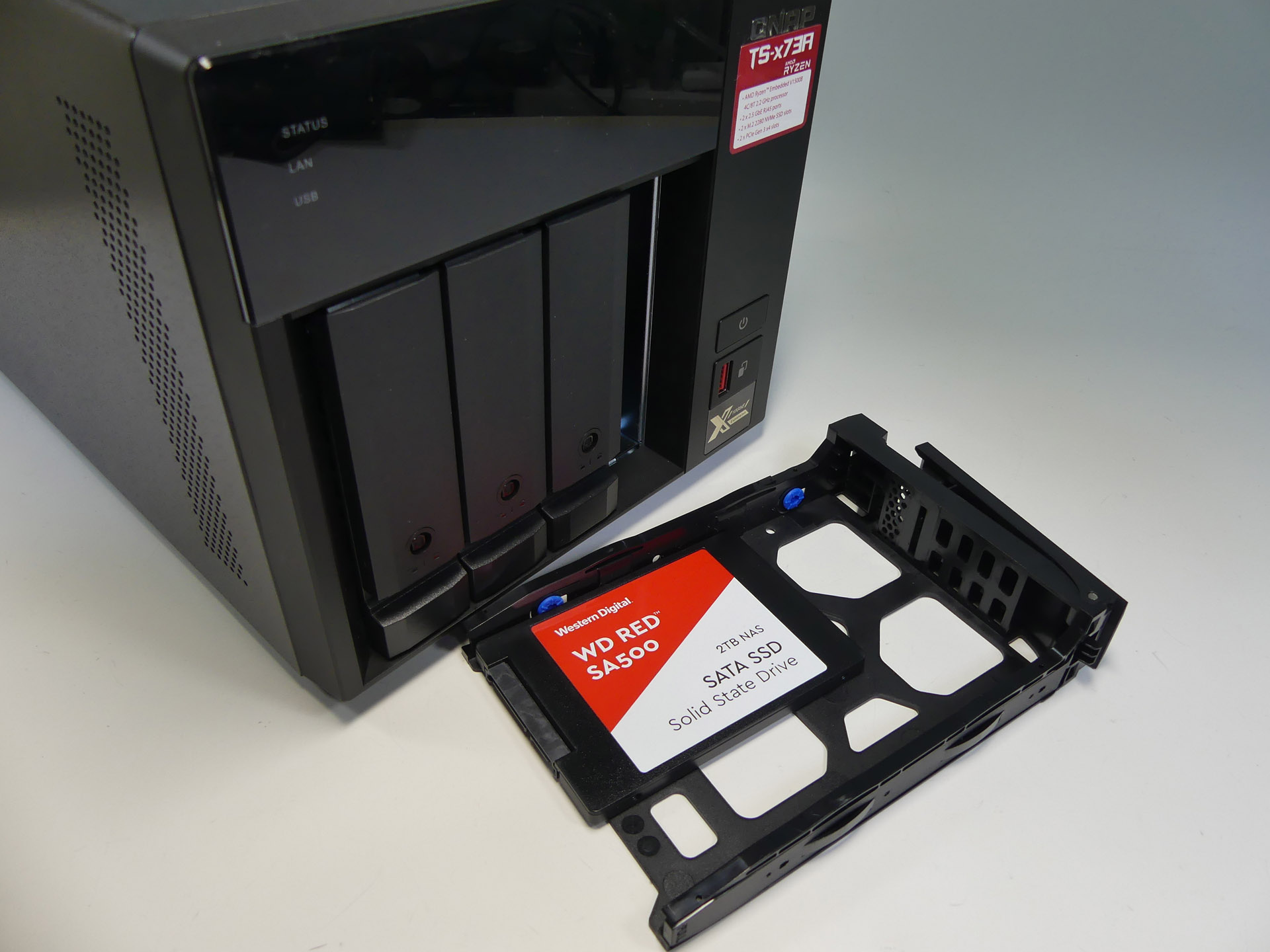
Choosing the right drives for your NAS can significantly impact reliability, performance, and data safety. This comprehensive guide explores HDDs versus SSDs, recommended drive capacities, specific drive recommendations for various use-cases, and even enterprise and surveillance drive options, helping you make the best-informed decision for your NAS setup.
Some of the links in this post are affiliate links. If you buy something through them, I may earn a small commission — it doesn’t cost you anything extra, and it helps support the site.
HDD vs. SSD: What’s Best for Your NAS?
- HDD (Hard Disk Drive): Ideal for bulk storage, affordable, high capacities. Drawbacks include noise, slower performance, and higher power consumption.
- SSD (Solid State Drive): Faster, quieter, energy-efficient, and perfect for applications like Docker, VMs, and intensive tasks. However, they are pricier per GB.
Recommended Drive Capacities
- General Home & Media Storage: HDD (4-8TB), SSD (1-2TB)
- Small Business & Critical Data: HDD (8-16TB), SSD (2-4TB)
- Docker & Applications: NVMe SSD (1-2TB)
- Virtual Machines & Intensive Use: NVMe SSD (2-4TB)
- Security Camera Systems: HDD (2-10TB)
HDD Manufacturers: WD Red vs. Seagate IronWolf
Both Western Digital (WD) Red and Seagate IronWolf drives are NAS-optimized for reliability and continuous operation. Differences include:
- WD Red Series: Quieter and cooler, ideal for home setups.
- Seagate IronWolf Series: Slightly higher performance and built-in IronWolf Health Management (IHM), beneficial in critical NAS environments.
Both are excellent—pick whichever is priced better during sales unless you have specific performance or noise requirements.
Specific Drive Recommendations & Detailed Insights
General Storage/Home NAS
- Western Digital Red Plus (4-6TB): Quiet, efficient, and cost-effective.
- Seagate IronWolf (4-6TB): Reliable with optimized firmware, slightly higher performance.
Data Security & Critical Storage
- Western Digital Red Pro (8-16TB): High RPM, extended warranty, robust reliability.
- Seagate IronWolf Pro (8-16TB): Excellent reliability, includes data recovery service.
Security Camera Systems
- Western Digital Purple (2-10TB): Optimized for continuous video recording, reliable for CCTV setups.
- Seagate SkyHawk (2-10TB): Built for surveillance, robust performance, supports multiple HD cameras.
Docker Containers & Application Servers
- Samsung 980 Pro NVMe (1-2TB): High speeds, great for Docker responsiveness.
- Crucial MX500 SATA SSD (1-2TB): Solid performance, budget-friendly.
Virtual Machines & Heavy Docker Usage
- Samsung 990 Pro NVMe (2TB): Excellent for demanding workloads.
- Western Digital Black SN850X NVMe (2TB): Superior speed and durability.
- Crucial P3 Plus NVMe (2TB): Great balance of price and performance.
Enterprise Drives: Cost-Effective Alternatives & Enhanced Reliability
Enterprise drives such as WD Ultrastar, Seagate Exos, Toshiba MG Series, and HGST Ultrastar are designed for heavy use, offering high reliability and performance. Reconditioned drives available on platforms like eBay can offer excellent value.
- WD Ultrastar DC HC550/HC560 (14-20TB): Data center grade performance.
- Seagate Exos X16/X18 (14-18TB): Enterprise reliability at great prices.
- Toshiba MG Series (12-18TB): Excellent performance and competitive pricing.
- HGST Ultrastar He Series (10-14TB): Industry-leading durability, helium-filled for efficiency.
Benefits of Helium-Filled Drives
- Lower power and heat, extended lifespan
- Higher drive density, ideal for multi-drive setups
My Personal NAS Setup and Drive Choices
I’ve chosen the UGreen DXP2800, attracted by its powerful hardware, competitive price via crowdfunding, and flexibility to run either its own OS or alternatives without voiding warranty. It serves as a backup solution for photos, phones, and laptops, and can also integrate seamlessly with cloud storage.
I’m opting for Western Digital Red HDDs (6-8TB) in RAID 1 due to their excellent value, reliability, and retailer bundle discounts. RAID 1 specifically meets my needs by:
- Ensuring data redundancy and easy recovery
- Offering improved read performance
- Being simple to manage, ideal for first-time NAS users
Additionally, I’m exploring Docker, particularly Home Assistant for smart home management. For Docker and potential applications like Pi-Hole, I’ve selected two 1TB WD Black SN850X NVMe SSDs for their exceptional speed and reliability.
FAQ: Quick Answers for Common NAS Drive Questions
- What’s the difference between WD Red and WD Purple?
WD Red drives are optimized for NAS environments (general data storage), while WD Purple drives are optimized specifically for continuous video recording in surveillance systems. - Should I buy new or reconditioned enterprise drives?
Reconditioned enterprise drives offer substantial cost savings and excellent reliability, provided you buy from reputable sellers and thoroughly check drive health upon delivery. - Can I mix different brands or sizes in RAID?
It’s best practice to keep drives identical in RAID setups for optimal performance and reliability.
Looking for the drives mentioned?
Here are quick links to everything I covered above:
HGST Ultrastar He Series (10–14TB)
WD Purple (2–10TB, Surveillance)
Seagate SkyHawk (2–10TB, Surveillance)
Crucial MX500 SATA SSD (1–2TB)
WD Ultrastar DC HC550/HC560 (14–20TB)
Seagate Exos X16/X18 (14–18TB)
Conclusion
Selecting drives involves considering your specific storage requirements, budget, and performance needs. HDDs are ideal for bulk storage, SSDs excel at performance-intensive tasks, and enterprise drives offer unmatched reliability, particularly when purchased reconditioned.
Have insights or further questions? I’d love to hear about your own NAS experiences in the comments!
Check out my other posts on setting up your NAS and smart home networking essentials.