Tag: NAS security

  • UGREEN SynCare Brings AI Driven Home Security Into the NAS Ecosystem

    UGREEN SynCare Brings AI Driven Home Security Into the NAS Ecosystem

    UGREEN made a notable move at CES 2026 with the announcement of SynCare, a new home security system built around local AI, local storage, and optional ecosystem expansion.

    I have already been looking into home security systems, but SynCare immediately stood out because it comes from UGREEN and appears designed to work alongside the NASync platform rather than existing as a separate, cloud dependent product line.

    This does not feel like UGREEN testing the waters. It looks like a deliberate step toward connecting surveillance, storage, and local AI into a single ecosystem.


    How UGREEN Is Positioning SynCare

    UGREEN is presenting SynCare as a local first security platform, not just a collection of cameras.

    The core pillars highlighted at CES were:

    • On device AI processing

    • No mandatory subscriptions

    • Local storage by default

    • Optional expansion through ecosystem components

    Instead of relying on cloud servers to analyse footage, SynCare cameras process video locally and only notify the user when something meaningful is detected. Storage remains local as well, either directly on the camera or through optional NAS integration.

    UGREEN has described SynCare as an attentive, integrated guardian that can interpret events and respond intelligently rather than simply recording footage passively.

    What makes this particularly exciting for me is that it adds genuine choice without forcing a jump into a completely new ecosystem. I am already invested in NASync, and SynCare feels like a natural extension rather than a replacement. The fact that the system is subscriptionless is a major factor here. I had been seriously considering alternatives like the upcoming SwitchBot cameras paired with their AI Hub, but the requirement for a subscription to unlock key features makes that far less appealing long term. SynCare offering local AI, local storage, and advanced behaviour without recurring fees changes the equation entirely. I am aware that brands like Reolink already offer local recording and strong hardware, but SynCare feels more ambitious in how it ties cameras, AI, and NAS together. That broader vision is what makes this stand out rather than just blending into the existing market.


    SynCare Security Ecosystem Capabilities

    SynCare is designed as a coordinated ecosystem rather than isolated devices.

    Local AI and On Device Processing

    Each camera uses on device multimodal AI to recognise people, pets, vehicles, packages, and general events in real time. By analysing footage locally, SynCare can generate descriptive alerts in plain language rather than generic motion notifications.

    Examples shown by UGREEN include alerts such as a stranger in black approaching the front door, package delivered, or vehicle entering the driveway. This approach reduces false alarms and makes notifications more immediately useful.

    Cross Device Coordination

    SynCare devices are designed to work together. Cross camera awareness allows one camera to trigger actions on another.

    An example demonstrated by UGREEN includes an indoor camera detecting a baby crying, which can then trigger an audio alert or announcement from another camera or device elsewhere in the home. This coordinated behaviour is intended to provide a more cohesive monitoring experience rather than siloed camera feeds.

    Risk Based Alerts and Zones

    For outdoor security, SynCare supports a multi zone detection model. Users can define outer, warning, and alert zones.

    Intrusion into the outer zone triggers recording. Entering the warning zone can activate lights and send notifications. Breaching the alert zone can trigger audible alarms and flashing lights. This graduated escalation is designed to deter intruders early while avoiding constant trivial alerts.

    No Mandatory Cloud and Privacy Focus

    UGREEN is positioning SynCare as a privacy focused, locally controlled system. AI analysis and storage are handled on the device or local network rather than in the cloud.

    There are no required subscription fees for core functionality. Footage can be stored locally and, when integrated with NASync, stored as encrypted local data under the user’s control. Alerts and recordings remain within the home network, reducing exposure to external services.


    The SynCare Device Lineup

    UGREEN announced a full range of devices covering indoor, outdoor, and entry point monitoring. All devices share the same approach to local AI and high resolution imaging.

    Indoor Cameras ID500 Pro and ID500 Plus

    The indoor cameras are available in two variants.

    The ID500 Pro is the higher end model, offering 4K resolution, motorised pan and tilt, and a bright f1.0 aperture lens designed for strong low light performance. UGREEN is promoting full colour night vision through its UltraColor Night Vision mode rather than infrared only imaging.

    The ID500 Plus offers 2K plus resolution while retaining the same pan tilt functionality and AI feature set at a lower expected price point.

    Both models use on device AI to detect people, pets, and events such as unusual sound or movement. Audio analysis enables features such as baby crying detection. Alerts are contextual rather than purely motion based.

    These cameras are intended to cover larger indoor areas with fewer devices, allowing a single camera to track movement across a room and differentiate between pets, people, and other activity.

    UGREEN SynCare ID500 Pro indoor security camera with pan tilt and colour night vision
    SynCare ID500 Pro indoor camera with 4K resolution, pan tilt movement, and local AI detection.

    Outdoor Camera OD600 Pro

    The OD600 Pro is a weather resistant outdoor camera designed for perimeter security.

    It features a hybrid bullet and PTZ design with pan tilt zoom functionality and an 18 megapixel sensor with optical zoom. This allows the camera to zoom in on details such as faces or licence plates without losing clarity.

    The camera supports 24 hour continuous recording and can connect via dual band Wi Fi or Power over Ethernet. PoE support provides improved reliability for users with existing network cabling.

    Local AI detection is tuned to distinguish between humans, vehicles, and pets to reduce false alerts. Combined with the multi zone escalation model, the OD600 Pro is designed not just to record incidents but to actively deter intruders using lights and audible alarms.

    The OD600 Pro supports Power over Ethernet, which is ideal for users who prioritise reliability or already have network cabling in place. If you are weighing up whether PoE cameras make sense for your own NAS setup, I covered the pros and cons in my guide on choosing PoE security cameras for NAS.

    UGREEN SynCare OD600 Pro outdoor security camera with pan tilt zoom and multi sensor design
    UGREEN SynCare OD600 Pro outdoor camera featuring pan tilt zoom, dual sensors, and local AI processing.

    Video Doorbell DB600 Pro

    The DB600 Pro is a dual camera video doorbell designed to provide full head to toe coverage.

    The primary camera captures visitors in 4K resolution, while a secondary 2K downward facing camera monitors packages placed at the door. This ensures packages remain visible rather than being cropped out of frame.

    On device AI enables detection of people, pets, packages, and package pickup events. Package pickup can be flagged as a potential theft event, generating a more urgent alert.

    The doorbell connects via dual band Wi Fi and is positioned as a high end option for users who want advanced AI features without relying on cloud subscriptions.

    UGREEN SynCare DB600 Pro dual camera video doorbell with head to toe and package view
    SynCare DB600 Pro video doorbell with dual camera design for visitors and package detection.

    Local AI Smarts and Edge Processing

    One of the standout aspects of SynCare is its reliance on local edge processing.

    Multimodal AI analyses video, audio, and motion data directly on the device. This allows SynCare to assess context rather than simply reacting to movement.

    Human language alerts replace technical notifications. Instead of motion detected, users receive alerts describing what happened and where.

    UltraColor Night Vision enables colour footage in very low light, improving identification and clarity at night.

    All AI processing occurs locally rather than on remote servers. This reduces latency, improves privacy, and eliminates the need for cloud based AI subscriptions.


    Smart Display D500 Explained

    UGREEN also announced the Smart Display D500, a small touchscreen control hub for the SynCare system.

    The display allows users to view live camera feeds, receive alerts, and manage settings from a dedicated screen. It can also function as a Wi Fi hub, allowing cameras to communicate on a local network segment.

    UGREEN has confirmed that the Smart Display D500 is optional. All SynCare devices can be configured and managed using the mobile app alone. The display does not unlock additional features and is not required for system functionality.

    UGREEN SynCare Smart Display D500 touchscreen hub for managing home security cameras
    Smart Display D500 touchscreen hub for viewing and managing SynCare camera feeds.

    NAS Integration and Local Storage Options

    SynCare has been designed with NAS integration in mind from the outset.

    On Camera Storage

    Each camera supports local recording, typically via a microSD card. This allows footage to be stored without cloud services, though capacity is limited and management can become fragmented across multiple cameras.

    NASync Compatibility

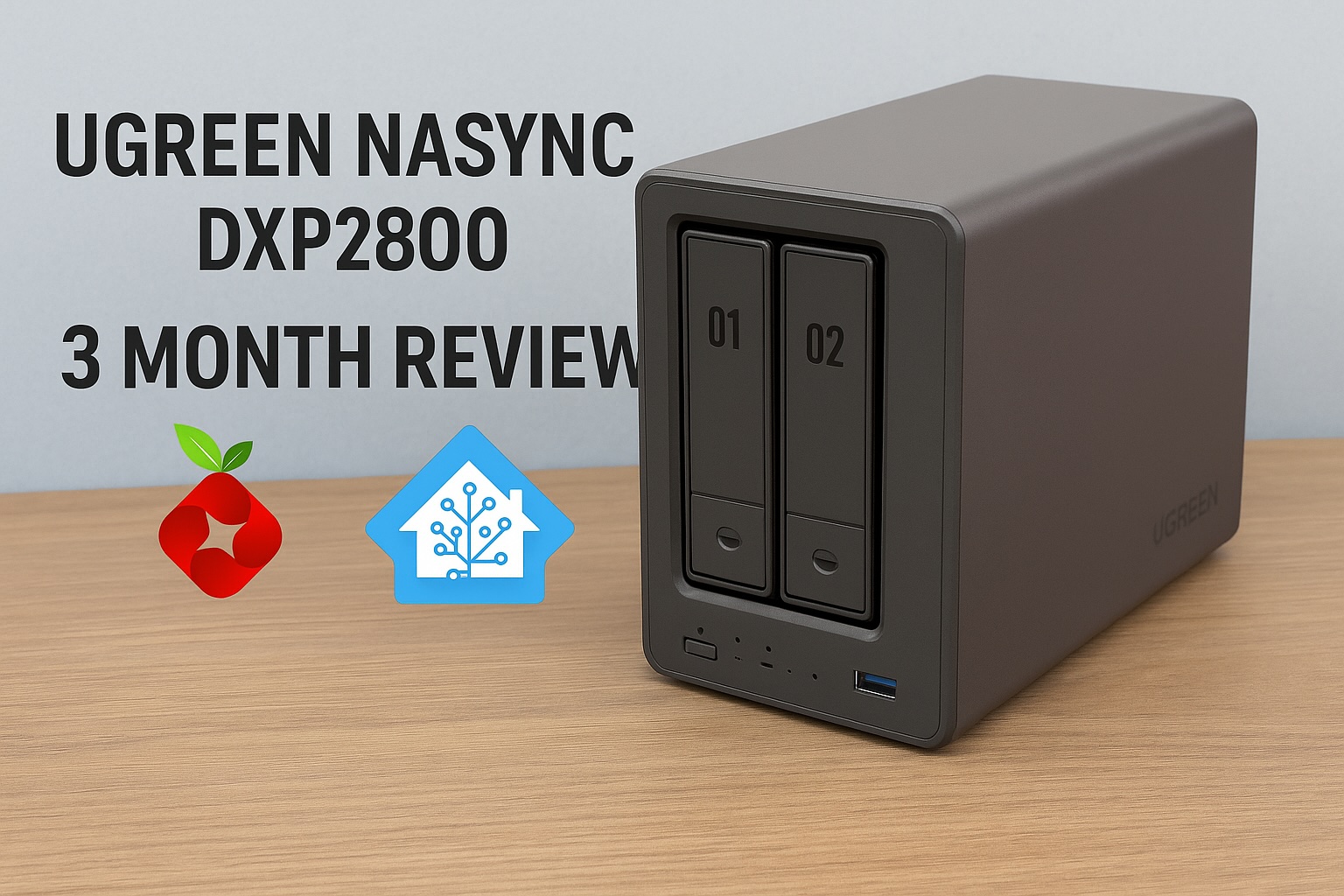
    UGREEN has confirmed that SynCare devices will integrate with NASync systems. Cameras can send recordings directly to a NAS for centralised, encrypted local storage. If you want a better idea of how UGREEN’s NAS hardware performs in real world use, I covered this in detail in my UGREEN NASync DXP2800 review.

    This enables significantly longer retention, unified management, and full control over where footage resides. A NASync system effectively becomes a private NVR without requiring separate recording hardware.

    Optional, Not Required

    A NAS is not required to use SynCare. Cameras function independently with local storage and the mobile app.

    NAS integration is positioned as an upgrade path for power users who want centralised management, larger storage capacity, and NVR style functionality.

    AI NASync iDX Series

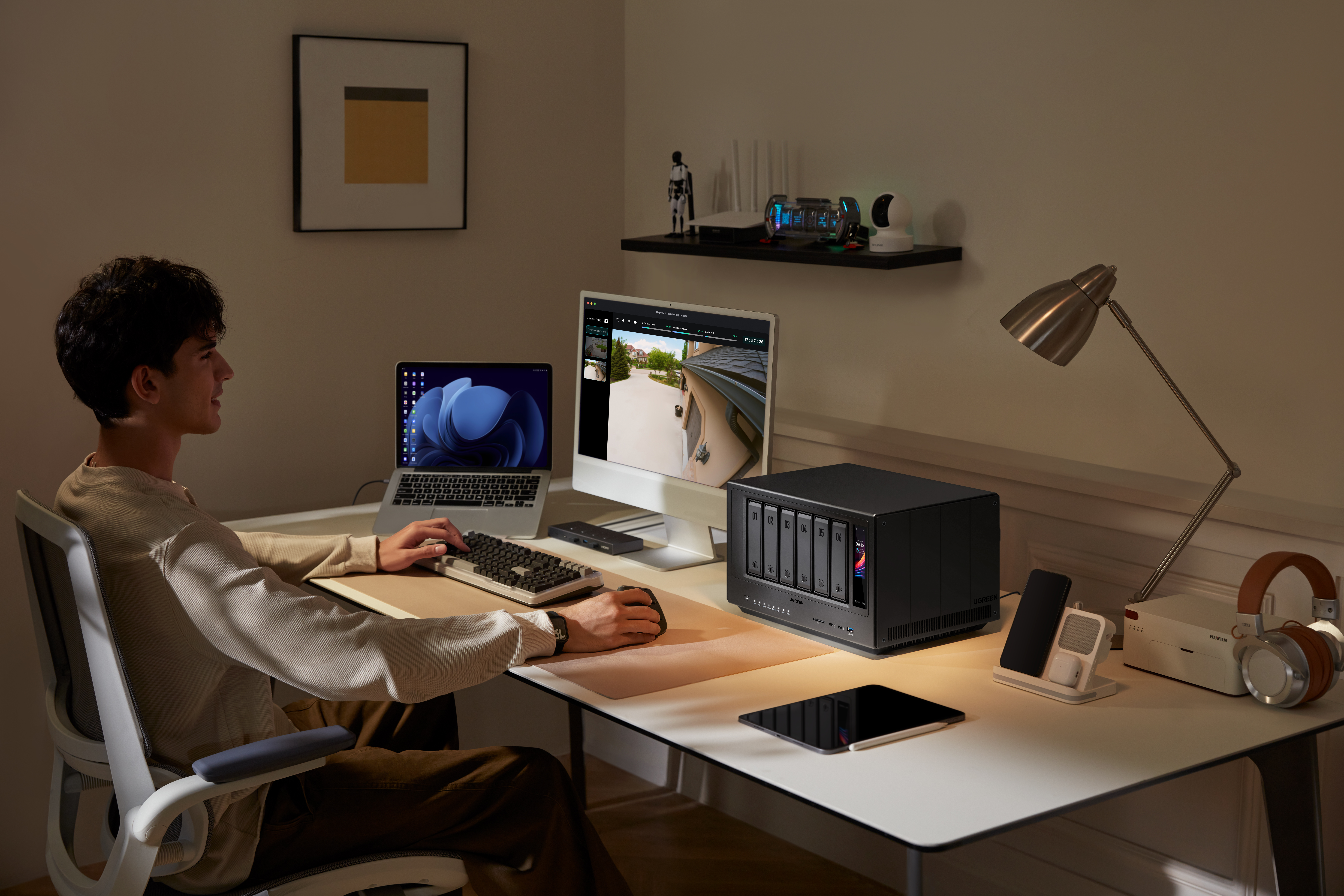
    Alongside SynCare, UGREEN announced the NASync iDX series of AI powered NAS devices. These systems feature Intel Core Ultra processors, up to 64GB of memory, dual 10GbE networking, Thunderbolt 4, and support for up to 196TB of storage.

    These devices are designed to handle heavier workloads such as indexing large volumes of footage, long term archival, and advanced analytics. While cameras handle real time detection locally, the NAS can take on deeper processing and coordination tasks.

    UGREEN NASync iDX6011 Pro multi bay NAS with front display and AI processing capabilities
    UGREEN NASync iDX series NAS designed for AI workloads, local storage, and SynCare camera integration.

    Cross Compatibility Questions

    UGREEN has not confirmed support for third party standards such as ONVIF or RTSP, or integration with platforms like Synology, QNAP, or Home Assistant. Initial focus appears to be on the UGREEN ecosystem, though this remains an open question for users with existing NVR setups.
    For context on how Home Assistant can already be run on UGREEN hardware, I previously covered installing Home Assistant on a UGREEN NAS.


    Early Use Cases and Who Might Benefit

    SynCare is designed to serve a wide range of users.

    Typical smart home users benefit from a unified, subscription free ecosystem with intelligent alerts.

    NAS enthusiasts gain the ability to centralise footage, retain high resolution recordings, and potentially leverage NAS based AI features.

    Privacy conscious families can keep footage local, encrypted, and under their control.

    Small businesses and home offices can deploy SynCare as a lightweight security system without contracting external monitoring services.


    What This Could Enable Long Term

    If executed well, SynCare positions UGREEN to build a broader local smart home platform.

    By combining cameras with on device AI, NAS devices capable of heavier processing, centralised encrypted local storage, and reduced cloud dependency, UGREEN could enable natural language search across security footage, NAS level correlation of events across multiple cameras, and a true home security server model built around the NAS rather than the cloud.

    The foundation shown at CES suggests this is not a short term experiment.


    Release Timeline and What to Watch Next

    UGREEN has stated that SynCare will launch in the second half of 2026, with pricing expected to be announced closer to release, likely around IFA.

    Unconfirmed areas include third party ecosystem support, smart home platform integrations such as Matter or voice assistants, long term software update commitments, and detailed storage management options.

    In the coming months, more details around pricing, integrations, and real world performance will determine how widely SynCare is adopted. But as it stands, this is not just another camera system announcement. It represents a rare combination of local AI, subscription free operation, and optional NAS integration from a brand already established in local storage. For anyone already researching home security and wanting more control without being locked into recurring fees or cloud dependency, SynCare is one of the most interesting systems to watch heading into 2026.

    I’m personally looking forward to the release of SynCare, particularly because it offers a path to expand my home security without rebuilding everything from scratch. If it performs as advertised, it’s something I’d be genuinely interested in adding to my own setup.

  • NAS Security Best Practices: How to Protect Your Smart Home Storage in 2025

    NAS Security Best Practices: How to Protect Your Smart Home Storage in 2025

    Smart homes are only as strong as their weakest link — and for many people, that link is their NAS. Whether you’re backing up family photos, streaming media, or running Docker apps like Home Assistant, your NAS is central to daily use. But with that convenience comes risk: if left unsecured, it can be a prime target.

    In this post, we’ll look at practical security measures anyone can take, along with real-world examples of how they’re applied.


    Why NAS Security Matters

    Your NAS is more than just storage. It can hold personal documents, sensitive media, or even act as a server for automation. If compromised, you risk data loss, identity theft, or someone using your device as part of a botnet. NAS attacks often involve ransomware, where hackers encrypt your files and demand payment for the key. Others exploit weak passwords or outdated firmware.

    Securing your NAS doesn’t just protect your files. It safeguards your privacy, prevents downtime for your smart home, and ensures your backups are truly reliable.


    Step 1: Enable Two-Factor Authentication (2FA)

    Passwords alone are no longer enough. Attackers often use brute-force attacks or leaked credentials to get into devices. Two-factor authentication (2FA) adds a crucial extra step, requiring both your password and a second code (usually sent to your phone or generated by an authenticator app).

    Why it matters:

    • Protects you if your password is leaked in a data breach.
    • Makes brute-force attacks nearly impossible.
    • Adds security for admin accounts that have full system access.

    On modern NAS platforms like Synology, QNAP, UGREEN, Asustor, and TerraMaster, enabling 2FA takes only a few minutes. It’s one of the simplest but most effective steps you can take.


    Step 2: Secure Remote Access

    One of the biggest mistakes NAS owners make is exposing their system directly to the internet with port forwarding. Hackers constantly scan for open NAS ports, making this extremely risky.

    Safer alternatives:

    • Vendor Remote Access Services: Systems like Synology QuickConnect, QNAP myQNAPcloud, and UGREEN Link let you connect remotely without opening ports. These encrypt your traffic and relay it through secure servers.
    • VPN Access: A VPN connection to your home network gives you direct access to your NAS while keeping it hidden from the wider internet.

    Why it matters:

    • Prevents unauthorised scanning and login attempts.
    • Keeps your NAS invisible to opportunistic attacks.
    • Ensures encrypted communication when you’re away from home.

    If you value convenience, stick with the vendor’s remote access app. If you want maximum control, set up a VPN on your router.


    Step 3: Keep Firmware and Apps Updated

    Outdated firmware and apps are one of the most common ways attackers break into devices. Security patches fix vulnerabilities, but only if you install them.

    Why it matters:

    • New exploits are constantly discovered and shared online.
    • Running old firmware is like leaving your front door unlocked.
    • Updates also improve stability and sometimes add new features.

    Best practice:

    • Enable auto-updates where possible.
    • Manually check for firmware or Docker container updates once a month.
    • Subscribe to vendor newsletters or RSS feeds to stay aware of security advisories.

    Step 4: Backups Beyond RAID

    A common misconception is that RAID = backup. It doesn’t. RAID only protects against drive failure, not against ransomware, accidental deletions, or theft. To keep data truly safe, you need a separate copy stored elsewhere.

    Backing up NAS data to Azure Blob storage ensures off-site redundancy and protection against disasters.

    There are several approaches:

    • External HDDs: Rotate them regularly and keep one off-site.
    • Cloud storage: Services like Backblaze B2, Google Drive, or Dropbox can work well with NAS sync tools.
    • Hybrid setups: Use both local and cloud storage for maximum redundancy.

    In my case, I use Azure Blob Storage as my off-site backup. It integrates with my NAS through rclone, a powerful command-line tool for syncing files to cloud storage providers. Once configured, it allows my NAS to automatically copy critical folders to Azure, giving me a secure, off-site backup that isn’t affected by local issues like drive failure, ransomware, or even physical damage.

    🔗 For a full walkthrough, check out my dedicated post on Automating NAS Backups to Azure with rclone.

    Why this matters:

    • Protects against ransomware wiping out your NAS data.
    • Provides recovery if your house suffers fire, flood, or theft.
    • Gives peace of mind knowing you have a copy far away from your home setup.

    Step 5: Strengthen Your Network

    Your NAS security depends heavily on your network. Weak Wi-Fi or outdated routers leave doors open for attackers, and insecure IoT devices can be an easy way in.

    What to do:

    • Use WPA3 or WPA2 encryption with a long, unique passphrase to secure your Wi-Fi.
    • Segment IoT devices (cameras, bulbs, sensors) onto a separate VLAN or guest Wi-Fi so they can’t directly reach your NAS. This prevents a compromised smart bulb or camera from giving access to your storage.
    • Update router firmware and disable unused services like UPnP, which can automatically open ports without your knowledge.
    • Enable firewall rules on your router if available, restricting which devices can talk to your NAS.

    In my own home, I’ve segmented IoT devices onto a separate network, keeping them isolated from my NAS and main devices. This way, even if a low-cost smart plug is compromised, it can’t talk directly to my storage or other critical systems.

    Why it matters:

    • Prevents weaker IoT devices from being exploited as entry points.
    • Stops attackers from using compromised devices to pivot to your NAS.
    • Improves overall network hygiene and peace of mind.

    For more detail and a step-by-step breakdown, check out my guide on How to Set Up a Secure Home Network the Right Way.


    Step 6: Control User Access

    Not every account needs admin rights. Many breaches cause maximum damage because compromised accounts had unnecessary privileges.

    Best practice:

    • Create a separate admin account you rarely use.
    • Use standard accounts for day-to-day access.
    • Restrict shared folder permissions so each user only sees what they need.

    Why it matters:

    • Limits the scope of damage if one account is compromised.
    • Prevents malware from spreading across all shares.
    • Keeps sensitive data private even within households or teams.

    Step 7: Monitor Logs and Alerts

    Most NAS systems include logs and alert systems — but many users ignore them. Checking them regularly gives early warning of issues, but you can go further by enabling real-time notifications.

    What to watch:

    • Repeated failed login attempts
    • Unknown IP addresses trying to connect
    • Unexpected spikes in CPU or network activity

    How to stay on top of it:

    • Enable email or mobile app notifications for login failures, drive health problems, or service errors.
    • Configure thresholds for CPU, memory, and storage so you’re warned before problems escalate.
    • Use push notifications from your NAS app for immediate alerts.

    Why it matters:

    • Lets you respond before an attack succeeds.
    • Helps identify misconfigured devices or apps.
    • Reduces the need for constant manual log checks.

    Challenges and Trade-Offs

    Securing your NAS brings major benefits, but it isn’t without compromises. Understanding these trade-offs helps set realistic expectations:

    Convenience vs Security
    Extra steps like VPN logins or 2FA make systems safer but can feel less convenient. Vendor apps are easier but require trusting their infrastructure.

    Performance Costs
    Features such as drive encryption or real-time virus scanning can reduce speeds, especially on lower-powered NAS units.

    Compatibility Issues
    Older devices may not support WPA3 Wi-Fi, 2FA, or stricter firewall rules, which could limit some security options.

    Financial Costs
    VPN subscriptions, higher-end routers, and cloud backups like Azure or Backblaze all add to running expenses. External drives or UPS units also add to the budget.

    Learning Curve
    Configuring VLANs, VPNs, or tools like rclone takes technical know-how. Beginners may want to start with basics such as updates, strong passwords, and vendor apps before moving to advanced setups.


    Final Thoughts

    Securing your NAS isn’t about making it complicated. It’s about layering simple, practical defences that drastically reduce risk. With 2FA, safe remote access, regular updates, strong backups, and basic network hygiene, you can protect your files and your smart home from the most common threats.

    I’ve applied these measures to my own NAS setup, and the peace of mind is well worth the effort. Whether you’re using a Synology, QNAP, UGREEN, or another brand such as Asustor or TerraMaster, the principles remain the same — a little preparation now avoids much bigger problems later.


    💡 If you’re just getting started with NAS, check out my post on Setting Up the UGREEN NASync DXP2800: A Beginner-Friendly Guide. For a longer-term perspective, I also reviewed it after 2 months of daily use here.

  • How I’m Choosing the Right PoE Security Camera for My NAS in 2025

    In my last post, I explored several great security cameras compatible with NAS setups—particularly Reolink’s models, known for solid RTSP and ONVIF support. Since then, I’ve been digging deeper into my camera choices, evaluating specific brands, features, and compatibility.

    I haven’t pulled the trigger just yet, but since many of you are probably going through a similar selection process, I thought I’d share exactly what’s guiding my decision-making.

    Some of the links in this post are affiliate links. If you buy something through them, I may earn a small commission — it doesn’t cost you anything extra, and it helps support the site.


    My Current Home Setup

    Here’s a quick overview of what I have today:

    • NAS: UGREEN NASync DXP2800 (2-bay NAS, RAID1, NVMe SSDs)
    • Software: Docker with Home Assistant, Pi-hole, and several self-hosted apps
    • Existing Cameras: Two SwitchBot outdoor cameras (USB-powered, each with built-in 10,000mAh battery backup)
    • Camera locations:
      • Front door camera: Covers people approaching the house
      • Driveway camera: Covers the front area of my home, including mailbox, car, and motorcycle
    • Cabling: USB cables (8–10 metres each), neatly routed through trunking to keep everything tidy
    • Storage: Local recording to NAS only—avoiding cloud storage for privacy reasons

    Reflecting on My Current Setup

    My current USB-powered SwitchBot outdoor cameras have a real advantage with built-in batteries, ensuring they keep working even during a power outage. This provides peace of mind, knowing I’ll maintain video coverage in emergencies.

    However, despite neatly routed cables through trunking, the setup isn’t ideal. The main issue is cable length: each USB cable runs approximately 8–10 metres, which is right at the top end of USB power delivery limits. Although significant reliability issues rarely occur, the long cables occasionally result in slow charging times for the cameras, especially at the front door due to higher usage.

    The biggest frustration with my current setup is motion detection. Even though the SwitchBot cameras claim human-only detection, they regularly produce false positives, especially at night due to dust, spider webs, and minor movements. This issue significantly impacts the usefulness and reliability of my security system.


    Why Upgrading to PoE Makes Sense

    Switching to Power over Ethernet (PoE) cameras addresses these reliability issues. Each camera will still have its own cable, just like my USB setup—but the critical advantage of PoE is combining power and stable high-speed data over a single Ethernet cable. Ethernet comfortably supports cable lengths up to 100 metres without voltage drops or data issues, easily covering the longest cable runs around any typical home. Commonly recommended PoE switches include models from TP-Link, Netgear, and Ubiquiti, which are known for reliability, ease of use, and good compatibility with a wide range of PoE cameras.

    Additionally, a centralised PoE switch simplifies management, improving scalability and overall system stability. When combined with smart NAS integration and better software support, this represents a big upgrade over USB-powered Wi-Fi cameras.

    If you’re in an apartment or smaller home, these benefits still apply—especially if you’re dealing with weak Wi-Fi signals or want something more reliable without relying on battery charging cycles. Even one or two well-placed PoE cameras can provide significantly better results with less hassle long term.


    Key Features I’m Prioritising

    These are the most important factors influencing my camera choice:

    1. PoE Support

    PoE delivers both power and reliable high-speed data over Ethernet cable runs up to 100 metres without signal or voltage drop. Perfect for my home, even at longer distances.

    2. RTSP and ONVIF Compatibility

    Essential for smooth integration with my NAS and smart home software like Home Assistant or Frigate, offering flexible, powerful video management.

    3. Superior Infrared (IR) Night Vision

    I’m specifically looking for strong infrared performance for my outdoor cameras. Colour night vision typically requires additional lighting—which I’d prefer to avoid to respect my neighbours’ privacy and comfort. IR performance stronger than my current SwitchBot cameras is a must.

    4. Effective AI-Based Motion Detection

    My current SwitchBot cameras claim human detection, but the reality is frequent false alarms—like spiders or dust particles triggering motion alerts multiple times per night. Reliable AI-powered detection, specifically tuned to distinguish humans, vehicles, and important events—is a big priority to reduce false positives.

    5. Local Availability (Japan)

    Being based in Japan, I prefer to purchase locally to avoid hassles with returns, warranty issues, and shipping. Accessibility and local support matter to me, so I typically check well-known local retailers like Amazon Japan, Rakuten, or Yodobashi Camera. However, these cameras are widely available internationally through major online stores as well.
    Being based in Japan, I prefer to purchase locally to avoid hassles with returns, warranty issues, and shipping. Accessibility and local support matter to me.


    Cameras I’m Considering Right Now

    Below are the four cameras currently on my shortlist. I’ve included a deeper look at each one to help others who may be weighing similar options.

    Reolink RLC-810A

    • Price Range: $55–$80
    • Resolution: 4K Ultra HD
    • Smart Detection: Built-in human and vehicle detection
    • NAS Compatibility: RTSP and ONVIF supported, works well with most NVR and NAS setups
    • Pros: Excellent value for money, strong community support, widely available, simple setup
    • Cons: Detection performance may vary depending on whether you’re using a Reolink NVR or third-party NAS software
    • Use Case Fit: This is my leading candidate. It offers a great mix of reliability, smart detection, and direct NAS recording. It’s also widely supported in Japan and abroad. Reolink also offers several dome-style cameras if I decide to go with that format for front door coverage.
    • Visual Placement: Best suited for covering driveways or home fronts with a clear line of sight.
    Reolink RLC-810A PoE security camera with 4K resolution, ideal for NAS recording and driveway surveillance.

    TP-Link VIGI C340 / C540

    • Price Range: $70–$110
    • Resolution: Up to 4K depending on model
    • Smart Detection: Person and vehicle detection (varies by model)
    • NAS Compatibility: RTSP stream supported for use with NVRs and NAS systems
    • Pros: Solid specs at an affordable price, increasingly available, backed by TP-Link’s reputation
    • Cons: Ecosystem still maturing, some models lack smart detection entirely
    • Use Case Fit: A strong alternative to Reolink, particularly if pricing or availability is more favourable at time of purchase.
    • Visual Placement: Great for perimeter coverage or front yard monitoring.
    TP-Link VIGI C340 PoE security camera with up to 4K resolution and smart detection features.

    UniFi G4 Bullet

    • Price Range: $180–$250
    • Resolution: 4MP (1440p)
    • Smart Detection: Advanced analytics via UniFi Protect (not all features available with RTSP)
    • NAS Compatibility: Partial – RTSP available but full functionality requires UniFi Protect NVR
    • Pros: Premium build, clean design, exceptional image quality, long-term support
    • Cons: Expensive, best used with UniFi ecosystem, availability limited in some regions
    • Use Case Fit: A future-proof, high-end option if I decide to go all-in on UniFi. Less likely as a mixed system.
    • Visual Placement: High-visibility areas or integrated with UniFi-managed homes.
    UniFi G4 Bullet 4MP PoE camera with premium metal housing and support for UniFi Protect analytics.

    Eufy E40 PoE

    Visual Placement: Ideal for wall or eave mounting at entry points like front doors or side paths where human movement is the key concern.

    Price Range: $100–$150

    Resolution: 2K (2560 x 1440)

    Smart Detection: AI-powered person detection built into the camera

    NAS Compatibility: Supports RTSP for local recording to NAS systems (including Synology, QNAP, and others)

    Pros: No monthly subscription, excellent privacy stance, clean design, local AI with good accuracy

    Cons: No vehicle or pet detection, limited to person-only alerts, ecosystem not as mature as Reolink or UniFi

    Use Case Fit: A promising option for users who want strong privacy and basic AI detection without relying on cloud storage or ongoing fees. If you’re looking for a simple, effective PoE solution that integrates with your NAS and covers standard entryways or paths, this is worth considering.

    Eufy E40 PoE 2K security camera with built-in AI person detection and RTSP support for NAS integration.

    Prefer a complete system that works out of the box? If you’re looking for a plug-and-play PoE setup with local recording, Eufy’s NVR system offers a solid alternative. It includes four wired cameras, a 2TB drive, and AI person detection—perfect if you want to skip piecing together individual components.

    Next Steps

    With my honeymoon coming up soon, I’m holding off on any major purchases for now. I expect to make a final decision and start testing by the end of the year.

    My current plan is to start with one Reolink RLC-810A camera, testing its integration, reliability, and feature set in my home environment. If it performs well, I’ll likely stick with Reolink for consistency across the system. That said, I’m still considering using a dome-style camera above the front door, as the ceiling above it could benefit from a wider field of view for better coverage.

    Once the system is fully set up, I’ll publish a detailed guide covering:

    • Direct NAS recording setup (using RTSP/ONVIF)
    • Optimising motion detection and AI analytics for fewer false alerts
    • Secure remote access without risking my network

    If you’ve already made a similar upgrade—or you’re using PoE cameras in a similar NAS-based setup—I’d love to hear about your experiences, good or bad. Drop a comment below or use the contact form to get in touch.


    Related Posts You Might Like:

    Looking forward to sharing more once I start testing!