Tag: NAS Setup

  • How I Actually Use a NAS Day to Day After the Setup Phase

    How I Actually Use a NAS Day to Day After the Setup Phase

    When people talk about NAS devices online, it usually falls into two extremes. Either everything is a shiny demo during the first week, or it turns into an over engineered home lab that barely resembles normal use.

    Both miss what actually matters long term.

    This post is about what ownership looks like after the excitement fades. When the NAS stops being a project and starts being part of daily life. What still runs, what quietly disappeared, and which decisions ended up saving time rather than creating more work.

    If you are trying to decide whether a NAS makes sense beyond the initial setup phase, this is the part that usually gets skipped.


    What runs 24 hours a day

    These are the services that stay on permanently because they deliver value without demanding attention.

    Automated backups (local first, cloud as insurance)

    Local backups are the foundation of my setup. Both my MacBook and my wife’s MacBook back up automatically to the NAS, and our iPhone photo libraries are included as well. Once configured, this becomes invisible. Devices back up when they are on the network, and there is nothing to remember or trigger manually.

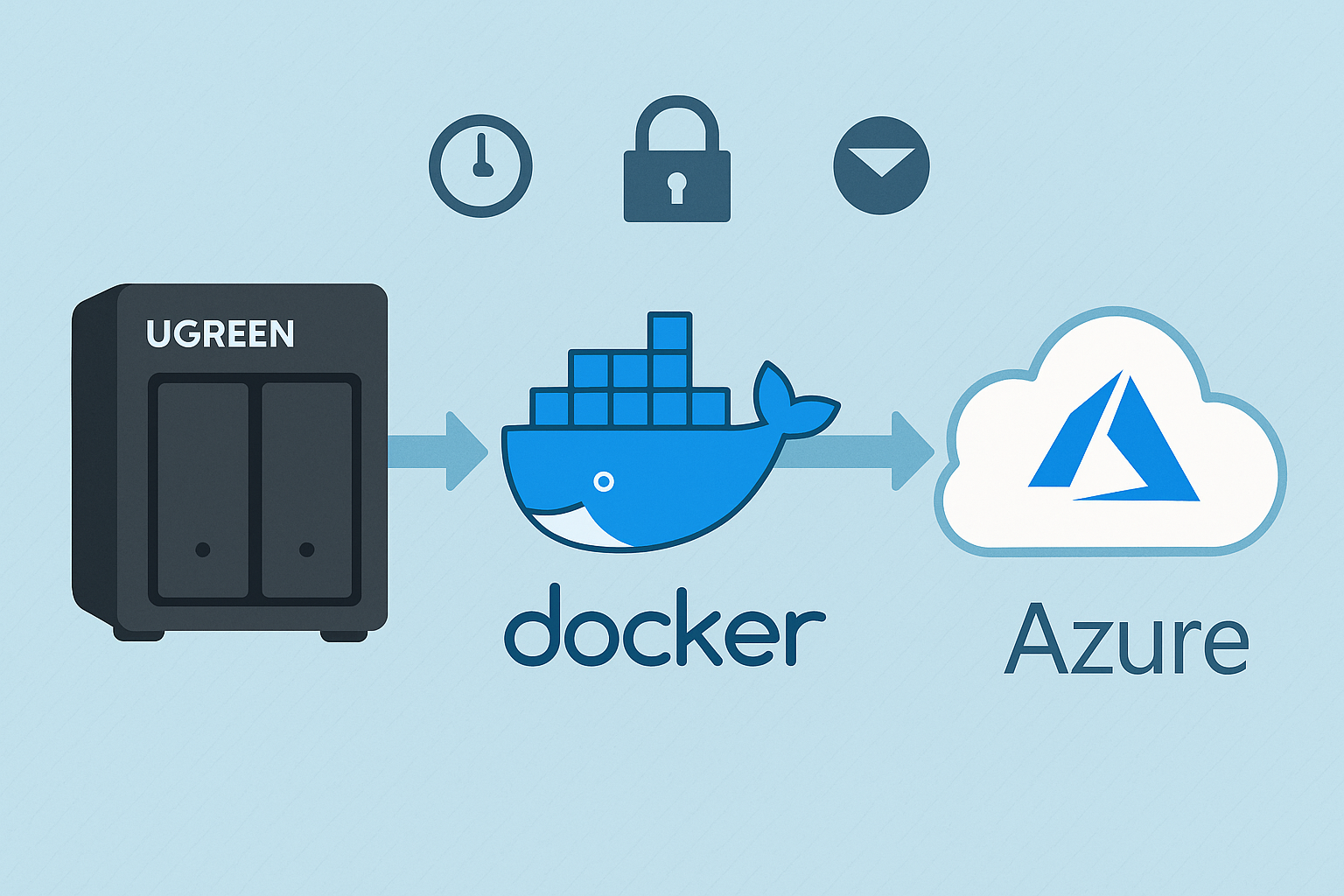
    On top of that, I use Azure Blob Storage as an off site insurance layer, not as a requirement and not as something I would tell everyone to do.

    If you are running a four bay NAS with RAID and your data lives entirely at home, an off site backup is a nice to have rather than a must have. Local redundancy already covers most everyday failures. The cloud layer exists to protect against unlikely but high impact events such as theft, fire, or total hardware loss.

    In my case, I am storing roughly 3TB in the Cool tier with RA GRS enabled, meaning the data is replicated across regions. This currently costs around $65 to $70 per month, and the cost is dominated by geo replication, cool tier storage, and write operations.

    I have not had to restore from this backup yet, which is exactly how I want it to be. It exists purely for peace of mind rather than day to day recovery.

    The backups are handled using rclone, which gives me full control over scheduling, encryption, bandwidth usage, and retention policies. It also avoids vendor lock in. If I ever decide to move away from Azure, the tooling stays the same. I have a full breakdown of how this is set up in my rclone backup guide.


    Core Docker services

    A small number of Docker containers run continuously because they support everything else I rely on.

    Home Assistant is always running. It handles automations, device integrations, and state tracking quietly in the background. I rarely interact with it directly day to day, which is exactly the point. When automations are reliable, they disappear from your attention entirely.

    This pattern repeats across the setup. Anything that needs constant monitoring or manual intervention does not survive long term.


    What runs occasionally

    These are tasks that exist to maintain confidence in the system rather than provide convenience.

    Maintenance and administration

    I do not actively manage the NAS day to day, but I do check in periodically.

    This usually means:

    • Updating Docker containers when meaningful updates are released
    • Applying NAS firmware updates
    • Reviewing SMART data and disk health
    • Confirming backups are still completing as expected

    This happens infrequently, often weeks apart. The goal is not optimisation or performance tuning. It is reassurance. I want to know the system is still healthy and behaving as expected.

    Manual actions

    Some things are intentionally kept manual.

    I occasionally restore files from backups to confirm that restores actually work. This is not something I do often, but it matters. A backup that has never been tested is only theoretical protection.

    Container updates are another example. While critical updates are automated, some applications require manual updates or restarts. I prefer this balance. Automation handles the boring and predictable parts, while I stay in control of anything that could cause disruption.

    These interactions are rare, but deliberate. Over time, they build trust in the system rather than add ongoing work.


    What I am actively planning to add

    This is where the role of the NAS will expand beyond storage and background services.

    PoE security cameras

    I am preparing to move away from battery powered cameras and into a PoE based setup once UGREEN’s native cameras are available.

    At the moment, I use SwitchBot outdoor cameras. They are genuinely good cameras, but battery management is a constant friction point. I have already run USB power to some of them, and in one location that cable is far from ideal. It works, but it is not how I want fixed infrastructure to be installed.

    The plan is to introduce a dedicated PoE switch and run Ethernet to each camera location. CAT5e, CAT6, and even CAT7 will all work for PoE cameras. In practice, CAT6 offers a good balance of reliability, shielding, and future flexibility without chasing specifications that add little real world benefit. The priority here is consistency rather than speed.

    The appeal of the upcoming UGREEN cameras is not just PoE. Features like local AI processing, tight NAS integration, and removing subscription dependencies are exactly what I want. I have already covered those features in detail in my UGREEN SynCare AI Home Security NAS post.

    Once deployed, the NAS shifts from being storage and services into proper local surveillance infrastructure, with recordings kept on site and fully under my control.


    What I use it for beyond storage

    A family recipe web app

    One use case I did not originally plan for is hosting small, purpose built applications.

    I am currently building a simple web app to store and manage family recipes. Rather than paying for another subscription or relying on third party apps, it runs locally in Docker and does exactly what we need. No ads, no accounts, and no recurring costs.

    This is a good example of where a NAS quietly replaces paid services. The value is not complexity, but ownership and flexibility over time.

    Media streaming

    I originally used Plex for media streaming, but over time I moved to Jellyfin.

    Plex increasingly depends on user accounts, cloud services, and paid tiers. Pricing changes, features moving behind subscriptions, and past security incidents eventually made me uncomfortable with the direction of the platform.

    Jellyfin is fully self hosted. There is no account requirement, no cloud authentication, and no external dependency. Everything stays local. The trade off is less polish, but the benefit is full control.

    For my usage, that trade off is worth it. Media playback should not depend on an external service being online, a subscription remaining valid, or an account existing at all. Once everything is local, media becomes another background service rather than something that needs to be managed.


    Built in apps I still use

    While Docker handles most workloads, I do not avoid built in NAS features entirely.

    I actively use:

    • The UGREEN photo app for managing local photo libraries
    • The UGREEN UPS integration in the control panel for monitoring power events and safe shutdowns (US3000 UPS review)

    The difference is intent. I use built in apps where they add value and integrate tightly with the system, and Docker where flexibility matters more.


    What surprised me over time

    Stability changes how you think about performance

    I still care about performance, but I no longer obsess over it. The system has proven itself stable under real workloads, which means I spend less time watching metrics and more time trusting the platform.

    A NAS becomes background infrastructure

    Once configured properly, a NAS fades into the background. That is a good thing. It should feel closer to household infrastructure than a gadget you constantly interact with.

    Simplicity scales better than features

    The setups that lasted were the simple ones. Anything that added complexity without a clear benefit was eventually removed.


    Who this kind of setup is actually for

    This approach works well for people who want reliability first.

    If you enjoy constant tweaking, experimentation, and rebuilding, there is nothing wrong with that. Some people genuinely enjoy running a home lab as a hobby.

    For me, the NAS is not a hobby. It is infrastructure. I want it to work, recover gracefully when something goes wrong, and stay out of the way the rest of the time.


    When something goes wrong

    This is where the setup really earns its keep.

    Things do go wrong occasionally. Files get deleted by mistake. Power drops unexpectedly. A service stops behaving the way it should. The difference now is that these situations are no longer disruptive.

    If a file is deleted, it is a restore job, not a panic. If there is a power cut, the UPS handles shutdown cleanly and everything comes back up without intervention. If something looks off, I already know where to check and what a healthy system looks like.

    Even the worst case scenarios are planned for. Local backups cover day to day mistakes. Off site backups exist for events I hope never happen. Nothing relies on a single point of failure that would force me to scramble.

    That is the real outcome of this setup. Not that failures never happen, but that they stop being stressful when they do.


    Why this setup works long term

    Owning a NAS is not exciting long term, and that is exactly why it is worth having.

    Once the setup phase is over, it becomes dependable infrastructure. Files are protected locally, off site backups exist for worst case scenarios, automations run quietly, and services behave predictably.

    The goal was never to build the most complex setup possible. It was to build something that reduces friction over time.

    A setup like this saves more than money. It saves attention. Fewer batteries to charge, fewer subscriptions to track, fewer dashboards to check, and fewer decisions to revisit.

    That is the real value of a NAS once you stop treating it like a project and start treating it like infrastructure.

    If you’re thinking through a similar setup and want a second opinion, I’m always happy to talk it through!

  • UGREEN US3000 UPS Review – The Perfect NASync Companion

    UGREEN US3000 UPS Review – The Perfect NASync Companion

    Disclosure: As an Amazon Associate, I earn from qualifying purchases. Some links in this article may be affiliate links, which help support the site at no extra cost to you.


    Introduction

    After a week of daily use, the UGREEN US3000 UPS has already proven why it exists. Power protection isn’t glamorous, but even a short outage can corrupt drives or interrupt critical writes on a NAS.

    UGREEN designed the US3000 to prevent that exact risk — not by adding complexity, but by integrating power management directly into UGOS Pro, the same operating system used in the NASync series. (If you want to see how it performs in practice, read my UGREEN NASync DXP2800 two-month review for a deeper look at daily reliability and real-world performance.)

    Unlike most universal UPS units that rely on dated software and manual setup, this compact model is purpose-built for NASync devices. It feels more like a built-in safeguard than an accessory — quietly doing its job in the background.


    Design and Build Quality

    The US3000 is constructed from solid aluminium alloy, finished in the same matte silver-grey as the DXP-series NAS units. It’s small (120 × 80 × 30 mm, 440 g) yet dense, with precise machining and no flex.

    Inside, it houses a 12 000 mAh (43.2 Wh) battery pack made from four SunPower INR18650-3000 cells wired in series. Dedicated circuitry manages charging, discharge rate, and temperature control, while the metal enclosure doubles as a passive heatsink.

    The internal layout is clean and practical: foam-cushioned cells, Mylar-insulated wiring, and reinforced connectors. The supplied DC5525 and USB-C cables are short and tidy — ideal for rack or shelf setups. It’s clear UGREEN designed this as a true companion for its NAS line rather than a generic UPS.


    Setup and Integration with NASync

    Setup takes under five minutes. Connect the US3000 between your NAS and its power supply using the DC5525 lead, then attach the USB-C cable.

    Once powered, UGOS Pro detects the UPS automatically under Control Panel → Hardware & Power → UPS. From there you can view charge status, voltage, and shutdown options — all without installing drivers or third-party software.

    That seamless integration is what separates it from typical UPS units. The US3000 appears in UGOS Pro as a managed device, enabling automatic shutdown and recovery when power returns.

    If you’re just starting out with your NASync, my beginner setup guide for the UGREEN DXP2800 covers this interface step by step.


    Performance and Everyday Use

    The US3000 focuses on one thing: controlled shutdowns. It’s not a long-duration backup — it’s protection done right.

    UGOS Pro offers two response modes:

    1. Standby Mode

    • NAS continues running on battery during an outage.

    • If mains returns quickly, it resumes seamlessly.

    • If power doesn’t return, the NAS shuts down gracefully before the battery is depleted.

    2. Auto Shutdown

    • NAS immediately begins its shutdown sequence.

    • Services stop cleanly and drives park safely.

    • Once power is restored, it restarts automatically.

    I keep mine set to Auto Shutdown — it’s the safest option for unattended use. In testing, both modes worked perfectly. The DXP2800 switched instantly to UPS power and completed its shutdown sequence cleanly, with zero voltage fluctuation.

    Recharge takes about two hours, and because it uses DC-to-DC conversion instead of AC inversion, it runs completely silent and highly efficient.

    If you’d like to see how the DXP2800 performs under typical workloads, the two-month NASync review includes real-world tests on transfer speeds, app stability, and power use.


    Compatibility and Runtime Estimates

    Runtime figures from NASCompares, ChargerLab, and UGREEN show the UPS is tuned for short, controlled operation.

    NAS ModelCPUMax DrawEst. Runtime
    DXP2800Intel N100≈ 35 W≈ 10 min
    DXP4800Intel N95≈ 45 W≈ 8–9 min
    DXP4800 PlusIntel Core i3-N305≈ 55 W≈ 7 min
    DXP8800 PlusIntel Core i5-1235U≈ 70 W≈ 6 min
    DH2600 / DX4600Various< 50 W≈ 8–9 min

    Rated for 120 W DC output (12 V / 10 A, 19 V / 7.9 A, 20 V / 7 A), it easily handles every NASync model. No configuration is needed — UGOS Pro manages detection and shutdown automatically.

    For context on how drive selection affects power usage, see Choosing the Best Drives for Your NAS – HDD vs SSD Recommendations.


    Inside the US3000 (Teardown Insights)

    ChargerLab’s full teardown of the UGREEN 120 W DC UPS shows just how well built this unit is.

    It uses a Chipsea CBM8580KV6NT for battery management and SMBus communication, a Texas Instruments TPS55289 for buck-boost power regulation, and a GigaDevice GD32F303RCT6 microcontroller (Cortex-M4 @ 120 MHz) for logic and protection.

    Each of the four battery cells is individually insulated and cushioned, while the PCB is shielded with Mylar and protected by dual fuses and thermistors. Wiring is reinforced, neatly routed, and the aluminium chassis itself acts as a heatsink.

    It’s a compact, efficient design that would look right at home in professional-grade hardware.


    Highlights

    • Native integration – Full hardware-software link through UGOS Pro; zero configuration.

    • Smart behaviour – Automatic standby and shutdown for controlled response.

    • Premium build – Machined aluminium shell, insulated internals, efficient cooling.

    • Power efficiency – DC-to-DC conversion for silent, stable operation.

    • Effortless ownership – Quick recharge, no maintenance, seamless protection.

    If you’re exploring ways to make your NAS more versatile, try Top 10 Docker Containers to Supercharge Your NAS — it’s packed with apps that complement a NASync setup perfectly.


    Limitations

    • Runtime – ≈ 43 Wh battery provides 6–10 minutes of backup; enough for graceful shutdowns, not long-term use.

    • Device scope – Exclusive to UGREEN NASync systems.

    • Availability – Still limited in retail channels but expected to expand soon.

    For users wanting both on-site and off-site protection, pair this with Automated NAS Backup to Azure via Rclone Guide to create a full-stack backup strategy.


    Final Verdict

    After a week of use, the UGREEN US3000 UPS has become one of those accessories you forget about — until it saves your data. It’s compact, silent, efficient, and integrated so tightly with UGOS Pro that it feels like part of the NAS itself.

    It won’t keep your system running forever, but it ensures it never shuts down the wrong way — and for NAS owners, that’s what really matters.

    If you’re building or upgrading a NASync setup, the two-month UGREEN DXP2800 review offers detailed insights into everyday use and performance, while Best Home Security Cameras for Your NAS (Cloud vs PoE) covers surveillance options that pair perfectly with this UPS.

  • UGREEN NASync DXP2800 Review After 2 Months of Daily Use

    UGREEN NASync DXP2800 Review After 2 Months of Daily Use

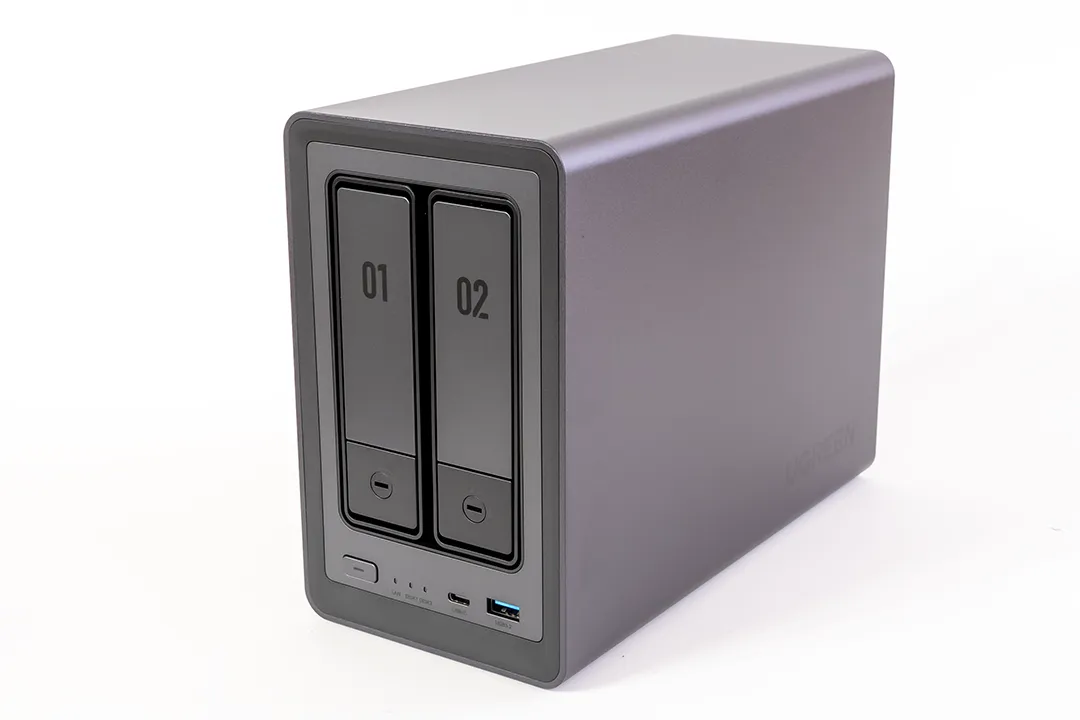
    When I first picked up the UGREEN NASync DXP2800, I was looking for a cost effective, quiet, and beginner friendly way to run containers and back up devices around the house. Two months later, it’s fair to say this NAS has earned its place in my setup, but it’s also time to move on.

    This will be my last post dedicated to the DXP2800. Not because it’s failed me, but because I’ve reached a point where the NAS is no longer the centrepiece. It’s now just one part of a much larger smart home and self hosting ecosystem. So before I pivot to new topics, here’s my final verdict on the DXP2800.

    Key Specs (Quick Overview)

    • CPU: Intel N100 (4 cores)
    • RAM: 8GB DDR5 (upgradeable)
    • Drive Bays: 2 (3.5/2.5 inch)
    • Networking: 2.5GbE
    • Expansion: Dual M.2 NVMe slots
    • Video Output: HDMI
    • OS: UGOS (Linux based)

    🛒 Looking to buy the NAS featured in this review?

    💡 Need more bays?

    These are affiliate links — if you purchase through them, I may earn a small commission at no extra cost to you. Thanks for supporting the blog!

    Build Quality and Noise

    The DXP2800 is solidly built and looks great on a desk. It runs quietly if you’re using SSDs instead of HDDs, but when using spinning drives, the noise is noticeable, though not awful. All NAS systems will face the same reality with HDDs, so it’s not a unique issue to this model.

    Reviewers across several tech sites have praised the DXP2800’s design. The aluminium alloy chassis gives it a premium feel, and the magnetic dust filter and tool less drive bays are practical and appreciated. For a 2 bay system, it punches above its weight in design quality.

    Performance

    I’ve tested a range of Docker containers like Home Assistant, Pi hole, and others, and the NAS handled everything I tried smoothly. The Intel N100 and 8GB of DDR5 RAM offer more than enough headroom for most home lab needs, especially if you’re not using heavy VM workloads.

    While I don’t run Portainer, Plex, or Jellyfin myself, I recommended them in a previous post based on community feedback and ease of use. Docker itself runs reliably, and containers have been easy enough to deploy manually without needing a GUI.

    The inclusion of a 2.5GbE port and dual M.2 NVMe slots is another bonus, especially for users who want SSD caching or faster read/write operations. Some reviewers noted the lack of a second Ethernet port, but for most home users, it’s not a dealbreaker.

    Software (UGOS)

    UGOS is still developing, but I’ve personally had no issues with it. Everything works as expected. While some reviewers have pointed out that it’s not as polished as Synology’s DSM or QNAP’s QTS, I’ve found it stable and reliable for my needs.

    Once Docker was installed and configured, I rarely needed to interact with UGOS directly. It stays out of the way and hasn’t caused any crashes, slowdowns, or compatibility issues.

    Interestingly, users of the larger DXP4800+ model have echoed this sentiment. One community member reported using it to run Home Assistant in a VM, stream music and video, back up mobile photos automatically, and edit documents via ONLYOFFICE. They were particularly impressed with the unified web portal and mobile app, which simplified access and syncing across devices. They also noted that UGOS receives frequent updates and has continued to evolve, with features like object recognition, OCR, and AI tagging in the photo app.

    While there are still some gaps like limited mobile document editing and occasional network filtering issues when accessing remotely, it’s clear UGOS is heading in a promising direction.

    Real World Use

    Currently, I use the DXP2800 for:

    • Running Home Assistant to manage smart home devices
    • Hosting some personal files and containers

    I also installed Pi hole, but haven’t directed network traffic through it yet due to limitations with my router hardware.

    While I’ve recommended other containers in my previous post like Navidrome, Frigate, WireGuard, and media servers, I’m not using those myself. They’re great options depending on your needs and future plans.

    I’m also exploring PoE camera setups and considering Frigate as part of that project, so the NAS may take on a bigger role in home surveillance later down the line.

    Recent discussions suggest that Frigate does in fact run well on these NASync models. One user reported it handled four IP cameras with total CPU usage sitting around twenty percent. Others have noted ffmpeg can push CPU load higher, especially on older or lower power chips, but the Intel N100 in the DXP2800 should handle light to moderate workloads comfortably. Using a Coral TPU is also being explored in the community to offload object detection, which could be worth looking into if I go that route.

    Protecting Your NAS with the UGREEN US3000 UPS

    After two months of non-stop uptime, it’s clear that stable power is just as important as good hardware. A brief outage can interrupt writes or risk drive corruption — something no NAS owner wants to deal with. That’s why I’ve added the UGREEN US3000 UPS to my setup.

    This compact 120 W DC UPS is designed specifically for NASync devices and integrates directly with UGOS Pro. Once connected via DC and USB-C, it’s detected automatically and lets you configure auto-shutdown or short standby modes under Control Panel → Hardware & Power → UPS. Setup takes just a few minutes and adds complete peace of mind for unattended operation.

    It runs silently, provides around ten minutes of backup for the DXP2800, and ensures a clean, controlled shutdown every time. If you’d like a deeper look at performance, build quality, and teardown details, check out my full UGREEN US3000 UPS Review.

    Would I Still Recommend It?

    Yes, with a few caveats.

    If you want to run Docker apps, manage your own services, and don’t mind using community resources for support, the DXP2800 is a solid deal for the price. If you prefer a more polished software experience, plug and play apps, or long term vendor support, Synology might be a better fit.

    That said, I’ve been impressed by how far UGREEN have come in a short time. Their software updates have been consistent and meaningful, and the platform feels like it’s improving month by month. Compared to Synology’s latest hardware restrictions, like requiring branded drives, UGREEN’s more open approach could be a major draw for anyone looking to build a flexible and affordable home setup.

    For me, it’s hit the sweet spot. Powerful enough to do what I want, flexible enough to grow with me, and affordable enough that I didn’t feel like I was buying into an overkill system.

    What’s Next?

    This will be my last focused post on the DXP2800. Moving forward, I’ll be looking at:

    • Choosing PoE cameras for home security
    • Setting up Frigate properly with Coral or NPU support (if needed)
    • Automating alerts and recordings with Home Assistant
    • Managing local and cloud storage for recordings

    The NAS will still be a part of that, but it’s no longer the star.

    If you’re following along for the self hosting journey, the next few posts should be right up your alley. If you’re curious about camera compatibility, Frigate setups, or how this NAS holds up as an NVR, stay tuned — that’s what’s next.

    Want to stay in the loop? Follow the blog or drop a comment if there’s a specific setup you’re curious about. I’ll be diving into smart security next.

  • Automated NAS Backup to Azure with rclone: UGREEN NAS Guide

    Automated NAS Backup to Azure with rclone: UGREEN NAS Guide

    Backing up your NAS is essential to protect against data loss from hardware failure, theft, or natural disasters. In this guide, I’ll walk you through how I set up a backup from my UGREEN NASync DXP2800 to Azure using rclone, based on the exact process I followed. Each step includes context so you understand not just how to do it, but why.

    Why Azure?

    Azure is a robust cloud storage option offering high reliability, excellent redundancy, and flexible access tiers specifically designed for backup and archiving. While Azure doesn’t provide a permanent free tier (unlike services such as Google Drive), it does offer generous trial credits to new users. To minimise ongoing storage costs without these credits, I recommend using the Cool or Archive storage tiers—both ideal for backups that don’t require frequent access.

    Other options: rclone supports a wide range of cloud providers. Here are a few great alternatives:

    • Backblaze B2 – Very affordable, especially for large backups. Well-supported by rclone.
    • Google Drive – Great for personal backups. Offers 15GB free and integrates easily.
    • Wasabi – Flat-rate pricing and no egress fees. A strong S3-compatible choice.
    • Dropbox – Easy to use with good syncing capabilities, though pricing can be high for large storage needs.
    • Amazon S3 – Enterprise-grade option, scalable but more complex to configure and can get expensive.

    You can easily substitute Azure in this guide with one of the above by changing the remote configuration step.

    Step 1: Generate rclone Configuration File

    To make rclone work from Docker, I first created a persistent config file using a temporary container:

    docker run -it --rm \
      -v /mnt/data/rclone-config:/config \
      --env XDG_CONFIG_HOME=/config \
      rclone/rclone config

    Walk through the prompts:

    • Select n to create a new remote.
    • Name it something like myremote (avoid using your NAS or personal name).
    • Select storage type 34 for Azure Blob Storage.
    • Enter your Azure Storage Account Name for account.
    • Enter your Access Key for key.
    • Leave endpoint blank.
    • Skip advanced config and auto config by selecting n.

    Once complete, the config will be saved as /mnt/data/rclone-config/rclone.conf on your NAS, ready for Docker containers to use.

    🛠️ Tip: To test that it works:

    docker run --rm \
      -v /mnt/data/rclone-config:/config \
      --env XDG_CONFIG_HOME=/config \
      rclone/rclone:latest lsd myremote:mycontainer \
      --config="/config/rclone.conf"

    Step 2: Create the Backup Script

    This script is broken into three parts: syncing data, deleting older backups, and emailing on failure. Each part is explained below.

    I wanted versioned backups and automatic cleanup of older ones. Here’s the exact script I used:

    #!/bin/sh
    
    LOG_FILE="/mnt/data/rclone-config/monthly_backup.log"
    CONFIG="/mnt/data/rclone-config/rclone.conf"
    REMOTE="myremote:mycontainer"
    BACKUP_NAME="nas-backup-$(date +%Y-%m)"
    DELETE_DATE=$(date -d "4 months ago" +%Y-%m)
    OLD_BACKUP_NAME="nas-backup-$DELETE_DATE"
    
    # 🔁 Sync Step – Copy /volume1 to a dated backup folder
    docker run --rm \
      -v /volume1:/data \
      -v /mnt/data/rclone-config:/config \
      --env XDG_CONFIG_HOME=/config \
      rclone/rclone:latest sync /data "$REMOTE/$BACKUP_NAME" \
      --config="/config/rclone.conf" \
      --log-file="/config/monthly_backup.log" \
      --log-level INFO \
      --exclude "@tmp/**"
    
    # 🧹 Retention Step – Delete backups older than 4 months
    docker run --rm \
      -v /mnt/data/rclone-config:/config \
      --env XDG_CONFIG_HOME=/config \
      rclone/rclone:latest purge "$REMOTE/$OLD_BACKUP_NAME" \
      --config="/config/rclone.conf"
    
    # 📧 Notification Step – Email if backup fails
    if [ $? -ne 0 ]; then
      echo "NAS Backup failed. See log below:" | mail -s "NAS Backup FAILED" you@example.com < "$LOG_FILE"
    fi

    📌 Note: Replace myremote and mycontainer with your rclone remote and Azure Blob container name. Avoid using identifiable names like your NAS hostname.

    Step 3: Enable Email Reporting on Your NAS

    To enable email alerts for failed backups, I used the built-in mail command entirely through SSH — no GUI or additional packages were needed.

    What I did:

    1. SSH into your NAS:
       ssh your-nas-username@your-nas-ip
    1. Test email functionality:
       echo "Test message" | mail -s "Test Email" you@example.com

    If you receive the test email, your NAS is already configured to send system emails.

    1. Check your mail config (if test mail fails):
      The system uses msmtp under the hood on many embedded NAS environments. Create or edit the config:
       vi /opt/etc/msmtprc

    Example configuration (for Gmail):

       defaults
       auth           on
       tls            on
       tls_trust_file /etc/ssl/certs/ca-certificates.crt
    
       account default
       host smtp.gmail.com
       port 587
       from your.email@gmail.com
       user your.email@gmail.com
       password your_app_password
       logfile /opt/var/log/msmtp.log
    1. Make sure permissions are correct:
       chmod 600 /opt/etc/msmtprc
    1. Export the config path if needed (some systems require this):
       export MSMTP_CONFIG=/opt/etc/msmtprc
    1. Retry your test email:
       echo "Test message" | mail -s "Test Email" you@example.com
    1. Add to your script:
      Make sure your backup script includes:
       if [ $? -ne 0 ]; then
         echo "NAS Backup failed. See log below:" | mail -s "NAS Backup FAILED" you@example.com < "$LOG_FILE"
       fi

    ✅ If your provider uses two-factor authentication, use an app-specific password. Most mail issues come down to wrong SMTP server, port, or missing trusted certs.

    Step 4: Schedule the Script with Cron

    To automate your backups, schedule the script using cron:

    Edit your crontab by running:

    crontab -e

    Then, add the following line:

    30 2 1 * * /volume1/scripts/backup_to_azure.sh

    Here’s what these numbers mean:

    • 30: Minute (0-59)
    • 2: Hour (0-23, where 2 is 2:00 AM)
    • 1: Day of the month (1-31)
    • *: Month (1-12, * means every month)
    • *: Day of the week (0-6, Sunday=0, * means every day)

    In this example, the backup script runs automatically at 2:30 AM on the 1st day of every month. Adjust these numbers according to your preferred backup schedule.

    ✅ Why this schedule? Monthly snapshots avoid daily clutter and keep backups manageable.

    Step 5: Verify Your Backups

    Confirm everything’s working with:

    cat /mnt/data/rclone-config/monthly_backup.log

    And list current backup folders:

    docker run --rm \
      -v /mnt/data/rclone-config:/config \
      --env XDG_CONFIG_HOME=/config \
      rclone/rclone:latest lsd myremote:mycontainer \
      --config="/config/rclone.conf"

    🔄 Optional Enhancements

    🔐 Encrypt Your Backups

    Want extra protection? Add a second rclone remote (type crypt) that wraps your Azure remote:

    rclone config
    • Create new remote myremote-crypt
    • Type: crypt
    • Remote: myremote:mycontainer
    • Set a strong password and salt

    Then replace the backup target in your script with:

    myremote-crypt:$BACKUP_NAME

    🔍 Restore Test

    Try restoring a test file from Azure to confirm you can actually recover data if needed:

    docker run --rm \
      -v /volume1/test-restore:/restore \
      -v /mnt/data/rclone-config:/config \
      --env XDG_CONFIG_HOME=/config \
      rclone/rclone:latest copy myremote:mycontainer/nas-backup-2025-05/testfile.txt /restore \
      --config="/config/rclone.conf"

    🧩 Troubleshooting & FAQ

    Q: My backup failed with a permissions error—how do I fix it?

    A: Make sure your Docker container has read permissions for /volume1 and that the rclone configuration (rclone.conf) is properly mounted. Also, confirm file permissions with chmod 600.

    Q: I received a network error during my backup—what can I do?

    A: Add retry options to your rclone sync command to enhance resilience against temporary network issues:

    --retries 5 --low-level-retries 10

    Q: My email notifications aren’t being sent—how do I troubleshoot this?

    A: Ensure the built-in mail command on your NAS works by testing from SSH:

    echo "Test Email" | mail -s "Test" you@example.com

    If it doesn’t, verify SMTP configuration (see Step 3 above).

    Q: How can I avoid hitting Azure bandwidth or cost limits?

    A: Use bandwidth limiting during uploads with:

    --bwlimit=8M

    Additionally, choose the “Cool” or “Archive” Azure tiers for cost efficiency.

    Q: Can I use another cloud provider instead of Azure?

    A: Absolutely! rclone supports many services like Backblaze B2, Google Drive, Dropbox, Wasabi, and Amazon S3. You simply adjust the remote setup step accordingly.

    Final Thoughts

    You now have automated, secure, and reliable backups ready to protect your valuable data. Have you tried setting this up yourself yet? I’d love to hear your experiences, challenges, or ideas for enhancements in the comments below. Happy backing up!

    If you’re interested in other NAS setups and configurations, you might find these previous posts helpful:

    Let me know if there are other topics you’d like to see covered!

  • Setting Up the UGREEN NASync DXP2800: Step-by-Step Initial Configuration Guide

    Setting Up the UGREEN NASync DXP2800: Step-by-Step Initial Configuration Guide

    The UGREEN NASync DXP2800 is one of the most accessible NAS options for first-time users, and setting it up is refreshingly simple. In this post, I’ll walk you through the initial setup steps I took — from powering on to creating a storage pool — with commentary on RAID choices and a few tips I picked up along the way.


    What’s Included in the Box

    • UGREEN NASync DXP2800 unit
    • Power adapter
    • Ethernet cable
    • Screws (for 2.5″ drives)

    The NAS has the following ports:

    • 1x 2.5GbE LAN port (back)
    • 2x USB 3.2 Gen1 ports (back)
    • 1x USB-C 3.2 Gen1 port (front)
    • 2x USB 2.0 ports (back)
    • 1x HDMI (currently not in use)
    • Power button and reset button

    Make sure to connect the NAS using the included Ethernet cable for the most stable setup experience.

    Looking to pick up the NAS I used in this guide?

    💡 Need more bays? UGREEN also offers higher-capacity models:

    These are affiliate links — if you decide to buy through them, it supports the blog at no extra cost to you. Thanks for your support!


    Step 1: Power On and Detect the NAS

    Before you start, make sure your NAS is connected via Ethernet for the most reliable connection. It’s also worth checking for any available system updates once you’re in the dashboard — UGREEN recommends updating UGOS Pro early on to avoid compatibility issues, especially if you plan to use SSD caching or Docker later.

    As soon as the NAS is powered on and connected to your network, it appears in the UGREEN NAS app. It can take a few minutes for the device to be detected. However, if it doesn’t show up automatically, you can register it manually by scanning the QR code located on the bottom of the device.

    If it doesn’t appear straight away, you can scan the QR code on the bottom of the NAS to register it manually.

    Step 2: Name Your NAS & Accept Terms

    Once detected, the app prompts you to name your NAS and accept the standard user agreement and privacy terms.

    Give your device a unique name to help distinguish it on the network.

    Step 3: Register Your Email (Recommended)

    While you can skip this, I recommend linking your email for access to UGREENlink and system alerts.

    Registering your email enables remote access and alerts for any system issues.

    Step 4: Enable Remote Access

    I enabled UGREENlink, which gives you remote access to your NAS — useful if you want to monitor or transfer files while away.

    Remote access lets you securely manage your NAS from anywhere.
    UGREENlink remote access lets you securely manage your NAS over the internet. Your NAS name becomes your UGREENlink ID, which you can use from the web or mobile app.

    Step 5: Create Your Storage Pool

    Before you begin, ensure the NAS is powered off when inserting any drives. The DXP2800 uses a tool-less tray system for 3.5″ drives, which makes installation quick and simple. For M.2 SSDs, be cautious as they slot in internally and require careful handling.

    Here’s where you’ll select the drives you installed. I had two 7.2TB HDDs and two 1TB NVMe SSDs.

    You can mix drive types, but it’s best to separate HDDs and SSDs into different pools.

    I opted to configure my HDDs into a single RAID 1 array for redundancy. RAID 1 mirrors the data between the two drives, so if one fails, the other still has all your files. It’s not the most space-efficient, but it offers peace of mind.

    For the SSDs, I chose a Basic (non-RAID) setup for now — mainly because I plan to use them for apps or caching later. I didn’t see much benefit to mirroring them at this stage, especially since I’m not storing critical data there yet.

    RAID 1 for HDDs and a basic SSD pool gives a good mix of reliability and flexibility.

    Step 6: Format and Create Volume

    Once your storage pool is created, the next step is formatting the drives and setting up a volume. This is where you choose between Btrfs and ext4, the two available file systems.

    I chose Btrfs for my HDDs because it supports advanced features like snapshots, built-in data integrity checks, and efficient storage management — all of which are helpful if you’re storing lots of data or want more control over versioning and recovery. It’s especially useful in a home NAS setup where accidental deletion or corruption is a concern.

    For the SSD pool, I went with ext4. While it lacks the bells and whistles of Btrfs, it’s lighter on resources and has a long-standing reputation for reliability and performance. Since I’m planning to use the SSDs for running apps and temporary data, ext4’s speed and lower overhead made more sense.

    Here’s a quick breakdown:

    • Btrfs Pros: Snapshots, checksums, automatic error correction, efficient disk usage
    • Btrfs Cons: Slightly more system overhead, slower write performance than ext4 in some cases
    • ext4 Pros: Fast, low overhead, extremely stable
    • ext4 Cons: No native snapshots, no checksumming or automatic correction
    Btrfs is great for snapshots and folder-level protection. ext4 is a better fit for app containers or temporary storage.

    Before confirming, the system will warn you that all existing data on the drives will be erased.

    Once confirmed, your drives will be formatted and the volume created.

    Step 7: Review System Usage

    After setup, you’ll be shown a breakdown of how your drives are being used. In my case, the system reserved about 15.2GB on one of the SSDs — this includes operating system files and essential services needed to run UGOS Pro.

    This is completely normal, especially on Btrfs volumes where a bit more space is allocated for things like snapshots, metadata, and system overhead. You may also notice:

    • Slightly less available capacity than expected
    • Reserved space depending on your file system and RAID choice

    This screen is a great checkpoint to understand how your storage will behave moving forward:

    • Btrfs can accumulate snapshots and logs, so it’s worth checking the system status occasionally
    • SSDs used for apps (e.g. Docker) may fill quickly if large containers or image caches build up

    You can always check system usage later under the Storage section of the dashboard for a more detailed view.

    Storage overview shows space used by the system, available space, and reserved capacity.

    Final Thoughts

    The DXP2800 offers one of the smoothest NAS setup experiences I’ve used. From unboxing to configuring storage pools, everything was laid out in a way that’s friendly for first-time users. The guided setup process is clear and surprisingly quick.

    I’d recommend enabling two-factor authentication early on to help secure your admin account — it works with any standard authenticator app, and I opted for Microsoft Authenticator since I already use it elsewhere.

    If you’re planning to share the NAS, take advantage of personal folders or set up user-specific access permissions. It’s an easy way to protect privacy and organise data effectively.

    While RAID 1 is a great way to add redundancy, don’t rely on it as your only backup. It’ll help if a drive fails, but it won’t protect you from accidental deletion or file corruption.

    Finally, take note of the reset button behaviour: a short press restarts the system, while holding it down for 10 seconds resets it to factory settings — useful if you ever run into serious issues.

    Next time, I’ll walk through installing Docker and setting up lightweight apps like Pi-hole and Plex to unlock more potential from the NAS.

    Have questions or planning your own setup? Drop them in the comments — always happy to help!

  • Top 5 NAS Mistakes Beginners Make (And How to Avoid Them)

    Top 5 NAS Mistakes Beginners Make (And How to Avoid Them)

    Introduction

    Setting up your first Network-Attached Storage (NAS) can dramatically enhance your home network by centralising your data, improving security, and streamlining access. However, beginners frequently make mistakes that cause frustration, unexpected costs, or even critical data loss. This comprehensive guide addresses these common pitfalls with practical advice, real-world scenarios, and visual resources to help ensure a successful NAS setup experience.


    Mistake #1: Choosing Incompatible or Unreliable Drives

    Selecting inappropriate drives can severely compromise your NAS’s reliability and performance. For example, in data centres, it’s not uncommon for entire batches of drives to fail simultaneously due to manufacturing defects. While rare, this highlights the value of using drives from different production batches to mitigate simultaneous failure risks.

    • Advice:
      • Always consult your NAS manufacturer’s compatibility list.
      • Opt for NAS-specific drives like Western Digital Red or Seagate IronWolf, which are designed for continuous operation.
      • Using identical drives (same manufacturer, model, capacity, and speed) is the recommended best practice to ensure compatibility and optimal RAID performance.
      • While mixing drives from different manufacturers is possible, it’s essential that drives have identical capacity, speed, and specifications to utilise RAID effectively. However, this approach isn’t generally recommended due to potential compatibility or performance issues.
    Two WD Red Plus NAS hard drives side-by-side with different serial numbers, illustrating best practice of using drives from different batches to reduce risk of simultaneous failure in RAID setups.

    Related Guide: HDD vs SSD for Your NAS


    Mistake #2: Overestimating or Underestimating Storage Needs

    Miscalculating your storage needs can result in wasted money or insufficient capacity. For instance, purchasing lower-capacity SSDs simply because they’re cheaper may initially seem like a smart choice, but this often leads to storage shortages down the line, forcing you to upgrade prematurely, as you experienced with your personal PC setup.

    • Advice:
      • Carefully evaluate your current usage and anticipate future growth.
      • Factor in media consumption, regular backups, and future data accumulation.
      • Consider investing in slightly more storage than you initially think you’ll need to avoid frequent upgrades.
    Table showing recommended HDD and SSD storage sizes based on use cases including gaming, media servers, content creation, backups, and professional workstations.

    Related Guide: Beginner’s Guide to Choosing a NAS


    Mistake #3: Neglecting Proper Network Configuration

    Improper network setup can significantly limit NAS performance, leading to slow data transfers and frustrating buffering during media streaming. For example, upgrading from an older Wi-Fi 5 router to a modern Wi-Fi 7 system like the TP-Link BE85 dramatically improved file transfer speeds, streaming quality, and overall responsiveness of your NAS setup.

    • Advice:
      • Upgrade to modern networking standards (Gigabit Ethernet, Wi-Fi 6/7) to prevent bottlenecks.
      • Use high-quality Ethernet cables (Cat 6 or higher).
      • Properly configure network settings, including IP addresses and DNS, to optimise performance.
    Comparison chart showing Wi-Fi 5, Wi-Fi 6, and Wi-Fi 7 speeds in Mbps, highlighting significant improvements in wireless performance for modern networking.

    Related Guide: Understanding Wi-Fi 6 and Wi-Fi 7


    Mistake #4: Overlooking Security and Backup Measures

    Underestimating security risks or misunderstanding RAID’s role can leave your NAS vulnerable to severe data loss or breaches. For example, numerous reports highlight how ransomware attacks exploit poorly secured NAS devices, encrypting valuable data and demanding hefty ransoms, leading to significant financial and personal distress for affected users.

    • Advice:
      • Disable default admin accounts and always use strong, unique passwords.
      • Implement robust firewall settings and VPN access for secure remote connections.
      • Recognise RAID’s limitations—use RAID alongside separate, regular external or cloud-based backups.
      • Regularly test your backup restorations to verify reliability.

    Table: RAID Setups and Recommended Backup Strategies

    RAID Level Protection Provided Recommended Backup Strategy
    RAID 0 No redundancy — performance only Not suitable alone. Always pair with full external or cloud backups.
    RAID 1 Mirroring — protects from 1 drive failure Backup to cloud or external storage to recover from accidental deletion or corruption.
    RAID 5 Striping with parity — protects from 1 drive failure Use the 3-2-1 backup rule: 3 copies, 2 types of media, 1 offsite. Include cloud backup.
    RAID 6 Double parity — protects from 2 drive failures Add versioned backups (e.g., cloud storage with file history) to protect against corruption.
    RAID 10 Striping + mirroring — fast and fault-tolerant Add incremental or differential backups for quick recovery and long-term protection.

    Mistake #5: Ignoring Firmware and Software Updates

    Skipping firmware or software updates exposes your NAS to critical vulnerabilities that can lead to ransomware, instability, or total data loss. A major example was the Qlocker ransomware attack, where QNAP NAS devices with outdated firmware were targeted. Attackers exploited unpatched weaknesses, encrypted users’ files, and demanded ransom payments in Bitcoin.

    Staying current with firmware isn’t just about security — it also unlocks performance improvements, new features, and bug fixes.

    Comparison Table: Why Timely Updates Matter

    Outdated FirmwareUpdated Firmware
    Exposed to known vulnerabilitiesPatched against known threats
    High risk of ransomware and malwareEnhanced security and firewall protections
    Possible performance bugs or system crashesStability improvements and optimisations
    Compatibility issues with newer devices/appsImproved device and software compatibility
    • Advice:
      • Enable automatic firmware and software updates where possible.
      • Regularly review release notes to understand what’s changed.
      • Always back up your data before applying major updates.
      • Schedule routine checks for firmware across all connected devices.

    Quick Summary Checklist

    • Select NAS-specific and compatible drives
    • Accurately estimate and plan for future storage requirements
    • Upgrade and optimise your home network infrastructure
    • Prioritise security measures and regular backups
    • Keep firmware and software updated regularly

    Frequently Asked Questions (FAQ)

    • What NAS brand should beginners choose?
      Synology and QNAP are user-friendly and highly recommended for beginners due to their intuitive interfaces and reliable hardware.
    • Is RAID necessary for a beginner NAS setup?
      While not strictly necessary, RAID is strongly recommended to protect against drive failures and data loss.
    • How often should I backup my NAS data?
      Weekly backups are a good standard, though important data might require daily backups.

    Conclusion

    By proactively avoiding these common beginner mistakes, you’ll ensure your NAS system is reliable, secure, and meets your long-term needs. Are you ready to take the next step?

    • Explore More: Check out our comprehensive guides to further your understanding and optimise your NAS setup.
    • Stay Updated: Subscribe to our newsletter for the latest tips, guides, and updates in home networking and NAS technologies.
    • Share Your Experience: We’d love to hear your NAS setup experiences or questions in the comments below—your insights help our community grow!

    Ready to dive deeper? Explore our additional beginner-friendly guides:

    💬 Have you made any of these NAS mistakes?
    Whether you’re just getting started or refining your setup, I’d love to hear from you. Share your experience in the comments — or let me know what you’d like to see covered next!

  • How to Choose the Best NAS for Your Home Network (Beginner’s Guide)

    How to Choose the Best NAS for Your Home Network (Beginner’s Guide)

    As data storage needs continue to grow, more people are turning to NAS (Network-Attached Storage) solutions for reliable and secure access to their files. But with so many options on the market, how do you choose the best NAS for your needs? This guide will break down the leading NAS brands, their strengths, and what to consider before making a purchase.


    1. Introduction

    A NAS is a dedicated storage device that connects to your network, allowing multiple users to store, access, and manage files from anywhere. Whether you’re looking for a home media server, business backup solution, or cloud storage alternative, a NAS can provide scalability and security without the limitations of traditional external hard drives.

    Common NAS Use Cases

    Backups – Protect important files from accidental loss or corruption.
    Media Streaming – Store and stream movies, music, and TV shows across multiple devices.
    Home Automation – Store logs and automation scripts for smart home setups.
    Remote Access – Securely access your data from anywhere in the world.


    2. Key Factors to Consider When Choosing a NAS

    Understanding RAID: Which One is Right for You?

    RAID (Redundant Array of Independent Disks) is used to improve performance, redundancy, or both. Here’s a breakdown of the most common RAID types:

    • RAID 0 (Striping)Fastest performance, but no redundancy. If one drive fails, all data is lost. Best for speed but risky for critical data.
    • RAID 1 (Mirroring)Copies data to two drives. If one fails, the other keeps your data safe. Great for backups and reliability but reduces usable space by 50%.
    • RAID 5 (Striping with Parity) – Requires at least 3 drives. Data is spread across drives with parity (recovery data). If one drive fails, data is safe. Best for balancing storage, speed, and redundancy.
    • RAID 6 (Dual Parity) – Similar to RAID 5 but can tolerate two drive failures. Ideal for critical business storage. Requires at least 4 drives.
    • RAID 10 (Mirroring + Striping) – Combines RAID 1 and RAID 0, offering both speed and redundancy. Requires at least 4 drives and reduces usable storage by half. Best for high-speed performance with protection.
    • SHR (Synology Hybrid RAID) – Exclusive to Synology NAS, allowing mixed drive sizes and automatic optimization of storage. Great for users who want flexibility.

    👉 Which RAID should you choose?

    • For maximum performance → RAID 0
    • For basic redundancy → RAID 1
    • For best balance → RAID 5
    • For business-grade protection → RAID 6
    • For speed + redundancy → RAID 10
    • For flexible storage → SHR

    How Many Drive Bays Do You Need?

    Choosing the right number of drive bays is essential for balancing storage capacity, performance, and scalability. Here’s a quick comparison:

    Drive BaysStorage CapacityBest ForRAID SupportScalability
    1-BayLimited to a single driveBasic personal storageNo RAIDNot expandable
    2-BayMirroring or basic RAIDHome backups & small media librariesRAID 1Limited expansion
    4-BayMore storage & RAID optionsPower users, media servers, small businessRAID 1, 5, 6, SHRGood balance of capacity & performance
    6+ BayHigh storage & enterprise RAIDLarge-scale storage, business & professionalsRAID 5, 6, 10, SHR, advanced configurationsHighly scalable, future-proof

    3. DIY vs. Pre-Built NAS

    Pre-Built NAS (Synology, QNAP, Asustor, etc.)

    • Easy to use with a plug-and-play setup.
    • Comes with user-friendly software like Synology DSM or QNAP QTS.
    • Limited upgradeability (though some allow RAM or SSD cache upgrades).

    DIY NAS (TrueNAS, Unraid, OpenMediaVault, etc.)

    • Fully customizable and can run enterprise-grade features.
    • Allows you to choose your own hardware for better performance at a lower price.
    • Requires technical knowledge to set up and maintain.

    4. Best NAS Options in 2025 (Entry-Level, Mid-Range, and High-End)

    Synology – Best for User-Friendly Software & Cloud Integration
    Key Features: DiskStation Manager (DSM) UI, built-in cloud syncing (Google Drive, Dropbox), strong security tools, and great backup solutions.

    QNAP – Power & Expandability for Advanced Users
    Key Features: 2.5G/10G networking, PCIe expansion (for GPUs, SSDs, or extra ports), and virtualization support.

    Asustor – Budget-Friendly NAS with Strong Multimedia Support
    Key Features: Affordable pricing, 2.5G networking, HDMI output for media, and Plex/Jellyfin support.

    TerraMaster – Entry-Level NAS with Simple Setup
    Key Features: Low-cost storage, easy-to-use UI, RAID 0/1/5/6 support, and Docker compatibility.

    UGREEN NASync – High-Performance & Open OS Support
    Key Features: New to the market, strong hardware at competitive pricing. Allows users to install TrueNAS, Unraid, or OpenMediaVault without voiding the warranty. Seamless cloud backup integration.

    📌 On a personal note, I’m currently transitioning from cloud storage to a UGREEN NAS. Its combination of high-performance hardware, flexible OS support, and hybrid cloud capabilities makes it an ideal choice for my needs.


    5. Setting Up Your NAS

    1️⃣ Install Hard Drives – Use WD Red, Seagate IronWolf, or Toshiba N300 drives.
    2️⃣ Initial Setup – Access the NAS web interface and configure users & permissions.
    3️⃣ Enable RAID & Backups – Set up RAID 1, 5, or 6 and sync backups to cloud or external drives.
    4️⃣ Secure Your NASChange default admin passwords, enable 2FA, and disable unnecessary services.

    For a more detailed setup guide, check out NAS & Network Storage: Why You Need It.


    6. Small Buying Guide – What NAS Should You Choose?

    If you’re still unsure, here’s a simple guide based on your needs:

    • 💰 Budget-Friendly: TerraMaster, Asustor
    • 📂 Best Software & Cloud Features: Synology
    • 🚀 Most Expandable & Powerful: QNAP
    • 🛠️ Full Customization & DIY Power: TrueNAS, Unraid
    • 📡 Cloud & Hybrid Support: UGREEN NASync

    7. Conclusion

    Choosing a NAS depends on your storage needs, technical expertise, and budget.
    No matter which NAS you choose, setting up proper backups, security measures, and performance optimizations will ensure the best experience.

    Looking for more insights? Check out NAS vs. Cloud Storage: Which One Should You Choose?.


    Which NAS are you considering? Let us know in the comments below!

  • NAS & Network Storage Explained: Why You Should Consider One for Your Home

    NAS & Network Storage Explained: Why You Should Consider One for Your Home

    Introduction: Why NAS?

    Running out of storage on your devices? Tired of juggling multiple external drives?

    Whether you’re dealing with photos, videos, smart home backups, or business documents, traditional storage options like external hard drives or cloud services have limitations. What if you could have a private, secure, and expandable cloud—accessible from all your devices?

    This is where Network Attached Storage (NAS) comes in. NAS is more than just an external hard drive; it’s a smart storage solution that allows you to back up, share, and access data across multiple devices—anytime, anywhere. But is a NAS right for you? Let’s break it down.

    Synology NAS setup page displaying device discovery and network details.

    1. What Is NAS?

    NAS (Network Attached Storage) is a device that connects to your home network, allowing multiple devices to store, access, and manage files from anywhere on your local network (and remotely, if configured).

    Unlike a regular external hard drive, NAS is always on, accessible from multiple devices, and can have RAID (Redundant Array of Independent Disks) for data protection.

    How NAS Works in a Home Network

    • Connects to your router via Ethernet.
    • Acts as a central storage hub for computers, phones, smart TVs, game consoles, and even security cameras.
    • Allows for automated backups, media streaming, and private cloud hosting.

    2. NAS vs. DAS vs. External Drives vs. Cloud Storage

    Choosing the right storage option depends on how you use your data. Here’s how NAS compares to Direct-Attached Storage (DAS), external drives, and cloud storage.

    FeatureNAS (Network Storage)DAS (Direct-Attached Storage)External DriveCloud Storage
    Accessibility✔ Remote & Local❌ Local Only❌ Local Only✔ Remote Access
    Multiple Device Access✔ Yes❌ No❌ No✔ Yes
    Expandable Storage✔ Yes✔ Some models❌ No✔ Paid Tiers
    Reliability & Backup✔ RAID Options❌ No RAID (unless RAID enclosure)❌ Single Drive Failure✔ Managed Backups
    Security & Privacy✔ Private, self-hosted✔ Private✔ Private❌ Relies on 3rd Party
    Best ForHome network, automation, backupsFast external storage for one deviceSimple personal storageRemote, multi-device sync

    When Should You Use Each?

    NAS: You need a centralized, multi-device storage solution with remote access and automated backups.
    DAS: You want faster, direct storage for a single computer (e.g., video editing, gaming, or workstation backups).
    External Drive: You need simple, portable storage and don’t require multi-device access.
    Cloud Storage: You want convenience and don’t mind subscription costs & third-party control.


    3. Key Benefits of Using a NAS

    ✅ Private Cloud Storage

    A NAS allows you to host your own cloud, meaning you can store, access, and sync files without relying on Google Drive, Dropbox, or OneDrive.

    ✅ Automated Backups

    • Set up scheduled backups for all your devices.
    • Redundancy with RAID prevents data loss in case of drive failure.

    ✅ Media Streaming (Plex, Kodi, etc.)

    • Store and stream movies, music, and photos directly from your NAS.
    • Works with smart TVs, tablets, and game consoles.

    ✅ Security & Control

    • Your data stays with you—no third-party access.
    • Encrypted storage and user permissions provide extra security.

    ✅ Smart Home & Surveillance Support

    • Store security camera footage instead of paying for cloud subscriptions.
    • Keep smart home automation logs for later review.

    4. Do You Need a NAS?

    You work with large files and need reliable backups.
    You want your own private cloud instead of paying for cloud storage.
    You have multiple devices and need centralized storage.
    You want to stream movies, music, and photos locally.
    You have a smart home setup or security cameras.

    🚫 You might not need a NAS if:

    • You only need basic file storage (a USB drive may be enough).
    • You don’t mind using Google Drive, Dropbox, or OneDrive.
    • You prefer a cheaper, simpler storage option.
    A professional NAS setup in a modern home office, connected to a router for seamless data access.

    5. Next Steps: What’s Coming Next?

    Now that you understand why a NAS is useful, the next step is learning how to set one up.

    📌 Coming Soon: “Beginner’s Guide to Setting Up a NAS – Choosing the Right Storage Configuration.” 🚀


    Do you use a NAS, or are you considering one? Let me know in the comments!