Tag: Personal Cloud

  • Setting Up the UGREEN NASync DXP2800: Step-by-Step Initial Configuration Guide

    Setting Up the UGREEN NASync DXP2800: Step-by-Step Initial Configuration Guide

    The UGREEN NASync DXP2800 is one of the most accessible NAS options for first-time users, and setting it up is refreshingly simple. In this post, I’ll walk you through the initial setup steps I took — from powering on to creating a storage pool — with commentary on RAID choices and a few tips I picked up along the way.


    What’s Included in the Box

    • UGREEN NASync DXP2800 unit
    • Power adapter
    • Ethernet cable
    • Screws (for 2.5″ drives)

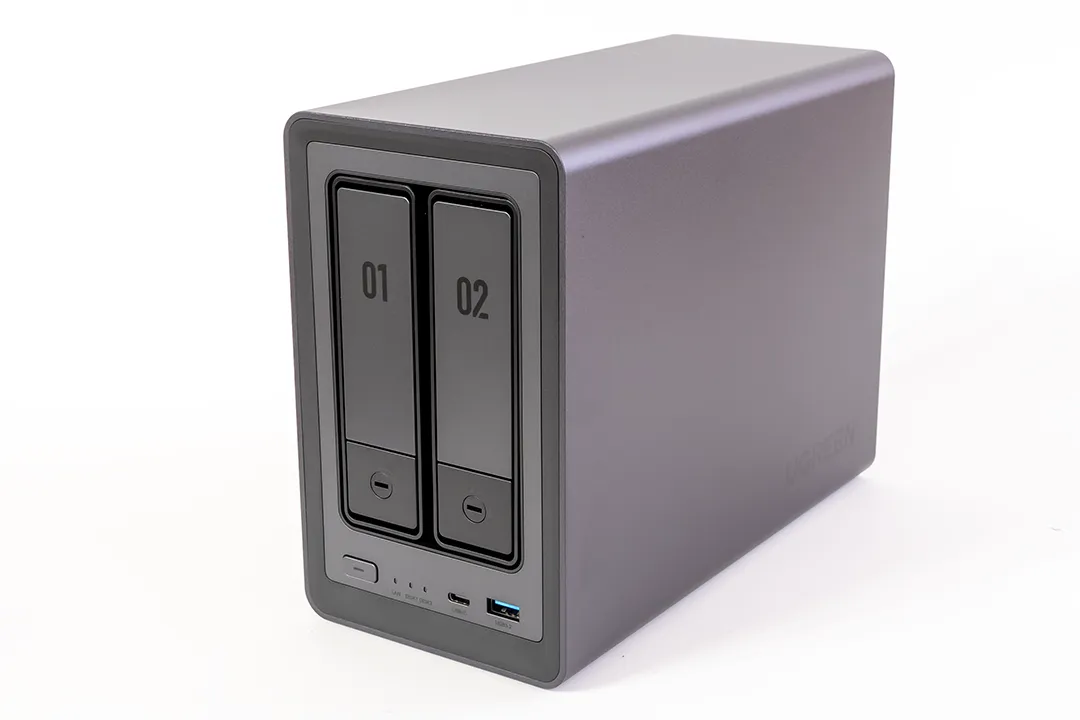
    The NAS has the following ports:

    • 1x 2.5GbE LAN port (back)
    • 2x USB 3.2 Gen1 ports (back)
    • 1x USB-C 3.2 Gen1 port (front)
    • 2x USB 2.0 ports (back)
    • 1x HDMI (currently not in use)
    • Power button and reset button

    Make sure to connect the NAS using the included Ethernet cable for the most stable setup experience.

    Looking to pick up the NAS I used in this guide?

    💡 Need more bays? UGREEN also offers higher-capacity models:

    These are affiliate links — if you decide to buy through them, it supports the blog at no extra cost to you. Thanks for your support!


    Step 1: Power On and Detect the NAS

    Before you start, make sure your NAS is connected via Ethernet for the most reliable connection. It’s also worth checking for any available system updates once you’re in the dashboard — UGREEN recommends updating UGOS Pro early on to avoid compatibility issues, especially if you plan to use SSD caching or Docker later.

    As soon as the NAS is powered on and connected to your network, it appears in the UGREEN NAS app. It can take a few minutes for the device to be detected. However, if it doesn’t show up automatically, you can register it manually by scanning the QR code located on the bottom of the device.

    If it doesn’t appear straight away, you can scan the QR code on the bottom of the NAS to register it manually.

    Step 2: Name Your NAS & Accept Terms

    Once detected, the app prompts you to name your NAS and accept the standard user agreement and privacy terms.

    Give your device a unique name to help distinguish it on the network.

    Step 3: Register Your Email (Recommended)

    While you can skip this, I recommend linking your email for access to UGREENlink and system alerts.

    Registering your email enables remote access and alerts for any system issues.

    Step 4: Enable Remote Access

    I enabled UGREENlink, which gives you remote access to your NAS — useful if you want to monitor or transfer files while away.

    Remote access lets you securely manage your NAS from anywhere.
    UGREENlink remote access lets you securely manage your NAS over the internet. Your NAS name becomes your UGREENlink ID, which you can use from the web or mobile app.

    Step 5: Create Your Storage Pool

    Before you begin, ensure the NAS is powered off when inserting any drives. The DXP2800 uses a tool-less tray system for 3.5″ drives, which makes installation quick and simple. For M.2 SSDs, be cautious as they slot in internally and require careful handling.

    Here’s where you’ll select the drives you installed. I had two 7.2TB HDDs and two 1TB NVMe SSDs.

    You can mix drive types, but it’s best to separate HDDs and SSDs into different pools.

    I opted to configure my HDDs into a single RAID 1 array for redundancy. RAID 1 mirrors the data between the two drives, so if one fails, the other still has all your files. It’s not the most space-efficient, but it offers peace of mind.

    For the SSDs, I chose a Basic (non-RAID) setup for now — mainly because I plan to use them for apps or caching later. I didn’t see much benefit to mirroring them at this stage, especially since I’m not storing critical data there yet.

    RAID 1 for HDDs and a basic SSD pool gives a good mix of reliability and flexibility.

    Step 6: Format and Create Volume

    Once your storage pool is created, the next step is formatting the drives and setting up a volume. This is where you choose between Btrfs and ext4, the two available file systems.

    I chose Btrfs for my HDDs because it supports advanced features like snapshots, built-in data integrity checks, and efficient storage management — all of which are helpful if you’re storing lots of data or want more control over versioning and recovery. It’s especially useful in a home NAS setup where accidental deletion or corruption is a concern.

    For the SSD pool, I went with ext4. While it lacks the bells and whistles of Btrfs, it’s lighter on resources and has a long-standing reputation for reliability and performance. Since I’m planning to use the SSDs for running apps and temporary data, ext4’s speed and lower overhead made more sense.

    Here’s a quick breakdown:

    • Btrfs Pros: Snapshots, checksums, automatic error correction, efficient disk usage
    • Btrfs Cons: Slightly more system overhead, slower write performance than ext4 in some cases
    • ext4 Pros: Fast, low overhead, extremely stable
    • ext4 Cons: No native snapshots, no checksumming or automatic correction
    Btrfs is great for snapshots and folder-level protection. ext4 is a better fit for app containers or temporary storage.

    Before confirming, the system will warn you that all existing data on the drives will be erased.

    Once confirmed, your drives will be formatted and the volume created.

    Step 7: Review System Usage

    After setup, you’ll be shown a breakdown of how your drives are being used. In my case, the system reserved about 15.2GB on one of the SSDs — this includes operating system files and essential services needed to run UGOS Pro.

    This is completely normal, especially on Btrfs volumes where a bit more space is allocated for things like snapshots, metadata, and system overhead. You may also notice:

    • Slightly less available capacity than expected
    • Reserved space depending on your file system and RAID choice

    This screen is a great checkpoint to understand how your storage will behave moving forward:

    • Btrfs can accumulate snapshots and logs, so it’s worth checking the system status occasionally
    • SSDs used for apps (e.g. Docker) may fill quickly if large containers or image caches build up

    You can always check system usage later under the Storage section of the dashboard for a more detailed view.

    Storage overview shows space used by the system, available space, and reserved capacity.

    Final Thoughts

    The DXP2800 offers one of the smoothest NAS setup experiences I’ve used. From unboxing to configuring storage pools, everything was laid out in a way that’s friendly for first-time users. The guided setup process is clear and surprisingly quick.

    I’d recommend enabling two-factor authentication early on to help secure your admin account — it works with any standard authenticator app, and I opted for Microsoft Authenticator since I already use it elsewhere.

    If you’re planning to share the NAS, take advantage of personal folders or set up user-specific access permissions. It’s an easy way to protect privacy and organise data effectively.

    While RAID 1 is a great way to add redundancy, don’t rely on it as your only backup. It’ll help if a drive fails, but it won’t protect you from accidental deletion or file corruption.

    Finally, take note of the reset button behaviour: a short press restarts the system, while holding it down for 10 seconds resets it to factory settings — useful if you ever run into serious issues.

    Next time, I’ll walk through installing Docker and setting up lightweight apps like Pi-hole and Plex to unlock more potential from the NAS.

    Have questions or planning your own setup? Drop them in the comments — always happy to help!
  • How to Choose the Best NAS for Your Home Network (Beginner’s Guide)

    How to Choose the Best NAS for Your Home Network (Beginner’s Guide)

    As data storage needs continue to grow, more people are turning to NAS (Network-Attached Storage) solutions for reliable and secure access to their files. But with so many options on the market, how do you choose the best NAS for your needs? This guide will break down the leading NAS brands, their strengths, and what to consider before making a purchase.


    1. Introduction

    A NAS is a dedicated storage device that connects to your network, allowing multiple users to store, access, and manage files from anywhere. Whether you’re looking for a home media server, business backup solution, or cloud storage alternative, a NAS can provide scalability and security without the limitations of traditional external hard drives.

    Common NAS Use Cases

    Backups – Protect important files from accidental loss or corruption.
    Media Streaming – Store and stream movies, music, and TV shows across multiple devices.
    Home Automation – Store logs and automation scripts for smart home setups.
    Remote Access – Securely access your data from anywhere in the world.


    2. Key Factors to Consider When Choosing a NAS

    Understanding RAID: Which One is Right for You?

    RAID (Redundant Array of Independent Disks) is used to improve performance, redundancy, or both. Here’s a breakdown of the most common RAID types:

    • RAID 0 (Striping)Fastest performance, but no redundancy. If one drive fails, all data is lost. Best for speed but risky for critical data.
    • RAID 1 (Mirroring)Copies data to two drives. If one fails, the other keeps your data safe. Great for backups and reliability but reduces usable space by 50%.
    • RAID 5 (Striping with Parity) – Requires at least 3 drives. Data is spread across drives with parity (recovery data). If one drive fails, data is safe. Best for balancing storage, speed, and redundancy.
    • RAID 6 (Dual Parity) – Similar to RAID 5 but can tolerate two drive failures. Ideal for critical business storage. Requires at least 4 drives.
    • RAID 10 (Mirroring + Striping) – Combines RAID 1 and RAID 0, offering both speed and redundancy. Requires at least 4 drives and reduces usable storage by half. Best for high-speed performance with protection.
    • SHR (Synology Hybrid RAID) – Exclusive to Synology NAS, allowing mixed drive sizes and automatic optimization of storage. Great for users who want flexibility.

    👉 Which RAID should you choose?

    • For maximum performance → RAID 0
    • For basic redundancy → RAID 1
    • For best balance → RAID 5
    • For business-grade protection → RAID 6
    • For speed + redundancy → RAID 10
    • For flexible storage → SHR

    How Many Drive Bays Do You Need?

    Choosing the right number of drive bays is essential for balancing storage capacity, performance, and scalability. Here’s a quick comparison:

    Drive BaysStorage CapacityBest ForRAID SupportScalability
    1-BayLimited to a single driveBasic personal storageNo RAIDNot expandable
    2-BayMirroring or basic RAIDHome backups & small media librariesRAID 1Limited expansion
    4-BayMore storage & RAID optionsPower users, media servers, small businessRAID 1, 5, 6, SHRGood balance of capacity & performance
    6+ BayHigh storage & enterprise RAIDLarge-scale storage, business & professionalsRAID 5, 6, 10, SHR, advanced configurationsHighly scalable, future-proof

    3. DIY vs. Pre-Built NAS

    Pre-Built NAS (Synology, QNAP, Asustor, etc.)

    • Easy to use with a plug-and-play setup.
    • Comes with user-friendly software like Synology DSM or QNAP QTS.
    • Limited upgradeability (though some allow RAM or SSD cache upgrades).

    DIY NAS (TrueNAS, Unraid, OpenMediaVault, etc.)

    • Fully customizable and can run enterprise-grade features.
    • Allows you to choose your own hardware for better performance at a lower price.
    • Requires technical knowledge to set up and maintain.

    4. Best NAS Options in 2025 (Entry-Level, Mid-Range, and High-End)

    Synology – Best for User-Friendly Software & Cloud Integration
    Key Features: DiskStation Manager (DSM) UI, built-in cloud syncing (Google Drive, Dropbox), strong security tools, and great backup solutions.

    QNAP – Power & Expandability for Advanced Users
    Key Features: 2.5G/10G networking, PCIe expansion (for GPUs, SSDs, or extra ports), and virtualization support.

    Asustor – Budget-Friendly NAS with Strong Multimedia Support
    Key Features: Affordable pricing, 2.5G networking, HDMI output for media, and Plex/Jellyfin support.

    TerraMaster – Entry-Level NAS with Simple Setup
    Key Features: Low-cost storage, easy-to-use UI, RAID 0/1/5/6 support, and Docker compatibility.

    UGREEN NASync – High-Performance & Open OS Support
    Key Features: New to the market, strong hardware at competitive pricing. Allows users to install TrueNAS, Unraid, or OpenMediaVault without voiding the warranty. Seamless cloud backup integration.

    📌 On a personal note, I’m currently transitioning from cloud storage to a UGREEN NAS. Its combination of high-performance hardware, flexible OS support, and hybrid cloud capabilities makes it an ideal choice for my needs.


    5. Setting Up Your NAS

    1️⃣ Install Hard Drives – Use WD Red, Seagate IronWolf, or Toshiba N300 drives.
    2️⃣ Initial Setup – Access the NAS web interface and configure users & permissions.
    3️⃣ Enable RAID & Backups – Set up RAID 1, 5, or 6 and sync backups to cloud or external drives.
    4️⃣ Secure Your NASChange default admin passwords, enable 2FA, and disable unnecessary services.

    For a more detailed setup guide, check out NAS & Network Storage: Why You Need It.


    6. Small Buying Guide – What NAS Should You Choose?

    If you’re still unsure, here’s a simple guide based on your needs:

    • 💰 Budget-Friendly: TerraMaster, Asustor
    • 📂 Best Software & Cloud Features: Synology
    • 🚀 Most Expandable & Powerful: QNAP
    • 🛠️ Full Customization & DIY Power: TrueNAS, Unraid
    • 📡 Cloud & Hybrid Support: UGREEN NASync

    7. Conclusion

    Choosing a NAS depends on your storage needs, technical expertise, and budget.
    No matter which NAS you choose, setting up proper backups, security measures, and performance optimizations will ensure the best experience.

    Looking for more insights? Check out NAS vs. Cloud Storage: Which One Should You Choose?.


    Which NAS are you considering? Let us know in the comments below!

  • NAS & Network Storage Explained: Why You Should Consider One for Your Home

    NAS & Network Storage Explained: Why You Should Consider One for Your Home

    Introduction: Why NAS?

    Running out of storage on your devices? Tired of juggling multiple external drives?

    Whether you’re dealing with photos, videos, smart home backups, or business documents, traditional storage options like external hard drives or cloud services have limitations. What if you could have a private, secure, and expandable cloud—accessible from all your devices?

    This is where Network Attached Storage (NAS) comes in. NAS is more than just an external hard drive; it’s a smart storage solution that allows you to back up, share, and access data across multiple devices—anytime, anywhere. But is a NAS right for you? Let’s break it down.

    Synology NAS setup page displaying device discovery and network details.

    1. What Is NAS?

    NAS (Network Attached Storage) is a device that connects to your home network, allowing multiple devices to store, access, and manage files from anywhere on your local network (and remotely, if configured).

    Unlike a regular external hard drive, NAS is always on, accessible from multiple devices, and can have RAID (Redundant Array of Independent Disks) for data protection.

    How NAS Works in a Home Network

    • Connects to your router via Ethernet.
    • Acts as a central storage hub for computers, phones, smart TVs, game consoles, and even security cameras.
    • Allows for automated backups, media streaming, and private cloud hosting.

    2. NAS vs. DAS vs. External Drives vs. Cloud Storage

    Choosing the right storage option depends on how you use your data. Here’s how NAS compares to Direct-Attached Storage (DAS), external drives, and cloud storage.

    FeatureNAS (Network Storage)DAS (Direct-Attached Storage)External DriveCloud Storage
    Accessibility✔ Remote & Local❌ Local Only❌ Local Only✔ Remote Access
    Multiple Device Access✔ Yes❌ No❌ No✔ Yes
    Expandable Storage✔ Yes✔ Some models❌ No✔ Paid Tiers
    Reliability & Backup✔ RAID Options❌ No RAID (unless RAID enclosure)❌ Single Drive Failure✔ Managed Backups
    Security & Privacy✔ Private, self-hosted✔ Private✔ Private❌ Relies on 3rd Party
    Best ForHome network, automation, backupsFast external storage for one deviceSimple personal storageRemote, multi-device sync

    When Should You Use Each?

    NAS: You need a centralized, multi-device storage solution with remote access and automated backups.
    DAS: You want faster, direct storage for a single computer (e.g., video editing, gaming, or workstation backups).
    External Drive: You need simple, portable storage and don’t require multi-device access.
    Cloud Storage: You want convenience and don’t mind subscription costs & third-party control.


    3. Key Benefits of Using a NAS

    ✅ Private Cloud Storage

    A NAS allows you to host your own cloud, meaning you can store, access, and sync files without relying on Google Drive, Dropbox, or OneDrive.

    ✅ Automated Backups

    • Set up scheduled backups for all your devices.
    • Redundancy with RAID prevents data loss in case of drive failure.

    ✅ Media Streaming (Plex, Kodi, etc.)

    • Store and stream movies, music, and photos directly from your NAS.
    • Works with smart TVs, tablets, and game consoles.

    ✅ Security & Control

    • Your data stays with you—no third-party access.
    • Encrypted storage and user permissions provide extra security.

    ✅ Smart Home & Surveillance Support

    • Store security camera footage instead of paying for cloud subscriptions.
    • Keep smart home automation logs for later review.

    4. Do You Need a NAS?

    You work with large files and need reliable backups.
    You want your own private cloud instead of paying for cloud storage.
    You have multiple devices and need centralized storage.
    You want to stream movies, music, and photos locally.
    You have a smart home setup or security cameras.

    🚫 You might not need a NAS if:

    • You only need basic file storage (a USB drive may be enough).
    • You don’t mind using Google Drive, Dropbox, or OneDrive.
    • You prefer a cheaper, simpler storage option.
    A professional NAS setup in a modern home office, connected to a router for seamless data access.

    5. Next Steps: What’s Coming Next?

    Now that you understand why a NAS is useful, the next step is learning how to set one up.

    📌 Coming Soon: “Beginner’s Guide to Setting Up a NAS – Choosing the Right Storage Configuration.” 🚀


    Do you use a NAS, or are you considering one? Let me know in the comments!