Tag: Storage Solutions

  • Top 5 NAS Mistakes Beginners Make (And How to Avoid Them)

    Top 5 NAS Mistakes Beginners Make (And How to Avoid Them)

    Introduction

    Setting up your first Network-Attached Storage (NAS) can dramatically enhance your home network by centralising your data, improving security, and streamlining access. However, beginners frequently make mistakes that cause frustration, unexpected costs, or even critical data loss. This comprehensive guide addresses these common pitfalls with practical advice, real-world scenarios, and visual resources to help ensure a successful NAS setup experience.


    Mistake #1: Choosing Incompatible or Unreliable Drives

    Selecting inappropriate drives can severely compromise your NAS’s reliability and performance. For example, in data centres, it’s not uncommon for entire batches of drives to fail simultaneously due to manufacturing defects. While rare, this highlights the value of using drives from different production batches to mitigate simultaneous failure risks.

    • Advice:
      • Always consult your NAS manufacturer’s compatibility list.
      • Opt for NAS-specific drives like Western Digital Red or Seagate IronWolf, which are designed for continuous operation.
      • Using identical drives (same manufacturer, model, capacity, and speed) is the recommended best practice to ensure compatibility and optimal RAID performance.
      • While mixing drives from different manufacturers is possible, it’s essential that drives have identical capacity, speed, and specifications to utilise RAID effectively. However, this approach isn’t generally recommended due to potential compatibility or performance issues.
    Two WD Red Plus NAS hard drives side-by-side with different serial numbers, illustrating best practice of using drives from different batches to reduce risk of simultaneous failure in RAID setups.

    Related Guide: HDD vs SSD for Your NAS


    Mistake #2: Overestimating or Underestimating Storage Needs

    Miscalculating your storage needs can result in wasted money or insufficient capacity. For instance, purchasing lower-capacity SSDs simply because they’re cheaper may initially seem like a smart choice, but this often leads to storage shortages down the line, forcing you to upgrade prematurely, as you experienced with your personal PC setup.

    • Advice:
      • Carefully evaluate your current usage and anticipate future growth.
      • Factor in media consumption, regular backups, and future data accumulation.
      • Consider investing in slightly more storage than you initially think you’ll need to avoid frequent upgrades.
    Table showing recommended HDD and SSD storage sizes based on use cases including gaming, media servers, content creation, backups, and professional workstations.

    Related Guide: Beginner’s Guide to Choosing a NAS


    Mistake #3: Neglecting Proper Network Configuration

    Improper network setup can significantly limit NAS performance, leading to slow data transfers and frustrating buffering during media streaming. For example, upgrading from an older Wi-Fi 5 router to a modern Wi-Fi 7 system like the TP-Link BE85 dramatically improved file transfer speeds, streaming quality, and overall responsiveness of your NAS setup.

    • Advice:
      • Upgrade to modern networking standards (Gigabit Ethernet, Wi-Fi 6/7) to prevent bottlenecks.
      • Use high-quality Ethernet cables (Cat 6 or higher).
      • Properly configure network settings, including IP addresses and DNS, to optimise performance.
    Comparison chart showing Wi-Fi 5, Wi-Fi 6, and Wi-Fi 7 speeds in Mbps, highlighting significant improvements in wireless performance for modern networking.

    Related Guide: Understanding Wi-Fi 6 and Wi-Fi 7


    Mistake #4: Overlooking Security and Backup Measures

    Underestimating security risks or misunderstanding RAID’s role can leave your NAS vulnerable to severe data loss or breaches. For example, numerous reports highlight how ransomware attacks exploit poorly secured NAS devices, encrypting valuable data and demanding hefty ransoms, leading to significant financial and personal distress for affected users.

    • Advice:
      • Disable default admin accounts and always use strong, unique passwords.
      • Implement robust firewall settings and VPN access for secure remote connections.
      • Recognise RAID’s limitations—use RAID alongside separate, regular external or cloud-based backups.
      • Regularly test your backup restorations to verify reliability.

    Table: RAID Setups and Recommended Backup Strategies

    RAID Level Protection Provided Recommended Backup Strategy
    RAID 0 No redundancy — performance only Not suitable alone. Always pair with full external or cloud backups.
    RAID 1 Mirroring — protects from 1 drive failure Backup to cloud or external storage to recover from accidental deletion or corruption.
    RAID 5 Striping with parity — protects from 1 drive failure Use the 3-2-1 backup rule: 3 copies, 2 types of media, 1 offsite. Include cloud backup.
    RAID 6 Double parity — protects from 2 drive failures Add versioned backups (e.g., cloud storage with file history) to protect against corruption.
    RAID 10 Striping + mirroring — fast and fault-tolerant Add incremental or differential backups for quick recovery and long-term protection.

    Mistake #5: Ignoring Firmware and Software Updates

    Skipping firmware or software updates exposes your NAS to critical vulnerabilities that can lead to ransomware, instability, or total data loss. A major example was the Qlocker ransomware attack, where QNAP NAS devices with outdated firmware were targeted. Attackers exploited unpatched weaknesses, encrypted users’ files, and demanded ransom payments in Bitcoin.

    Staying current with firmware isn’t just about security — it also unlocks performance improvements, new features, and bug fixes.

    Comparison Table: Why Timely Updates Matter

    Outdated FirmwareUpdated Firmware
    Exposed to known vulnerabilitiesPatched against known threats
    High risk of ransomware and malwareEnhanced security and firewall protections
    Possible performance bugs or system crashesStability improvements and optimisations
    Compatibility issues with newer devices/appsImproved device and software compatibility
    • Advice:
      • Enable automatic firmware and software updates where possible.
      • Regularly review release notes to understand what’s changed.
      • Always back up your data before applying major updates.
      • Schedule routine checks for firmware across all connected devices.

    Quick Summary Checklist

    • Select NAS-specific and compatible drives
    • Accurately estimate and plan for future storage requirements
    • Upgrade and optimise your home network infrastructure
    • Prioritise security measures and regular backups
    • Keep firmware and software updated regularly

    Frequently Asked Questions (FAQ)

    • What NAS brand should beginners choose?
      Synology and QNAP are user-friendly and highly recommended for beginners due to their intuitive interfaces and reliable hardware.
    • Is RAID necessary for a beginner NAS setup?
      While not strictly necessary, RAID is strongly recommended to protect against drive failures and data loss.
    • How often should I backup my NAS data?
      Weekly backups are a good standard, though important data might require daily backups.

    Conclusion

    By proactively avoiding these common beginner mistakes, you’ll ensure your NAS system is reliable, secure, and meets your long-term needs. Are you ready to take the next step?

    • Explore More: Check out our comprehensive guides to further your understanding and optimise your NAS setup.
    • Stay Updated: Subscribe to our newsletter for the latest tips, guides, and updates in home networking and NAS technologies.
    • Share Your Experience: We’d love to hear your NAS setup experiences or questions in the comments below—your insights help our community grow!

    Ready to dive deeper? Explore our additional beginner-friendly guides:

    💬 Have you made any of these NAS mistakes?
    Whether you’re just getting started or refining your setup, I’d love to hear from you. Share your experience in the comments — or let me know what you’d like to see covered next!
  • How to Choose the Best NAS for Your Home Network (Beginner’s Guide)

    How to Choose the Best NAS for Your Home Network (Beginner’s Guide)

    As data storage needs continue to grow, more people are turning to NAS (Network-Attached Storage) solutions for reliable and secure access to their files. But with so many options on the market, how do you choose the best NAS for your needs? This guide will break down the leading NAS brands, their strengths, and what to consider before making a purchase.


    1. Introduction

    A NAS is a dedicated storage device that connects to your network, allowing multiple users to store, access, and manage files from anywhere. Whether you’re looking for a home media server, business backup solution, or cloud storage alternative, a NAS can provide scalability and security without the limitations of traditional external hard drives.

    Common NAS Use Cases

    Backups – Protect important files from accidental loss or corruption.
    Media Streaming – Store and stream movies, music, and TV shows across multiple devices.
    Home Automation – Store logs and automation scripts for smart home setups.
    Remote Access – Securely access your data from anywhere in the world.


    2. Key Factors to Consider When Choosing a NAS

    Understanding RAID: Which One is Right for You?

    RAID (Redundant Array of Independent Disks) is used to improve performance, redundancy, or both. Here’s a breakdown of the most common RAID types:

    • RAID 0 (Striping)Fastest performance, but no redundancy. If one drive fails, all data is lost. Best for speed but risky for critical data.
    • RAID 1 (Mirroring)Copies data to two drives. If one fails, the other keeps your data safe. Great for backups and reliability but reduces usable space by 50%.
    • RAID 5 (Striping with Parity) – Requires at least 3 drives. Data is spread across drives with parity (recovery data). If one drive fails, data is safe. Best for balancing storage, speed, and redundancy.
    • RAID 6 (Dual Parity) – Similar to RAID 5 but can tolerate two drive failures. Ideal for critical business storage. Requires at least 4 drives.
    • RAID 10 (Mirroring + Striping) – Combines RAID 1 and RAID 0, offering both speed and redundancy. Requires at least 4 drives and reduces usable storage by half. Best for high-speed performance with protection.
    • SHR (Synology Hybrid RAID) – Exclusive to Synology NAS, allowing mixed drive sizes and automatic optimization of storage. Great for users who want flexibility.

    👉 Which RAID should you choose?

    • For maximum performance → RAID 0
    • For basic redundancy → RAID 1
    • For best balance → RAID 5
    • For business-grade protection → RAID 6
    • For speed + redundancy → RAID 10
    • For flexible storage → SHR

    How Many Drive Bays Do You Need?

    Choosing the right number of drive bays is essential for balancing storage capacity, performance, and scalability. Here’s a quick comparison:

    Drive BaysStorage CapacityBest ForRAID SupportScalability
    1-BayLimited to a single driveBasic personal storageNo RAIDNot expandable
    2-BayMirroring or basic RAIDHome backups & small media librariesRAID 1Limited expansion
    4-BayMore storage & RAID optionsPower users, media servers, small businessRAID 1, 5, 6, SHRGood balance of capacity & performance
    6+ BayHigh storage & enterprise RAIDLarge-scale storage, business & professionalsRAID 5, 6, 10, SHR, advanced configurationsHighly scalable, future-proof

    3. DIY vs. Pre-Built NAS

    Pre-Built NAS (Synology, QNAP, Asustor, etc.)

    • Easy to use with a plug-and-play setup.
    • Comes with user-friendly software like Synology DSM or QNAP QTS.
    • Limited upgradeability (though some allow RAM or SSD cache upgrades).

    DIY NAS (TrueNAS, Unraid, OpenMediaVault, etc.)

    • Fully customizable and can run enterprise-grade features.
    • Allows you to choose your own hardware for better performance at a lower price.
    • Requires technical knowledge to set up and maintain.

    4. Best NAS Options in 2025 (Entry-Level, Mid-Range, and High-End)

    Synology – Best for User-Friendly Software & Cloud Integration
    Key Features: DiskStation Manager (DSM) UI, built-in cloud syncing (Google Drive, Dropbox), strong security tools, and great backup solutions.

    QNAP – Power & Expandability for Advanced Users
    Key Features: 2.5G/10G networking, PCIe expansion (for GPUs, SSDs, or extra ports), and virtualization support.

    Asustor – Budget-Friendly NAS with Strong Multimedia Support
    Key Features: Affordable pricing, 2.5G networking, HDMI output for media, and Plex/Jellyfin support.

    TerraMaster – Entry-Level NAS with Simple Setup
    Key Features: Low-cost storage, easy-to-use UI, RAID 0/1/5/6 support, and Docker compatibility.

    UGREEN NASync – High-Performance & Open OS Support
    Key Features: New to the market, strong hardware at competitive pricing. Allows users to install TrueNAS, Unraid, or OpenMediaVault without voiding the warranty. Seamless cloud backup integration.

    📌 On a personal note, I’m currently transitioning from cloud storage to a UGREEN NAS. Its combination of high-performance hardware, flexible OS support, and hybrid cloud capabilities makes it an ideal choice for my needs.


    5. Setting Up Your NAS

    1️⃣ Install Hard Drives – Use WD Red, Seagate IronWolf, or Toshiba N300 drives.
    2️⃣ Initial Setup – Access the NAS web interface and configure users & permissions.
    3️⃣ Enable RAID & Backups – Set up RAID 1, 5, or 6 and sync backups to cloud or external drives.
    4️⃣ Secure Your NASChange default admin passwords, enable 2FA, and disable unnecessary services.

    For a more detailed setup guide, check out NAS & Network Storage: Why You Need It.


    6. Small Buying Guide – What NAS Should You Choose?

    If you’re still unsure, here’s a simple guide based on your needs:

    • 💰 Budget-Friendly: TerraMaster, Asustor
    • 📂 Best Software & Cloud Features: Synology
    • 🚀 Most Expandable & Powerful: QNAP
    • 🛠️ Full Customization & DIY Power: TrueNAS, Unraid
    • 📡 Cloud & Hybrid Support: UGREEN NASync

    7. Conclusion

    Choosing a NAS depends on your storage needs, technical expertise, and budget.
    No matter which NAS you choose, setting up proper backups, security measures, and performance optimizations will ensure the best experience.

    Looking for more insights? Check out NAS vs. Cloud Storage: Which One Should You Choose?.


    Which NAS are you considering? Let us know in the comments below!

  • NAS vs Cloud Storage: Which Is Best for You in 2025?

    NAS vs Cloud Storage: Which Is Best for You in 2025?

    Introduction

    Choosing the right storage solution isn’t just about short-term convenience—it’s about long-term data management, security, and cost efficiency. Many people rely on cloud storage, but is it truly the best option for storing data long-term? On the other hand, NAS (Network-Attached Storage) offers full control over your files but comes with upfront costs and maintenance. This guide breaks down both options to help you make the best choice.


    What Makes a Storage Solution “Long-Term Friendly”?

    Not all storage solutions are built for long-term reliability and affordability. When deciding between Cloud and NAS, here are the key factors to consider:

    1️⃣ Cost Over Time

    • Cloud Storage: Starts with low upfront costs but requires ongoing monthly or yearly subscription fees. Costs increase as storage needs grow.
    • NAS Storage: Requires an initial investment but has no recurring subscription costs, aside from electricity and potential drive replacements. Over time, NAS can be more cost-effective.

    2️⃣ Data Ownership & Privacy

    • Cloud Storage: Your data is stored on third-party servers, meaning you rely on the provider’s security policies. While major providers offer strong encryption, you don’t have full control over your files.
    • NAS Storage: With NAS, you own and control your data. No third-party access means greater privacy, but security management (e.g., encryption, backups) is your responsibility.

    3️⃣ Performance & Accessibility

    • Cloud Storage: Access speeds depend on your internet connection. If your connection is slow, retrieving files can be frustrating. However, files are accessible from anywhere.
    • NAS Storage: Works locally on your home or office network, making file transfers much faster than cloud storage. Remote access is possible, but it requires setup.

    4️⃣ Maintenance & Technical Expertise

    • Cloud Storage: Managed by the provider, requiring zero maintenance from your end.
    • NAS Storage: Requires manual maintenance, including firmware updates, security configurations, and monitoring hardware health.

    5️⃣ Scalability

    • Cloud Storage: Easily scalable—you can buy more storage as needed.
    • NAS Storage: Expandable, but limited by physical hardware capacity. Additional drives or larger storage must be purchased when running out of space.

    6️⃣ Security & Compliance

    • Cloud Storage: Providers implement strong security measures, but you must trust their encryption and policies. Compliance depends on the provider’s setup (e.g., GDPR, HIPAA compliance).
    • NAS Storage: Offers direct control over security policies. Ideal for businesses with strict compliance requirements.

    NAS vs. Cloud Storage: Real-World Use Cases

    💼 Freelancers & Remote WorkersCloud Storage is ideal for collaboration and accessibility across multiple devices.

    🎥 Media Professionals & Content CreatorsNAS is best for storing large video files and high-resolution images without relying on internet speeds.

    🏢 Small Businesses & OfficesNAS + Cloud Hybrid provides local storage with offsite cloud backups for extra security.

    🎮 Gamers & EnthusiastsNAS can store game libraries, mods, and backups, reducing reliance on external drives.


    NAS vs. Cloud: Quick Comparison Table

    FeatureNAS StorageCloud Storage
    CostOne-time purchase + electricityMonthly/yearly subscription
    AccessibilityLocal network, remote access with setupAvailable anywhere with internet
    Data ControlFull user controlManaged by provider
    SecurityUser-managed security (can be more secure)Provider encryption, potential breaches
    Internet DependenceNot needed for local accessRequired for access
    ScalabilityLimited by hardwareVirtually unlimited

    NAS vs. Cloud Storage: Decision Guide

    If you’re unsure which storage solution is best for you, follow this simple decision guide:

    1. Do you require remote access to your data from anywhere?

    • YesCloud Storage is best.
    • No → Proceed to the next question.

    2. Do you want full control over your data and privacy?

    • YesNAS is best.
    • No → Proceed to the next question.

    3. Are you comfortable handling hardware setup and maintenance?

    • YesNAS may be suitable.
    • NoCloud Storage is the better choice.

    4. What is your budget preference?

    • One-time investmentNAS is cost-effective long-term.
    • Monthly payments are fineCloud Storage is flexible and scalable.

    5. Do you need to store large files or backups?

    • YesNAS is ideal for local high-speed storage.
    • NoCloud Storage works well for smaller files.

    6. Do you frequently share data with others?

    • YesCloud Storage is best for seamless sharing.
    • NoNAS works for local storage needs.

    Hybrid Approach: The Best of Both Worlds

    For those who want both flexibility and security, a hybrid approach offers the best of both:
    ✔ Use NAS for primary storage with fast local access.
    ✔ Backup important files to the cloud for redundancy.
    ✔ Automate syncing between NAS & Cloud to maintain real-time backups.

    Popular NAS Brands That Support Cloud Backup

    • UGREEN NASync – Supports OneDrive, Google Drive, and Dropbox.
    • Synology NAS – Features Synology Cloud Sync.
    • QNAP NAS – Offers Hybrid Backup Sync.
    • Western Digital My Cloud – Provides third-party cloud sync.

    Related Post: Cloud vs. Local Storage

    If you’re still deciding between all types of local storage, including external hard drives, SSDs, and NAS, check out our guide here → Cloud vs. Local Storage: Best Choice Pros & Cons

    Final Thoughts: Making the Right Choice for You

    Both NAS and Cloud Storage offer advantages, but the best option depends on your needs:

    ✔ If you want full control, cost savings, and high-speed local access, go with NAS.
    ✔ If you prefer convenience, remote access, and automatic backups, choose Cloud Storage.
    ✔ If you want the best of both worlds, consider a hybrid approach.

    🔹 What’s your storage setup? Do you use NAS, Cloud, or both? Let us know in the comments!

  • NAS & Network Storage Explained: Why You Should Consider One for Your Home

    NAS & Network Storage Explained: Why You Should Consider One for Your Home

    Introduction: Why NAS?

    Running out of storage on your devices? Tired of juggling multiple external drives?

    Whether you’re dealing with photos, videos, smart home backups, or business documents, traditional storage options like external hard drives or cloud services have limitations. What if you could have a private, secure, and expandable cloud—accessible from all your devices?

    This is where Network Attached Storage (NAS) comes in. NAS is more than just an external hard drive; it’s a smart storage solution that allows you to back up, share, and access data across multiple devices—anytime, anywhere. But is a NAS right for you? Let’s break it down.

    Synology NAS setup page displaying device discovery and network details.

    1. What Is NAS?

    NAS (Network Attached Storage) is a device that connects to your home network, allowing multiple devices to store, access, and manage files from anywhere on your local network (and remotely, if configured).

    Unlike a regular external hard drive, NAS is always on, accessible from multiple devices, and can have RAID (Redundant Array of Independent Disks) for data protection.

    How NAS Works in a Home Network

    • Connects to your router via Ethernet.
    • Acts as a central storage hub for computers, phones, smart TVs, game consoles, and even security cameras.
    • Allows for automated backups, media streaming, and private cloud hosting.

    2. NAS vs. DAS vs. External Drives vs. Cloud Storage

    Choosing the right storage option depends on how you use your data. Here’s how NAS compares to Direct-Attached Storage (DAS), external drives, and cloud storage.

    FeatureNAS (Network Storage)DAS (Direct-Attached Storage)External DriveCloud Storage
    Accessibility✔ Remote & Local❌ Local Only❌ Local Only✔ Remote Access
    Multiple Device Access✔ Yes❌ No❌ No✔ Yes
    Expandable Storage✔ Yes✔ Some models❌ No✔ Paid Tiers
    Reliability & Backup✔ RAID Options❌ No RAID (unless RAID enclosure)❌ Single Drive Failure✔ Managed Backups
    Security & Privacy✔ Private, self-hosted✔ Private✔ Private❌ Relies on 3rd Party
    Best ForHome network, automation, backupsFast external storage for one deviceSimple personal storageRemote, multi-device sync

    When Should You Use Each?

    NAS: You need a centralized, multi-device storage solution with remote access and automated backups.
    DAS: You want faster, direct storage for a single computer (e.g., video editing, gaming, or workstation backups).
    External Drive: You need simple, portable storage and don’t require multi-device access.
    Cloud Storage: You want convenience and don’t mind subscription costs & third-party control.


    3. Key Benefits of Using a NAS

    ✅ Private Cloud Storage

    A NAS allows you to host your own cloud, meaning you can store, access, and sync files without relying on Google Drive, Dropbox, or OneDrive.

    ✅ Automated Backups

    • Set up scheduled backups for all your devices.
    • Redundancy with RAID prevents data loss in case of drive failure.

    ✅ Media Streaming (Plex, Kodi, etc.)

    • Store and stream movies, music, and photos directly from your NAS.
    • Works with smart TVs, tablets, and game consoles.

    ✅ Security & Control

    • Your data stays with you—no third-party access.
    • Encrypted storage and user permissions provide extra security.

    ✅ Smart Home & Surveillance Support

    • Store security camera footage instead of paying for cloud subscriptions.
    • Keep smart home automation logs for later review.

    4. Do You Need a NAS?

    You work with large files and need reliable backups.
    You want your own private cloud instead of paying for cloud storage.
    You have multiple devices and need centralized storage.
    You want to stream movies, music, and photos locally.
    You have a smart home setup or security cameras.

    🚫 You might not need a NAS if:

    • You only need basic file storage (a USB drive may be enough).
    • You don’t mind using Google Drive, Dropbox, or OneDrive.
    • You prefer a cheaper, simpler storage option.
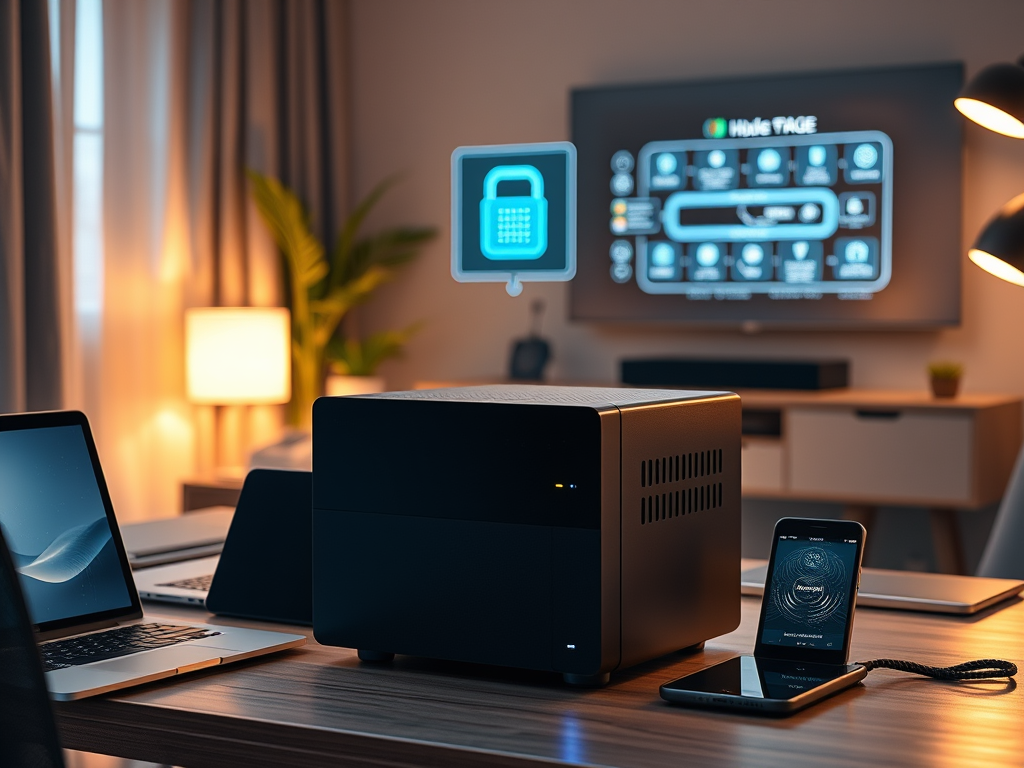
    A professional NAS setup in a modern home office, connected to a router for seamless data access.

    5. Next Steps: What’s Coming Next?

    Now that you understand why a NAS is useful, the next step is learning how to set one up.

    📌 Coming Soon: “Beginner’s Guide to Setting Up a NAS – Choosing the Right Storage Configuration.” 🚀


    Do you use a NAS, or are you considering one? Let me know in the comments!