Tag: tech

  • UGREEN SynCare Brings AI Driven Home Security Into the NAS Ecosystem

    UGREEN SynCare Brings AI Driven Home Security Into the NAS Ecosystem

    UGREEN made a notable move at CES 2026 with the announcement of SynCare, a new home security system built around local AI, local storage, and optional ecosystem expansion.

    I have already been looking into home security systems, but SynCare immediately stood out because it comes from UGREEN and appears designed to work alongside the NASync platform rather than existing as a separate, cloud dependent product line.

    This does not feel like UGREEN testing the waters. It looks like a deliberate step toward connecting surveillance, storage, and local AI into a single ecosystem.


    How UGREEN Is Positioning SynCare

    UGREEN is presenting SynCare as a local first security platform, not just a collection of cameras.

    The core pillars highlighted at CES were:

    • On device AI processing

    • No mandatory subscriptions

    • Local storage by default

    • Optional expansion through ecosystem components

    Instead of relying on cloud servers to analyse footage, SynCare cameras process video locally and only notify the user when something meaningful is detected. Storage remains local as well, either directly on the camera or through optional NAS integration.

    UGREEN has described SynCare as an attentive, integrated guardian that can interpret events and respond intelligently rather than simply recording footage passively.

    What makes this particularly exciting for me is that it adds genuine choice without forcing a jump into a completely new ecosystem. I am already invested in NASync, and SynCare feels like a natural extension rather than a replacement. The fact that the system is subscriptionless is a major factor here. I had been seriously considering alternatives like the upcoming SwitchBot cameras paired with their AI Hub, but the requirement for a subscription to unlock key features makes that far less appealing long term. SynCare offering local AI, local storage, and advanced behaviour without recurring fees changes the equation entirely. I am aware that brands like Reolink already offer local recording and strong hardware, but SynCare feels more ambitious in how it ties cameras, AI, and NAS together. That broader vision is what makes this stand out rather than just blending into the existing market.


    SynCare Security Ecosystem Capabilities

    SynCare is designed as a coordinated ecosystem rather than isolated devices.

    Local AI and On Device Processing

    Each camera uses on device multimodal AI to recognise people, pets, vehicles, packages, and general events in real time. By analysing footage locally, SynCare can generate descriptive alerts in plain language rather than generic motion notifications.

    Examples shown by UGREEN include alerts such as a stranger in black approaching the front door, package delivered, or vehicle entering the driveway. This approach reduces false alarms and makes notifications more immediately useful.

    Cross Device Coordination

    SynCare devices are designed to work together. Cross camera awareness allows one camera to trigger actions on another.

    An example demonstrated by UGREEN includes an indoor camera detecting a baby crying, which can then trigger an audio alert or announcement from another camera or device elsewhere in the home. This coordinated behaviour is intended to provide a more cohesive monitoring experience rather than siloed camera feeds.

    Risk Based Alerts and Zones

    For outdoor security, SynCare supports a multi zone detection model. Users can define outer, warning, and alert zones.

    Intrusion into the outer zone triggers recording. Entering the warning zone can activate lights and send notifications. Breaching the alert zone can trigger audible alarms and flashing lights. This graduated escalation is designed to deter intruders early while avoiding constant trivial alerts.

    No Mandatory Cloud and Privacy Focus

    UGREEN is positioning SynCare as a privacy focused, locally controlled system. AI analysis and storage are handled on the device or local network rather than in the cloud.

    There are no required subscription fees for core functionality. Footage can be stored locally and, when integrated with NASync, stored as encrypted local data under the user’s control. Alerts and recordings remain within the home network, reducing exposure to external services.


    The SynCare Device Lineup

    UGREEN announced a full range of devices covering indoor, outdoor, and entry point monitoring. All devices share the same approach to local AI and high resolution imaging.

    Indoor Cameras ID500 Pro and ID500 Plus

    The indoor cameras are available in two variants.

    The ID500 Pro is the higher end model, offering 4K resolution, motorised pan and tilt, and a bright f1.0 aperture lens designed for strong low light performance. UGREEN is promoting full colour night vision through its UltraColor Night Vision mode rather than infrared only imaging.

    The ID500 Plus offers 2K plus resolution while retaining the same pan tilt functionality and AI feature set at a lower expected price point.

    Both models use on device AI to detect people, pets, and events such as unusual sound or movement. Audio analysis enables features such as baby crying detection. Alerts are contextual rather than purely motion based.

    These cameras are intended to cover larger indoor areas with fewer devices, allowing a single camera to track movement across a room and differentiate between pets, people, and other activity.

    UGREEN SynCare ID500 Pro indoor security camera with pan tilt and colour night vision
    SynCare ID500 Pro indoor camera with 4K resolution, pan tilt movement, and local AI detection.

    Outdoor Camera OD600 Pro

    The OD600 Pro is a weather resistant outdoor camera designed for perimeter security.

    It features a hybrid bullet and PTZ design with pan tilt zoom functionality and an 18 megapixel sensor with optical zoom. This allows the camera to zoom in on details such as faces or licence plates without losing clarity.

    The camera supports 24 hour continuous recording and can connect via dual band Wi Fi or Power over Ethernet. PoE support provides improved reliability for users with existing network cabling.

    Local AI detection is tuned to distinguish between humans, vehicles, and pets to reduce false alerts. Combined with the multi zone escalation model, the OD600 Pro is designed not just to record incidents but to actively deter intruders using lights and audible alarms.

    The OD600 Pro supports Power over Ethernet, which is ideal for users who prioritise reliability or already have network cabling in place. If you are weighing up whether PoE cameras make sense for your own NAS setup, I covered the pros and cons in my guide on choosing PoE security cameras for NAS.

    UGREEN SynCare OD600 Pro outdoor security camera with pan tilt zoom and multi sensor design
    UGREEN SynCare OD600 Pro outdoor camera featuring pan tilt zoom, dual sensors, and local AI processing.

    Video Doorbell DB600 Pro

    The DB600 Pro is a dual camera video doorbell designed to provide full head to toe coverage.

    The primary camera captures visitors in 4K resolution, while a secondary 2K downward facing camera monitors packages placed at the door. This ensures packages remain visible rather than being cropped out of frame.

    On device AI enables detection of people, pets, packages, and package pickup events. Package pickup can be flagged as a potential theft event, generating a more urgent alert.

    The doorbell connects via dual band Wi Fi and is positioned as a high end option for users who want advanced AI features without relying on cloud subscriptions.

    UGREEN SynCare DB600 Pro dual camera video doorbell with head to toe and package view
    SynCare DB600 Pro video doorbell with dual camera design for visitors and package detection.

    Local AI Smarts and Edge Processing

    One of the standout aspects of SynCare is its reliance on local edge processing.

    Multimodal AI analyses video, audio, and motion data directly on the device. This allows SynCare to assess context rather than simply reacting to movement.

    Human language alerts replace technical notifications. Instead of motion detected, users receive alerts describing what happened and where.

    UltraColor Night Vision enables colour footage in very low light, improving identification and clarity at night.

    All AI processing occurs locally rather than on remote servers. This reduces latency, improves privacy, and eliminates the need for cloud based AI subscriptions.


    Smart Display D500 Explained

    UGREEN also announced the Smart Display D500, a small touchscreen control hub for the SynCare system.

    The display allows users to view live camera feeds, receive alerts, and manage settings from a dedicated screen. It can also function as a Wi Fi hub, allowing cameras to communicate on a local network segment.

    UGREEN has confirmed that the Smart Display D500 is optional. All SynCare devices can be configured and managed using the mobile app alone. The display does not unlock additional features and is not required for system functionality.

    UGREEN SynCare Smart Display D500 touchscreen hub for managing home security cameras
    Smart Display D500 touchscreen hub for viewing and managing SynCare camera feeds.

    NAS Integration and Local Storage Options

    SynCare has been designed with NAS integration in mind from the outset.

    On Camera Storage

    Each camera supports local recording, typically via a microSD card. This allows footage to be stored without cloud services, though capacity is limited and management can become fragmented across multiple cameras.

    NASync Compatibility

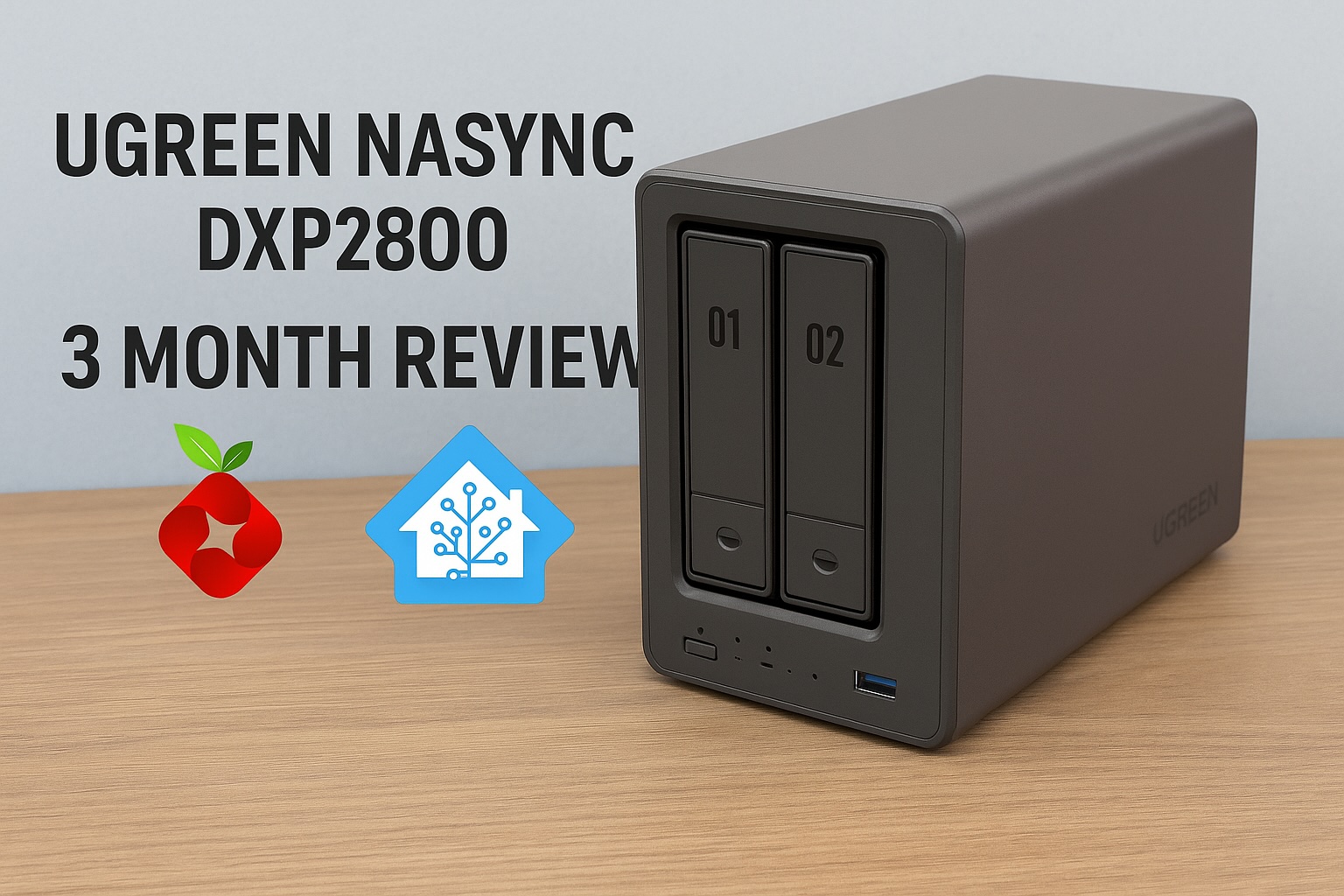
    UGREEN has confirmed that SynCare devices will integrate with NASync systems. Cameras can send recordings directly to a NAS for centralised, encrypted local storage. If you want a better idea of how UGREEN’s NAS hardware performs in real world use, I covered this in detail in my UGREEN NASync DXP2800 review.

    This enables significantly longer retention, unified management, and full control over where footage resides. A NASync system effectively becomes a private NVR without requiring separate recording hardware.

    Optional, Not Required

    A NAS is not required to use SynCare. Cameras function independently with local storage and the mobile app.

    NAS integration is positioned as an upgrade path for power users who want centralised management, larger storage capacity, and NVR style functionality.

    AI NASync iDX Series

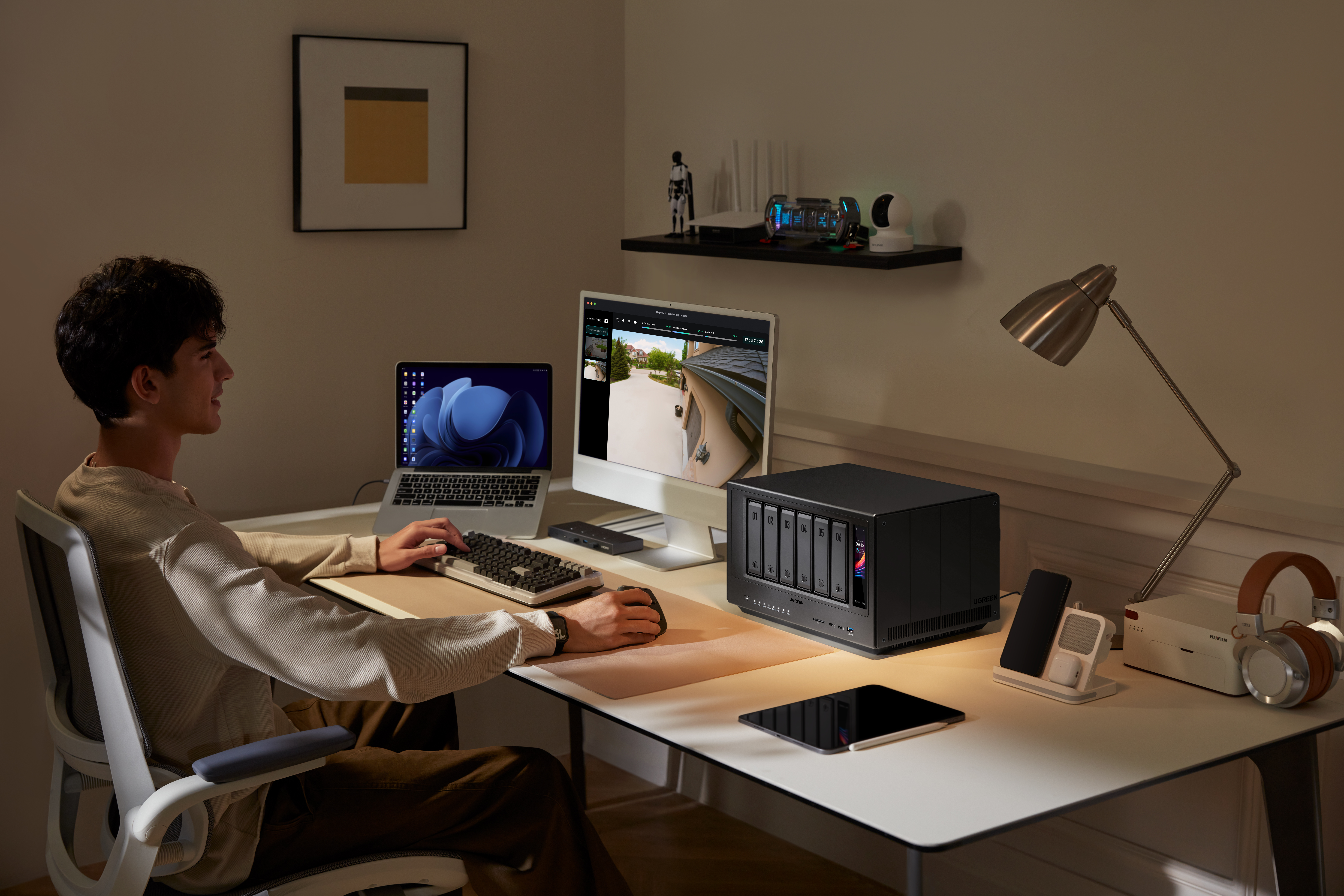
    Alongside SynCare, UGREEN announced the NASync iDX series of AI powered NAS devices. These systems feature Intel Core Ultra processors, up to 64GB of memory, dual 10GbE networking, Thunderbolt 4, and support for up to 196TB of storage.

    These devices are designed to handle heavier workloads such as indexing large volumes of footage, long term archival, and advanced analytics. While cameras handle real time detection locally, the NAS can take on deeper processing and coordination tasks.

    UGREEN NASync iDX6011 Pro multi bay NAS with front display and AI processing capabilities
    UGREEN NASync iDX series NAS designed for AI workloads, local storage, and SynCare camera integration.

    Cross Compatibility Questions

    UGREEN has not confirmed support for third party standards such as ONVIF or RTSP, or integration with platforms like Synology, QNAP, or Home Assistant. Initial focus appears to be on the UGREEN ecosystem, though this remains an open question for users with existing NVR setups.
    For context on how Home Assistant can already be run on UGREEN hardware, I previously covered installing Home Assistant on a UGREEN NAS.


    Early Use Cases and Who Might Benefit

    SynCare is designed to serve a wide range of users.

    Typical smart home users benefit from a unified, subscription free ecosystem with intelligent alerts.

    NAS enthusiasts gain the ability to centralise footage, retain high resolution recordings, and potentially leverage NAS based AI features.

    Privacy conscious families can keep footage local, encrypted, and under their control.

    Small businesses and home offices can deploy SynCare as a lightweight security system without contracting external monitoring services.


    What This Could Enable Long Term

    If executed well, SynCare positions UGREEN to build a broader local smart home platform.

    By combining cameras with on device AI, NAS devices capable of heavier processing, centralised encrypted local storage, and reduced cloud dependency, UGREEN could enable natural language search across security footage, NAS level correlation of events across multiple cameras, and a true home security server model built around the NAS rather than the cloud.

    The foundation shown at CES suggests this is not a short term experiment.


    Release Timeline and What to Watch Next

    UGREEN has stated that SynCare will launch in the second half of 2026, with pricing expected to be announced closer to release, likely around IFA.

    Unconfirmed areas include third party ecosystem support, smart home platform integrations such as Matter or voice assistants, long term software update commitments, and detailed storage management options.

    In the coming months, more details around pricing, integrations, and real world performance will determine how widely SynCare is adopted. But as it stands, this is not just another camera system announcement. It represents a rare combination of local AI, subscription free operation, and optional NAS integration from a brand already established in local storage. For anyone already researching home security and wanting more control without being locked into recurring fees or cloud dependency, SynCare is one of the most interesting systems to watch heading into 2026.

    I’m personally looking forward to the release of SynCare, particularly because it offers a path to expand my home security without rebuilding everything from scratch. If it performs as advertised, it’s something I’d be genuinely interested in adding to my own setup.
  • UGREEN U3000 UPS First Look — Small but Mighty

    UGREEN U3000 UPS First Look — Small but Mighty

    The wait is finally over — my UGREEN U3000 UPS has arrived!

    Right out of the box, I was caught off guard by its size. It’s unbelievably compact — almost the same footprint as my UGREEN Magnetic Power Bank, which makes it feel more like a portable charger than a full UPS system.

    This little unit is designed specifically for UGREEN’s NASync lineup, offering 120W of DC backup power with zero-second transfer time. That means if the power cuts out, your NAS keeps running instantly with no delay.

    It’s a clean, modern take on backup power — no bulky fans, no heavy lead-acid batteries, and no cluttered cabling. Just a sleek matte black box that slots quietly beside your NAS.

    I’ve just got it set up with my UGREEN NASync DXP2800, and here’s a quick look at the hardware, the software integration, and why this might be one of the smartest little UPS units around.


    Unboxing & First Impressions

    UGREEN U3000 UPS packaging showing 120W DC backup design.
    Simple, clean packaging that sets the tone for UGREEN’s minimalist design approach

    The box presentation is classic UGREEN — understated and premium. Even before opening it, you get the sense that this is designed to fit neatly into a modern setup rather than dominate it.


    Compact Design

    UGREEN U3000 UPS on desk showing its compact matte finish.
    The matte finish and solid build make it feel far more premium than its size suggests.

    Once unboxed, the size difference really stands out. When placed next to my UGREEN Magnetic Power Bank, they’re nearly identical in dimensions. Seeing them side by side drives home just how compact this UPS truly is — it’s impressive that something this small can output 120W of continuous power.

    UGREEN U3000 UPS compared with UGREEN Magnetic Power Bank.
    Almost pocket-sized — the U3000 looks more like a power bank than a UPS.

    Ports & Connectivity

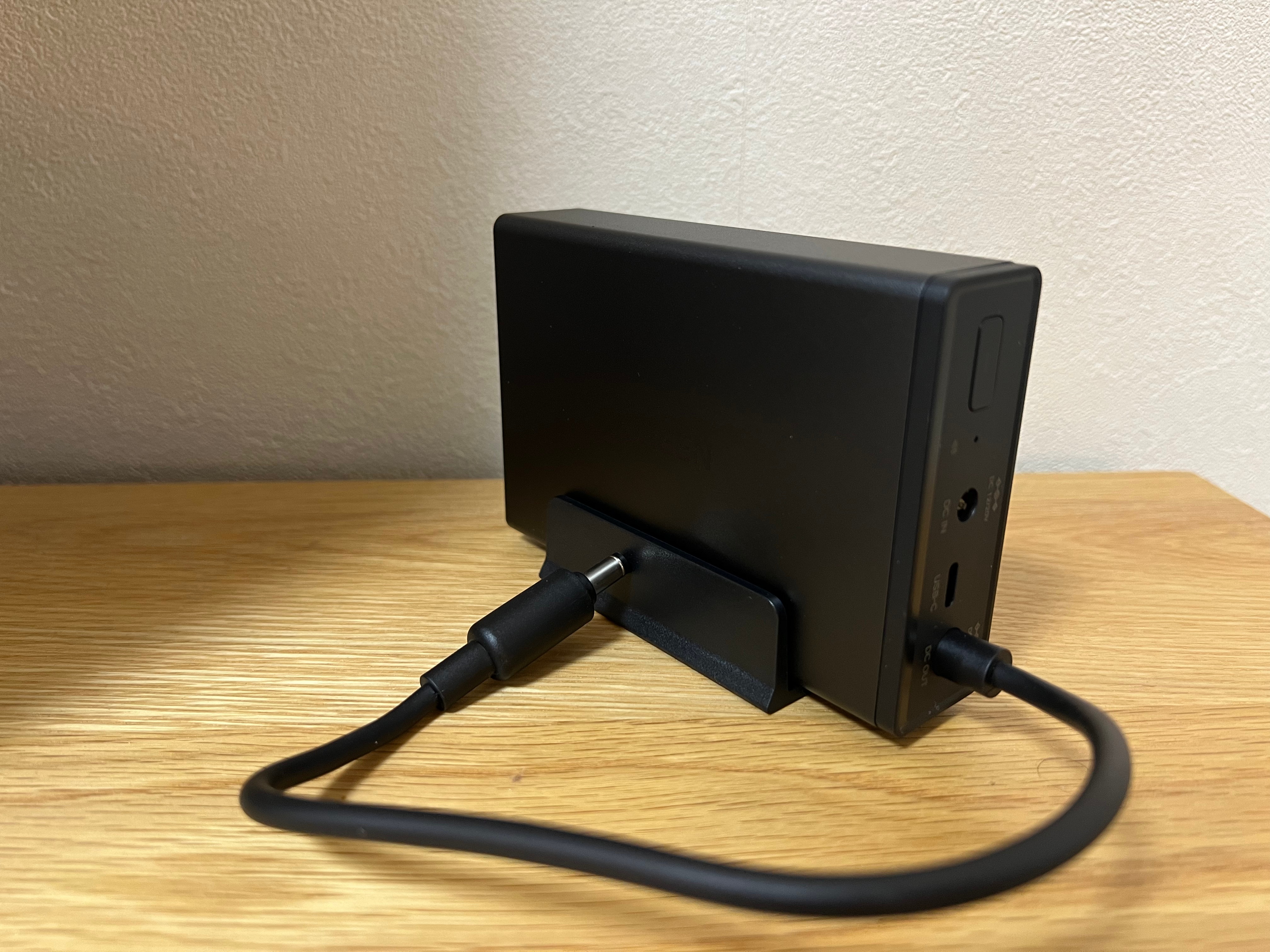
    Close-up of UGREEN U3000 UPS rear ports including DC IN, DC OUT, and USB-C
    Straightforward port layout — DC IN, DC OUT, and USB-C for monitoring.

    The rear layout is clean and functional, featuring DC input/output and a USB-C port for communication. It runs silently and uses passive cooling, which is a welcome change from traditional UPS fans humming in the background.


    Smart Integration

    PC control panel view of UGREEN US3000 UPS showing connection status, firmware version, and NUT options.
    The U3000 is recognised instantly through the NAS interface with full NUT support.

    Connecting the U3000 to the NAS was completely plug-and-play. It appeared right away under the UPS settings as UGREEN US3000, showing battery capacity, firmware version, and auto-shutdown options.

    The UPS also supports NUT (Network UPS Tools) — an open-source protocol that allows the NAS to detect power changes and automatically shut down safely if the battery runs low. It’s a small but important addition that makes the system much more reliable in real-world conditions.


    Next Steps

    Over the next few days, I’ll see how the U3000 performs under normal NAS workloads — how quickly it switches to battery, how stable it runs during short outages, and how the NUT integration behaves over extended use.

    If you are building out your NAS, check my guide Choosing the Best Drives for Your NAS Setup and my roundup NAS Compatible Security Cameras to see how it all fits together.

    Stay tuned — this compact little unit might be one of the best NAS accessories UGREEN has released so far.

  • TP-Link BE85 Review: Why I Chose It Over Other Wi-Fi 7 Mesh Systems

    TP-Link BE85 Review: Why I Chose It Over Other Wi-Fi 7 Mesh Systems

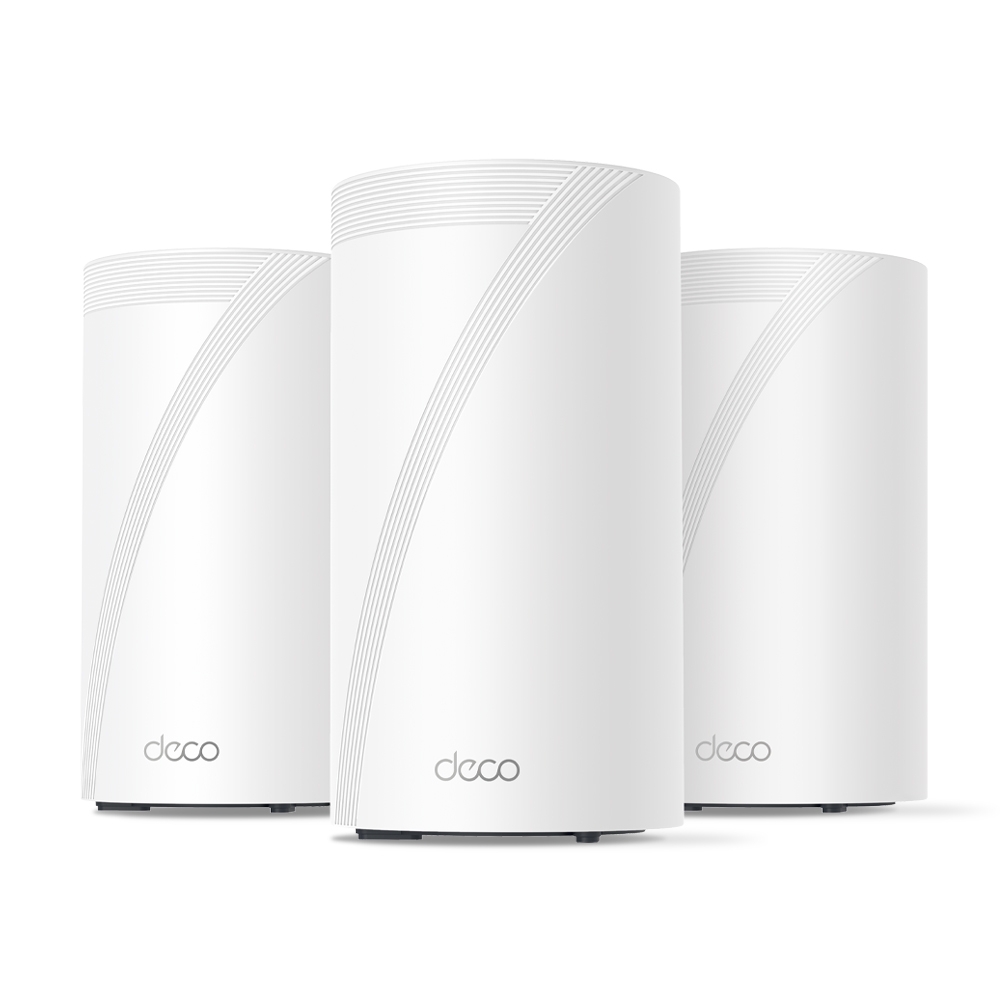
    When I upgraded to a detached home with 10G fibre, I wanted a mesh system that could actually keep up — without costing a fortune. After researching TP-Link’s full Wi-Fi 7 lineup, I settled on the BE85. This post breaks down what I learned comparing the BE63, BE75, BE85, and BE95 — and why the BE85 came out on top for my setup.

    Note: Some links in this post are affiliate links. If you buy something through them, I may earn a small commission — it doesn’t cost you anything extra, and it helps support the site. As an Amazon Associate, I earn from qualifying purchases.


    🚨 Limited-Time Deal: TP-Link Deco BE63 (3-Pack)

    Buy the TP-Link Deco BE63 (3-Pack) on Amazon →
    🟢 Deal Price: $398.99 (was $599) — Offer valid through July 11
    💳 Bonus: 25% back in Amazon Prime Card rewards (if applicable)

    🛜 BE10000 Tri-Band Wi-Fi 7 Speeds:

    • 5188 Mbps on 6 GHz
    • 4324 Mbps on 5 GHz
    • 574 Mbps on 2.4 GHz

    📦 What You Get: Covers up to 7,600 sq ft, supports 200+ devices, and includes 4× 2.5G LAN/WAN ports + 1× USB 3.0 port per unit.

    🧠 Features:

    • Simultaneous wired + wireless backhaul
    • AI-driven seamless roaming
    • Full backwards compatibility with any ISP or Wi-Fi generation

    Why I Went Mesh

    When I moved into a detached townhouse, one of my priorities was ensuring stable Wi-Fi coverage across all floors and rooms. Thick internal walls and a slightly larger footprint than a typical apartment made single-router setups unreliable — especially toward the edges of the house.

    Rather than run cables through walls or deal with signal dropouts, I opted for a mesh Wi-Fi solution. A multi-node system gave me full coverage with seamless handoffs between access points, eliminating dead zones and ensuring solid speeds everywhere from the bedroom to the garden.


    TP-Link BE Series Compared: BE63 vs BE75 vs BE85 vs BE95

    TP-Link’s Wi-Fi 7 mesh lineup (BE series) includes four main models: BE63, BE75, BE85, and BE95. While all support Wi-Fi 7, their specs and use cases differ significantly.

    🔹 TP-Link Deco BE63

    • Bands: Tri-band (2.4GHz + 5GHz + 6GHz)
    • Speeds: Up to 11Gbps combined
    • Ethernet:
    • 1× 2.5G WAN/LAN port
    • 3× 1G LAN ports
    • Coverage (2-pack): ~5,500 sq ft
    • Backhaul: Wireless only (no 10G or dedicated backhaul port)
    • Use Case: Budget Wi-Fi 7 for small to medium homes
    • Pros: Most affordable Wi-Fi 7 mesh option, good performance for the price
    • Cons: Lacks 10G ports, weaker wired backhaul support

    🔹 TP-Link Deco BE75

    • Bands: Tri-band (2.4GHz + 5GHz + 6GHz)
    • Speeds: Up to 17Gbps combined (11,530 Mbps on 6GHz, 4,324 Mbps on 5GHz, 688 Mbps on 2.4GHz)
    • Ethernet:
    • 1× 10G RJ45/SFP+ WAN/LAN combo port
    • 3× 2.5G WAN/LAN ports
    • Coverage (2-pack): ~6,000–6,300 sq ft
    • Backhaul: Supports simultaneous wired + wireless Multi-Link Operation (MLO)
    • Use Case: Mid-tier Wi‑Fi 7 mesh with flexible wired and wireless backhaul—great for users with multi-gig (up to 10G) internet but not requiring full BE85/BE95 performance.
    • Pros: Future-proof 10G port, strong throughput and coverage, 8‑stream Wi‑Fi 7
    • Cons: Only one 10Gbps port (others are 2.5G), no dedicated backhaul band

    🔹 TP-Link Deco BE85

    • Bands: Tri-band (2.4GHz + 5GHz + 6GHz)
    • Speeds: Up to 22Gbps combined
    • Ethernet:
    • 2× 10G ports (1× SFP+ combo, 1× RJ45)
    • 2× 2.5G LAN ports
    • Coverage (2-pack): ~9,600 sq ft
    • Backhaul: Supports 10G wired backhaul
    • Use Case: Large homes, power users, multi-device households
    • Pros: Great performance, future-proof ports, excellent coverage
    • Cons: Pricier than BE63/BE75 but offers much more

    🔹 TP-Link Deco BE95

    • Bands: Quad-band (2.4GHz + 5GHz-1 + 5GHz-2 + 6GHz)
    • Speeds: Up to 33Gbps combined
    • Ethernet:
    • 2× 10G ports
    • 2× 2.5G LAN ports
    • Coverage (2-pack): ~9,600–10,000 sq ft
    • Backhaul: Dedicated band for wireless backhaul + full 10G support
    • Use Case: Power users, wired smart homes, 2G/10G+ multi-gig setups
    • Pros: Absolute top-end performance, dedicated backhaul band, fastest speeds
    • Cons: Very expensive — overkill for most homes

    Why I Chose the TP-Link BE85

    After reviewing all the options, the BE85 hit the sweet spot for my needs. My ISP provides 10G fibre to the home, and I wanted to actually make use of it — not bottleneck it with a 1G router. The BE85 offered:

    • ✔ Full 10G WAN + LAN support
    • ✔ Fast, reliable tri-band Wi-Fi 7
    • ✔ Wired backhaul with 10G performance
    • ✔ Substantially lower cost than the BE95, without sacrificing much

    Another key reason I went with TP-Link over brands like Netgear, Asus, or Eero was price-to-performance. The BE85 delivers comparable (and in many cases better) real-world throughput and coverage than competing systems, while undercutting them significantly on cost. According to performance tests like those from Dong Knows Tech, the BE85 actually outperformed more expensive options — even the Netgear Orbi RBKE963 — in both speed and range.

    Combined with the ease of use, clean app, and rapid firmware support from TP-Link, it made the BE85 one of the best-value Wi-Fi 7 mesh systems available — and still one of the top performers months after release.


    Hands-On Impressions with the BE85

    From the moment I unboxed it, setup was quick and painless using the TP-Link Deco app. The two units synced easily, and firmware updates were done within minutes. Here’s how it’s performed over several months:

    🔹 Coverage & Range

    I get full signal across the house — no buffering, no dropouts. Even in the furthest room on the second floor, I still get over 1.5 Gbps download — most recently clocking in at 1567 Mbps down / 742 Mbps up via Speedtest.

    🔹 Speed Testing

    Using a wired backhaul and 6GHz-capable devices, I regularly see speeds over 1.5 Gbps. More impressively, I’ve tested the connection multiple times with my 10G fibre line and reached as high as 7.58 Gbps down / 7.39 Gbps up during off-peak hours.

    Even during peak usage times, I’ve seen 3.87 Gbps down / 1.64 Gbps up, which is still miles ahead of most home connections.

    🔹 Stability

    The system has been rock-solid. No node drops, no weird disconnects. I’ve only rebooted it once since installation — and that was due to a firmware update.

    🔹 App Control

    The Deco app is simple, but has most of what you need: device prioritisation, QoS, basic firewalling, guest network, and remote access.

    🔹 Downsides?

    Very few. It’s large compared to budget routers, and some advanced users might find the lack of granular settings (like VLAN tagging or deeper DHCP options) limiting — but for 99% of homes, it’s a premium experience.


    Should You Buy the BE63, BE75, BE85, or BE95?

    Choosing the right mesh system depends on your home size, internet speed, and how future-proof you want your setup to be. Here’s a quick guide based on everything covered:

    ✅ Go with the BE63 if:

    • You’re upgrading from an older Wi-Fi 5 or early Wi-Fi 6 setup
    • You want basic Wi-Fi 7 support at the lowest possible cost
    • Your home is small to medium-sized and you’re not using multi-gig internet

    Get the BE63 on Amazon →

    ✅ Consider the BE75 if:

    • You want more bandwidth and coverage than the BE63
    • You still don’t need 10G ports or wired backhaul
    • You’re in a medium to large home with many devices

    Get the BE75 on Amazon →

    ✅ Choose the BE85 if:

    • You have a multi-gig or 10G internet connection
    • You want wired backhaul support with 10G LAN/WAN
    • You plan to run NAS, streaming, cloud backups or a smart home with heavy traffic
    • You want premium performance without BE95 pricing

    Get the BE85 on Amazon →

    ✅ Go for the BE95 only if:

    • You absolutely need the best possible performance
    • You’re in a very large home or smart home ecosystem with dozens of demanding devices
    • You need quad-band Wi-Fi 7 and a dedicated wireless backhaul

    Get the BE95 on Amazon →


    Final Thoughts

    The TP-Link BE series offers something for everyone, but the BE85 stands out as the true sweet spot. It’s powerful enough to make full use of 10G internet, provides rock-solid mesh coverage, and still comes in far cheaper than flagship systems from other brands.

    For detached homes, users with demanding network setups, or anyone wanting to build around Wi-Fi 7 — this is one of the best options available.

    If you’re considering the BE63 as a budget-friendly alternative, it’s a solid pick too — just be aware of its backhaul and port limitations.

    Still deciding if Wi-Fi 7 is worth the leap? This breakdown of Wi-Fi 6, 6E, and 7 can help you figure out what’s best for your setup.

  • Best Security Cameras That Work Seamlessly with Your NAS

    When it comes to home security, pairing your camera system with your NAS (Network Attached Storage) can offer unbeatable advantages like local recording, improved privacy, and easy video management. If you’ve already invested in a NAS system, it makes sense to choose security cameras that integrate seamlessly. Personally, I use the UGREEN NASync DXP2800, so I’ll be highlighting options that work well with it throughout this guide. This guide covers the best NAS-compatible camera brands and models, highlighting why NAS compatibility matters and how it simplifies your home security setup.

    Why NAS Compatibility Matters

    Having a NAS-compatible security camera means:

    • Enhanced privacy: Videos stored locally mean no subscription fees or worries about cloud privacy. For instance, your home’s front door footage won’t be stored on a remote server, reducing the risk of unauthorized access.
    • Reliable storage: Continuous recording ensures you don’t miss important events, scheduled backups prevent data loss, and easy management helps you quickly review footage in case of incidents.
    • Integration: Cameras that support protocols like RTSP or ONVIF easily integrate with NAS systems, allowing seamless management through third-party apps or direct NAS interfaces, simplifying your overall workflow.

    For example, imagine a scenario where your Wi-Fi temporarily drops. With cloud-dependent cameras, you might lose critical footage. However, NAS-compatible cameras continue recording locally, ensuring continuous surveillance without interruptions.

    Top Camera Brands That Support NAS

    BrandRecommended ModelsResolutionConnectionPrice RangeKey Features
    ReolinkRLC-833A, RLC-511WA4K/5MPPoE/Wi-Fi\$\$Affordable, reliable, excellent NAS support
    HikvisionDS-2CD2043G0-I, DS-2CD2385G1-I4MP/8MPPoE\$\$\$Professional-grade quality, robust build
    Eufy SecurityEufyCam 2C, EufyCam 31080p/2KWi-Fi\$\$User-friendly, wireless convenience

    1. Reolink

    • Strengths: Reliable, excellent NAS compatibility, budget-friendly.
    • Best For: Users looking for excellent video quality, reliability, and easy NAS integration at a good price.

    2. Hikvision

    • Strengths: Professional-grade quality, advanced configuration, robust build.
    • Best For: Advanced users or those with complex setups requiring high-quality professional cameras.

    3. Eufy Security

    • Strengths: User-friendly, high-quality wireless cameras, no subscription required.
    • Best For: Users who prefer wireless flexibility with easy NAS integration and simple mobile app control.

    Quick Setup Experience with UGREEN NASync

    If you’re just getting started with Docker apps on your NAS, check out my post on must-have Docker containers for NAS beginners.

    UGREEN NASync doesn’t offer a native surveillance app like Synology’s Surveillance Station, but it supports Docker, allowing you to easily install lightweight NVR solutions. Here’s a simplified step-by-step overview to help you get started:

    1. Access Docker on your NAS: Open your UGREEN NASync web interface and navigate to the Docker application.
    2. Choose and Deploy Your NVR Solution: Search for “Frigate,” “Shinobi,” or “MotionEye” within Docker Hub and pull the image to your NAS.
    3. Configure Container Settings: Set the container’s environment variables, assign storage volumes for recordings, and map required ports.
    4. Launch and Access the Application: Start the container and access your chosen NVR via your browser using the assigned port (e.g., http://NAS_IP:port).
    5. Integrate Your Camera: Add your camera’s RTSP or ONVIF stream using its IP and login credentials within the app.

    Consider including screenshots of each stage to visually guide readers through the process, especially if they’re new to Docker setups.

    Local Storage vs. Cloud Storage Recap

    Local storage offers several clear advantages over cloud storage, especially in scenarios such as:

    • Network outages: If your internet connection goes down, local storage continues to function normally, recording and storing your footage without interruptions. In contrast, cloud-based systems might lose critical footage during outages.
    • Privacy-sensitive situations: If you’re concerned about data privacy or security breaches, local storage eliminates the risks associated with third-party cloud providers potentially mishandling your footage.
    • Long-term cost savings: While cloud storage often involves recurring subscription fees, investing in local storage via NAS means a one-time expense. For example, a household that runs multiple cameras continuously can save significantly in subscription fees over several years.
    • Customized storage management: You have full control over storage allocation, data retention periods, and backups, allowing for greater flexibility tailored specifically to your personal or business requirements.

    Best Use Cases

    • Home Entrances & Garages: Cameras from Reolink or Hikvision offer exceptional reliability and high-quality footage ideal for entryways and garages. For instance, the Reolink RLC-833A captures clear facial details even in low-light scenarios, significantly aiding in identification if an incident occurs.
    Example top-down layout showing various camera placements, including corridor mode on the side path and wide-angle coverage across driveways and entrances.
    • Baby Monitors & Indoor Surveillance: Eufy’s wireless cameras provide unmatched ease of use with mobile integration, perfect for parents monitoring babies or pets remotely.
    • Outdoor Surveillance: Hikvision and Reolink cameras are known for robust, weather-resistant construction.
    Reolink Standard View vs Corridor Mode: A side-by-side comparison showing how traditional 16:9 viewing (left) wastes vertical space in narrow areas, while corridor mode (right, 9:16) maximises coverage down long hallways or side paths.

    PoE vs. Wi-Fi Cameras: Which Should You Choose?

    • PoE (Power-over-Ethernet): Reliable wired connection, ideal for permanent installations, simpler cable management, highly recommended for outdoor setups.
    • Wi-Fi Cameras: Easier installation, ideal for renters or temporary setups, flexible camera placement but dependent on strong Wi-Fi.

    Choose PoE for reliability and Wi-Fi for flexibility based on your specific setup needs.

    What’s Next for My Setup

    I may also look at integrating object detection with Home Assistant on my NAS in the future. Beyond that, I plan to explore smart alerts, secure remote access, and making the most of corridor mode for tighter, vertical spaces — like a narrow side alley — where traditional wide-angle views aren’t efficient. These refinements aim to build a smart security system that’s both effective and privacy-conscious, without revealing sensitive home layout details.

    Common Mistakes to Avoid

    • Ignoring storage capacity needs.
    • Overlooking camera resolution compatibility with your NAS.
    • Improper network setup leading to bandwidth issues.

    Personal Insight: My Camera Journey

    If you’re not familiar with the UGREEN NASync, I reviewed it in detail here to help you understand what it’s capable of.

    I’m currently using Switchbot Wi-Fi cameras, which have served well for basic home monitoring, but I’ve experienced occasional connectivity drops and limitations in managing footage efficiently. Given my setup, which prioritises reliability, high-quality video, and seamless integration with my UGREEN NASync NAS, I’m strongly considering transitioning to Reolink PoE cameras.

    Specifically, I’m looking at the Reolink RLC-833A for front-facing or driveway monitoring due to its impressive 4K resolution, person and vehicle detection, and spotlight features. For areas like the backyard, where running Ethernet cables might be more difficult, the RLC-511WA seems like a perfect fit. I’ll be documenting this upgrade in future posts, including setup tips, integration steps, and performance insights. I’m also planning to use a camera with corridor mode for the narrow side path of my house — this setting optimises vertical viewing angles, making it ideal for covering long, narrow spaces without wasting frame area on walls or empty ground.


    By choosing NAS-compatible security cameras, you’re taking control of your home’s safety and enjoying seamless integration with your existing NAS setup. I’d love to hear your thoughts and experiences—feel free to comment below!