Tag: technology

  • 10 Best Docker Containers to Supercharge Your NAS

    10 Best Docker Containers to Supercharge Your NAS

    For Beginners & Tinkerers Alike

    Why Docker on a NAS?

    If you’re running a NAS like the UGREEN NASync DXP2800, Synology, or any other x86-based box, Docker is where things start to get fun. Containers let you run lightweight, modular apps that give your NAS way more functionality — without needing a full-blown VM or extra hardware.

    Docker makes it easy to deploy apps in isolated environments, meaning you can try things out without worrying about breaking your whole system. They’re fast to spin up, easy to update, and work consistently across different systems. And the best part? You don’t need to be a hardcore Linux user to make the most of them.

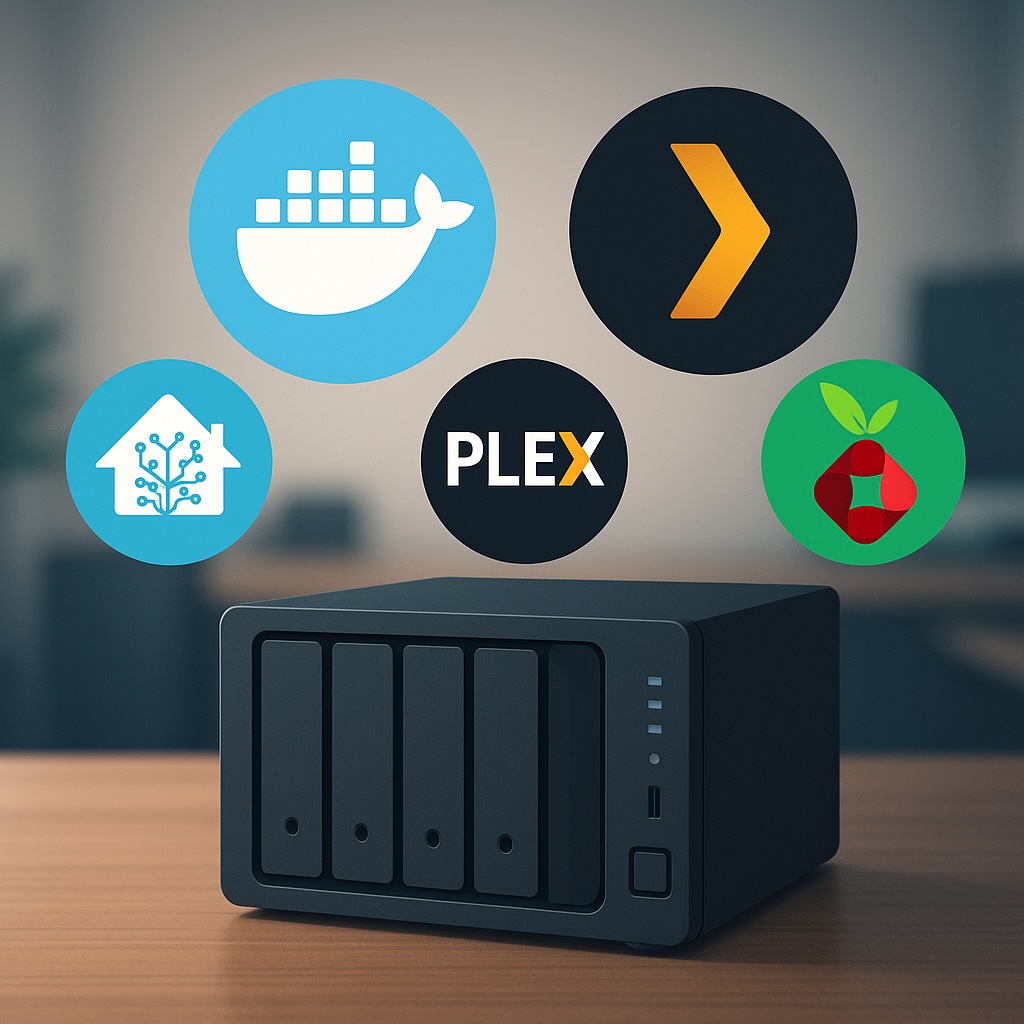
    Below are ten of the best Docker containers you can run on your NAS — a handpicked mix of essential utilities, media servers, privacy tools, and smart home apps that turn your box into a true home server. that will make your NAS feel more like a full home server.


    1. Home Assistant

    Smart home control on your terms

    If you’ve dipped your toe into smart home automation, you’ve probably already heard of Home Assistant. It’s a powerful, open-source platform that lets you integrate and automate just about every smart device imaginable — lights, sensors, switches, thermostats, and even your TV.

    Running Home Assistant in Docker is a great way to keep it separate from your main system while still enjoying all its features. It supports local control, so you’re not reliant on cloud services (great for privacy), and it’s constantly being improved by a huge community. Whether you’re just starting with a few SwitchBot devices or building a full-blown smart home, Home Assistant is a game-changer.

    Pair it with MQTT and Zigbee2MQTT for even more flexibility — both of which you can also run in Docker.

    Start here with my Smart Home Network Setup Guide.


    2. Mosquitto (MQTT Broker)

    Behind-the-scenes magic for smart homes

    Mosquitto is a lightweight message broker that uses the MQTT protocol — a key part of many smart home setups. If you’re running Home Assistant, Zigbee2MQTT, or any device with Tasmota firmware, you’ll likely need an MQTT broker to allow devices to communicate reliably.

    Mosquitto doesn’t have a fancy interface, but that’s by design. It’s incredibly efficient, fast, and stable. Once set up, it just runs in the background passing messages between your devices and services. You won’t interact with it much, but it’s a critical cog in the machine for those looking to build a local-first automation system.


    3. Plex or Jellyfin

    Your own personal Netflix (and more)

    If you’ve got a library of media — movies, TV shows, home videos — Plex and Jellyfin turn your NAS into a full-fledged streaming platform. Plex offers a polished UI and optional remote streaming features, while Jellyfin is the go-to for open-source purists who want everything self-hosted.

    These containers are easy to get up and running, especially if your media is already well-organised. Plex can pull in metadata, posters, subtitles, and more, and supports nearly every device under the sun. Jellyfin is a bit more hands-on but avoids subscriptions or locked features.


    4. Navidrome

    Spotify vibes, minus the monthly fee

    Have a huge collection of MP3s or FLAC files from back in the day? Navidrome breathes new life into local music libraries by turning your NAS into a private music streaming service. Think of it as Spotify for your own collection.

    The interface is clean and responsive, and it integrates with apps like Substreamer or Symfonium. It supports smart playlists, scrobbling to Last.fm, album art, and more. Plus, it’s extremely lightweight and can run on almost any system — making it a great fit for your NAS.


    5. Pi-hole

    Block ads for your whole network

    If you’ve never used Pi-hole before, prepare to be amazed at how much cleaner the internet can be. It acts as a DNS server that blocks ads, trackers, and malicious domains before they ever reach your devices. Set it once, and every device on your network benefits — phones, tablets, smart TVs, even IoT devices.

    Running Pi-hole in Docker is simple, and the dashboard gives you a detailed look at what’s being blocked. You can also manually whitelist or blacklist domains and pair it with Unbound for encrypted DNS.

    Pi-hole gives you a real-time view of DNS queries and blocked domains.

    6. WireGuard

    Access your home network from anywhere

    WireGuard is a modern VPN protocol designed to be fast, simple, and secure. When run on your NAS, it allows you to create a secure tunnel into your home network — perfect for accessing files, media servers, or smart home dashboards while away.

    It’s incredibly lightweight, quick to set up, and performs well even on modest hardware. Once configured, you can connect from your phone, laptop, or tablet and use your home network as if you were physically there. Whether you’re self-hosting your VPN server or connecting to a cloud-hosted instance, WireGuard offers a great balance between ease of use and strong encryption.


    7. Frigate (Advanced)

    Smart surveillance, powered by AI

    Frigate is an AI-based NVR (Network Video Recorder) that detects people, cars, and more in real time using your cameras — all without relying on the cloud. Unlike most camera apps that flood you with motion alerts for every leaf or shadow, Frigate focuses on what matters.

    It’s designed to work best with Coral AI accelerators for fast detection, but it can also run on CPUs or GPUs. It integrates well with Home Assistant and supports real-time notifications, event clips, and camera dashboards.

    Frigate uses AI to detect people, cars, and more — without the cloud.

    I’m currently researching Reolink’s PoE cameras as part of my own upgrade, so expect a deeper dive soon.


    8. Portainer

    Manage Docker without the command line

    Not everyone enjoys messing with the terminal, and that’s where Portainer shines. It gives you a web-based GUI for managing your Docker containers, volumes, networks, and images. You can see logs, update images, stop/start containers, and even deploy new ones — all from your browser.

    Portainer makes managing Docker containers accessible even for beginners.

    It’s great for beginners and pros alike. Even if you’re comfortable with Docker CLI, Portainer makes managing a growing stack of services way more convenient.


    9. FileBrowser

    A better way to access your NAS files

    Most NAS units have some sort of file management tool, but they’re often basic or clunky. FileBrowser is a slick web app that lets you browse, upload, rename, and share files via your browser. It even works well on mobile.

    You can create user accounts with specific permissions, set up public file shares, and preview images or documents right in the UI. It’s fast, lightweight, and a big improvement over standard Samba or FTP setups for everyday file access.


    10. Uptime Kuma

    Know when things break (before someone else does)

    Whether you’re self-hosting multiple services or just want to make sure your NAS is always online, Uptime Kuma is a must. It’s a beautiful, self-hosted status monitor that pings your apps, websites, or IPs and lets you know if they go down.

    You can customise alerts, set up dashboards, and even monitor services hosted outside your home network. It’s surprisingly feature-rich, and the UI is clean and easy to navigate. Once it’s up and running, it becomes one of those “how did I live without this?” tools.


    Where Should You Start?

    If you’re new to Docker and NAS apps in general, start with Pi-hole, Portainer, and Plex or Jellyfin. They’re easy to install, give immediate results, and don’t require much maintenance.

    When you’re ready to level up, move on to Home Assistant and WireGuard. They’ll open the door to deeper control of your smart home and remote access setup.

    And if you’re serious about home security and privacy, keep an eye on Frigate — especially if you’re considering upgrading to PoE cameras like Reolink.


    💡 New to Docker?
    Start by installing Portainer — it gives you a simple dashboard to deploy and manage containers without the command line.

    Got a favourite container I didn’t mention?
    Whether you’re deep into automation or just starting out, I’d love to hear what you’re running on your NAS. Drop it in the comments — I’m always on the lookout for new setups to try.

    Want to Dive Deeper?

    Here are a few more posts that expand on ideas in this article:

    More tutorials, setup guides, and automation tips are on the way!
  • NAS vs Cloud Storage: Which Is Best for You in 2025?

    NAS vs Cloud Storage: Which Is Best for You in 2025?

    Introduction

    Choosing the right storage solution isn’t just about short-term convenience—it’s about long-term data management, security, and cost efficiency. Many people rely on cloud storage, but is it truly the best option for storing data long-term? On the other hand, NAS (Network-Attached Storage) offers full control over your files but comes with upfront costs and maintenance. This guide breaks down both options to help you make the best choice.


    What Makes a Storage Solution “Long-Term Friendly”?

    Not all storage solutions are built for long-term reliability and affordability. When deciding between Cloud and NAS, here are the key factors to consider:

    1️⃣ Cost Over Time

    • Cloud Storage: Starts with low upfront costs but requires ongoing monthly or yearly subscription fees. Costs increase as storage needs grow.
    • NAS Storage: Requires an initial investment but has no recurring subscription costs, aside from electricity and potential drive replacements. Over time, NAS can be more cost-effective.

    2️⃣ Data Ownership & Privacy

    • Cloud Storage: Your data is stored on third-party servers, meaning you rely on the provider’s security policies. While major providers offer strong encryption, you don’t have full control over your files.
    • NAS Storage: With NAS, you own and control your data. No third-party access means greater privacy, but security management (e.g., encryption, backups) is your responsibility.

    3️⃣ Performance & Accessibility

    • Cloud Storage: Access speeds depend on your internet connection. If your connection is slow, retrieving files can be frustrating. However, files are accessible from anywhere.
    • NAS Storage: Works locally on your home or office network, making file transfers much faster than cloud storage. Remote access is possible, but it requires setup.

    4️⃣ Maintenance & Technical Expertise

    • Cloud Storage: Managed by the provider, requiring zero maintenance from your end.
    • NAS Storage: Requires manual maintenance, including firmware updates, security configurations, and monitoring hardware health.

    5️⃣ Scalability

    • Cloud Storage: Easily scalable—you can buy more storage as needed.
    • NAS Storage: Expandable, but limited by physical hardware capacity. Additional drives or larger storage must be purchased when running out of space.

    6️⃣ Security & Compliance

    • Cloud Storage: Providers implement strong security measures, but you must trust their encryption and policies. Compliance depends on the provider’s setup (e.g., GDPR, HIPAA compliance).
    • NAS Storage: Offers direct control over security policies. Ideal for businesses with strict compliance requirements.

    NAS vs. Cloud Storage: Real-World Use Cases

    💼 Freelancers & Remote WorkersCloud Storage is ideal for collaboration and accessibility across multiple devices.

    🎥 Media Professionals & Content CreatorsNAS is best for storing large video files and high-resolution images without relying on internet speeds.

    🏢 Small Businesses & OfficesNAS + Cloud Hybrid provides local storage with offsite cloud backups for extra security.

    🎮 Gamers & EnthusiastsNAS can store game libraries, mods, and backups, reducing reliance on external drives.


    NAS vs. Cloud: Quick Comparison Table

    FeatureNAS StorageCloud Storage
    CostOne-time purchase + electricityMonthly/yearly subscription
    AccessibilityLocal network, remote access with setupAvailable anywhere with internet
    Data ControlFull user controlManaged by provider
    SecurityUser-managed security (can be more secure)Provider encryption, potential breaches
    Internet DependenceNot needed for local accessRequired for access
    ScalabilityLimited by hardwareVirtually unlimited

    NAS vs. Cloud Storage: Decision Guide

    If you’re unsure which storage solution is best for you, follow this simple decision guide:

    1. Do you require remote access to your data from anywhere?

    • YesCloud Storage is best.
    • No → Proceed to the next question.

    2. Do you want full control over your data and privacy?

    • YesNAS is best.
    • No → Proceed to the next question.

    3. Are you comfortable handling hardware setup and maintenance?

    • YesNAS may be suitable.
    • NoCloud Storage is the better choice.

    4. What is your budget preference?

    • One-time investmentNAS is cost-effective long-term.
    • Monthly payments are fineCloud Storage is flexible and scalable.

    5. Do you need to store large files or backups?

    • YesNAS is ideal for local high-speed storage.
    • NoCloud Storage works well for smaller files.

    6. Do you frequently share data with others?

    • YesCloud Storage is best for seamless sharing.
    • NoNAS works for local storage needs.

    Hybrid Approach: The Best of Both Worlds

    For those who want both flexibility and security, a hybrid approach offers the best of both:
    ✔ Use NAS for primary storage with fast local access.
    ✔ Backup important files to the cloud for redundancy.
    ✔ Automate syncing between NAS & Cloud to maintain real-time backups.

    Popular NAS Brands That Support Cloud Backup

    • UGREEN NASync – Supports OneDrive, Google Drive, and Dropbox.
    • Synology NAS – Features Synology Cloud Sync.
    • QNAP NAS – Offers Hybrid Backup Sync.
    • Western Digital My Cloud – Provides third-party cloud sync.

    Related Post: Cloud vs. Local Storage

    If you’re still deciding between all types of local storage, including external hard drives, SSDs, and NAS, check out our guide here → Cloud vs. Local Storage: Best Choice Pros & Cons

    Final Thoughts: Making the Right Choice for You

    Both NAS and Cloud Storage offer advantages, but the best option depends on your needs:

    ✔ If you want full control, cost savings, and high-speed local access, go with NAS.
    ✔ If you prefer convenience, remote access, and automatic backups, choose Cloud Storage.
    ✔ If you want the best of both worlds, consider a hybrid approach.

    🔹 What’s your storage setup? Do you use NAS, Cloud, or both? Let us know in the comments!

  • Smart Home Network Setup: 7 Best Practices for Connectivity & Security

    Smart Home Network Setup: 7 Best Practices for Connectivity & Security

    Introduction

    Ever had your smart light take ages to turn on? Or your security camera lose connection at the worst time? A poorly optimized smart home network is the hidden culprit behind these daily frustrations.

    A smart home setup can make life more convenient, energy-efficient, and secure, but only if your network is built to handle the demands of multiple connected devices. A poorly configured network can lead to slow performance, security vulnerabilities, and connectivity issues.

    This guide walks you through how to set up a smart home network, ensuring reliable connectivity, security, and efficiency—without needing expensive upgrades.


    1. Planning Your Smart Home Network

    Before connecting devices, it’s important to assess your network’s capabilities:

    • How many devices will be connected? Smart homes can range from a single device to an entire ecosystem of interconnected gadgets.
    • What are your bandwidth needs? Streaming 4K content or running security cameras requires more bandwidth than smart lights and sensors.
    • Where will devices be placed? Some devices (e.g., outdoor cameras) may struggle with weak Wi-Fi signals.

    Action Steps:
    ✅ Check your router’s device limit and bandwidth capabilities.
    ✅ Consider a separate network for smart devices (more on this below).
    ✅ Identify Wi-Fi dead zones that may need signal improvements.


    2. Smart Home Devices & Network Requirements

    Not all smart devices have the same network needs:

    • Low-bandwidth devices (e.g., smart bulbs, plugs, sensors) work fine on 2.4 GHz Wi-Fi.
    • High-bandwidth devices (e.g., cameras, smart speakers, streaming devices) benefit from 5 GHz or wired connections.
    • Latency-sensitive devices (e.g., video doorbells, smart locks) require strong, stable signals to work instantly.

    Action Steps:
    Use 5 GHz Wi-Fi for devices that need fast data transfer (smart TVs, security cameras).
    Use wired Ethernet for mission-critical devices like home security hubs and smart speakers.
    Place routers or mesh Wi-Fi nodes near bandwidth-heavy devices.

    Comparison of 2.4 GHz and 5 GHz Wi-Fi bands, showing ideal device connections.

    3. Setting Up a Dedicated Smart Home Network

    Many routers allow you to create a separate network just for smart devices. Why?

    • Prevents smart home devices from interfering with personal computers and smartphones.
    • Improves security by isolating smart devices from sensitive data.

    Best Options:

    • Guest Network: If your router has this feature, enable it and connect all smart devices to it.
    • VLAN (for Advanced Users): If your router supports VLANs, you can segment smart home traffic from personal devices.

    Action Steps:
    ✅ Create a separate SSID (Wi-Fi name) for smart home devices.
    Disable remote access for devices that don’t need it.
    ✅ Set up static IPs for key smart home devices (ensures a stable connection).

    A segmented home network with IoT devices isolated from personal devices for security.

    4. Securing Your Smart Home Network

    Since smart home devices are common hacking targets, it’s crucial to secure them properly.

    Key Security Measures:

    • Change Default Passwords – Many smart devices ship with weak, easy-to-guess passwords.
    • Enable WPA3 Encryption – If your router supports WPA3, use it for better security (otherwise, use WPA2).
    • Regularly Update Firmware – Many vulnerabilities come from outdated firmware.
    • Disable Unused Features – Turn off WPS (Wi-Fi Protected Setup) and UPnP (Universal Plug and Play), as they can be security risks.
    • Use Two-Factor Authentication (2FA) – Many smart home platforms offer 2FA for added protection.
    A checklist of essential cybersecurity steps to secure home networks and smart devices.

    Action Steps:
    Rename SSIDs (avoid using your last name or home address).
    Update device passwords to something unique and strong.
    Enable automatic firmware updates for all devices.
    ✅ Set up 2FA for smart home apps (Google Home, Alexa, etc.).


    5. Optimizing Smart Home Performance

    Even with a strong network, smart home devices can sometimes experience lag or disconnections. Here’s how to improve performance:

    • Reduce Wi-Fi Interference – Use router settings to switch to less crowded channels.
    Wi-Fi coverage heatmap before and after optimizing network with an access point.
    • Use Mesh Wi-Fi or Wi-Fi Extenders – For large homes, a mesh system can help eliminate dead zones.
    • Monitor Your Network – Use router admin tools or apps to see which devices are using the most bandwidth.

    Action Steps:
    ✅ Run a Wi-Fi analysis tool (like NetSpot or your router’s app) to find congestion.
    Reposition smart home hubs and routers for better signal strength.
    Limit background bandwidth use on streaming devices during peak hours.


    6. Smart Home Automation & Integration

    Now that your network is optimized for speed and security, let’s explore how to maximize your smart home’s potential with automation.

    Infographic depicting smart home automation routines with geofencing and scheduling.

    Examples of Smart Home Automation:

    • Geofencing: Lights and thermostat adjust when you leave home.
    • Schedules & Routines: Automate lights, blinds, and coffee makers.
    • Voice Commands: Control devices using Google Assistant, Alexa, or Apple HomeKit.
    • Sensor-Based Automation: Motion sensors trigger lights or security cameras.

    Action Steps:
    ✅ Set up routines in Alexa, Google Home, or Apple HomeKit.
    ✅ Enable geofencing for smart lights & thermostats.
    ✅ Experiment with motion-based triggers for security.


    Conclusion: Building a Smart & Secure Home Network

    Your smart home is only as good as the network it runs on. With these steps, you’ll enjoy faster connections, better security, and smoother automation. Ready to take the next step? Stay tuned for my guide on smart home automation!


    📌 Coming Soon: “Intro to NAS & Network Storage: Why You Should Consider It” 🚀