Tag: UGOS Pro

  • UGREEN US3000 UPS Review – The Perfect NASync Companion

    UGREEN US3000 UPS Review – The Perfect NASync Companion

    Disclosure: As an Amazon Associate, I earn from qualifying purchases. Some links in this article may be affiliate links, which help support the site at no extra cost to you.


    Introduction

    After a week of daily use, the UGREEN US3000 UPS has already proven why it exists. Power protection isn’t glamorous, but even a short outage can corrupt drives or interrupt critical writes on a NAS.

    UGREEN designed the US3000 to prevent that exact risk — not by adding complexity, but by integrating power management directly into UGOS Pro, the same operating system used in the NASync series. (If you want to see how it performs in practice, read my UGREEN NASync DXP2800 two-month review for a deeper look at daily reliability and real-world performance.)

    Unlike most universal UPS units that rely on dated software and manual setup, this compact model is purpose-built for NASync devices. It feels more like a built-in safeguard than an accessory — quietly doing its job in the background.


    Design and Build Quality

    The US3000 is constructed from solid aluminium alloy, finished in the same matte silver-grey as the DXP-series NAS units. It’s small (120 × 80 × 30 mm, 440 g) yet dense, with precise machining and no flex.

    Inside, it houses a 12 000 mAh (43.2 Wh) battery pack made from four SunPower INR18650-3000 cells wired in series. Dedicated circuitry manages charging, discharge rate, and temperature control, while the metal enclosure doubles as a passive heatsink.

    The internal layout is clean and practical: foam-cushioned cells, Mylar-insulated wiring, and reinforced connectors. The supplied DC5525 and USB-C cables are short and tidy — ideal for rack or shelf setups. It’s clear UGREEN designed this as a true companion for its NAS line rather than a generic UPS.


    Setup and Integration with NASync

    Setup takes under five minutes. Connect the US3000 between your NAS and its power supply using the DC5525 lead, then attach the USB-C cable.

    Once powered, UGOS Pro detects the UPS automatically under Control Panel → Hardware & Power → UPS. From there you can view charge status, voltage, and shutdown options — all without installing drivers or third-party software.

    That seamless integration is what separates it from typical UPS units. The US3000 appears in UGOS Pro as a managed device, enabling automatic shutdown and recovery when power returns.

    If you’re just starting out with your NASync, my beginner setup guide for the UGREEN DXP2800 covers this interface step by step.


    Performance and Everyday Use

    The US3000 focuses on one thing: controlled shutdowns. It’s not a long-duration backup — it’s protection done right.

    UGOS Pro offers two response modes:

    1. Standby Mode

    • NAS continues running on battery during an outage.

    • If mains returns quickly, it resumes seamlessly.

    • If power doesn’t return, the NAS shuts down gracefully before the battery is depleted.

    2. Auto Shutdown

    • NAS immediately begins its shutdown sequence.

    • Services stop cleanly and drives park safely.

    • Once power is restored, it restarts automatically.

    I keep mine set to Auto Shutdown — it’s the safest option for unattended use. In testing, both modes worked perfectly. The DXP2800 switched instantly to UPS power and completed its shutdown sequence cleanly, with zero voltage fluctuation.

    Recharge takes about two hours, and because it uses DC-to-DC conversion instead of AC inversion, it runs completely silent and highly efficient.

    If you’d like to see how the DXP2800 performs under typical workloads, the two-month NASync review includes real-world tests on transfer speeds, app stability, and power use.


    Compatibility and Runtime Estimates

    Runtime figures from NASCompares, ChargerLab, and UGREEN show the UPS is tuned for short, controlled operation.

    NAS ModelCPUMax DrawEst. Runtime
    DXP2800Intel N100≈ 35 W≈ 10 min
    DXP4800Intel N95≈ 45 W≈ 8–9 min
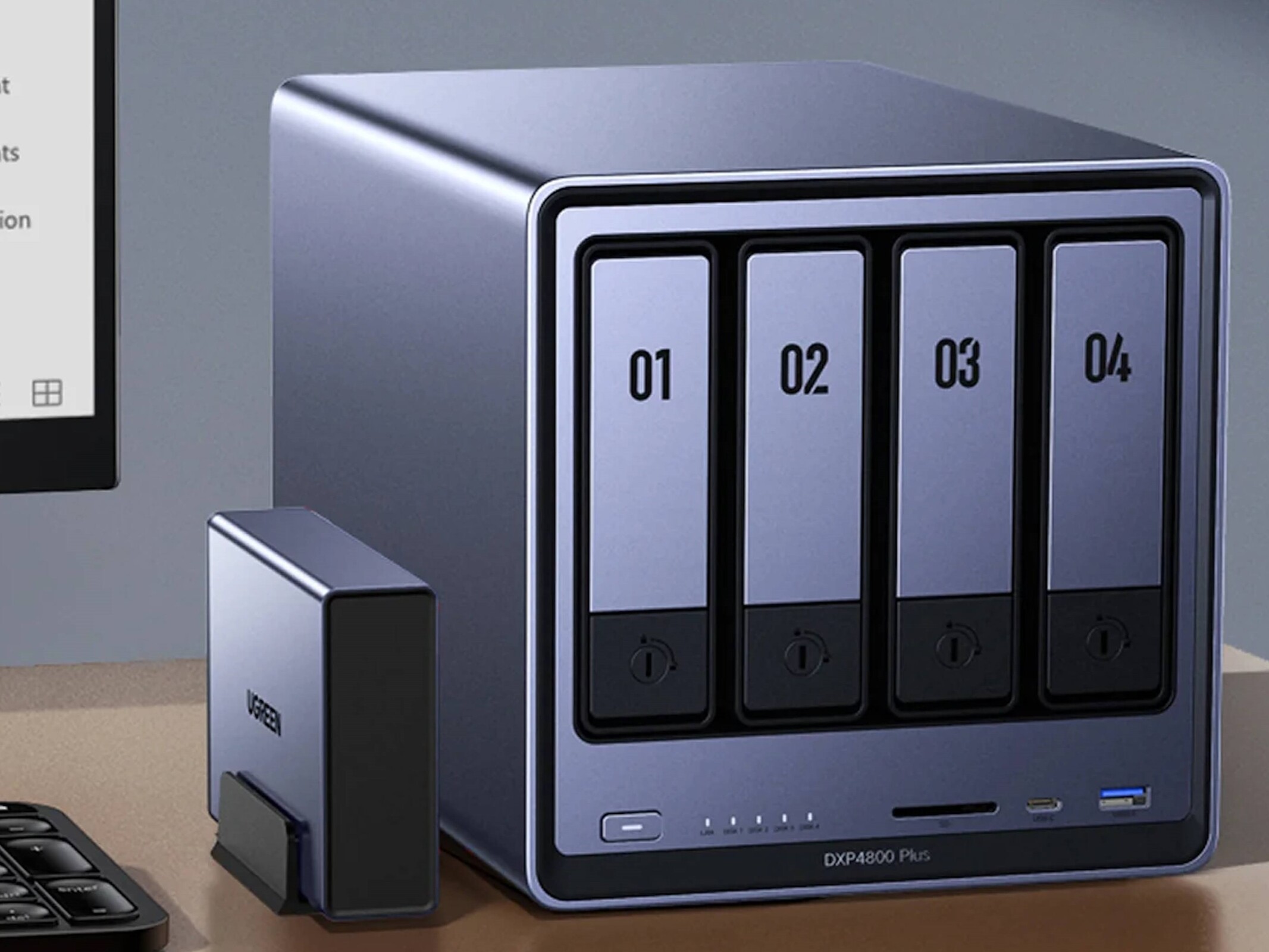
    DXP4800 PlusIntel Core i3-N305≈ 55 W≈ 7 min
    DXP8800 PlusIntel Core i5-1235U≈ 70 W≈ 6 min
    DH2600 / DX4600Various< 50 W≈ 8–9 min

    Rated for 120 W DC output (12 V / 10 A, 19 V / 7.9 A, 20 V / 7 A), it easily handles every NASync model. No configuration is needed — UGOS Pro manages detection and shutdown automatically.

    For context on how drive selection affects power usage, see Choosing the Best Drives for Your NAS – HDD vs SSD Recommendations.


    Inside the US3000 (Teardown Insights)

    ChargerLab’s full teardown of the UGREEN 120 W DC UPS shows just how well built this unit is.

    It uses a Chipsea CBM8580KV6NT for battery management and SMBus communication, a Texas Instruments TPS55289 for buck-boost power regulation, and a GigaDevice GD32F303RCT6 microcontroller (Cortex-M4 @ 120 MHz) for logic and protection.

    Each of the four battery cells is individually insulated and cushioned, while the PCB is shielded with Mylar and protected by dual fuses and thermistors. Wiring is reinforced, neatly routed, and the aluminium chassis itself acts as a heatsink.

    It’s a compact, efficient design that would look right at home in professional-grade hardware.


    Highlights

    • Native integration – Full hardware-software link through UGOS Pro; zero configuration.

    • Smart behaviour – Automatic standby and shutdown for controlled response.

    • Premium build – Machined aluminium shell, insulated internals, efficient cooling.

    • Power efficiency – DC-to-DC conversion for silent, stable operation.

    • Effortless ownership – Quick recharge, no maintenance, seamless protection.

    If you’re exploring ways to make your NAS more versatile, try Top 10 Docker Containers to Supercharge Your NAS — it’s packed with apps that complement a NASync setup perfectly.


    Limitations

    • Runtime – ≈ 43 Wh battery provides 6–10 minutes of backup; enough for graceful shutdowns, not long-term use.

    • Device scope – Exclusive to UGREEN NASync systems.

    • Availability – Still limited in retail channels but expected to expand soon.

    For users wanting both on-site and off-site protection, pair this with Automated NAS Backup to Azure via Rclone Guide to create a full-stack backup strategy.


    Final Verdict

    After a week of use, the UGREEN US3000 UPS has become one of those accessories you forget about — until it saves your data. It’s compact, silent, efficient, and integrated so tightly with UGOS Pro that it feels like part of the NAS itself.

    It won’t keep your system running forever, but it ensures it never shuts down the wrong way — and for NAS owners, that’s what really matters.

    If you’re building or upgrading a NASync setup, the two-month UGREEN DXP2800 review offers detailed insights into everyday use and performance, while Best Home Security Cameras for Your NAS (Cloud vs PoE) covers surveillance options that pair perfectly with this UPS.
  • Setting Up the UGREEN NASync DXP2800: Step-by-Step Initial Configuration Guide

    Setting Up the UGREEN NASync DXP2800: Step-by-Step Initial Configuration Guide

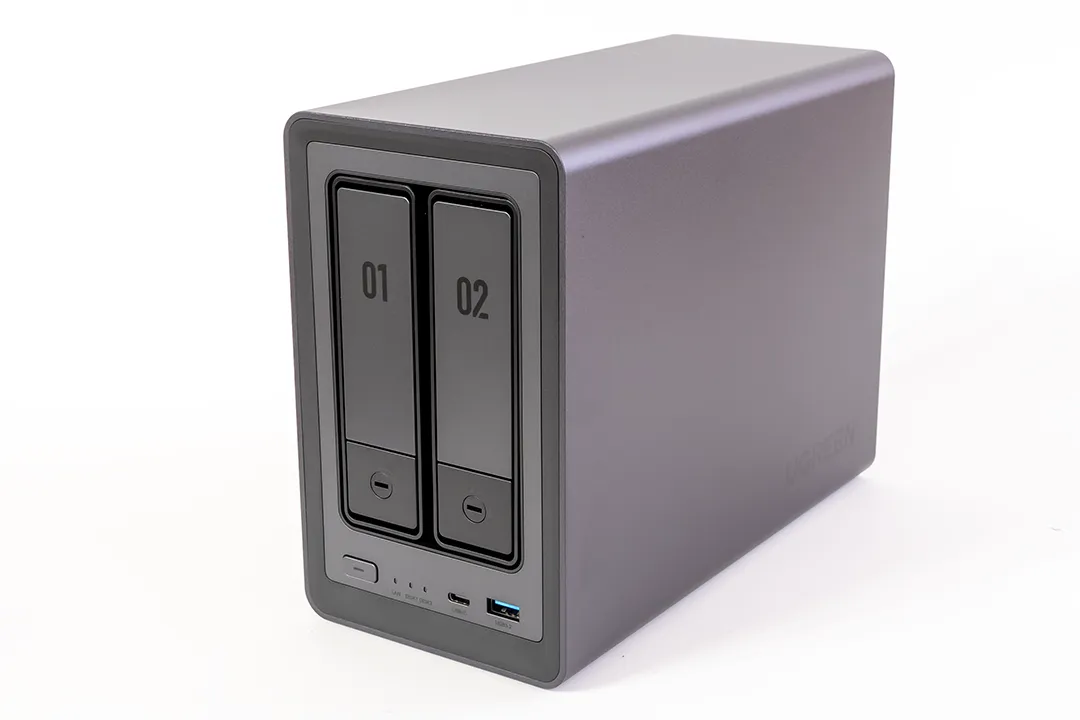
    The UGREEN NASync DXP2800 is one of the most accessible NAS options for first-time users, and setting it up is refreshingly simple. In this post, I’ll walk you through the initial setup steps I took — from powering on to creating a storage pool — with commentary on RAID choices and a few tips I picked up along the way.


    What’s Included in the Box

    • UGREEN NASync DXP2800 unit
    • Power adapter
    • Ethernet cable
    • Screws (for 2.5″ drives)

    The NAS has the following ports:

    • 1x 2.5GbE LAN port (back)
    • 2x USB 3.2 Gen1 ports (back)
    • 1x USB-C 3.2 Gen1 port (front)
    • 2x USB 2.0 ports (back)
    • 1x HDMI (currently not in use)
    • Power button and reset button

    Make sure to connect the NAS using the included Ethernet cable for the most stable setup experience.

    Looking to pick up the NAS I used in this guide?

    💡 Need more bays? UGREEN also offers higher-capacity models:

    These are affiliate links — if you decide to buy through them, it supports the blog at no extra cost to you. Thanks for your support!


    Step 1: Power On and Detect the NAS

    Before you start, make sure your NAS is connected via Ethernet for the most reliable connection. It’s also worth checking for any available system updates once you’re in the dashboard — UGREEN recommends updating UGOS Pro early on to avoid compatibility issues, especially if you plan to use SSD caching or Docker later.

    As soon as the NAS is powered on and connected to your network, it appears in the UGREEN NAS app. It can take a few minutes for the device to be detected. However, if it doesn’t show up automatically, you can register it manually by scanning the QR code located on the bottom of the device.

    If it doesn’t appear straight away, you can scan the QR code on the bottom of the NAS to register it manually.

    Step 2: Name Your NAS & Accept Terms

    Once detected, the app prompts you to name your NAS and accept the standard user agreement and privacy terms.

    Give your device a unique name to help distinguish it on the network.

    Step 3: Register Your Email (Recommended)

    While you can skip this, I recommend linking your email for access to UGREENlink and system alerts.

    Registering your email enables remote access and alerts for any system issues.

    Step 4: Enable Remote Access

    I enabled UGREENlink, which gives you remote access to your NAS — useful if you want to monitor or transfer files while away.

    Remote access lets you securely manage your NAS from anywhere.
    UGREENlink remote access lets you securely manage your NAS over the internet. Your NAS name becomes your UGREENlink ID, which you can use from the web or mobile app.

    Step 5: Create Your Storage Pool

    Before you begin, ensure the NAS is powered off when inserting any drives. The DXP2800 uses a tool-less tray system for 3.5″ drives, which makes installation quick and simple. For M.2 SSDs, be cautious as they slot in internally and require careful handling.

    Here’s where you’ll select the drives you installed. I had two 7.2TB HDDs and two 1TB NVMe SSDs.

    You can mix drive types, but it’s best to separate HDDs and SSDs into different pools.

    I opted to configure my HDDs into a single RAID 1 array for redundancy. RAID 1 mirrors the data between the two drives, so if one fails, the other still has all your files. It’s not the most space-efficient, but it offers peace of mind.

    For the SSDs, I chose a Basic (non-RAID) setup for now — mainly because I plan to use them for apps or caching later. I didn’t see much benefit to mirroring them at this stage, especially since I’m not storing critical data there yet.

    RAID 1 for HDDs and a basic SSD pool gives a good mix of reliability and flexibility.

    Step 6: Format and Create Volume

    Once your storage pool is created, the next step is formatting the drives and setting up a volume. This is where you choose between Btrfs and ext4, the two available file systems.

    I chose Btrfs for my HDDs because it supports advanced features like snapshots, built-in data integrity checks, and efficient storage management — all of which are helpful if you’re storing lots of data or want more control over versioning and recovery. It’s especially useful in a home NAS setup where accidental deletion or corruption is a concern.

    For the SSD pool, I went with ext4. While it lacks the bells and whistles of Btrfs, it’s lighter on resources and has a long-standing reputation for reliability and performance. Since I’m planning to use the SSDs for running apps and temporary data, ext4’s speed and lower overhead made more sense.

    Here’s a quick breakdown:

    • Btrfs Pros: Snapshots, checksums, automatic error correction, efficient disk usage
    • Btrfs Cons: Slightly more system overhead, slower write performance than ext4 in some cases
    • ext4 Pros: Fast, low overhead, extremely stable
    • ext4 Cons: No native snapshots, no checksumming or automatic correction
    Btrfs is great for snapshots and folder-level protection. ext4 is a better fit for app containers or temporary storage.

    Before confirming, the system will warn you that all existing data on the drives will be erased.

    Once confirmed, your drives will be formatted and the volume created.

    Step 7: Review System Usage

    After setup, you’ll be shown a breakdown of how your drives are being used. In my case, the system reserved about 15.2GB on one of the SSDs — this includes operating system files and essential services needed to run UGOS Pro.

    This is completely normal, especially on Btrfs volumes where a bit more space is allocated for things like snapshots, metadata, and system overhead. You may also notice:

    • Slightly less available capacity than expected
    • Reserved space depending on your file system and RAID choice

    This screen is a great checkpoint to understand how your storage will behave moving forward:

    • Btrfs can accumulate snapshots and logs, so it’s worth checking the system status occasionally
    • SSDs used for apps (e.g. Docker) may fill quickly if large containers or image caches build up

    You can always check system usage later under the Storage section of the dashboard for a more detailed view.

    Storage overview shows space used by the system, available space, and reserved capacity.

    Final Thoughts

    The DXP2800 offers one of the smoothest NAS setup experiences I’ve used. From unboxing to configuring storage pools, everything was laid out in a way that’s friendly for first-time users. The guided setup process is clear and surprisingly quick.

    I’d recommend enabling two-factor authentication early on to help secure your admin account — it works with any standard authenticator app, and I opted for Microsoft Authenticator since I already use it elsewhere.

    If you’re planning to share the NAS, take advantage of personal folders or set up user-specific access permissions. It’s an easy way to protect privacy and organise data effectively.

    While RAID 1 is a great way to add redundancy, don’t rely on it as your only backup. It’ll help if a drive fails, but it won’t protect you from accidental deletion or file corruption.

    Finally, take note of the reset button behaviour: a short press restarts the system, while holding it down for 10 seconds resets it to factory settings — useful if you ever run into serious issues.

    Next time, I’ll walk through installing Docker and setting up lightweight apps like Pi-hole and Plex to unlock more potential from the NAS.

    Have questions or planning your own setup? Drop them in the comments — always happy to help!