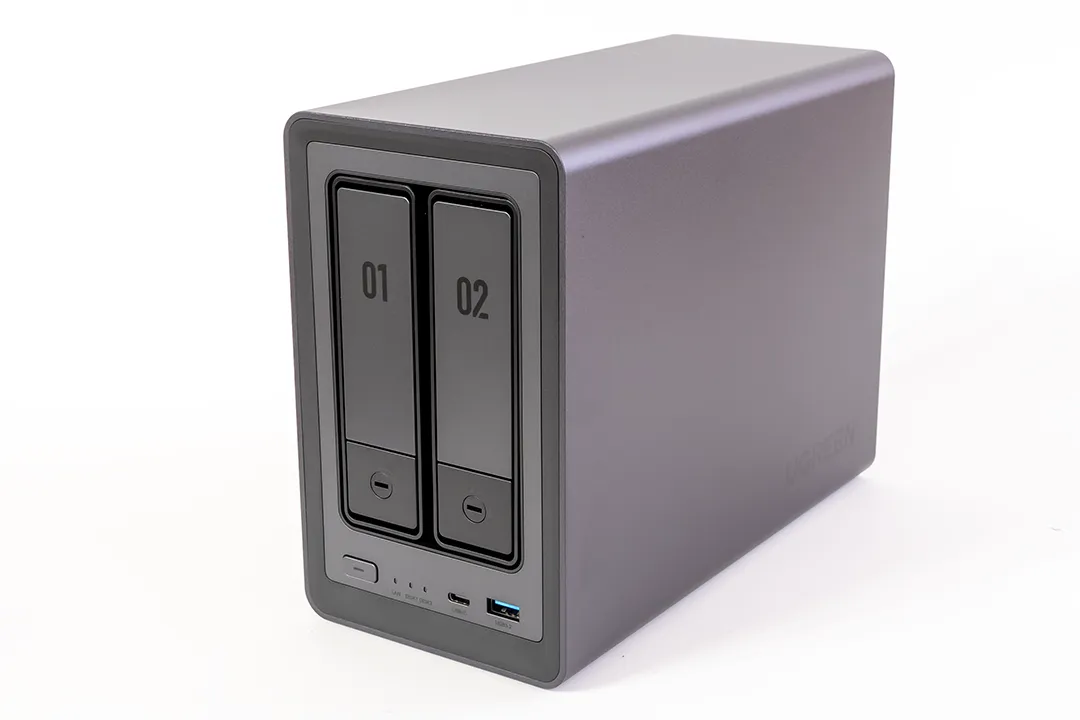
The UGREEN NASync DXP2800 is one of the most accessible NAS options for first-time users, and setting it up is refreshingly simple. In this post, I’ll walk you through the initial setup steps I took — from powering on to creating a storage pool — with commentary on RAID choices and a few tips I picked up along the way.
What’s Included in the Box
- UGREEN NASync DXP2800 unit
- Power adapter
- Ethernet cable
- Screws (for 2.5″ drives)
The NAS has the following ports:
- 1x 2.5GbE LAN port (back)
- 2x USB 3.2 Gen1 ports (back)
- 1x USB-C 3.2 Gen1 port (front)
- 2x USB 2.0 ports (back)
- 1x HDMI (currently not in use)
- Power button and reset button
Make sure to connect the NAS using the included Ethernet cable for the most stable setup experience.
Looking to pick up the NAS I used in this guide?
💡 Need more bays? UGREEN also offers higher-capacity models:
- 4-bay: Amazon Global / Amazon Japan
- 6-bay: Amazon Global / Amazon Japan
- 8-bay: Amazon Global / Amazon Japan
These are affiliate links — if you decide to buy through them, it supports the blog at no extra cost to you. Thanks for your support!
Step 1: Power On and Detect the NAS
Before you start, make sure your NAS is connected via Ethernet for the most reliable connection. It’s also worth checking for any available system updates once you’re in the dashboard — UGREEN recommends updating UGOS Pro early on to avoid compatibility issues, especially if you plan to use SSD caching or Docker later.
As soon as the NAS is powered on and connected to your network, it appears in the UGREEN NAS app. It can take a few minutes for the device to be detected. However, if it doesn’t show up automatically, you can register it manually by scanning the QR code located on the bottom of the device.

Step 2: Name Your NAS & Accept Terms
Once detected, the app prompts you to name your NAS and accept the standard user agreement and privacy terms.

Step 3: Register Your Email (Recommended)
While you can skip this, I recommend linking your email for access to UGREENlink and system alerts.

Step 4: Enable Remote Access
I enabled UGREENlink, which gives you remote access to your NAS — useful if you want to monitor or transfer files while away.


Step 5: Create Your Storage Pool
Before you begin, ensure the NAS is powered off when inserting any drives. The DXP2800 uses a tool-less tray system for 3.5″ drives, which makes installation quick and simple. For M.2 SSDs, be cautious as they slot in internally and require careful handling.
Here’s where you’ll select the drives you installed. I had two 7.2TB HDDs and two 1TB NVMe SSDs.

I opted to configure my HDDs into a single RAID 1 array for redundancy. RAID 1 mirrors the data between the two drives, so if one fails, the other still has all your files. It’s not the most space-efficient, but it offers peace of mind.
For the SSDs, I chose a Basic (non-RAID) setup for now — mainly because I plan to use them for apps or caching later. I didn’t see much benefit to mirroring them at this stage, especially since I’m not storing critical data there yet.

Step 6: Format and Create Volume
Once your storage pool is created, the next step is formatting the drives and setting up a volume. This is where you choose between Btrfs and ext4, the two available file systems.
I chose Btrfs for my HDDs because it supports advanced features like snapshots, built-in data integrity checks, and efficient storage management — all of which are helpful if you’re storing lots of data or want more control over versioning and recovery. It’s especially useful in a home NAS setup where accidental deletion or corruption is a concern.
For the SSD pool, I went with ext4. While it lacks the bells and whistles of Btrfs, it’s lighter on resources and has a long-standing reputation for reliability and performance. Since I’m planning to use the SSDs for running apps and temporary data, ext4’s speed and lower overhead made more sense.
Here’s a quick breakdown:
- Btrfs Pros: Snapshots, checksums, automatic error correction, efficient disk usage
- Btrfs Cons: Slightly more system overhead, slower write performance than ext4 in some cases
- ext4 Pros: Fast, low overhead, extremely stable
- ext4 Cons: No native snapshots, no checksumming or automatic correction

Before confirming, the system will warn you that all existing data on the drives will be erased.

Step 7: Review System Usage
After setup, you’ll be shown a breakdown of how your drives are being used. In my case, the system reserved about 15.2GB on one of the SSDs — this includes operating system files and essential services needed to run UGOS Pro.
This is completely normal, especially on Btrfs volumes where a bit more space is allocated for things like snapshots, metadata, and system overhead. You may also notice:
- Slightly less available capacity than expected
- Reserved space depending on your file system and RAID choice
This screen is a great checkpoint to understand how your storage will behave moving forward:
- Btrfs can accumulate snapshots and logs, so it’s worth checking the system status occasionally
- SSDs used for apps (e.g. Docker) may fill quickly if large containers or image caches build up
You can always check system usage later under the Storage section of the dashboard for a more detailed view.

Final Thoughts
The DXP2800 offers one of the smoothest NAS setup experiences I’ve used. From unboxing to configuring storage pools, everything was laid out in a way that’s friendly for first-time users. The guided setup process is clear and surprisingly quick.
I’d recommend enabling two-factor authentication early on to help secure your admin account — it works with any standard authenticator app, and I opted for Microsoft Authenticator since I already use it elsewhere.
If you’re planning to share the NAS, take advantage of personal folders or set up user-specific access permissions. It’s an easy way to protect privacy and organise data effectively.
While RAID 1 is a great way to add redundancy, don’t rely on it as your only backup. It’ll help if a drive fails, but it won’t protect you from accidental deletion or file corruption.
Finally, take note of the reset button behaviour: a short press restarts the system, while holding it down for 10 seconds resets it to factory settings — useful if you ever run into serious issues.
Next time, I’ll walk through installing Docker and setting up lightweight apps like Pi-hole and Plex to unlock more potential from the NAS.
Have questions or planning your own setup? Drop them in the comments — always happy to help!