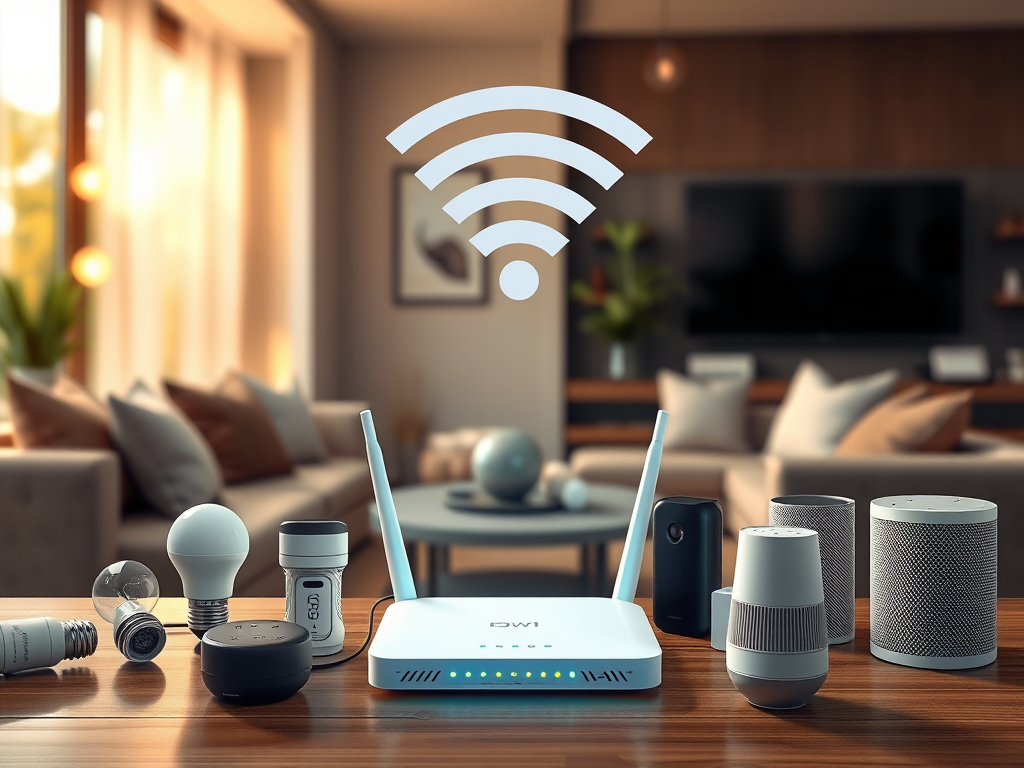
Tag: Wi-Fi optimization

  • Smart Home Network Setup: 7 Best Practices for Connectivity & Security

    Smart Home Network Setup: 7 Best Practices for Connectivity & Security

    Introduction

    Ever had your smart light take ages to turn on? Or your security camera lose connection at the worst time? A poorly optimized smart home network is the hidden culprit behind these daily frustrations.

    A smart home setup can make life more convenient, energy-efficient, and secure, but only if your network is built to handle the demands of multiple connected devices. A poorly configured network can lead to slow performance, security vulnerabilities, and connectivity issues.

    This guide walks you through how to set up a smart home network, ensuring reliable connectivity, security, and efficiency—without needing expensive upgrades.


    1. Planning Your Smart Home Network

    Before connecting devices, it’s important to assess your network’s capabilities:

    • How many devices will be connected? Smart homes can range from a single device to an entire ecosystem of interconnected gadgets.
    • What are your bandwidth needs? Streaming 4K content or running security cameras requires more bandwidth than smart lights and sensors.
    • Where will devices be placed? Some devices (e.g., outdoor cameras) may struggle with weak Wi-Fi signals.

    Action Steps:
    ✅ Check your router’s device limit and bandwidth capabilities.
    ✅ Consider a separate network for smart devices (more on this below).
    ✅ Identify Wi-Fi dead zones that may need signal improvements.


    2. Smart Home Devices & Network Requirements

    Not all smart devices have the same network needs:

    • Low-bandwidth devices (e.g., smart bulbs, plugs, sensors) work fine on 2.4 GHz Wi-Fi.
    • High-bandwidth devices (e.g., cameras, smart speakers, streaming devices) benefit from 5 GHz or wired connections.
    • Latency-sensitive devices (e.g., video doorbells, smart locks) require strong, stable signals to work instantly.

    Action Steps:
    Use 5 GHz Wi-Fi for devices that need fast data transfer (smart TVs, security cameras).
    Use wired Ethernet for mission-critical devices like home security hubs and smart speakers.
    Place routers or mesh Wi-Fi nodes near bandwidth-heavy devices.

    Comparison of 2.4 GHz and 5 GHz Wi-Fi bands, showing ideal device connections.

    3. Setting Up a Dedicated Smart Home Network

    Many routers allow you to create a separate network just for smart devices. Why?

    • Prevents smart home devices from interfering with personal computers and smartphones.
    • Improves security by isolating smart devices from sensitive data.

    Best Options:

    • Guest Network: If your router has this feature, enable it and connect all smart devices to it.
    • VLAN (for Advanced Users): If your router supports VLANs, you can segment smart home traffic from personal devices.

    Action Steps:
    ✅ Create a separate SSID (Wi-Fi name) for smart home devices.
    Disable remote access for devices that don’t need it.
    ✅ Set up static IPs for key smart home devices (ensures a stable connection).

    A segmented home network with IoT devices isolated from personal devices for security.

    4. Securing Your Smart Home Network

    Since smart home devices are common hacking targets, it’s crucial to secure them properly.

    Key Security Measures:

    • Change Default Passwords – Many smart devices ship with weak, easy-to-guess passwords.
    • Enable WPA3 Encryption – If your router supports WPA3, use it for better security (otherwise, use WPA2).
    • Regularly Update Firmware – Many vulnerabilities come from outdated firmware.
    • Disable Unused Features – Turn off WPS (Wi-Fi Protected Setup) and UPnP (Universal Plug and Play), as they can be security risks.
    • Use Two-Factor Authentication (2FA) – Many smart home platforms offer 2FA for added protection.
    A checklist of essential cybersecurity steps to secure home networks and smart devices.

    Action Steps:
    Rename SSIDs (avoid using your last name or home address).
    Update device passwords to something unique and strong.
    Enable automatic firmware updates for all devices.
    ✅ Set up 2FA for smart home apps (Google Home, Alexa, etc.).


    5. Optimizing Smart Home Performance

    Even with a strong network, smart home devices can sometimes experience lag or disconnections. Here’s how to improve performance:

    • Reduce Wi-Fi Interference – Use router settings to switch to less crowded channels.
    Wi-Fi coverage heatmap before and after optimizing network with an access point.
    • Use Mesh Wi-Fi or Wi-Fi Extenders – For large homes, a mesh system can help eliminate dead zones.
    • Monitor Your Network – Use router admin tools or apps to see which devices are using the most bandwidth.

    Action Steps:
    ✅ Run a Wi-Fi analysis tool (like NetSpot or your router’s app) to find congestion.
    Reposition smart home hubs and routers for better signal strength.
    Limit background bandwidth use on streaming devices during peak hours.


    6. Smart Home Automation & Integration

    Now that your network is optimized for speed and security, let’s explore how to maximize your smart home’s potential with automation.

    Infographic depicting smart home automation routines with geofencing and scheduling.

    Examples of Smart Home Automation:

    • Geofencing: Lights and thermostat adjust when you leave home.
    • Schedules & Routines: Automate lights, blinds, and coffee makers.
    • Voice Commands: Control devices using Google Assistant, Alexa, or Apple HomeKit.
    • Sensor-Based Automation: Motion sensors trigger lights or security cameras.

    Action Steps:
    ✅ Set up routines in Alexa, Google Home, or Apple HomeKit.
    ✅ Enable geofencing for smart lights & thermostats.
    ✅ Experiment with motion-based triggers for security.


    Conclusion: Building a Smart & Secure Home Network

    Your smart home is only as good as the network it runs on. With these steps, you’ll enjoy faster connections, better security, and smoother automation. Ready to take the next step? Stay tuned for my guide on smart home automation!


    📌 Coming Soon: “Intro to NAS & Network Storage: Why You Should Consider It” 🚀

  • Troubleshooting Home Network Issues: How to Fix Common Problems Fast

    Introduction

    Even the best home networks run into problems. From slow Wi-Fi speeds to random disconnects, knowing how to diagnose and fix these issues can save you a lot of frustration. Whether you’re working from home, gaming online, or streaming your favorite content, a stable and efficient network is essential.

    In this guide, we’ll cover common home network problems, why they happen, and step-by-step solutions to fix them. Plus, we’ll dive into practical troubleshooting commands, Wi-Fi upgrade options, and how to future-proof your network.


    1. Slow Wi-Fi & Internet Speeds

    🔹 Why Is Your Internet Slow?

    Nothing is more frustrating than buffering videos or painfully slow downloads. If your internet isn’t delivering the speed you’re paying for, a few key culprits might be responsible:

    • Your ISP (Internet Service Provider) is throttling speeds or experiencing outages.
    • Your router is too far from your devices.
    • Bandwidth congestion—too many devices using the network at once.
    • Outdated router firmware or old hardware.
    • Signal interference from other electronic devices or neighboring Wi-Fi networks.
    • Too many people in your area using the same ISP, causing local congestion during peak hours.

    🛠 How to Fix It:

    • Restart your router & modem – Unplug both for 30 seconds, then reconnect.
    • Run a speed test – Use Fast.com or Speedtest.net to check if you’re getting the speeds you pay for.
    • Change Wi-Fi channels – Use a tool like NetSpot (Windows/macOS) or WiFi Analyzer (Android) to check for interference.
    • Optimize your router placement – Keep it in a central location away from walls and metal objects.
    • Upgrade your internet plan or router – If your household has multiple users streaming and gaming, consider a Wi-Fi 6 or Wi-Fi 7 router.
    • Check for background processes consuming bandwidth – Streaming services, software updates, and cloud backups can slow your connection.
    • Use a wired connection when possible – Ethernet connections reduce latency and improve stability.
    • Contact your ISP if speeds are consistently slow during peak hours – They may offer better service tiers or suggest network optimizations.

    🖥️ Quick CMD Command to Diagnose Slow Internet

    If you’re unsure whether your internet is the issue, run this command in Command Prompt:

    ping 8.8.8.8

    What it does: Sends a signal to Google’s DNS server. If you get replies, your internet is working fine. If not, there might be an ISP or router issue.


    2. Devices Keep Disconnecting

    🔹 Why Do Your Devices Keep Dropping Wi-Fi?

    Constant disconnections can make online work, gaming, or streaming unbearable. Here are some possible reasons:

    • Overloaded router – Too many devices connected at once.
    • Outdated router firmware.
    • Network congestion – Background downloads or smart home devices using up bandwidth.
    • IP conflicts between devices.
    • Weak signal or intermittent interference.

    🛠 How to Fix It:

    • Limit connected devices – Disconnect unused devices or upgrade to a router that supports more connections.
    • Update your router firmware – Log into your router admin page (usually 192.168.1.1 or 192.168.0.1) and check for updates.
    • Use wired connections for important devices – Gaming consoles, smart TVs, and PCs perform better on Ethernet than Wi-Fi.
    • Release and renew IP addresses – Run the following command:
    ipconfig /release
    ipconfig /renew
    • Schedule automatic router reboots – Some routers allow scheduled resets to maintain stability.

    🖥️ Latency Comparison Table (Wi-Fi vs. Ethernet)

    Connection TypeAverage Latency (ms)StabilityBest Use Case
    Wi-Fi (2.4GHz)30-50msUnstable (prone to interference)General browsing, IoT devices
    Wi-Fi (5GHz)10-30msMore stable, but shorter rangeStreaming, gaming (casual)
    Wi-Fi (6/6E)5-20msHigh performance, better congestion handlingGaming, work-from-home setups
    Ethernet (Wired)1-5msMost stableCompetitive gaming, real-time applications

    3. High Ping & Lag in Online Gaming

    🔹 What’s Causing Lag?

    A high ping or latency spikes can ruin competitive gaming. Some common causes include:

    • Weak Wi-Fi connection leading to high latency.
    • Too many background apps consuming bandwidth.
    • Network congestion during peak hours.
    • ISP routing inefficiencies or throttling.

    🛠 How to Fix It:

    • Use an Ethernet cable – A wired connection reduces lag significantly.
    • Enable Quality of Service (QoS) – Prioritize gaming traffic in your router settings.
    • Reduce background network usage – Pause large downloads and streaming while gaming.
    • Use a gaming VPN – If your ISP is throttling gaming traffic, a VPN can help reduce lag.
    • Contact your ISP if ping is consistently high – They may be able to reroute traffic.

    🖥️ CMD Command to Check for Packet Loss

    Run this command to see if network congestion is affecting your connection:

    tracert google.com

    What it does: Traces the path to Google’s servers, showing delays at each step.


    4. Future-Proofing Your Home Network: Wi-Fi 6, 6E, and 7

    Upgrading your router is one of the best ways to improve performance and eliminate network issues. But should you go for Wi-Fi 6, 6E, or 7?

    🔹 What’s the Difference?

    Wi-Fi StandardSpeed & FeaturesRecommended For
    Wi-Fi 6 (802.11ax)Faster speeds, better efficiency, longer rangeMost home users
    Wi-Fi 6EAdds the 6GHz band, reducing congestionHigh-density environments
    Wi-Fi 7Theoretical speeds up to 46Gbps, lowest latencyFuture-proofing, early adopters

    Wi-Fi 7 is still not fully released and very expensive, making Wi-Fi 6/6E the best options for now. I’ll be publishing a detailed breakdown of Wi-Fi standards soon—stay tuned!


    Conclusion

    A reliable home network is crucial for work, gaming, and entertainment. By optimizing your Wi-Fi, keeping firmware updated, and considering future upgrades, you can enjoy a fast, stable connection.

    💬 Got a network issue not covered here? Drop a comment below, and I’ll help troubleshoot!

    🚀 Next Steps:

    • Run a speed test now – Check your connection performance.
    • Check your router settings – Look for firmware updates & optimize Wi-Fi channels.
    • Plan your next upgrade – If your router is outdated, consider Wi-Fi 6/6E.

    🔗 Stay tuned for more home networking guides, including a deep dive into Wi-Fi 6, 6E, and 7!