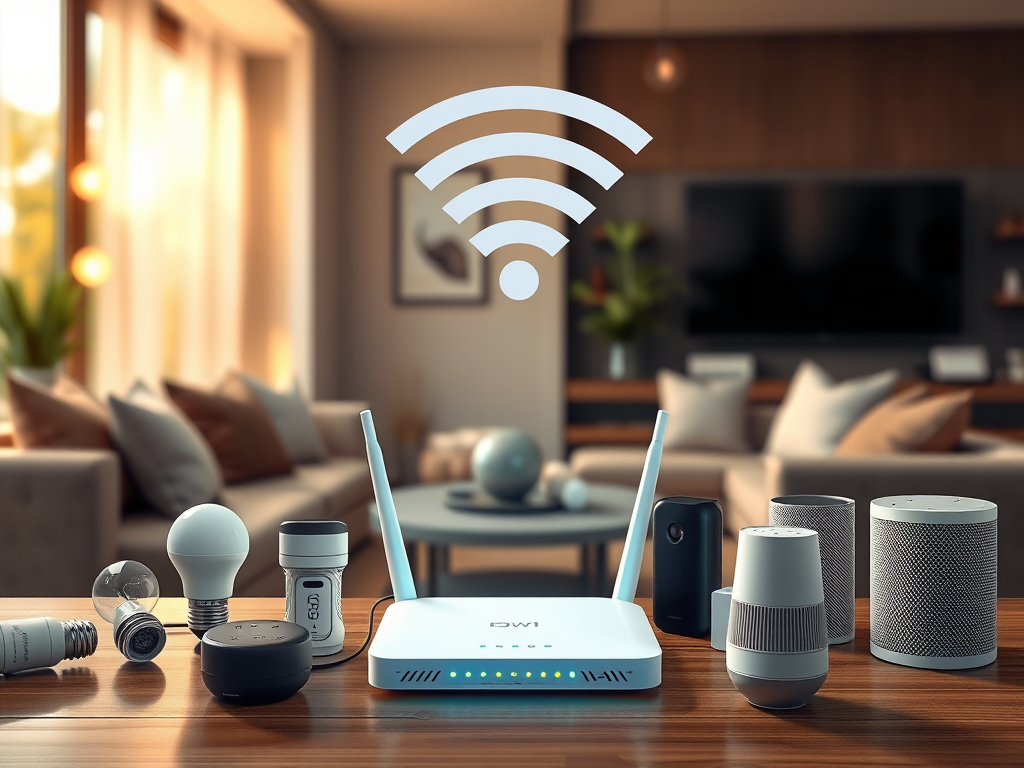
Introduction
Ever had your smart light take ages to turn on? Or your security camera lose connection at the worst time? A poorly optimized smart home network is the hidden culprit behind these daily frustrations.
A smart home setup can make life more convenient, energy-efficient, and secure, but only if your network is built to handle the demands of multiple connected devices. A poorly configured network can lead to slow performance, security vulnerabilities, and connectivity issues.
This guide walks you through how to set up a smart home network, ensuring reliable connectivity, security, and efficiency—without needing expensive upgrades.
1. Planning Your Smart Home Network
Before connecting devices, it’s important to assess your network’s capabilities:
- How many devices will be connected? Smart homes can range from a single device to an entire ecosystem of interconnected gadgets.
- What are your bandwidth needs? Streaming 4K content or running security cameras requires more bandwidth than smart lights and sensors.
- Where will devices be placed? Some devices (e.g., outdoor cameras) may struggle with weak Wi-Fi signals.
Action Steps:
✅ Check your router’s device limit and bandwidth capabilities.
✅ Consider a separate network for smart devices (more on this below).
✅ Identify Wi-Fi dead zones that may need signal improvements.
2. Smart Home Devices & Network Requirements
Not all smart devices have the same network needs:
- Low-bandwidth devices (e.g., smart bulbs, plugs, sensors) work fine on 2.4 GHz Wi-Fi.
- High-bandwidth devices (e.g., cameras, smart speakers, streaming devices) benefit from 5 GHz or wired connections.
- Latency-sensitive devices (e.g., video doorbells, smart locks) require strong, stable signals to work instantly.
Action Steps:
✅ Use 5 GHz Wi-Fi for devices that need fast data transfer (smart TVs, security cameras).
✅ Use wired Ethernet for mission-critical devices like home security hubs and smart speakers.
✅ Place routers or mesh Wi-Fi nodes near bandwidth-heavy devices.

3. Setting Up a Dedicated Smart Home Network
Many routers allow you to create a separate network just for smart devices. Why?
- Prevents smart home devices from interfering with personal computers and smartphones.
- Improves security by isolating smart devices from sensitive data.
Best Options:
- Guest Network: If your router has this feature, enable it and connect all smart devices to it.
- VLAN (for Advanced Users): If your router supports VLANs, you can segment smart home traffic from personal devices.
Action Steps:
✅ Create a separate SSID (Wi-Fi name) for smart home devices.
✅ Disable remote access for devices that don’t need it.
✅ Set up static IPs for key smart home devices (ensures a stable connection).

4. Securing Your Smart Home Network
Since smart home devices are common hacking targets, it’s crucial to secure them properly.
Key Security Measures:
- Change Default Passwords – Many smart devices ship with weak, easy-to-guess passwords.
- Enable WPA3 Encryption – If your router supports WPA3, use it for better security (otherwise, use WPA2).
- Regularly Update Firmware – Many vulnerabilities come from outdated firmware.
- Disable Unused Features – Turn off WPS (Wi-Fi Protected Setup) and UPnP (Universal Plug and Play), as they can be security risks.
- Use Two-Factor Authentication (2FA) – Many smart home platforms offer 2FA for added protection.

Action Steps:
✅ Rename SSIDs (avoid using your last name or home address).
✅ Update device passwords to something unique and strong.
✅ Enable automatic firmware updates for all devices.
✅ Set up 2FA for smart home apps (Google Home, Alexa, etc.).
5. Optimizing Smart Home Performance
Even with a strong network, smart home devices can sometimes experience lag or disconnections. Here’s how to improve performance:
- Reduce Wi-Fi Interference – Use router settings to switch to less crowded channels.

- Use Mesh Wi-Fi or Wi-Fi Extenders – For large homes, a mesh system can help eliminate dead zones.
- Monitor Your Network – Use router admin tools or apps to see which devices are using the most bandwidth.
Action Steps:
✅ Run a Wi-Fi analysis tool (like NetSpot or your router’s app) to find congestion.
✅ Reposition smart home hubs and routers for better signal strength.
✅ Limit background bandwidth use on streaming devices during peak hours.
6. Smart Home Automation & Integration
Now that your network is optimized for speed and security, let’s explore how to maximize your smart home’s potential with automation.

Examples of Smart Home Automation:
- Geofencing: Lights and thermostat adjust when you leave home.
- Schedules & Routines: Automate lights, blinds, and coffee makers.
- Voice Commands: Control devices using Google Assistant, Alexa, or Apple HomeKit.
- Sensor-Based Automation: Motion sensors trigger lights or security cameras.
Action Steps:
✅ Set up routines in Alexa, Google Home, or Apple HomeKit.
✅ Enable geofencing for smart lights & thermostats.
✅ Experiment with motion-based triggers for security.
Conclusion: Building a Smart & Secure Home Network
Your smart home is only as good as the network it runs on. With these steps, you’ll enjoy faster connections, better security, and smoother automation. Ready to take the next step? Stay tuned for my guide on smart home automation!
📌 Coming Soon: “Intro to NAS & Network Storage: Why You Should Consider It” 🚀
Leave a Reply