Disclosure: As an Amazon Associate, I earn from qualifying purchases. Some links in this article are affiliate links, which help support Rack2Reality at no additional cost to you.
I’ve been planning to replace my existing home security cameras for some time, and until recently, I thought I had a fairly good idea of what that upgrade would look like. Having already invested in UGREEN’s NASync ecosystem, its upcoming SynCare security cameras seemed like a natural choice. The hardware looked promising, the emphasis on local AI processing was appealing, and the prospect of storing recordings directly on my existing NAS meant I wouldn’t need to introduce another storage appliance into the house. It was exactly the sort of integration I’d hoped to see as UGREEN expanded beyond network-attached storage.
Unfortunately, things haven’t quite worked out that way. UGREEN’s subsequent HomeAgent announcement revealed that SynCare cameras would require an entirely separate hardware platform, with direct NASync integration no longer part of the launch plans. That was disappointing enough to make me reconsider the entire system, particularly when the entry-level HomeAgent HA100 carries a proposed $1,599 retail price, or $799 for early crowdfunding backers. I wasn’t interested in buying another NAS, especially one that would duplicate functionality I already have, simply to operate a handful of security cameras.
As frustrating as that announcement was, it forced me to go back to the drawing board and take a much closer look at what other manufacturers were offering. That research eventually led me to Reolink, Eufy and TP-Link Tapo, all of which have developed increasingly capable security camera ecosystems with local recording, AI detection and PoE connectivity. After spending considerable time comparing their products, I ultimately decided to purchase two Tapo C575D cameras. Not because they’re necessarily the most technically advanced cameras available, but because they offer almost everything I was looking for without requiring an excessive investment in hardware I don’t need.
UGREEN Had Everything Going for It, Until HomeAgent

When UGREEN first announced SynCare at CES 2026, I was genuinely excited about the direction the company appeared to be taking. I’ve been using its NASync DXP2800 for well over a year, and while the platform certainly has its limitations, I’ve generally been impressed by the hardware and how much I’ve been able to accomplish with it. As I discussed in my NASync DXP2800 review, the NAS quickly became more than somewhere to store files. I use Docker to run various services, including Home Assistant, which already manages much of my smart home. I’d also been considering using it for security camera recording, so the prospect of adding SynCare cameras to that existing infrastructure was particularly attractive.
The SynCare OD600 Pro was the camera that initially caught my attention. Its triple-lens arrangement combines an 8MP overview camera with two additional 5MP cameras, providing 18MP of combined resolution alongside motorised tracking, PoE connectivity and AI-powered detection. At an announced crowdfunding price of $159, or $269 at retail, the OD600 Pro looked extremely competitive against established alternatives. I covered the original announcement in my first look at UGREEN SynCare, and at the time, I genuinely thought I’d found the foundation for my next home security system.
What followed was considerably less encouraging. As I explained in my previous article, UGREEN HomeAgent Looks Impressive, But Do NASync Owners Actually Need It?, UGREEN subsequently confirmed that SynCare cameras would not connect directly to existing NASync systems at launch, with no near-term plans to introduce that functionality. Instead, the cameras are designed around HomeAgent, a separate platform combining NAS storage, security recording, smart home management and considerably more powerful local AI processing. The technology itself is interesting, and I can understand the appeal of having those capabilities integrated into a single device. Unfortunately, it also means purchasing another expensive appliance alongside hardware I already own, which rather undermines one of the main reasons I was interested in SynCare to begin with.
What makes that decision particularly disappointing is that the cameras themselves still look excellent. I would have been perfectly willing to pay extra for advanced AI processing if UGREEN had offered an optional upgrade path for existing NASync customers, but requiring HomeAgent simply to use the cameras is considerably harder to justify. Even at its reduced $799 crowdfunding price, the HA100 represents a substantial additional investment. Two OD600 Pro cameras and the cheapest advertised HomeAgent package would cost $1,117 before accounting for additional storage or installation, which is a significant amount of money for what was originally supposed to be a relatively straightforward camera upgrade.
I haven’t lost interest in UGREEN because its cameras are inadequate or because HomeAgent lacks potential. Quite the opposite. I was interested precisely because SynCare looked so promising, and it’s frustrating to see that potential locked behind another expensive piece of hardware. Perhaps UGREEN will eventually reconsider its approach and introduce direct NASync integration, but with no confirmed roadmap, I’m not prepared to delay my security upgrade indefinitely. The OD600 Pro remains an interesting product, but the ecosystem surrounding it no longer makes sense for me.
Back to the Drawing Board: What Did I Actually Need?
Once I’d ruled out UGREEN, I had to reconsider what I actually wanted from a security camera system rather than simply looking for the closest alternative to the OD600 Pro. My existing setup consists of two relatively basic SwitchBot cameras positioned around the front of the house, one covering the entrance and another looking across the front of the property. They’ve served their purpose reasonably well for checking deliveries and keeping an eye on activity outside, but they’re not particularly sophisticated, and their positioning leaves some areas inadequately covered. I wanted something more reliable, with better image quality, improved detection and the ability to maintain recordings locally without depending on cloud storage or additional subscriptions.
The layout of my house also introduces some complications that aren’t immediately obvious when comparing camera specifications. I live in a residential neighbourhood where houses are positioned relatively close together and space around the property is limited. The front faces a residential road, while the sides and rear are separated from neighbouring properties by narrow passages. There’s no long driveway leading towards the entrance, either. People approaching the house generally arrive from one direction or the other along the road before entering the parking area, which makes camera positioning and tracking rather more important than simply pointing a wide-angle lens towards the street.
These relatively short distances also made me question some of the specifications manufacturers emphasise in their marketing. A camera capable of monitoring a large garden or driveway isn’t necessarily ideal for a compact property, particularly if its enormous field of view includes more of the neighbours’ houses than my own. Similarly, while 4K recording is attractive, I don’t automatically need the highest possible resolution at every location. Sensor performance, lens selection, usable detail at night and the ability to capture somebody approaching from either side can all be more important than the headline megapixel count. Camera dimensions matter too, especially when installing equipment near a residential entrance where a large surveillance unit would look rather out of place.
One requirement I wasn’t willing to compromise on was Power over Ethernet. As I discussed in my earlier article on improving the consistency of my home network, intermittent delays and inconsistent device responsiveness have been recurring frustrations, particularly with smart home automations and camera live feeds. PoE allows a single Ethernet cable to provide both power and network connectivity, eliminating separate power supplies at each camera location. I also wanted local AI detection, infrared night vision that wouldn’t require illuminating neighbouring houses, and enough flexibility to expand the system gradually. With those requirements established, the number of genuinely suitable options became considerably smaller.
Reolink and Eufy: Impressive Technology, More Than I Needed
Reolink was initially one of the strongest candidates, largely because it already offers the sort of established PoE camera ecosystem I was looking for. Its extensive range of wired cameras, dedicated NVRs and local storage options made it an obvious alternative to UGREEN, particularly since the cameras don’t require an expensive new AI appliance just to provide basic recording functionality. The Reolink OMVI 3i PoE was especially interesting, combining a 10MP panoramic overview with a separate 8MP tracking camera. Its 180-degree horizontal coverage, automatic framing and synchronised tracking functionality were similar to the features that had originally attracted me to SynCare, while its maximum recording frame rate of 20fps was also higher than some competing models. At $229.99 during the recent Amazon Prime sale, it was a serious contender.
However, the more I considered the practicalities of installing one, the more I realised that much of its capability would be wasted on my property. The OMVI 3i measures approximately 202 × 151 × 125mm and weighs 1.3kg, making it a substantial piece of equipment to mount near a relatively small entrance. Its panoramic coverage is impressive, but I don’t have an enormous area to monitor, and much of that field of view would extend beyond the parts of the property I’m actually interested in. I also considered the smaller Reolink OMVI 2i PoE, although I was increasingly questioning whether I needed such an elaborate camera arrangement in the first place.

To get a better idea of what would actually be useful, I went outside and experimented with my phone’s camera, comparing different viewing angles from approximately where I intended to mount the new security cameras. It was hardly a scientific test, and a phone camera isn’t a substitute for checking the actual field of view of a surveillance camera, but it gave me a much better understanding of how much coverage I realistically needed. Using a viewing angle similar to the Tapo C575D’s advertised wide-angle lens, I could already see almost everything I wanted to monitor. Anything beyond that was largely unnecessary, which made the argument for installing something as substantial as the OMVI 3i considerably less convincing. Reolink hadn’t suddenly become a poor choice, but I was effectively considering paying more for capabilities that offered little practical benefit in my situation.

Eufy was another manufacturer I investigated, particularly after discovering its PoE NVR Security System S4. The four-camera package includes two advanced Bullet-PTZ units alongside two conventional 4K cameras, all managed through a dedicated NVR. Each Bullet-PTZ unit combines a fixed 4K overview with a separate motorised tracking camera, while Eufy also advertises automatic framing, cross-camera tracking and local AI-powered video searches. The system includes an eight-port NVR with a pre-installed 2TB hard drive and can expand to 16 recording channels with additional networking equipment. It’s a considerably more comprehensive package than simply buying a couple of cameras, and I can understand its appeal for someone installing an entire surveillance system from scratch.
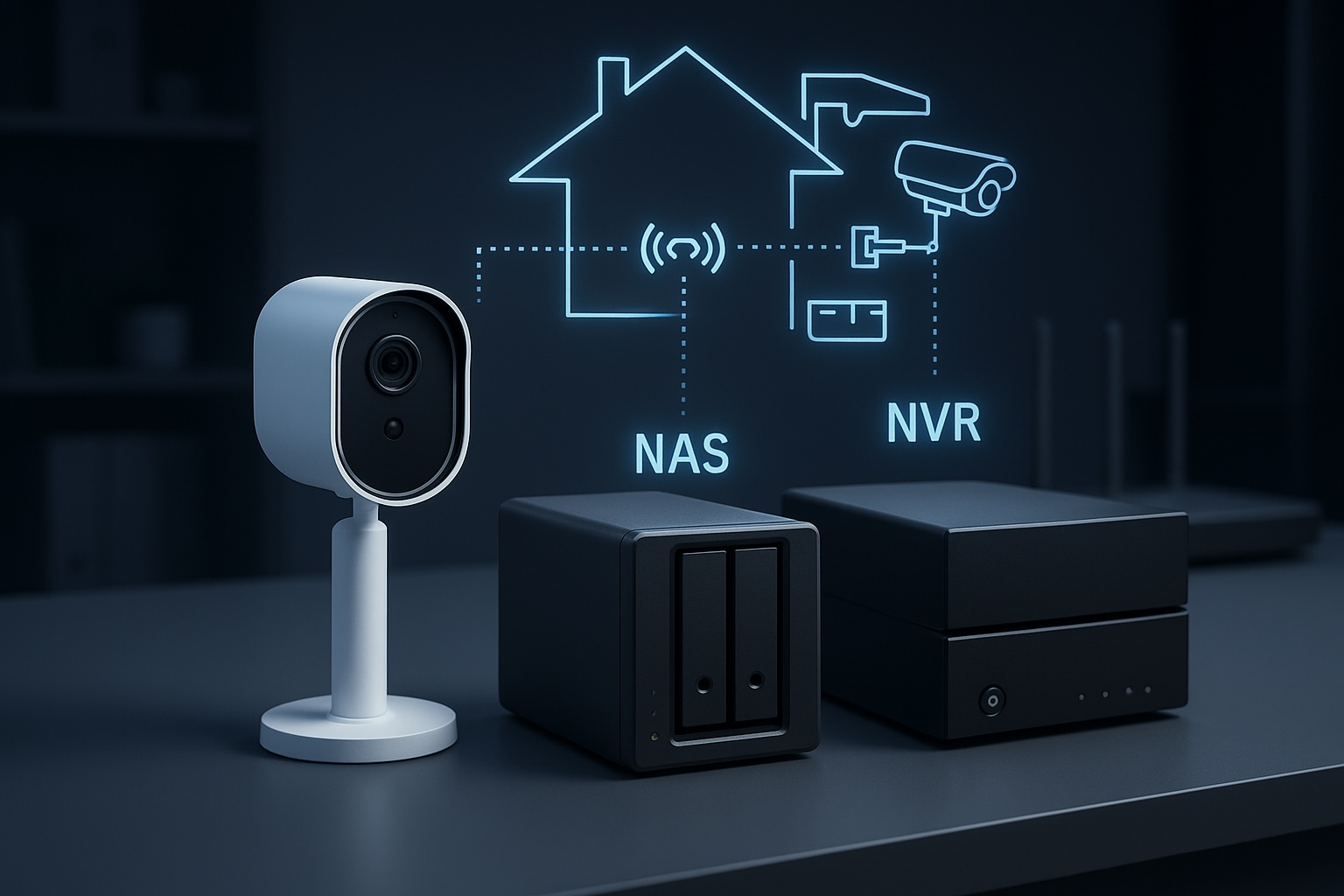
Unfortunately, that was also the problem. Eufy’s S4 package carries a US list price of $1,099.99, and its more advanced recording and AI features are designed around Eufy’s own NVR platform. While the amount of included hardware helps explain the price, I wasn’t looking to install four cameras or purchase another substantial recording appliance immediately. More importantly, Eufy explicitly states that its PoE S4 cameras require its proprietary NVR and cannot operate independently or connect to third-party NVR systems. Its NVR also lacks NAS integration, meaning I wouldn’t be able to use my existing storage infrastructure in the way I’d originally intended. After UGREEN’s decision to restrict SynCare to HomeAgent, committing to another proprietary recording platform was exactly what I wanted to avoid. While Eufy’s hardware and AI capabilities remain impressive, the combination of cost and ecosystem restrictions made it an easy option to eliminate.
Ultimately, both Reolink and Eufy offered more than enough technical capability, but that didn’t necessarily make either the right purchase. Reolink’s advanced panoramic cameras were larger and more sophisticated than I realistically needed, while Eufy’s integrated approach required a much greater initial investment. I was looking for something that provided reliable coverage, useful detection and sensible storage options without turning a relatively straightforward upgrade into an unnecessarily expensive project. That’s where TP-Link’s newer Tapo cameras started to become particularly interesting.
Why I Ultimately Purchased the Tapo C575D

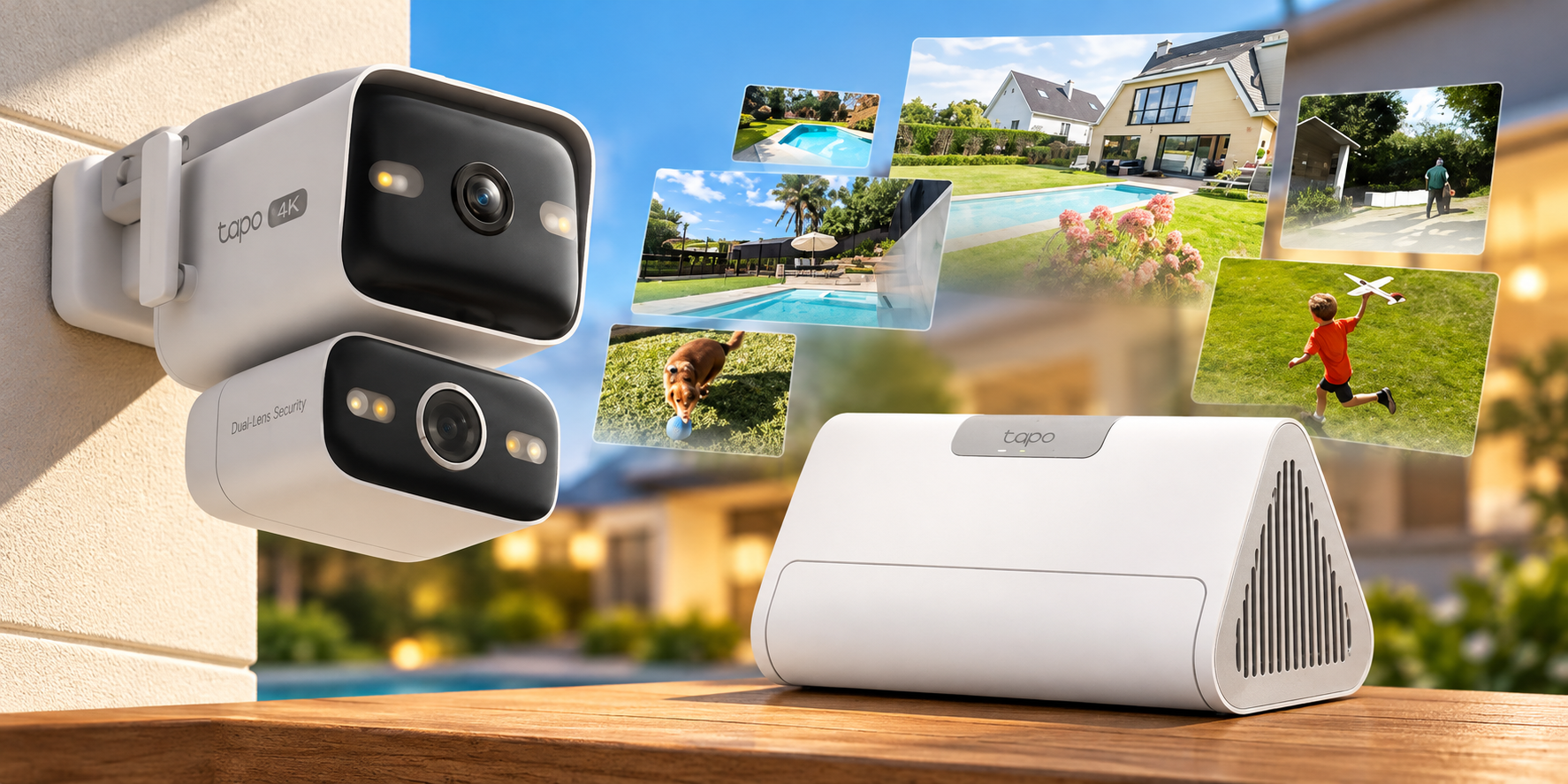
The Tapo C575D was probably the camera that most significantly changed my impression of TP-Link’s security ecosystem. I’d previously associated Tapo primarily with inexpensive consumer Wi-Fi cameras, but the C575D offers a considerably more sophisticated design. It combines two independent 4K cameras within a relatively compact housing, with a fixed wide-angle lens providing 170 degrees of diagonal coverage and a separate 8mm telephoto lens mounted on a pan-and-tilt mechanism. The two views operate simultaneously, allowing the fixed lens to maintain an overview while the motorised camera follows subjects moving through the scene. For my entrance, where people can approach from either direction, that arrangement appeared particularly well suited to the coverage I wanted.
Both lenses record at 3840 × 2160, giving the C575D a combined 16MP configuration, with support for person, vehicle and pet detection, automatic tracking, infrared night vision and 802.3af/at PoE. TP-Link also includes RTSP and ONVIF Profile S support, allowing the cameras to work with compatible third-party recording software rather than depending entirely on Tapo’s own storage products. This was an important consideration given that I already own a NAS, and it means I can choose how to manage recordings without having to replace the cameras if my requirements change. Local microSD recording is also supported, and the basic detection features don’t require a Tapo Care subscription.
There are compromises, of course. The C575D records at a maximum of 15fps, compared with 20fps on the Reolink OMVI 3i, which could become noticeable when reviewing faster movement. Its advertised 18× zoom is digital rather than optical, so it shouldn’t be confused with a camera offering genuine optical zoom. The dedicated telephoto lens does provide a narrower native field of view, which should help capture more detail at a distance, but digital enlargement cannot recover information the sensor never recorded. These are limitations worth acknowledging, although neither seemed particularly significant given the relatively short distances I’m monitoring and what I’d already established from experimenting with my phone’s camera.
I also considered other Tapo models, including the C545D and C325WB. The C545D offers a similar dual-lens concept, but its requirement for a separate power supply made it unsuitable for the PoE installation I wanted. The C325WB was more interesting for fixed-position monitoring, particularly where low-light performance matters, although PoE support depends on the hardware version. Rather than purchasing identical cameras for every location, I liked the idea of using dual-lens tracking where it would actually be useful and more conventional fixed cameras elsewhere. That would allow me to expand the system gradually without paying for unnecessary features in areas that don’t need them.
The deciding factor was that the C575D addressed almost every requirement I’d established without introducing another expensive dependency. The wide-angle lens appeared capable of covering nearly the entire area I wanted to monitor, the separate tracking camera offered additional flexibility, and PoE meant I could install everything using a single network cable per camera. RTSP and ONVIF support also preserved the option of recording directly to my existing NAS, something that had originally been one of UGREEN’s biggest selling points. During Amazon’s October Prime sale, the C575D was available for $139.99 in the US, making the decision considerably easier. I ultimately purchased two for $279.98, substantially less than I had originally expected to spend when I first started researching the alternatives.
That doesn’t mean I’m expecting the C575D to outperform every more expensive camera available. Reolink’s panoramic models and Eufy’s advanced tracking systems offer capabilities that could be genuinely useful for larger or more complicated installations. However, after comparing their specifications against what I actually needed, I couldn’t find a compelling reason to spend significantly more. Tapo wasn’t simply the cheapest compromise I could find. It offered the coverage, connectivity and recording flexibility I wanted, while leaving me with enough room in the budget to invest in the infrastructure needed to install everything properly.
The Tapo H500 Makes the Ecosystem Even More Compelling
As interesting as the cameras are, the part of TP-Link’s ecosystem that has probably surprised me most is the Tapo H500. On the surface, considering another dedicated recording hub might seem rather contradictory after criticising UGREEN for requiring HomeAgent, but there’s an important difference. With compatible Tapo cameras, the H500 is optional. I could record directly to my NAS using RTSP or ONVIF, use microSD cards in the cameras themselves, or purchase the hub for its additional functionality. In UGREEN’s case, HomeAgent is currently required to use SynCare cameras within the company’s intended ecosystem. With Tapo, I’m interested in the H500 because of what it offers, not because purchasing it is necessary to make the cameras work.
The H500 supports up to 16 compatible Tapo cameras, including the C575D V1, although only four cameras can use continuous recording simultaneously. It provides centralised local storage with support for a 2.5-inch SATA drive of up to 16TB, while its local AI processing introduces capabilities such as facial recognition, enhanced detection and more targeted notifications. TP-Link also advertises improved detection capabilities for compatible cameras that lack certain AI features themselves, potentially extending the usefulness of older hardware. The AI enhancement system has its own processing limits, with dual-lens cameras consuming additional capacity, so that’s something I’ll need to consider if I expand beyond my initial two C575Ds. The important point is that the H500’s advanced features are supported by local processing rather than requiring a cloud subscription for every camera.
Facial recognition is one feature I’m particularly interested in testing. Ordinary person detection tells me that somebody has entered an area, but it doesn’t necessarily distinguish between a familiar visitor and someone I don’t recognise. The H500 advertises the ability to identify known faces and provide more targeted notifications, which could make the system considerably more useful than a collection of cameras generating alerts independently. Its centralised playback and event organisation also appeal to me, particularly as I eventually add cameras around other parts of the property. Whether these capabilities work reliably in practice remains to be seen, but the prospect of adding meaningful local AI functionality without relying on a cloud subscription is attractive.
The biggest surprise, however, is the price. The H500 spent much of its early availability selling for approximately $149.99 on Amazon US, with occasional promotional discounts taking it lower. Although its listed price subsequently increased to $199.99, it remains considerably more affordable than UGREEN’s HomeAgent HA100. The two products aren’t directly equivalent, and HomeAgent’s greater processing power, additional storage capabilities and broader smart home ambitions account for some of the difference. Nevertheless, for someone primarily interested in security camera recording and local AI detection, it’s difficult to justify spending $799 on UGREEN’s promotional package when Tapo offers such an extensive feature set for considerably less.
Using the prices available when I purchased my cameras, two C575Ds cost $279.98. Adding an H500 at its $199.99 listing price would bring the total to $479.97 before storage and installation expenses, compared with $1,117 for two UGREEN OD600 Pro cameras and the discounted HomeAgent HA100. That’s a substantial difference, particularly when I already own a capable NAS and don’t need another general-purpose computing platform. The H500 isn’t perfect, and its continuous recording limit could eventually become restrictive if I expand beyond four cameras, but those are compromises I can evaluate before committing to the hardware. More importantly, purchasing the hub would add functionality rather than simply duplicate an expensive prerequisite imposed by the camera manufacturer.
The Practicalities of Installing a Wired System
With the two C575D cameras purchased, my attention has shifted towards getting them installed. My house wasn’t designed with external security cameras in mind, and running Ethernet neatly to the locations I want to monitor is proving considerably more complicated than choosing the cameras themselves. I’ve spent time investigating possible cable routes through the existing structure, with the intention of using a dedicated PoE switch and a multi-port wall connection that would allow room for future expansion. I’m currently considering this PoE switch, although I still need to finalise the installation requirements, including the number of powered ports and available PoE budget.
I’d also considered using the opportunity to install a wired backhaul between my mesh nodes, but testing the existing wireless connection showed that it could already deliver approximately 1Gbps using the adapter I had available. Since that’s sufficient for my current requirements, I’ve decided to concentrate on the camera installation rather than complicating the project with additional network upgrades. I’m also investigating appropriate surge protection and earthing arrangements for the outdoor Ethernet runs, along with weatherproofing and cable routing. Those are things I’d rather resolve properly before installing equipment intended to remain outside for years.
For now, the priority is covering the areas currently monitored by my SwitchBot cameras, particularly around the front entrance. The narrow passages around the sides and rear may eventually receive fixed cameras, but I’d rather assess the initial coverage before purchasing additional equipment. The installation itself will probably warrant a separate article once everything is in place, particularly because retrofitting PoE cameras to an existing home involves considerably more planning than simply attaching a camera to the wall.
Choosing the Right Ecosystem Rather Than the Most Impressive Camera
When I first started looking at security cameras, I expected UGREEN to be the obvious choice. I already owned its NAS hardware, the SynCare cameras looked promising, and the prospect of keeping everything within the same ecosystem was appealing. Instead, UGREEN’s decision to separate SynCare from NASync pushed me towards manufacturers I hadn’t originally considered particularly seriously. Reolink and Eufy both offered impressive alternatives, but spending more money on larger cameras, additional recording hardware and capabilities I was unlikely to use didn’t make much sense for my property.
After comparing the alternatives, I ended up purchasing two Tapo C575D cameras because they offered the coverage, PoE connectivity and recording flexibility I actually needed at a price that was difficult to ignore. The H500 makes the wider ecosystem even more attractive, particularly given its local AI capabilities and comparatively modest cost, although I still want to see how well those features perform in practice. There are limitations to Tapo’s approach, especially around frame rates and continuous recording capacity, but none were significant enough to outweigh its advantages for my installation.
I’m still disappointed that UGREEN’s original SynCare proposition didn’t materialise as expected, particularly because the OD600 Pro remains such an interesting piece of hardware. However, the experience has reinforced something I increasingly consider when purchasing smart home equipment. Integration is valuable, but only when it genuinely benefits the customer rather than creating another expensive dependency. Tapo appears to offer a more sensible balance between integrated features and the freedom to use existing infrastructure, and that’s ultimately what earned my money.
Whether I’ve made the right decision will become clearer once the cameras are installed and I’ve spent some time evaluating their image quality, tracking, nighttime performance and detection accuracy. For now, the research is complete, the cameras are purchased, and I’m ready to see whether Tapo can deliver on its promises.