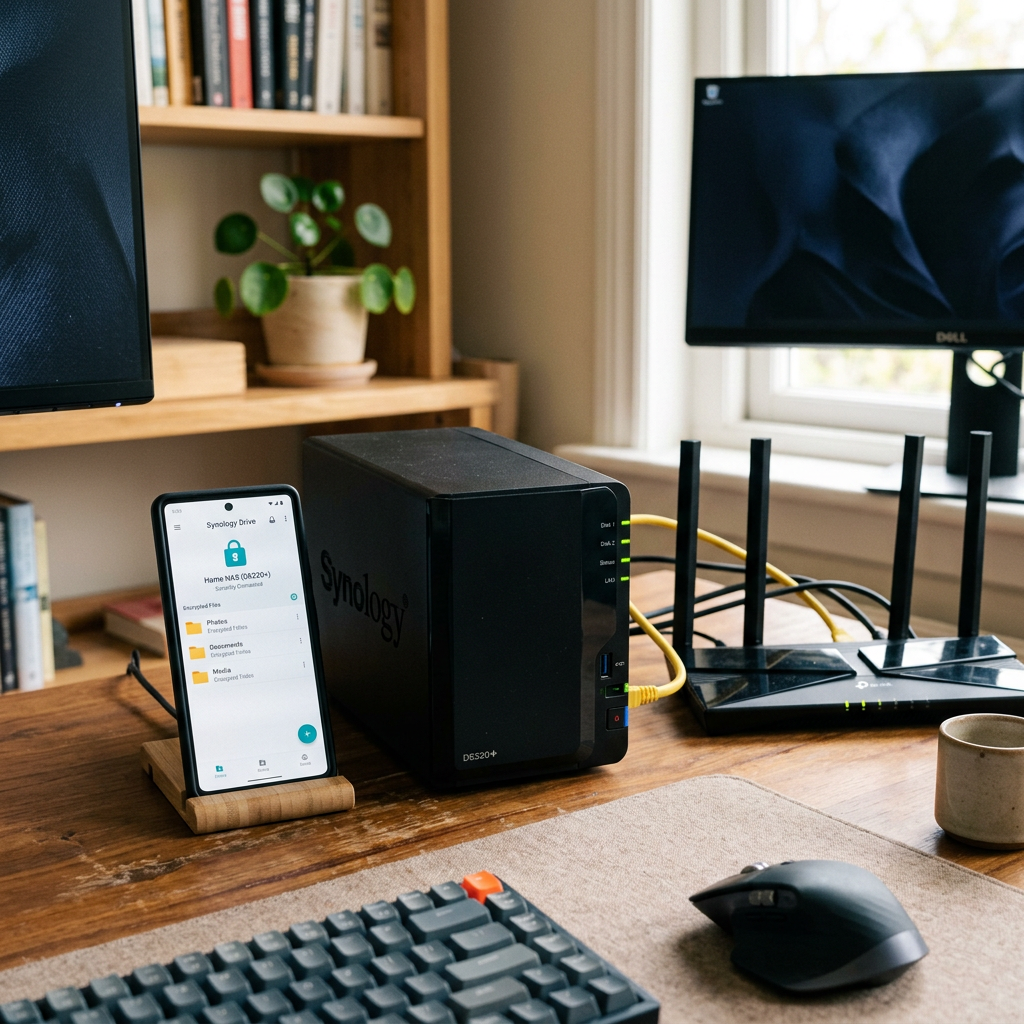
Tag: self hosted

  • How to Access Home Assistant Remotely with Tailscale on a NAS (No Port Forwarding Required)

    How to Access Home Assistant Remotely with Tailscale on a NAS (No Port Forwarding Required)

    One of the biggest things I wanted after setting up Home Assistant was reliable remote access.

    At first, I assumed this would be simple. Install Home Assistant, install the mobile app, sign in remotely somehow, and that would be the end of it.

    The deeper I got into self hosting though, the more I realised remote access is one of those areas where things become complicated surprisingly quickly. Every guide seemed to recommend something different, from opening ports on the router to setting up reverse proxies, SSL certificates, Cloudflare tunnels and domain names.

    None of those things are inherently bad, but when you are still building your understanding it becomes difficult to know what is actually necessary and what is just adding complexity.

    There was another factor as well: subscriptions. I completely understand why Home Assistant Cloud exists and for many people it is probably the right solution. But like a lot of people these days, it feels as though everything wants a monthly fee.

    I was not trying to avoid spending money entirely. I just wanted to see if I could achieve reliable and secure remote access using the hardware and software I already had, without exposing Home Assistant directly to the internet while I was still figuring things out.

    That is what led me to Tailscale. It gave me a way to get remote access working without turning it into a much bigger networking project.

    My setup

    For reference, this is the setup I am currently running.

    The NAS itself is a UGREEN NASync DXP2800 running Docker containers for both Home Assistant and Tailscale. If you’re interested in the hardware itself, I covered my experience in my  UGREEN NASync DXP2800 Review After 2 Months.

    There is no port forwarding, no reverse proxy, no public Home Assistant exposure, and no Home Assistant Cloud subscription.

    That probably sounds restrictive at first, especially if you spend enough time reading forums where people are building very advanced setups. But honestly, that was exactly the point.

    Despite working in IT, I did not want this to become a project that required constant maintenance. I wanted something that was secure, made sense, and just worked day to day without needing to be constantly revisited.

    Just because a solution is more advanced does not automatically make it better for your situation. For me, the goal was not to build the most complex setup possible. It was to build one that was secure, reliable, and easy to live with long term.

    That is what pushed me towards Tailscale.

    Why I chose Tailscale

    The biggest reason was simplicity, not because the alternatives were beyond me, but because I was trying to solve a specific problem rather than build a networking project.

    There are plenty of ways to provide remote access to Home Assistant. You can use reverse proxies, SSL certificates, Cloudflare tunnels, domain names, port forwarding and various other combinations depending on how much control you want.

    The problem is that every additional layer becomes something else to configure, secure and maintain.

    For some people that is part of the hobby, and there is nothing wrong with that. For me, the goal was simply to access Home Assistant securely when I was away from home.

    Tailscale felt like a very clean solution to that problem. Instead of exposing Home Assistant publicly and then protecting it afterwards, it creates a private encrypted network between devices you already trust.

    In practice, that meant my phone could communicate directly with my NAS without Home Assistant ever being exposed to the public internet.

    That shift in approach made everything much easier to reason about. I was not publishing a service and securing it, I was extending a private network.

    For a home setup, that balance between simplicity, security and reliability was hard to ignore.

    The benefit I was not expecting

    When I first started looking at remote access, I was focused almost entirely on Home Assistant. The goal was simply to be able to open dashboards and make sure automations worked when I was away from home.

    What I did not really think about at the time was that I was solving a much bigger problem.

    Once Tailscale was working, Home Assistant was only one of the things I could access remotely. I also had other services running on my NAS, including my Recipe App and Home Dashboard. Several of these are applications I discussed in my  Docker Containers I Still Use One Year Later article, and Tailscale effectively gave me secure remote access to all of them at the same time.

    That was the point where it clicked. Tailscale stopped feeling like a Home Assistant tool and started feeling like part of the underlying infrastructure of my home network. The more services I added locally, the more useful it became.

    The Home Assistant benefits were still significant. Presence detection became more reliable, location updates worked more consistently, and geofenced automations behaved the way I expected them to.

    But the bigger takeaway was that I only needed to solve remote access once. Every service I run now, and anything I add in the future, can use the same setup.

    Before you start

    This guide assumes you already have Home Assistant running and accessible on your local network.

    If you are starting from scratch, make sure you can access Home Assistant locally first, for example:

    http://192.168.x.x:8123

    Do not move on until this works reliably. Otherwise you end up troubleshooting multiple things at once.

    Checking Home Assistant locally

    Before adding Tailscale, confirm Home Assistant is actually listening on port 8123.

    sudo ss -tulpn | grep 8123

    You should see Home Assistant (usually as python3) listening on that port. If not, fix that first.

    Installing Tailscale in Docker

    Tailscale running as a Docker container on a UGREEN NAS alongside other self-hosted applications.
    Tailscale running as a Docker container on my UGREEN NAS.

    Install Tailscale as a Docker container on your NAS.

    docker pull tailscale/tailscale:latest
    docker run -d \
    --name=tailscale \
    --hostname=nas \
    --network=host \
    --cap-add=NET_ADMIN \
    --cap-add=NET_RAW \
    -v tailscale-data:/var/lib \
    tailscale/tailscale:latest

    Check the logs to get the authentication link:

    docker logs tailscale

    Open the URL shown, sign in, and approve the device.

    Make sure to click this link right away, as Tailscale login URLs expire after a few minutes. If it has expired, simply restart the container or re-check the logs to generate a new one.

    Note: In this example, Tailscale stores its configuration in a Docker named volume called tailscale-data. If you prefer to keep your container data in a specific folder for easier backups or management, you can replace the named volume with a local path that suits your environment.

    For example:

    -v /path/to/tailscale-data:/var/lib

    The exact location will depend on your operating system, NAS, or Docker setup.

    Verify the connection:

    docker exec -it tailscale tailscale status

    Setting up Tailscale on your phone

    Tailscale mobile app showing connected devices and assigned tailnet IP addresses.
    The Tailscale app lets you confirm your devices are connected and quickly find your NAS Tailscale IP address.

    Installing Tailscale on the NAS is only half of the setup. You also need it running on the device you actually want to connect from, which in my case is my iPhone.

    Download the Tailscale app from the App Store and sign in using the same account you used to authenticate the NAS. Once signed in, your phone will appear in your Tailscale admin console alongside your NAS.

    At that point, your phone is part of the same private network. Your phone is no longer “connecting into” your home network, it is effectively part of it.

    One useful thing is that the Tailscale app shows all connected devices and their assigned IP addresses. That means you can quickly check your NAS Tailscale IP directly from your phone without needing to SSH in.

    This is useful when setting things up or troubleshooting because you can confirm:

    • your NAS is online
    • your phone is connected to the tailnet
    • the correct Tailscale IP is being used

    Finding the Tailscale IP

    Get the Tailscale IP:

    docker exec -it tailscale tailscale ip -4

    You will get something like:

    100.x.x.x

    Use that to access Home Assistant remotely:

    http://100.x.x.x:8123

    This uses HTTP, not HTTPS. Tailscale already encrypts the connection, so forcing HTTPS here will break things.

    Configuring the Home Assistant Companion App

    Home Assistant Companion App server settings showing internal and external URL configuration.
    Directly after “Configuring the Home Assistant Companion App” and before you explain Internal vs External URLs.

    In the Home Assistant Companion App, you need to set the Internal URL and External URL.

    On iPhone, open the app and go to:

    Settings → Companion App → Server Settings

    (If you have multiple servers configured, tap your server first, then open Server Settings.)

    Use your local IP for Internal URL:

    http://192.168.x.x:8123

    Use your Tailscale IP for External URL:

    http://100.x.x.x:8123

    Both should use HTTP. Tailscale already encrypts the connection, so you do not need HTTPS here.

    Once set, back out of the menu and give the app a few seconds to reconnect. If everything is correct, it should connect both on WiFi and over Tailscale without any errors.

    VPN On Demand on iPhone

    One thing I highly recommend enabling is VPN On Demand inside the Tailscale app.

    Enable it for both WiFi and cellular so the connection is automatic. That way you do not need to remember to manually connect before opening Home Assistant.

    This makes the whole setup feel much more seamless day to day and also improves reliability for things like presence detection and geofenced automations because your phone maintains a consistent connection back to Home Assistant.

    The issue that caused the most confusion

    The biggest problem I hit was not Home Assistant. It was Tailscale Serve taking over port 8123.

    sudo ss -tulpn | grep 8123

    If you do not see Home Assistant on that port, something else has taken it.

    Fix it with:

    tailscale serve reset

    Hardware I Use

    Before I wrap up, a quick note: some of the links below are Amazon affiliate links. If you choose to purchase through them, I may earn a small commission at no additional cost to you. I only recommend products I personally use or have hands-on experience with.

    The software in this guide is free, but if you’re curious about the hardware behind my setup, this is what I currently use:

    I’ve been using this setup for Home Assistant, Docker containers, remote access through Tailscale, and various self-hosted projects. If you’re building something similar, these are the components I have the most hands-on experience with.

    Final thoughts

    Tailscale ended up being one of the most useful additions to my setup, not because it was flashy, but because it removed friction.

    Once it was configured, I stopped thinking about remote access entirely. Combined with a stable home network, which I discussed in  What Actually Happens on Your Network (Why WiFi Feels Inconsistent), it became one of those rare pieces of infrastructure that simply fades into the background and does its job.

    There are more advanced ways to achieve the same result, and for some setups they will make sense. But for me, this struck the right balance. It solved the problem I actually had without introducing more moving parts to maintain.

    Looking back, that was the biggest win. Not just remote access, but a simple foundation I can keep building on without having to rethink it every time I add something new.

  • How to Design a Reliable Smart Home (Using Datacenter Principles)

    How to Design a Reliable Smart Home (Using Datacenter Principles)

    Most people do not think about infrastructure when building a smart home.

    They buy a few smart bulbs, maybe a camera or two, add a smart speaker, and slowly build up automation over time. Everything works well enough until the day something goes wrong.

    The internet drops. The router crashes. A power outage hits.

    Suddenly the entire smart home stops being smart.

    After working in datacenters for years, I cannot help noticing the difference between how systems are designed at work compared to how most homes are set up. In a datacenter, failure is not a surprise. It is expected. Systems are designed with that in mind from day one.

    At home, the opposite is usually true. Devices are added one by one with very little thought about what happens if something breaks.

    The interesting thing is that you do not need enterprise hardware or complicated setups to borrow some of those design principles. A few small decisions can make a home setup far more reliable.

    Typical smart home vs infrastructure focused smart home network diagram
    A typical smart home often relies on a single router, creating a single point of failure. Adding infrastructure like UPS protection, segmentation, and local automation improves reliability significantly.

    Design With Failure in Mind

    One of the biggest mindset differences between home setups and datacenters is the assumption that things will fail.

    Hard drives fail. Networks crash. Power goes out.

    In a professional environment the question is rarely if something will fail. The real question is what happens when it does. Disks fail, switches reboot, firmware bugs appear, and power drops unexpectedly. Systems are designed so that these events do not bring everything down at once.

    Most homes are not built this way. There is usually a single router handling WiFi, internet access, and often the entire smart home platform. If that device stops working, everything connected to it stops too.

    I experienced this myself early on when my network dropped and suddenly Alexa became completely unresponsive. At the time, almost everything in the house relied on voice control. Without the network, nothing worked.

    There are plenty of other small failures that can cause the same frustration. A router firmware update might reboot unexpectedly. An ISP outage can disconnect cloud services. A failing disk in a NAS can degrade performance long before it completely dies.

    It was a good reminder that smart homes are only as reliable as the infrastructure behind them.

    Since then I have tried to make sure that if something fails, it does not take the entire house down with it.

    Smart home infrastructure stack showing power, network, platform, device and automation layers
    A reliable smart home works like an infrastructure stack. Power and networking support the platforms, devices, and automations above them.

    Protect the Power First

    In a datacenter, power protection is taken extremely seriously. Sudden power loss can damage systems, corrupt data, or bring down services unexpectedly.

    At home, most people plug everything directly into the wall and hope for the best.

    One of the first things I recommend for anyone running a NAS, router, or home server is a UPS (uninterruptible power supply).

    A UPS does two very simple but important things.

    First, it protects equipment from sudden power loss. This prevents things like NAS corruption when drives are actively writing data.

    Second, it gives systems enough time to shut down safely during longer outages.

    In my own setup, the UPS is dedicated to the NAS itself. It is a NAS-specific unit designed to protect the system during outages, allowing it to shut down gracefully rather than losing power abruptly. That has already proven useful in practice. During power cuts, the UPS has kept the NAS running long enough to shut down properly, and when power returns, the NAS powers back up without drama.

    My router is not currently backed up in the same way. If I needed temporary network power during an outage, I do at least have an EcoFlow River Pro 2 available as a fallback, but that is a more manual solution rather than something permanently integrated into the setup.

    If you are curious about the specific unit I use, I covered it in detail in my review of the UGREEN US3000 NAS UPS:

    UGREEN US3000 NAS UPS review

    I also wrote a broader overview of different backup power approaches for smart homes here:

    Smart home power backup solutions

    Backups Should Not Live in the Same House

    Another lesson from working with infrastructure is that backups only matter if they survive disasters.

    A lot of people buy a NAS thinking they are now fully protected. In reality, a NAS alone is not a backup strategy.

    If the NAS fails, gets stolen, or the house experiences fire or flood damage, the data disappears along with it.

    This is why many professional environments follow the 3-2-1 backup rule:

    • 3 copies of your data
    • stored on 2 different types of media
    • with at least 1 copy stored off site

    At home the same logic applies.

    If you are running a NAS at home, this becomes even more important. I run my own storage on a UGREEN NASync system, which I reviewed after two months of real-world use:

    UGREEN NASync DXP2800 review after two months

    In my case I automate off site backups using rclone to send encrypted backups to cloud storage on Azure:

    Automated NAS backups with rclone

    In my case I run backups from my NAS to an external location so that important data exists in more than one physical place. Even if something catastrophic happened to the house, the data would still exist elsewhere.

    Network Segmentation Without Overcomplicating Things

    In datacenters, networks are carefully segmented so different systems do not interfere with each other.

    Most homes run everything on a single flat network.

    Phones, laptops, cameras, smart plugs, TVs, and automation devices are all mixed together. For many homes this works fine, but as the number of devices grows it can start to cause problems.

    One approach borrowed from professional infrastructure is network segmentation. This separates certain devices from the rest of the network so they operate in their own space.

    The good news is that modern routers have started making this easier.

    For example, my current router, the TP-Link Deco BE85, includes a dedicated IoT network designed specifically for smart home devices.

    I covered the router itself in more detail in my full review here:

    TP-Link Deco BE85 review

    Modern routers are also beginning to support newer local first smart home standards. The Deco BE85 can act as a Thread Border Router, allowing Thread based devices to communicate locally without relying on cloud services.

    This fits well with the broader idea of building a resilient smart home infrastructure. If the internet connection drops, devices that communicate locally can continue working rather than becoming completely unresponsive. This allows things like cameras, smart plugs, and sensors to live on their own network while the main network handles laptops, phones, and other personal devices.

    This provides some of the benefits of network segmentation without needing to manually configure VLANs or advanced networking features.

    Monitoring Matters More Than You Think

    In professional infrastructure environments, systems are constantly monitored.

    Disk health is checked. Power status is monitored. Alerts are triggered when something starts to fail.

    At home, problems are often discovered only after something stops working.

    Many NAS systems already include built in monitoring tools that track things like SMART disk data, temperatures, and system health. These systems can send alerts if a drive begins reporting errors or if something starts behaving unexpectedly.

    Catching a failing disk early is far less stressful than discovering the problem after the array degrades or fails.

    Even simple notifications can prevent major data loss.

    Cloud Dependence Is a Hidden Weak Point

    Smart homes often rely heavily on cloud services.

    Voice assistants, device integrations, and automation platforms frequently depend on an active internet connection to function. When the internet goes down, the entire system can suddenly stop responding.

    Since then I have tried to favour systems that can run locally where possible. Platforms like Home Assistant allow smart home devices to continue working even if the internet connection drops.

    I run Home Assistant directly on my NAS, and documented the setup here if you are interested in building a similar local first automation system:

    Installing Home Assistant on a UGREEN NAS

    This reduces reliance on external services and keeps automations functioning even during outages.

    A Simple Smart Home Reliability Checklist

    If you want a quick starting point, a few small decisions can make a surprisingly big difference.

    • Reliable router and stable home network
    • UPS protecting network equipment and NAS
    • Automatic NAS backups
    • Off site backup copy
    • Local automation where possible

    None of these require enterprise hardware, but together they dramatically improve reliability.

    You Do Not Need a Datacenter in Your House

    All of this might sound like over engineering, but the goal is not to turn a home into a miniature datacenter.

    The real takeaway is simply thinking about reliability earlier.

    A reliable router.

    A UPS protecting important devices.

    A backup strategy that survives disasters.

    Those three things alone already make a smart home far more resilient than most.

    Final Thoughts

    Working in datacenters has probably made me overly cautious about infrastructure. When you spend your days thinking about redundancy, monitoring, and failure scenarios, it is hard not to apply that thinking at home as well.

    The funny thing is that once you start thinking this way, it becomes difficult not to apply it everywhere. You start asking small questions most people never consider.

    What happens if the router dies?

    What happens if the internet drops?

    What happens if a drive fails overnight?

    Those questions are exactly what keep datacenters running smoothly. And surprisingly, they work just as well in a normal home.

    The good news is that building a reliable smart home does not require enterprise budgets or complicated setups.

    It mostly comes down to a few sensible design choices and remembering one simple principle.

    Things will eventually break. Planning for that ahead of time makes everything else work far more smoothly.

  • How I Actually Use a NAS Day to Day After the Setup Phase

    How I Actually Use a NAS Day to Day After the Setup Phase

    When people talk about NAS devices online, it usually falls into two extremes. Either everything is a shiny demo during the first week, or it turns into an over engineered home lab that barely resembles normal use.

    Both miss what actually matters long term.

    This post is about what ownership looks like after the excitement fades. When the NAS stops being a project and starts being part of daily life. What still runs, what quietly disappeared, and which decisions ended up saving time rather than creating more work.

    If you are trying to decide whether a NAS makes sense beyond the initial setup phase, this is the part that usually gets skipped.


    What runs 24 hours a day

    These are the services that stay on permanently because they deliver value without demanding attention.

    Automated backups (local first, cloud as insurance)

    Local backups are the foundation of my setup. Both my MacBook and my wife’s MacBook back up automatically to the NAS, and our iPhone photo libraries are included as well. Once configured, this becomes invisible. Devices back up when they are on the network, and there is nothing to remember or trigger manually.

    On top of that, I use Azure Blob Storage as an off site insurance layer, not as a requirement and not as something I would tell everyone to do.

    If you are running a four bay NAS with RAID and your data lives entirely at home, an off site backup is a nice to have rather than a must have. Local redundancy already covers most everyday failures. The cloud layer exists to protect against unlikely but high impact events such as theft, fire, or total hardware loss.

    In my case, I am storing roughly 3TB in the Cool tier with RA GRS enabled, meaning the data is replicated across regions. This currently costs around $65 to $70 per month, and the cost is dominated by geo replication, cool tier storage, and write operations.

    I have not had to restore from this backup yet, which is exactly how I want it to be. It exists purely for peace of mind rather than day to day recovery.

    The backups are handled using rclone, which gives me full control over scheduling, encryption, bandwidth usage, and retention policies. It also avoids vendor lock in. If I ever decide to move away from Azure, the tooling stays the same. I have a full breakdown of how this is set up in my rclone backup guide.


    Core Docker services

    A small number of Docker containers run continuously because they support everything else I rely on.

    Home Assistant is always running. It handles automations, device integrations, and state tracking quietly in the background. I rarely interact with it directly day to day, which is exactly the point. When automations are reliable, they disappear from your attention entirely.

    This pattern repeats across the setup. Anything that needs constant monitoring or manual intervention does not survive long term.


    What runs occasionally

    These are tasks that exist to maintain confidence in the system rather than provide convenience.

    Maintenance and administration

    I do not actively manage the NAS day to day, but I do check in periodically.

    This usually means:

    • Updating Docker containers when meaningful updates are released
    • Applying NAS firmware updates
    • Reviewing SMART data and disk health
    • Confirming backups are still completing as expected

    This happens infrequently, often weeks apart. The goal is not optimisation or performance tuning. It is reassurance. I want to know the system is still healthy and behaving as expected.

    Manual actions

    Some things are intentionally kept manual.

    I occasionally restore files from backups to confirm that restores actually work. This is not something I do often, but it matters. A backup that has never been tested is only theoretical protection.

    Container updates are another example. While critical updates are automated, some applications require manual updates or restarts. I prefer this balance. Automation handles the boring and predictable parts, while I stay in control of anything that could cause disruption.

    These interactions are rare, but deliberate. Over time, they build trust in the system rather than add ongoing work.


    What I am actively planning to add

    This is where the role of the NAS will expand beyond storage and background services.

    PoE security cameras

    I am preparing to move away from battery powered cameras and into a PoE based setup once UGREEN’s native cameras are available.

    At the moment, I use SwitchBot outdoor cameras. They are genuinely good cameras, but battery management is a constant friction point. I have already run USB power to some of them, and in one location that cable is far from ideal. It works, but it is not how I want fixed infrastructure to be installed.

    The plan is to introduce a dedicated PoE switch and run Ethernet to each camera location. CAT5e, CAT6, and even CAT7 will all work for PoE cameras. In practice, CAT6 offers a good balance of reliability, shielding, and future flexibility without chasing specifications that add little real world benefit. The priority here is consistency rather than speed.

    The appeal of the upcoming UGREEN cameras is not just PoE. Features like local AI processing, tight NAS integration, and removing subscription dependencies are exactly what I want. I have already covered those features in detail in my UGREEN SynCare AI Home Security NAS post.

    Once deployed, the NAS shifts from being storage and services into proper local surveillance infrastructure, with recordings kept on site and fully under my control.


    What I use it for beyond storage

    A family recipe web app

    One use case I did not originally plan for is hosting small, purpose built applications.

    I am currently building a simple web app to store and manage family recipes. Rather than paying for another subscription or relying on third party apps, it runs locally in Docker and does exactly what we need. No ads, no accounts, and no recurring costs.

    This is a good example of where a NAS quietly replaces paid services. The value is not complexity, but ownership and flexibility over time.

    Media streaming

    I originally used Plex for media streaming, but over time I moved to Jellyfin.

    Plex increasingly depends on user accounts, cloud services, and paid tiers. Pricing changes, features moving behind subscriptions, and past security incidents eventually made me uncomfortable with the direction of the platform.

    Jellyfin is fully self hosted. There is no account requirement, no cloud authentication, and no external dependency. Everything stays local. The trade off is less polish, but the benefit is full control.

    For my usage, that trade off is worth it. Media playback should not depend on an external service being online, a subscription remaining valid, or an account existing at all. Once everything is local, media becomes another background service rather than something that needs to be managed.


    Built in apps I still use

    While Docker handles most workloads, I do not avoid built in NAS features entirely.

    I actively use:

    • The UGREEN photo app for managing local photo libraries
    • The UGREEN UPS integration in the control panel for monitoring power events and safe shutdowns (US3000 UPS review)

    The difference is intent. I use built in apps where they add value and integrate tightly with the system, and Docker where flexibility matters more.


    What surprised me over time

    Stability changes how you think about performance

    I still care about performance, but I no longer obsess over it. The system has proven itself stable under real workloads, which means I spend less time watching metrics and more time trusting the platform.

    A NAS becomes background infrastructure

    Once configured properly, a NAS fades into the background. That is a good thing. It should feel closer to household infrastructure than a gadget you constantly interact with.

    Simplicity scales better than features

    The setups that lasted were the simple ones. Anything that added complexity without a clear benefit was eventually removed.


    Who this kind of setup is actually for

    This approach works well for people who want reliability first.

    If you enjoy constant tweaking, experimentation, and rebuilding, there is nothing wrong with that. Some people genuinely enjoy running a home lab as a hobby.

    For me, the NAS is not a hobby. It is infrastructure. I want it to work, recover gracefully when something goes wrong, and stay out of the way the rest of the time.


    When something goes wrong

    This is where the setup really earns its keep.

    Things do go wrong occasionally. Files get deleted by mistake. Power drops unexpectedly. A service stops behaving the way it should. The difference now is that these situations are no longer disruptive.

    If a file is deleted, it is a restore job, not a panic. If there is a power cut, the UPS handles shutdown cleanly and everything comes back up without intervention. If something looks off, I already know where to check and what a healthy system looks like.

    Even the worst case scenarios are planned for. Local backups cover day to day mistakes. Off site backups exist for events I hope never happen. Nothing relies on a single point of failure that would force me to scramble.

    That is the real outcome of this setup. Not that failures never happen, but that they stop being stressful when they do.


    Why this setup works long term

    Owning a NAS is not exciting long term, and that is exactly why it is worth having.

    Once the setup phase is over, it becomes dependable infrastructure. Files are protected locally, off site backups exist for worst case scenarios, automations run quietly, and services behave predictably.

    The goal was never to build the most complex setup possible. It was to build something that reduces friction over time.

    A setup like this saves more than money. It saves attention. Fewer batteries to charge, fewer subscriptions to track, fewer dashboards to check, and fewer decisions to revisit.

    That is the real value of a NAS once you stop treating it like a project and start treating it like infrastructure.

    If you’re thinking through a similar setup and want a second opinion, I’m always happy to talk it through!