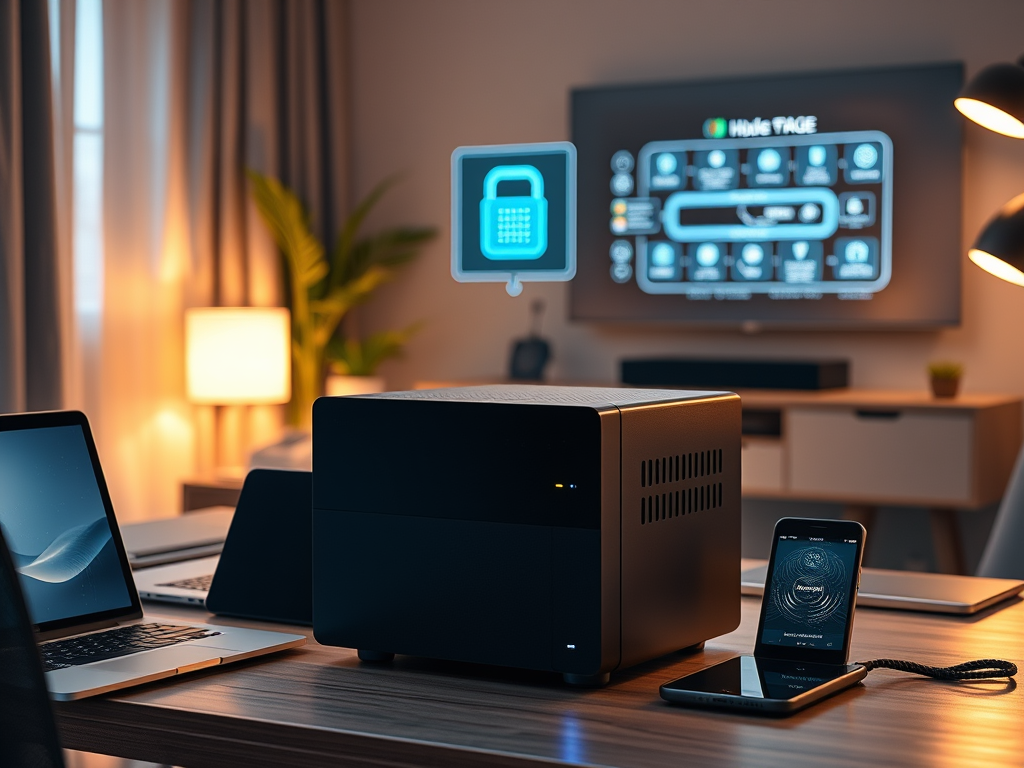
Introduction: Why NAS?
Running out of storage on your devices? Tired of juggling multiple external drives?
Whether you’re dealing with photos, videos, smart home backups, or business documents, traditional storage options like external hard drives or cloud services have limitations. What if you could have a private, secure, and expandable cloud—accessible from all your devices?
This is where Network Attached Storage (NAS) comes in. NAS is more than just an external hard drive; it’s a smart storage solution that allows you to back up, share, and access data across multiple devices—anytime, anywhere. But is a NAS right for you? Let’s break it down.

1. What Is NAS?
NAS (Network Attached Storage) is a device that connects to your home network, allowing multiple devices to store, access, and manage files from anywhere on your local network (and remotely, if configured).
Unlike a regular external hard drive, NAS is always on, accessible from multiple devices, and can have RAID (Redundant Array of Independent Disks) for data protection.
How NAS Works in a Home Network
- Connects to your router via Ethernet.
- Acts as a central storage hub for computers, phones, smart TVs, game consoles, and even security cameras.
- Allows for automated backups, media streaming, and private cloud hosting.

2. NAS vs. DAS vs. External Drives vs. Cloud Storage
Choosing the right storage option depends on how you use your data. Here’s how NAS compares to Direct-Attached Storage (DAS), external drives, and cloud storage.
| Feature | NAS (Network Storage) | DAS (Direct-Attached Storage) | External Drive | Cloud Storage |
|---|---|---|---|---|
| Accessibility | ✔ Remote & Local | ❌ Local Only | ❌ Local Only | ✔ Remote Access |
| Multiple Device Access | ✔ Yes | ❌ No | ❌ No | ✔ Yes |
| Expandable Storage | ✔ Yes | ✔ Some models | ❌ No | ✔ Paid Tiers |
| Reliability & Backup | ✔ RAID Options | ❌ No RAID (unless RAID enclosure) | ❌ Single Drive Failure | ✔ Managed Backups |
| Security & Privacy | ✔ Private, self-hosted | ✔ Private | ✔ Private | ❌ Relies on 3rd Party |
| Best For | Home network, automation, backups | Fast external storage for one device | Simple personal storage | Remote, multi-device sync |
When Should You Use Each?
✔ NAS: You need a centralized, multi-device storage solution with remote access and automated backups.
✔ DAS: You want faster, direct storage for a single computer (e.g., video editing, gaming, or workstation backups).
✔ External Drive: You need simple, portable storage and don’t require multi-device access.
✔ Cloud Storage: You want convenience and don’t mind subscription costs & third-party control.
3. Key Benefits of Using a NAS
✅ Private Cloud Storage
A NAS allows you to host your own cloud, meaning you can store, access, and sync files without relying on Google Drive, Dropbox, or OneDrive.
✅ Automated Backups
- Set up scheduled backups for all your devices.
- Redundancy with RAID prevents data loss in case of drive failure.
✅ Media Streaming (Plex, Kodi, etc.)
- Store and stream movies, music, and photos directly from your NAS.
- Works with smart TVs, tablets, and game consoles.
✅ Security & Control
- Your data stays with you—no third-party access.
- Encrypted storage and user permissions provide extra security.
✅ Smart Home & Surveillance Support
- Store security camera footage instead of paying for cloud subscriptions.
- Keep smart home automation logs for later review.
4. Do You Need a NAS?
✔ You work with large files and need reliable backups.
✔ You want your own private cloud instead of paying for cloud storage.
✔ You have multiple devices and need centralized storage.
✔ You want to stream movies, music, and photos locally.
✔ You have a smart home setup or security cameras.
🚫 You might not need a NAS if:
- You only need basic file storage (a USB drive may be enough).
- You don’t mind using Google Drive, Dropbox, or OneDrive.
- You prefer a cheaper, simpler storage option.

5. Next Steps: What’s Coming Next?
Now that you understand why a NAS is useful, the next step is learning how to set one up.
📌 Coming Soon: “Beginner’s Guide to Setting Up a NAS – Choosing the Right Storage Configuration.” 🚀
Do you use a NAS, or are you considering one? Let me know in the comments!
Leave a Reply